The short answer. A folded booklet never prints 1, 2, 3 in a row — the pages must be rearranged so they line up after folding. Whatever you wrote it in (Google Docs™, Word, Canva or anything that saves a PDF), save a PDF and print it with the Booklet option in the free Adobe Acrobat Reader. In Google Docs, an add-on can also build the booklet PDF for you.
Checked: October 15, 2026.
Why the pages come out in the wrong order
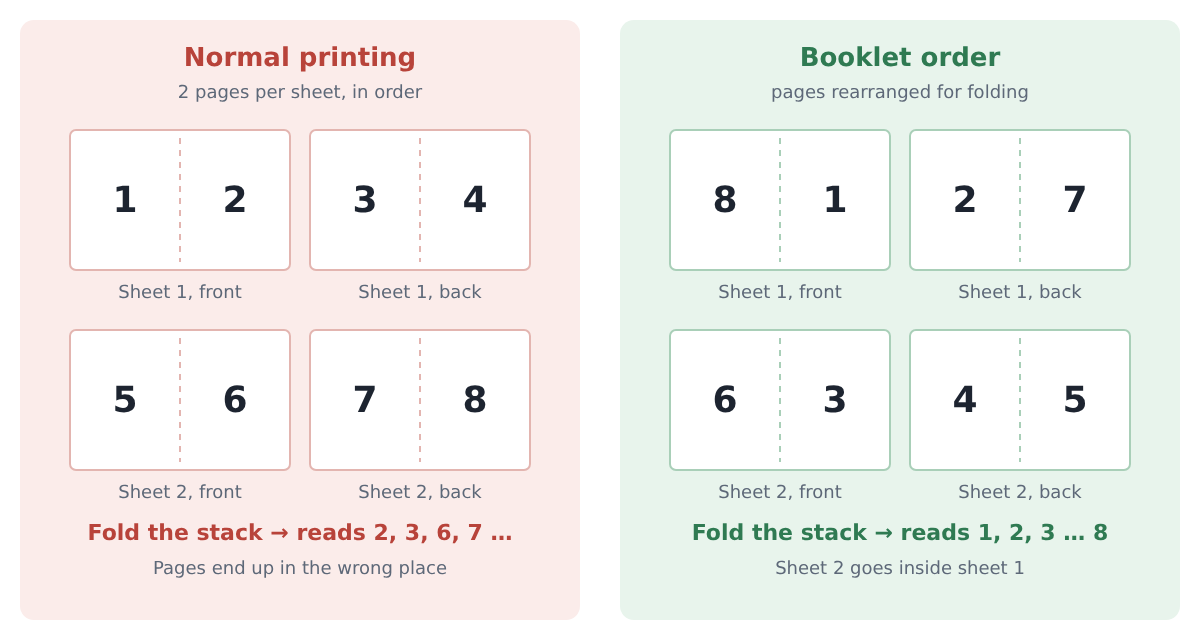
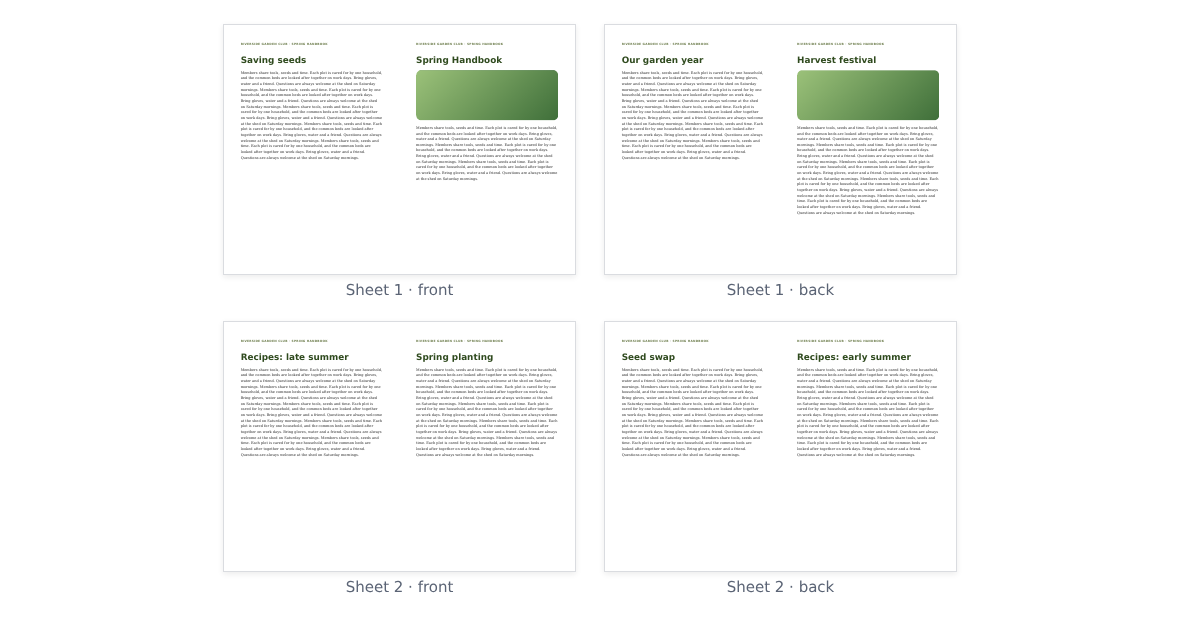
Each sheet of paper carries four pages: two on the front, two on the back. For an 8-page booklet on two sheets, the pages must sit like this:
- Sheet 1, front: page 8 and page 1
- Sheet 1, back: page 2 and page 7
- Sheet 2, front: page 6 and page 3
- Sheet 2, back: page 4 and page 5
Printers call this order imposition. Normal printing, or “2 pages per sheet”, puts pages 1 and 2 side by side instead, so the stack reads out of order once you fold it. The page count must also be a multiple of 4.
The free fix for any PDF: Adobe Acrobat Reader
- Save your document as a PDF (in Google Docs: File > Download > PDF Document (.pdf)).
- Open the PDF in Adobe Acrobat Reader and choose Print.
- Under Page Sizing & Handling, choose Booklet.
- Set Booklet subset to Both sides if your printer prints on both sides by itself. Otherwise print Front side only, put the stack back in the tray, then print Back side only.
- Set Binding to Left (for English and other left-to-right text).
- Print one copy first and check it before printing more.
Adobe’s own steps, with screenshots: Print booklets using Acrobat or Reader. Microsoft Word also has its own setting: Layout > Margins > Custom Margins > Multiple pages: Book fold.
Already printed and something is off?
- Pages are still out of order. You printed the normal PDF. Check that “Booklet” was chosen, or that you printed the booklet PDF an add-on made.
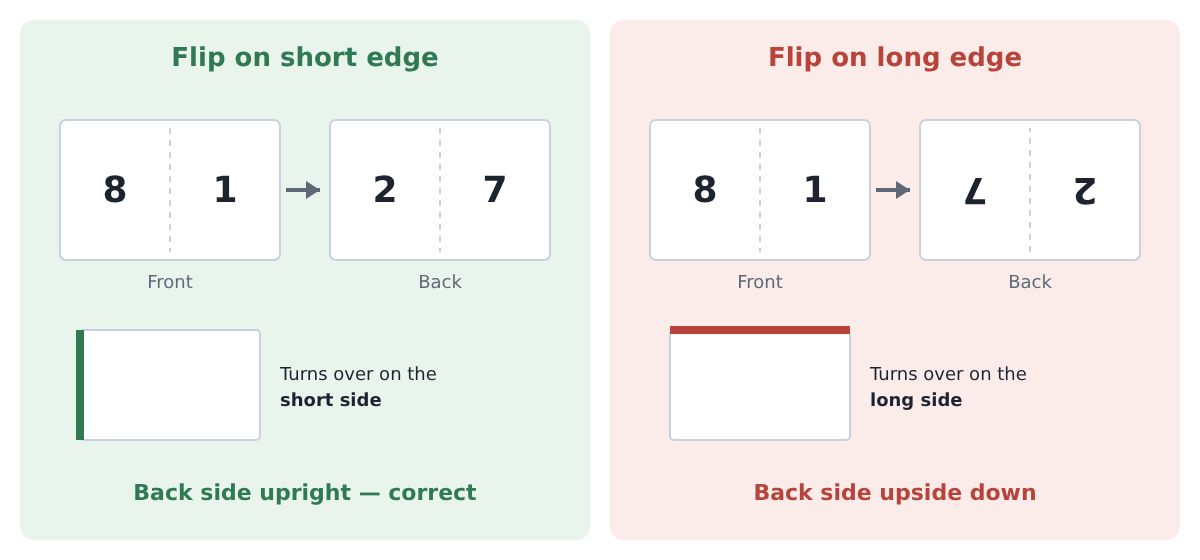
- Every back side is upside down. The printer flipped on the long edge. Choose “flip on short edge” in the printer settings.
- Text looks tiny. Each page was shrunk to half a sheet. Make the document’s page size half a sheet before you save the PDF (see the Google Docs section below).
- Words disappear into the fold. Widen the inside margins, or add a gutter.
- The stack is too thick to fold. Split it into two or more booklets, with a cover on each.
- Blank pages at the end. The page count was rounded up to a multiple of 4. Fill them, or use one as a back cover.
If you write in Google Docs
Google Docs has no booklet printing of its own (checked October 15, 2026). Two things make the result better.
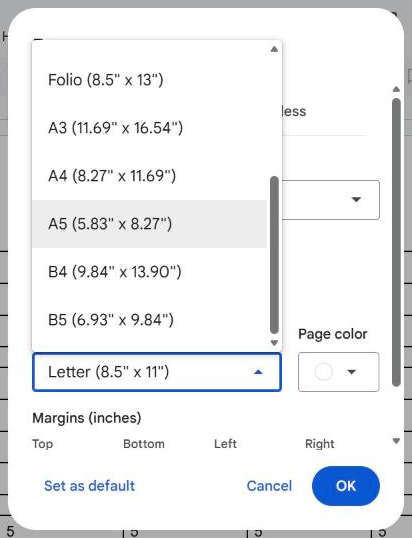
Set the page size first. Choose File > Page setup > Paper size, then A5 (to fold A4 paper) or Statement (5.5 × 8.5 in, to fold Letter paper). Then the text is not shrunk when it is printed half-size. Check line breaks and images after the change.
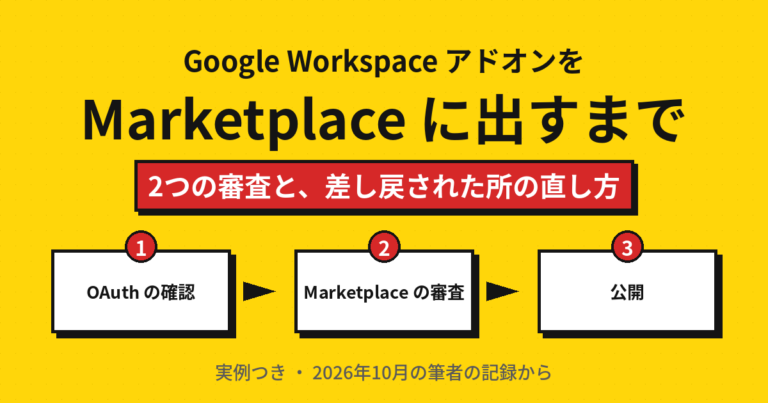
Or let an add-on build the booklet PDF. We make Pagefold. If the Acrobat Reader method works for you, you don’t need it.
- Install Pagefold for Docs™ from the Google Workspace Marketplace.
- In your Doc, choose Extensions > Pagefold for Docs™ > Make a booklet PDF.
- Choose the paper (A4, or Letter in the paid version), a gutter, and page numbers. Under Double-sided printing, keep “Flip on short edge (usual)” unless your printer can only flip on the long edge.
- Press Make booklet PDF. The PDF downloads to your computer.
- Print it double-sided, flip on short edge, at actual size (not “fit to page”).
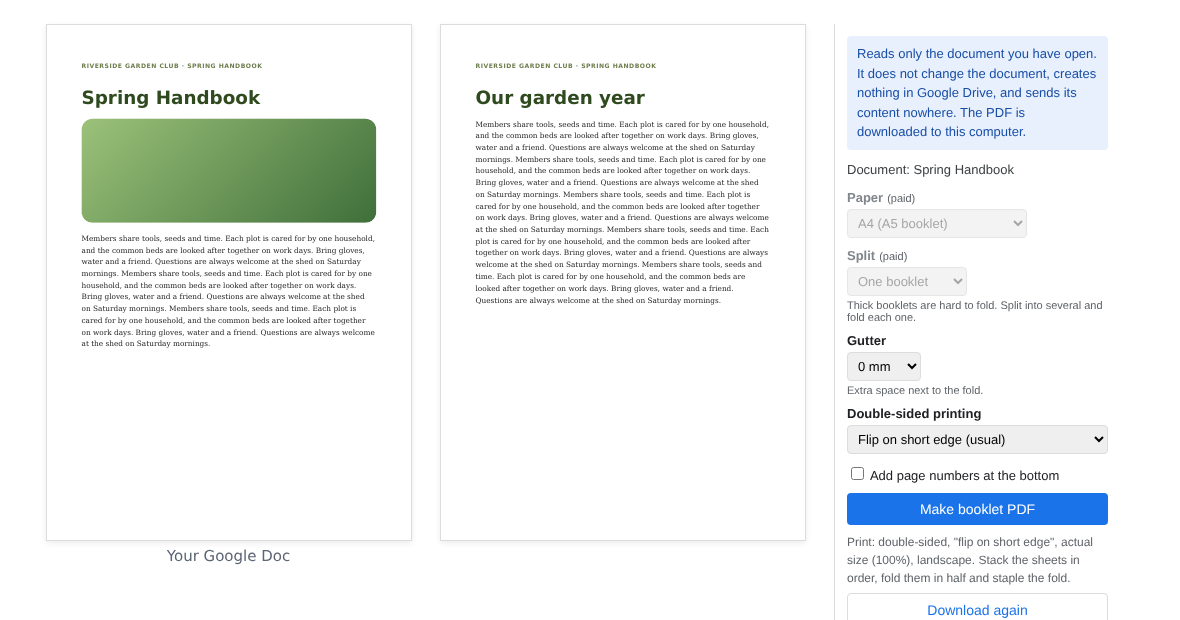
Pagefold reads only the Doc you have open. It does not change the Doc, creates nothing in Google Drive™, and builds the PDF in your browser.
Which method fits you
| Adobe Acrobat Reader (free) | Pagefold add-on (Google Docs only) | |
|---|---|---|
| Works with | Any PDF | Google Docs |
| Install | Desktop app (Windows or Mac) | Add-on inside Google Docs |
| Page order | Done when you print | Done in the PDF you download |
| Blank pages to reach a multiple of 4 | Added at the end | Added automatically |
| Gutter (space at the fold) | No | 0–10 mm |
| Long documents | One booklet | Split into several booklets (paid) |
| Cost | Free | Free up to 16 pages; $19 one-time for more |
Printing a booklet once a year? Start with Acrobat Reader. Redoing booklets from Google Docs often, printing from a Chromebook, or needing a gutter or several booklets? The add-on saves steps.
How many pages, and how many sheets?
A stapled booklet needs a page count that is a multiple of 4, because every sheet carries four pages. Count the blank pages too: a cover and a blank back page are part of the total.
| Pages | Sheets of paper | Order on the sheets (front, then back) |
|---|---|---|
| 4 | 1 | 4 and 1, then 2 and 3 |
| 8 | 2 | 8 and 1, 2 and 7, then 6 and 3, 4 and 5 |
| 12 | 3 | 12 and 1, 2 and 11, 10 and 3, 4 and 9, 8 and 5, 6 and 7 |
| 16 | 4 | 16 and 1, 2 and 15, 14 and 3, 4 and 13, 12 and 5, 6 and 11, 10 and 7, 8 and 9 |
Acrobat Reader works out this order for you. The table is only for checking that your printout is right: hold the first sheet and compare it with the first row of your page count.
No double-sided printer? Print one test sheet first
With a single-sided printer, print Front side only first, then put the printed sheets back in the tray and print Back side only. Which way the stack must face differs from printer to printer, so do not risk the whole stack. Print a 4-page test, mark the top of the first printed sheet with a pencil, reload it, print the back, and see whether the back lines up upright behind the front. Note the direction that worked, then run the real booklet.
Fold and staple
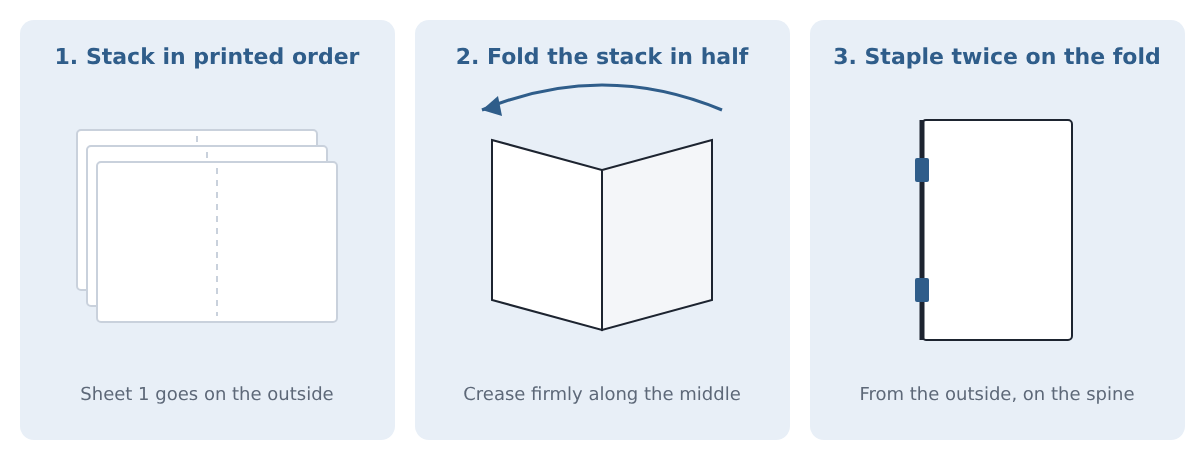
Stack the sheets in the order they came out, fold the whole stack in half, and staple twice on the fold from the outside. A long-reach stapler makes this easy; with a normal stapler, open it flat and staple into a piece of cardboard, then bend the staples closed by hand.
FAQ
- Can I fix the order by printing “2 pages per sheet”? No. That keeps pages 1 and 2 side by side, which is not the folding order.
- Does this work on a Chromebook? Acrobat Reader’s booklet printing is in the desktop app, which a Chromebook cannot run. Without an add-on, download the PDF from Docs, open it in Acrobat Reader on any Windows or Mac computer (at home, school or the library) and print it there. Many print shops can also print a PDF as a booklet. To stay in the Chromebook’s browser, use a Google Docs add-on.
- How many pages should my booklet have? A multiple of 4 (8, 12, 16 and so on). Anything else leaves blank pages at the end, which you can use as a back cover.
- The back of every sheet is upside down. What do I change? Set the printer to flip on the short edge for booklets.
- Can Google Docs print a booklet by itself? No, as of October 15, 2026. Its print options have no booklet setting.
Google Docs™ and Google Drive™ are trademarks of Google LLC. Adobe and Acrobat Reader are trademarks of Adobe. Microsoft Word is a trademark of Microsoft. This article is independent of all three.




コメント