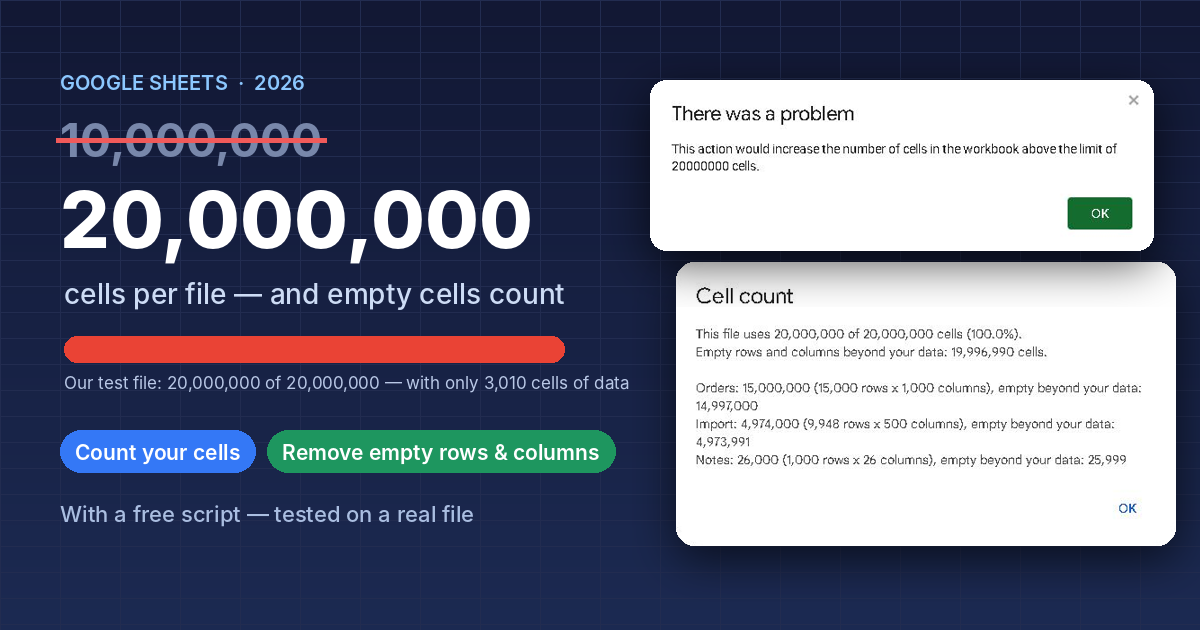
Google Sheets™ now allows 20 million cells per file, twice the old 10 million. But the limit counts every cell in every tab — empty ones included. In our test, a file with only 3,010 cells of data hit the limit and refused to add a new tab. Here is what changed, how to see how many cells your file really uses, and a free script that counts them and removes the empty rows and columns.
The short answer
- The limit is 20,000,000 cells per spreadsheet (Google rolled it out from September 10, 2026, including personal Google accounts). There is no setting to turn on.
- Empty cells count. A tab with 1,000 rows and 26 columns uses 26,000 cells even if it is blank.
- One tab can have up to 18,278 columns (we hit this limit in our test).
- To get room back, delete the empty rows below your data and the empty columns to the right. The script below shows the numbers for each tab and can do the deleting for you.
Checked: 2026-10-17, Google Sheets in Chrome.
What changed in 2026
- April 2026: Google opened a beta with the doubled limit (Workspace Updates).
- September 2026: the 20 million limit became available to everyone — Rapid Release domains from September 10, Scheduled Release domains from September 28, plus personal Google accounts (Workspace Updates).
- It applies to new, existing and imported files, including .xlsx and CSV imports. Google’s help page now lists “up to 20 million cells or 100MB” for spreadsheets created in or converted to Sheets (Google Drive Help).
Many articles still say 10 million. If your file stopped at 10 million before September, try again now.
What the limit counts
The limit is about the size of the grid, not the amount of data. For each tab, multiply its rows by its columns, then add all tabs together. A new blank tab is 1,000 × 26 = 26,000 cells.
To test this, we made a file with three tabs: 500 rows of real data in a tab stretched to 15,000 rows × 1,000 columns, a small import tab stretched to 9,948 × 500, and a blank tab. That adds up to exactly 20,000,000 cells. When we tried to add another tab, Sheets said:

Common causes: a CSV or Excel file with hundreds of mostly empty columns, or rows added with “Add 1000 more rows” again and again.
How to see how many cells your file uses
We did not find a place in the Sheets menus that shows the total. You can work it out by hand (rows × columns for every tab), or let this short script do it.
- In your spreadsheet, choose Extensions → Apps Script.
- Delete the sample code, paste the code below, and click Save.
- Reload the spreadsheet. A new menu, Cell count, appears next to Help.
- Choose Cell count → Count cells. The first time, Google asks you to allow the script. Because of the
@OnlyCurrentDocline, it asks for one thing only: to view and manage the spreadsheets the script is installed in. (In our test there was no “unverified app” warning.)
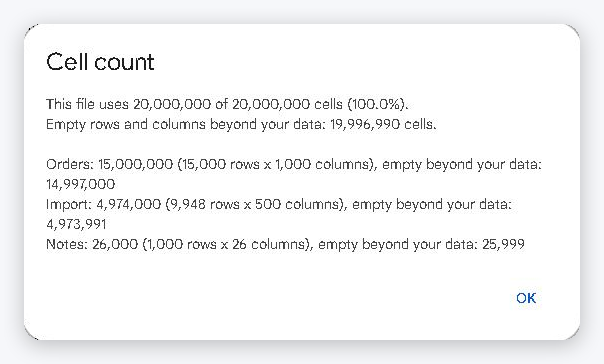
Remove the empty rows and columns
Choose Cell count → Remove empty rows and columns…. The script lists, for each tab, how many rows and columns it will delete, and asks Continue?
- It deletes only the rows below the last row that has data and the columns to the right of the last column that has data. Nothing inside your data is touched, even empty rows between records.
- It keeps frozen rows and columns, and at least one row and column below or right of them, as Sheets requires.
- Click No and nothing changes.
In our test it removed 19,996,990 empty cells; the file went from 20,000,000 to 3,010 cells and all 500 rows of data were still there.
Important — Undo: in our test, one Ctrl+Z brought back only the last step (the columns of one tab), not everything. If you might want the empty rows back, make a copy first (File → Make a copy) or use File → Version history to restore the earlier version.
Need rows again later? Scroll to the bottom of the tab and use Add 1000 more rows at the bottom. Add what you need, not tens of thousands “just in case”.
/** @OnlyCurrentDoc */
// Count the cells in this Google Sheets file and remove empty rows and columns.
const CELL_LIMIT = 20000000; // Google Sheets limit per file (2026)

function onOpen() {
  SpreadsheetApp.getUi()
    .createMenu('Cell count')
    .addItem('Count cells', 'countCells')
    .addItem('Remove empty rows and columns...', 'trimEmpty')
    .addToUi();
}

function countCells() {
  const tabs = tabInfo();
  const total = tabs.reduce((sum, t) => sum + t.cells, 0);
  const spare = tabs.reduce((sum, t) => sum + t.spare, 0);
  const lines = tabs
    .sort((a, b) => b.cells - a.cells)
    .map(t => t.name + ': ' + fmt(t.cells) + ' (' + fmt(t.rows) + ' rows x ' + fmt(t.cols) +
              ' columns), empty beyond your data: ' + fmt(t.spare));
  SpreadsheetApp.getUi().alert('Cell count',
    'This file uses ' + fmt(total) + ' of ' + fmt(CELL_LIMIT) + ' cells (' +
    (total / CELL_LIMIT * 100).toFixed(1) + '%).\n' +
    'Empty rows and columns beyond your data: ' + fmt(spare) + ' cells.\n\n' + lines.join('\n'),
    SpreadsheetApp.getUi().ButtonSet.OK);
}

// Deletes rows below the last row with data and columns right of the last column with data.
function trimEmpty() {
  const ui = SpreadsheetApp.getUi();
  const tabs = tabInfo().filter(t => t.spare > 0);
  if (tabs.length === 0) {
    ui.alert('There are no empty rows or columns to remove.');
    return;
  }
  const spare = tabs.reduce((sum, t) => sum + t.spare, 0);
  const ok = ui.alert('Remove empty rows and columns',
    fmt(spare) + ' empty cells in ' + tabs.length + ' tab(s) will be removed:\n' +
    tabs.map(t => t.name + ': ' + fmt(t.rows - t.keepRows) + ' rows, ' +
                  fmt(t.cols - t.keepCols) + ' columns').join('\n') +
    '\n\nOnly rows below and columns to the right of your data are deleted. ' +
    'Formatting in those cells is lost, and Undo may not bring them back. Continue?',
    ui.ButtonSet.YES_NO);
  if (ok !== ui.Button.YES) return;

  tabs.forEach(t => {
    if (t.rows > t.keepRows) t.sheet.deleteRows(t.keepRows + 1, t.rows - t.keepRows);
    if (t.cols > t.keepCols) t.sheet.deleteColumns(t.keepCols + 1, t.cols - t.keepCols);
  });
  ui.alert('Done: ' + fmt(spare) + ' empty cells removed.');
}

function tabInfo() {
  return SpreadsheetApp.getActiveSpreadsheet().getSheets()
    .filter(sheet => sheet.getType() === SpreadsheetApp.SheetType.GRID)
    .map(sheet => {
      const rows = sheet.getMaxRows();
      const cols = sheet.getMaxColumns();
      // Keep every row and column up to the last one with data, and at least one
      // row and column below/right of frozen ones (Sheets requires it).
      const keepRows = Math.min(rows, Math.max(sheet.getLastRow(), sheet.getFrozenRows() + 1));
      const keepCols = Math.min(cols, Math.max(sheet.getLastColumn(), sheet.getFrozenColumns() + 1));
      return { sheet, name: sheet.getName(), rows, cols, cells: rows * cols,
               keepRows, keepCols, spare: rows * cols - keepRows * keepCols };
    });
}

function fmt(n) {
  return n.toLocaleString('en-US');
}
Doing it by hand
- Click the row number just below your last row of data.
- Press Ctrl+Shift+↓ (⌘+Shift+↓ on a Mac). The selection grows to the last row of the tab.
- Right-click a selected row number and choose Delete rows (for example “Delete rows 501 – 1500”).
- For columns: click the column letter just right of your data, press Ctrl+Shift+→, right-click and choose Delete columns.
Repeat for each tab. It works, but the script is quicker when you have many tabs.
When your data really is bigger than 20 million cells
- Split by year or by category into separate spreadsheets. Each file has its own 20 million.
- Delete columns you never use from imports before bringing them in.
- Remember that formulas fill cells too. An IMPORTRANGE or QUERY result takes up as many cells as it shows, so pulling everything back into one file brings you back to the limit.
Things to watch
- Formatting below or right of your data is deleted together with those rows and columns (for example, borders or colors set on whole columns).
- Only cells with content mark where your data ends. A cell that only has formatting does not count as data, so it can be removed.
- Charts tabs (a chart moved to its own sheet) are skipped.
- Phone and tablet apps don’t show menus added by scripts. Run it on a computer.
FAQ
Is the Google Sheets limit 10 million or 20 million cells?
20 million, since September 2026, for Google Workspace and personal accounts. In our test on October 17, 2026, the error message said “above the limit of 20000000 cells”.
Do empty cells count toward the limit?
Yes. The limit counts all rows × columns in all tabs. Our test file had only 3,010 cells of data and was still full.
How many rows can a Google Sheet have?
It depends on the columns, because the limit is on cells. With 26 columns, 20,000,000 ÷ 26 is about 769,000 rows for the whole file. Fewer columns means more rows.
How many columns can one tab have?
18,278 (column ZZZ). In our test, adding one more gave the message “above the limit of 18278 columns”.
Is there a file size limit too?
Yes. Google’s help lists up to 100MB for spreadsheets created in or converted to Sheets, and cells over 50,000 characters are removed when converting from Excel.
Google Sheets and Google Workspace are trademarks of Google LLC.










コメント