
日本語版 | ← Back to the product page
Photo Slides for Google Slides User Guide
This guide shows, step by step and with screenshots, how to put photos from your computer into Google Slides. The photos are added as new slides at the end; your existing slides are not changed. Just follow it from the top. (Features of the paid version are marked Paid.)
1. Before you start
1-1 Install
Install “Photo Slides for Google Slides” from the Google Workspace Marketplace. You only do this once.
1-2 What it does
It only adds the photos you pick as new slides at the end. Existing slides are not changed. The photos go only into this presentation and are not sent anywhere else. Google Photos is not supported (photos on your computer only).
2. Open the add-on
- Open the presentation in Google Slides.
- In the menu, choose Extensions → Photo Slides for Google Slides → Insert photos.
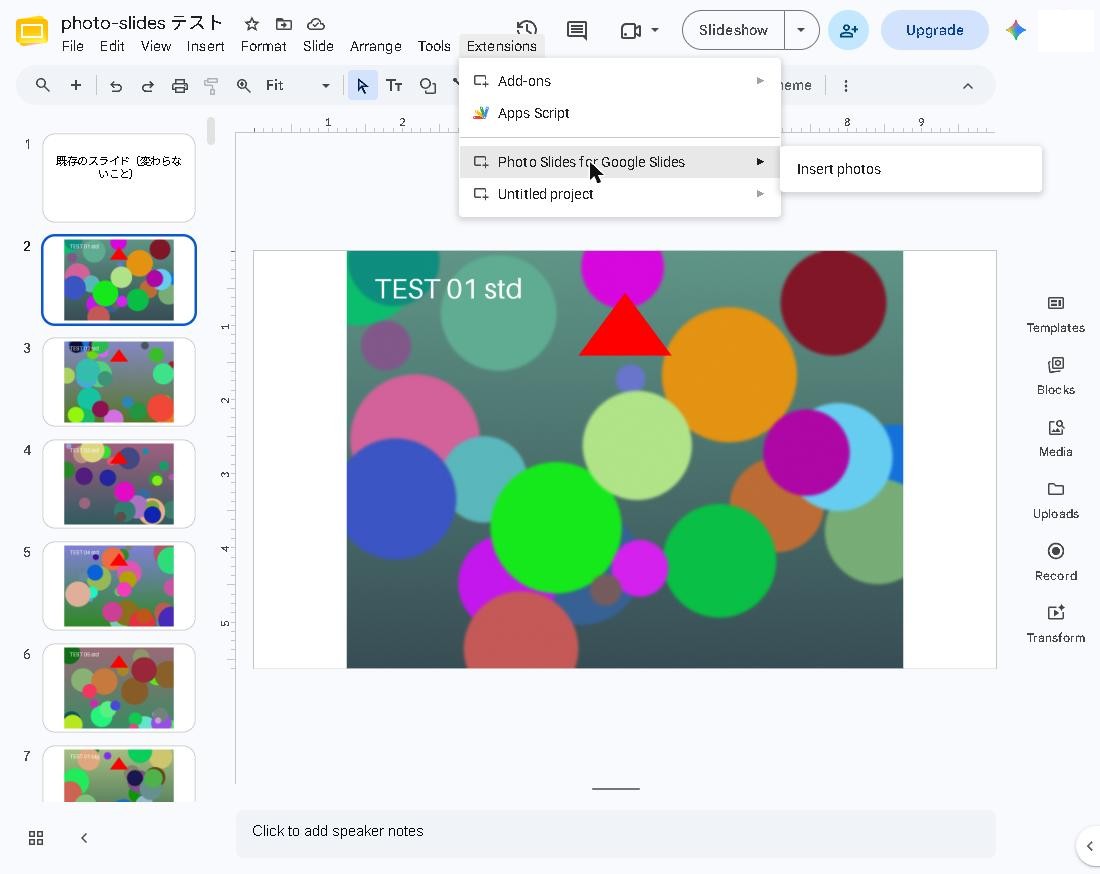
The sidebar opens on the right. All settings are here.
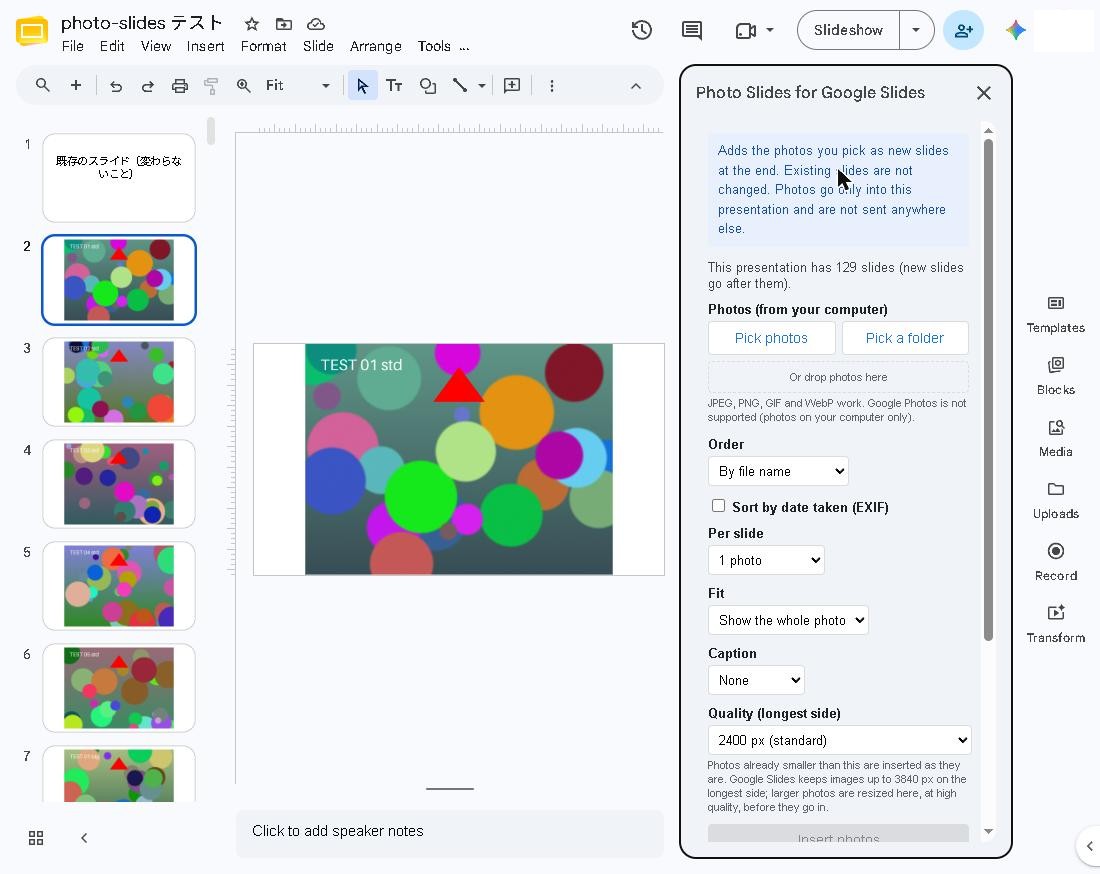
The blue box at the top states the promise (photos are only added, existing slides are not changed, nothing is sent elsewhere). Below it, “This presentation has 129 slides (new slides go after them)” tells you how many slides there are before you add.
3. Pick your photos
Under “Photos (from your computer)”, do one of these:
- Pick photos: choose photos from your computer. In the file window, hold Ctrl (command on a Mac) while clicking, or press Ctrl+A to select them all.
- Pick a folder: choose one folder and all photos in it are picked.
- Or drop photos here: drag photos onto this box.
JPEG, PNG, GIF and WebP photos work. Hundreds of photos are fine. The number picked is shown in the sidebar.
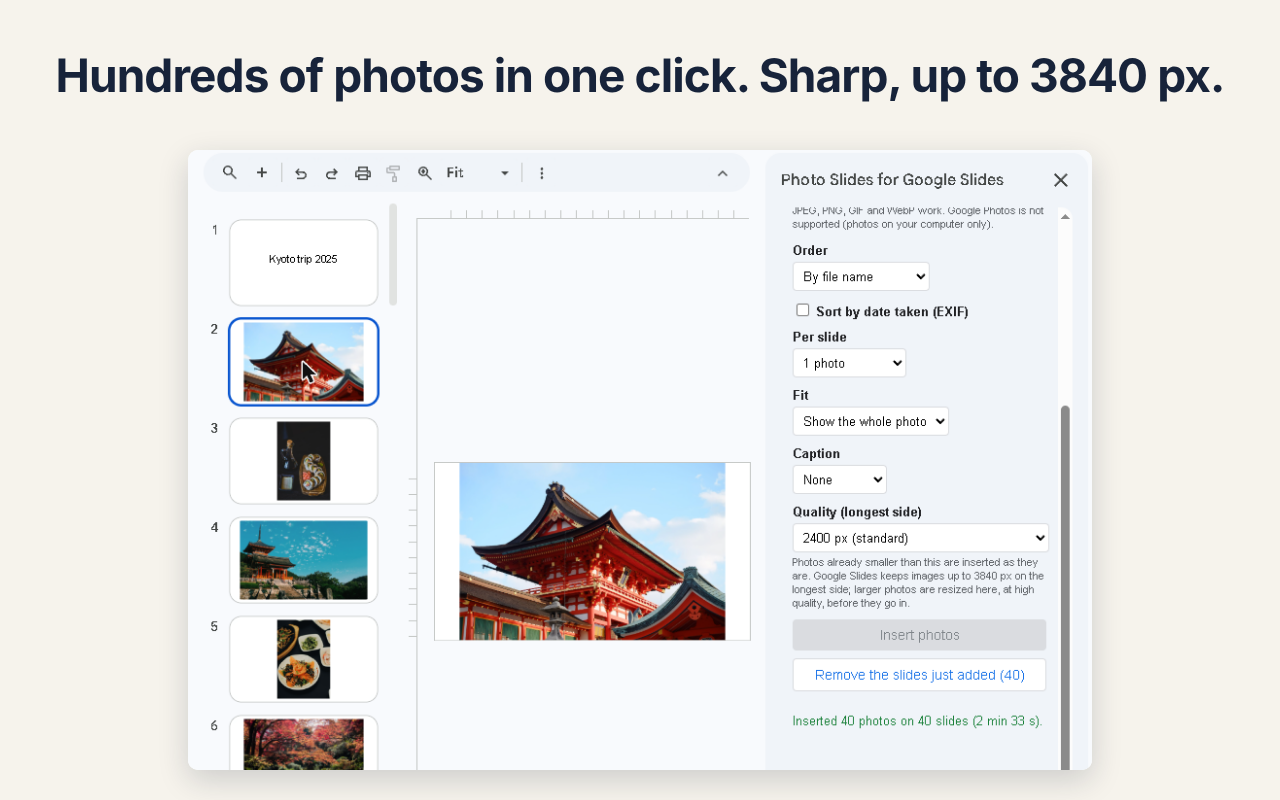
The free version inserts up to 20 photos per run. If you pick more, the sidebar tells you. To insert all of them at once, use the paid version.
4. Choose the order
Under “Order”, choose:
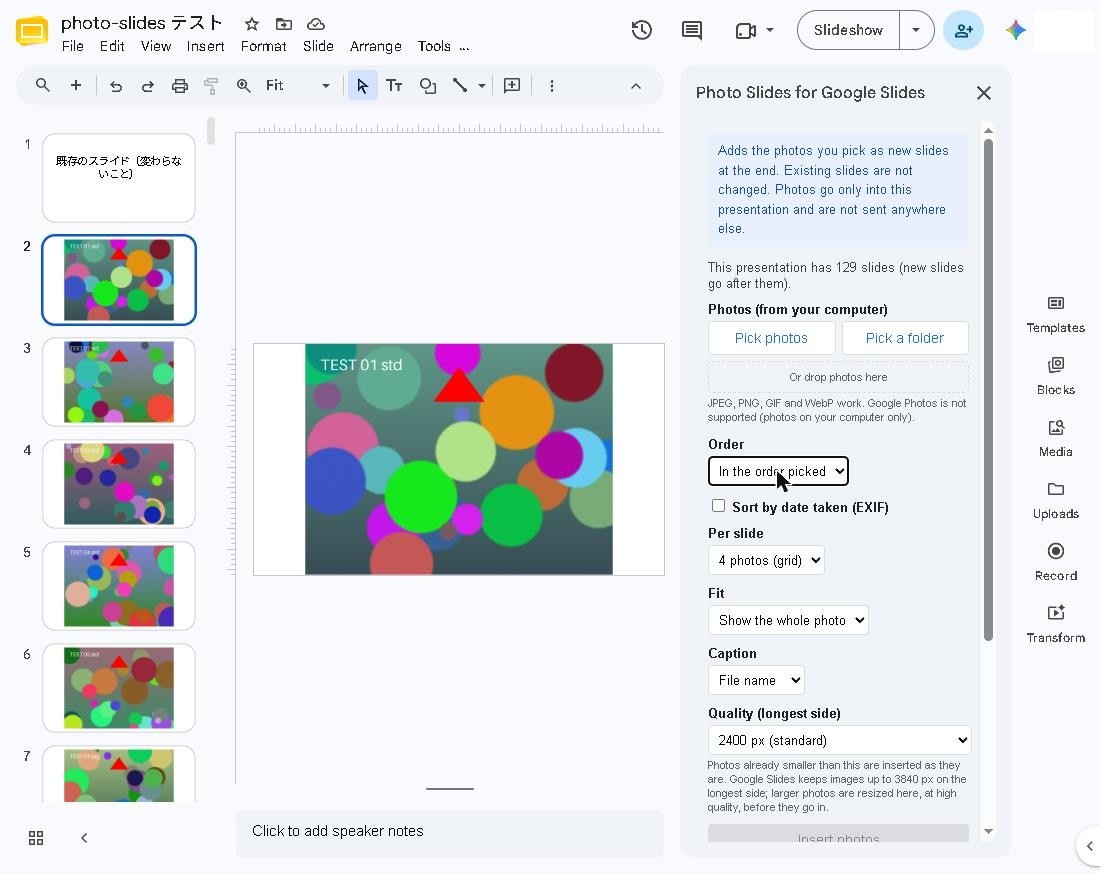
- By file name: reads the numbers, so img2 comes before img10.
- In the order picked: the order you picked them in.
- Sort by date taken (EXIF) checkbox: sorts by the date stored in each photo. Paid
5. Photos per slide and fit
Under “Per slide”:
- 1 photo: one photo per slide (default).
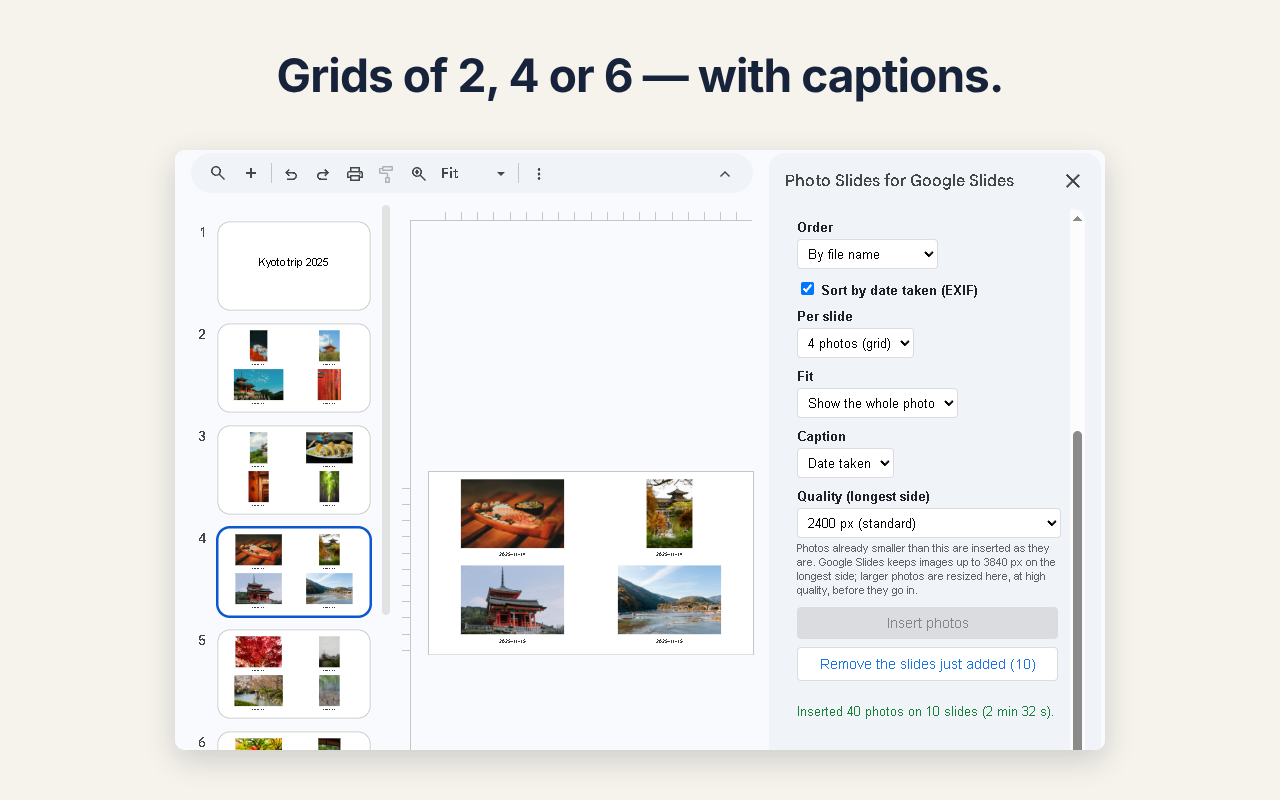
- 2, 4 or 6 photos (grid): several photos on one slide. Paid
Under “Fit”, choose “Show the whole photo” (nothing is cut off) or fill the area.
6. Captions and quality
Caption Paid
“Caption” puts text under each photo: None, File name or the date taken.
Quality (longest side)
“Quality” sets the maximum length of the longer side: 1600 px (light), 2400 px (standard) or 3840 px (maximum, the limit Google Slides keeps). Photos already smaller are inserted as they are. Larger photos are resized in your browser, at high quality, before they go in.
7. Insert the photos
- Scroll down in the sidebar.
- Press Insert photos (after you pick photos it reads “Insert N photos”).
- Wait until it finishes. Progress is shown in the sidebar, and you can press “Stop” at any time (photos already inserted stay).
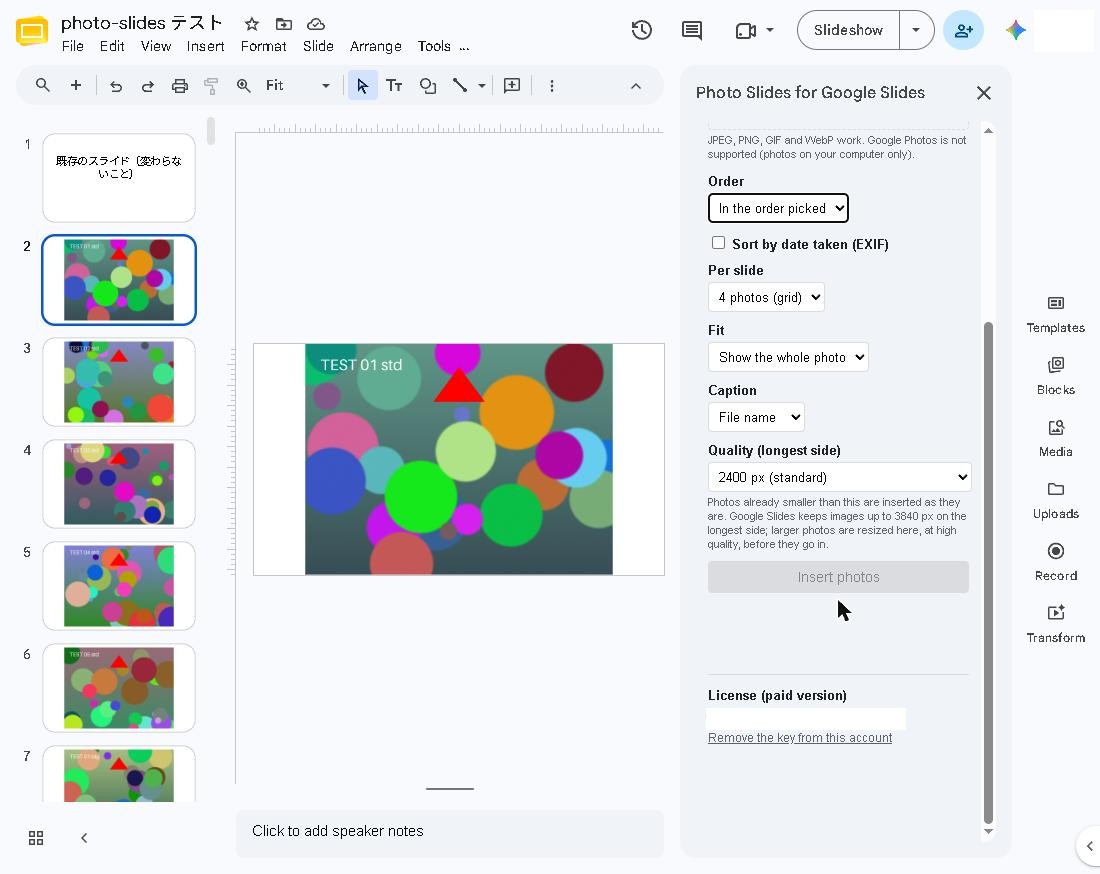
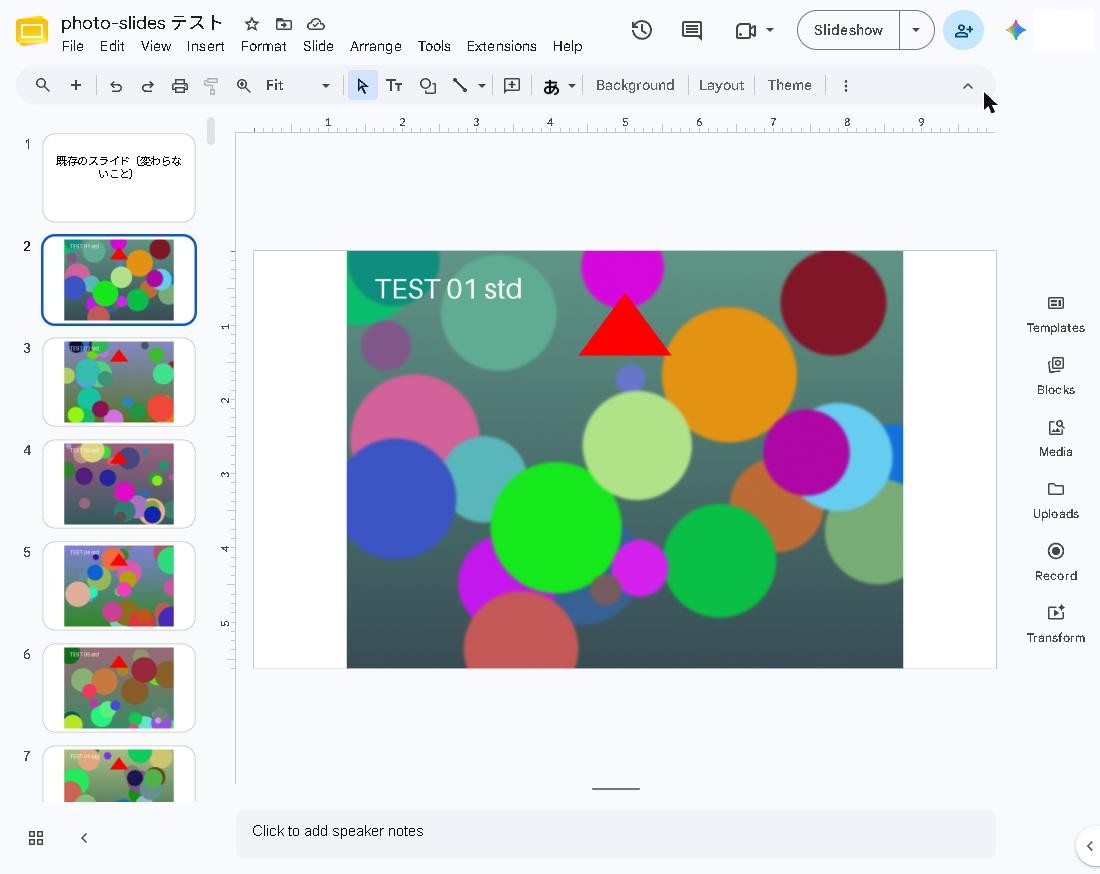
The photos arrive as new slides at the end. The existing slide 1 is unchanged.
8. Made a mistake? Remove them
After inserting, the sidebar shows “Remove the slides just added (N)”.
- Press Remove the slides just added.
- It says “Press again to remove”. Press it once more.
- The slides are removed.
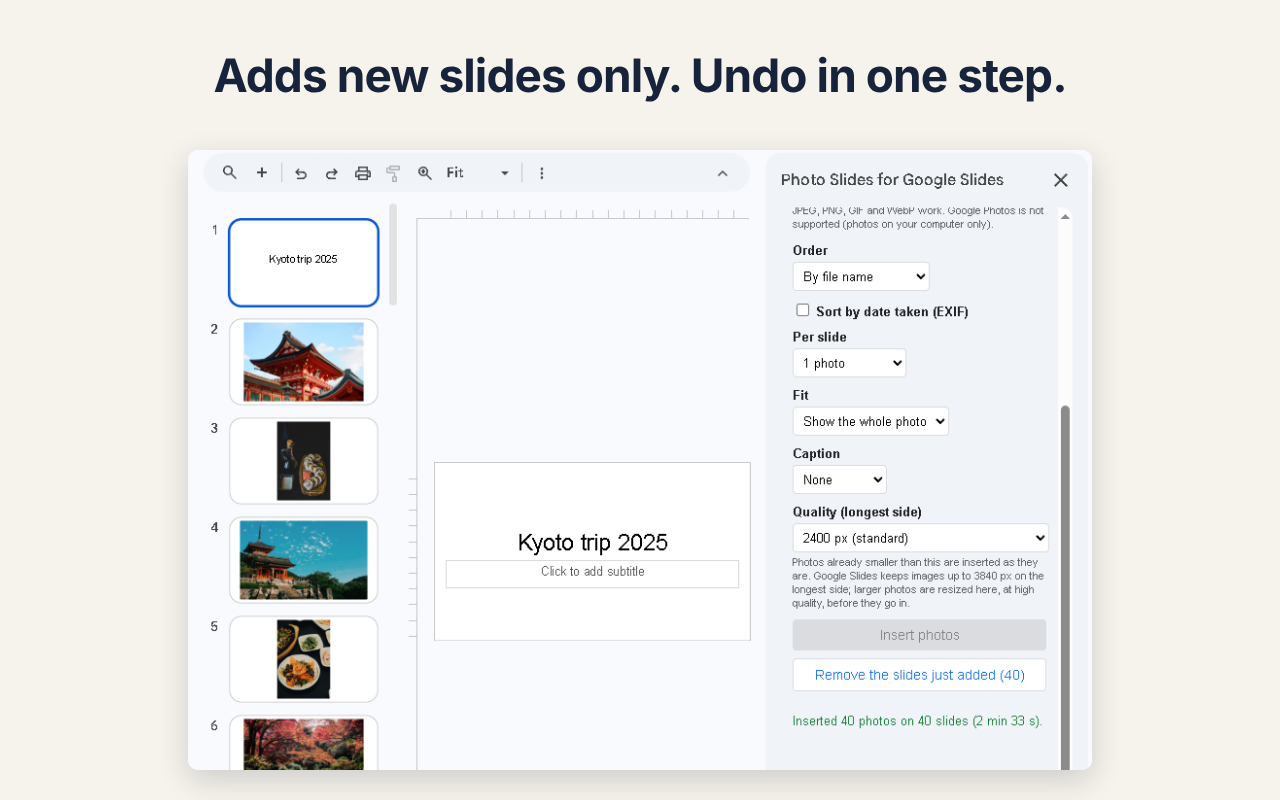
Only the slides added last are removed. Slides you changed after adding them are kept, and the sidebar tells you how many.
9. Free vs paid (license key)
| Free | Paid (US$19, one-time) | |
|---|---|---|
| Photos per run | Up to 20 | No limit |
| Photos per slide | 1 | 1, 2, 4 or 6 |
| Captions | — | File name / date taken |
| Order | By file name, in the order picked | Also by date taken |
| Quality (up to 3840 px) | Yes | Yes |
| Watermark | None | None |
Enter your key
- Buy the paid version on Gumroad. Your license key arrives with the receipt.
- Scroll to the bottom of the sidebar and paste the key into “License (paid version)”.
- Press “Activate”.
When it works, the sidebar shows “Active (key …last 4 characters)” (see the bottom-of-sidebar screenshot above; the key is hidden there). Once activated, it works in every presentation you open with the same Google account. It is a one-time purchase, so it does not expire.
Remove the key
Press “Remove the key from this account” to deactivate the key on this account.
10. Troubleshooting
| Problem | What to try |
|---|---|
| The sidebar does not open or stays blank | Sign in to only one Google account in the browser, then reload the presentation (this happens when several accounts are signed in at once). |
| Only 20 photos go in | That is the free limit. Enter a paid-version key to insert all at once. |
| My photos are in Google Photos | Download them to your computer first, then use “Pick photos”. |
| “This took a while. Please press Insert again.” | Press Insert photos again. |
| I want to remove everything I just added | Press “Remove the slides just added” (only the last added slides). |
Your data and contact
Photos go only into this presentation and are not sent anywhere else. The only thing sent out is the license check (the key and the product ID). Questions and bug reports: dailypicks.blog@gmail.com
Google Slides™ is a trademark of Google LLC. This add-on is an independent product and is not affiliated with or endorsed by Google.