
English
Insert hundreds of photos from your computer into Google Slides, sharp — photos up to 3840 px go in as they are. One per slide or in grids. One-time purchase, no watermark.
Adds the photos you pick as new slides at the end. Existing slides are not changed. Photos go only into this presentation and are not sent anywhere else.
Install from the Google Workspace Marketplace
What it does
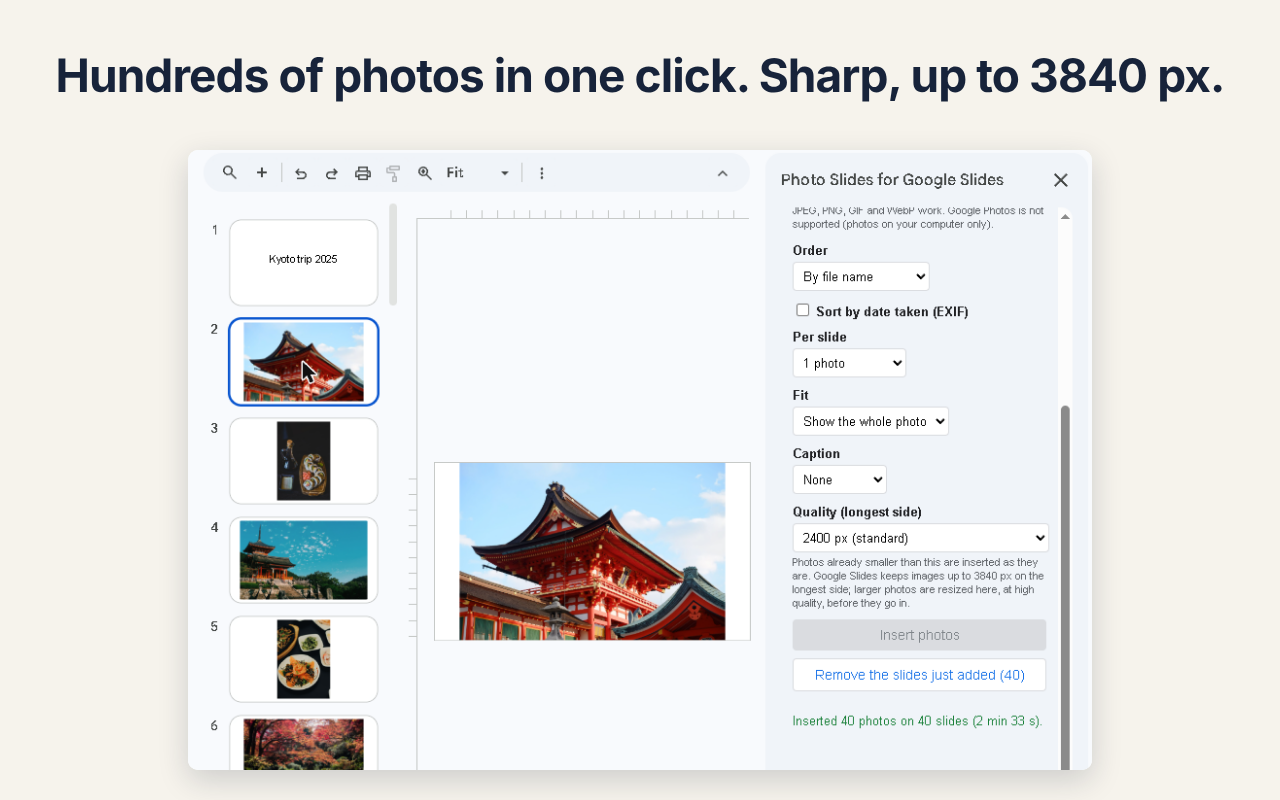
- Pick photos, or a whole folder, from your computer (JPEG, PNG, GIF, WebP). Google Photos is not supported — photos on your computer only.
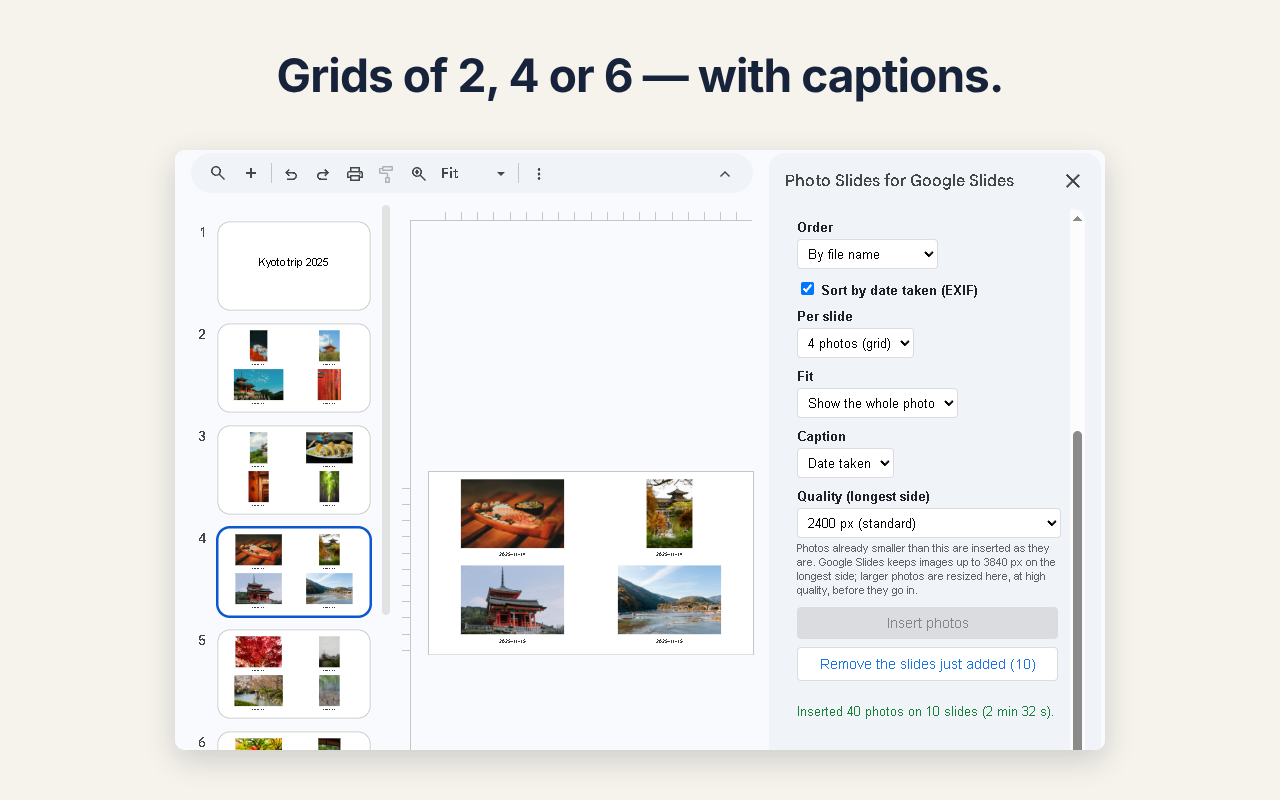
- One photo per slide (show the whole photo, or fill the slide), or grids of 2, 4 or 6 photos per slide.
- Order by file name (img2 before img10), the order you picked, or the date taken (EXIF).
- Captions: the file name or the date taken.
- Choose the quality: a longest side of 1600, 2400 or 3840 px. Photos that are already small enough are inserted untouched, byte for byte. Larger photos are resized in your browser at high quality. 3840 px is the most Google Slides keeps: it shrinks anything larger itself.
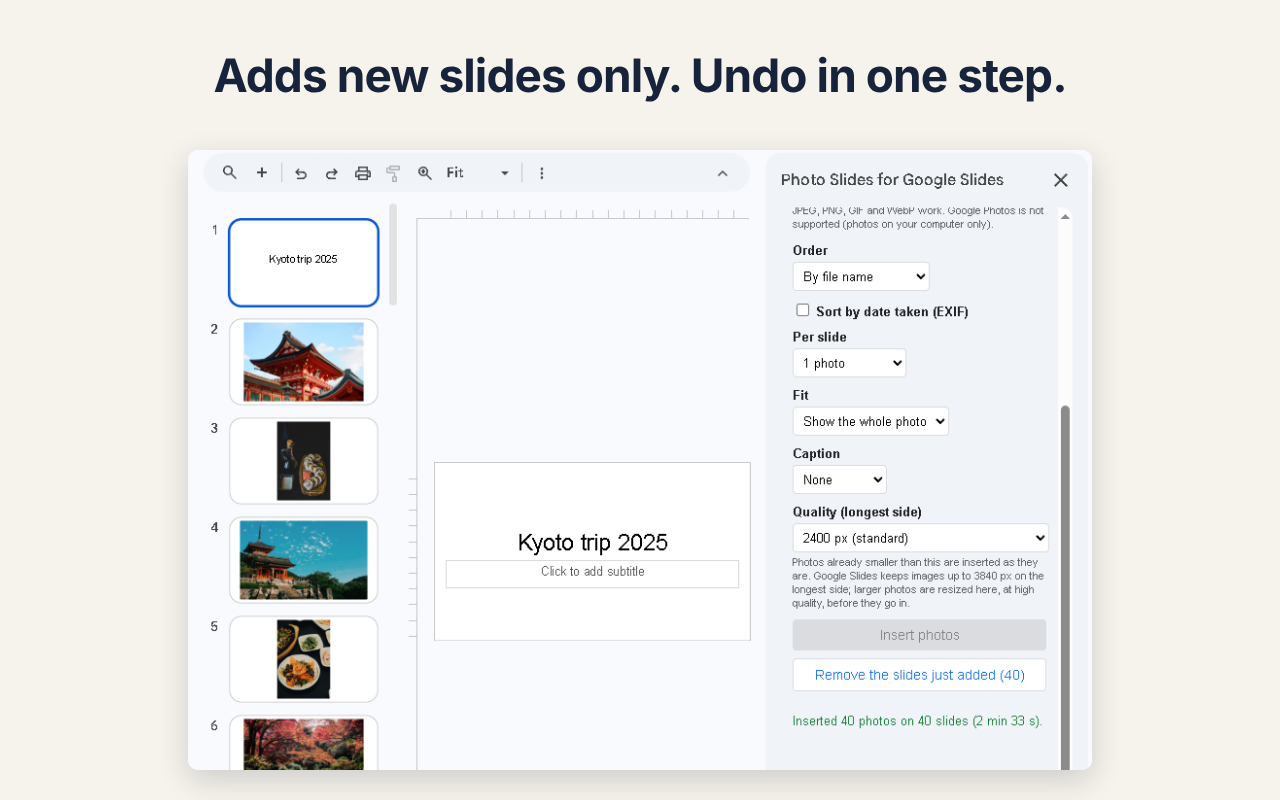
- New slides are only added at the end. Remove the slides just added undoes the last run.
Free and paid
| Free | Paid ($19, one-time) | |
|---|---|---|
| Photos per run | Up to 20 | No limit |
| Per slide | 1 photo | 1, 2, 4 or 6 photos |
| Captions | — | File name or date taken |
| Order | File name, order picked | Also date taken |
| Quality (up to 3840 px) | Yes | Yes |
| Watermark | None | None |
The paid version is a one-time purchase through Gumroad. No subscription, and it does not expire. Buy the paid version
How to use
- Open a file in Google Slides.
- Choose Extensions > Photo Slides for Google Slides > Insert photos.
- Press Pick photos or Pick a folder, choose the order, layout and quality, then press Insert. To undo, press Remove the slides just added twice.
Step-by-step guide with pictures, including ways without an add-on: Put each photo on its own slide in Google Slides.
License key
- Paste the key from your Gumroad receipt into License (paid version) at the bottom of the sidebar, then press Activate.
- Only the last four characters of the key are shown.
- To remove it, press Remove the key from this account twice. Free features keep working.
Your data
The add-on reads only the file you have open. The only service other than Google it ever contacts is Gumroad, to check a license key (only the key and the product ID are sent). See the Privacy Policy and Terms of Service.
Troubleshooting
- The sidebar does not load. If you are signed in to more than one Google account, open the file in a window signed in to only one account (a limitation of Apps Script add-ons).
- HEIC photos from an iPhone are left out. Browsers cannot read HEIC. Convert them to JPEG first (or set the iPhone camera to “Most Compatible”).
- A run takes a while. Photos are inserted a few at a time. Keep the sidebar open until it finishes. If you close it, the photos already inserted stay, and Remove the slides just added removes them.
- Some slides were kept when I pressed Remove. Slides you changed after they were added are kept on purpose.
- Images are smaller in a downloaded PowerPoint file. When you download a presentation as .pptx, Google Slides itself saves images at up to 2048 px. Inside Google Slides they stay at the size inserted (up to 3840 px).
Contact
dailypicks.blog@gmail.com
日本語
手元の写真を何百枚でも Google スライドに。長辺 3840 px までの写真は作り直さずにそのまま、くっきり。1枚ずつでもグリッドでも。買い切り・透かしなし。
選んだ写真を、新しいスライドとして末尾に足すだけです。既存のスライドは変えません。写真はこのプレゼンテーションにだけ入り、ほかには送りません。
Google Workspace Marketplace からインストール
できること
- PC の写真を選ぶ(フォルダごとでも)。JPEG・PNG・GIF・WebP。Google フォトからは選べません(PC の写真だけ)。
- 1枚1スライド(全体を収める/埋める)、またはグリッド(1枚のスライドに2・4・6枚)。
- 並べ順:ファイル名(img2 が img10 より前)・選んだ順・撮影日(EXIF)。
- キャプション:ファイル名か撮影日。
- 画質を選べる:長辺 1600/2400/3840 px。もともと小さい写真は作り直さず、そのまま入れます。大きい写真はあなたのブラウザできれいに縮めます。3840 px は Google スライドが保てる最大で、それより大きい写真は Google スライドが自分で縮めます。
- 新しいスライドを末尾に足すだけ。「いま足したスライドを消す」で、最後の1回分を元に戻せます。
無料版と有料版
| 無料 | 有料($19・買い切り) | |
|---|---|---|
| 1回に入れる枚数 | 20枚まで | 制限なし |
| 1枚のスライドに | 写真1枚 | 1・2・4・6枚 |
| キャプション | — | ファイル名・撮影日 |
| 並べ順 | ファイル名・選んだ順 | +撮影日 |
| 画質(長辺 3840 px まで) | 選べる | 選べる |
| 透かし | なし | なし |
有料版は Gumroad での買い切りです。サブスクリプションではなく、期限もありません。有料版を購入する
使い方
- Google Slides でファイルを開きます。
- 拡張機能 → Photo Slides for Google Slides → 写真を入れる を選びます。
- 「写真を選ぶ」か「フォルダを選ぶ」で写真を選び、並べ順・レイアウト・画質を決めて「スライドに入れる」を押します。元に戻すときは「いま足したスライドを消す」を2回押します。
ライセンスキー
- Gumroad の購入メールにあるキーを、サイドバーの下の「ライセンス(有料版)」に貼り、「有効にする」を押します。
- 画面にはキーの末尾4文字だけが出ます。
- 外すときは「このアカウントからキーを外す」を2回押します。無料版の機能はそのまま使えます。
データについて
開いているファイルだけを読みます。Google 以外に通信するのはライセンス確認のときだけで、相手は Gumroad、送るのはキーと商品 ID だけです。プライバシーポリシー・利用規約
うまく動かないとき
- サイドバーが読み込まれない:複数の Google アカウントにログインしていると読み込めません。1つだけログインしたウィンドウで開いてください(Apps Script のアドオンの制約)。
- iPhone の HEIC の写真が除かれる:ブラウザは HEIC を読めません。JPEG に変えてから選んでください(iPhone のカメラの設定を「互換性優先」にする方法もあります)。
- 時間がかかる:写真は数枚ずつ入れます。終わるまでサイドバーを開いたままにしてください。途中で閉じても入れ終わった分は残り、「いま足したスライドを消す」で消せます。
- 消すを押しても残ったスライドがある:足した後に手を加えたスライドは、わざと残します。
- PowerPoint でダウンロードすると画像が小さくなる:.pptx で書き出すとき、Google スライド自身が画像を長辺 2048 px までにして保存します。Google スライドの中では、入れたときの大きさ(長辺 3840 px まで)のままです。
連絡先
dailypicks.blog@gmail.com