
English
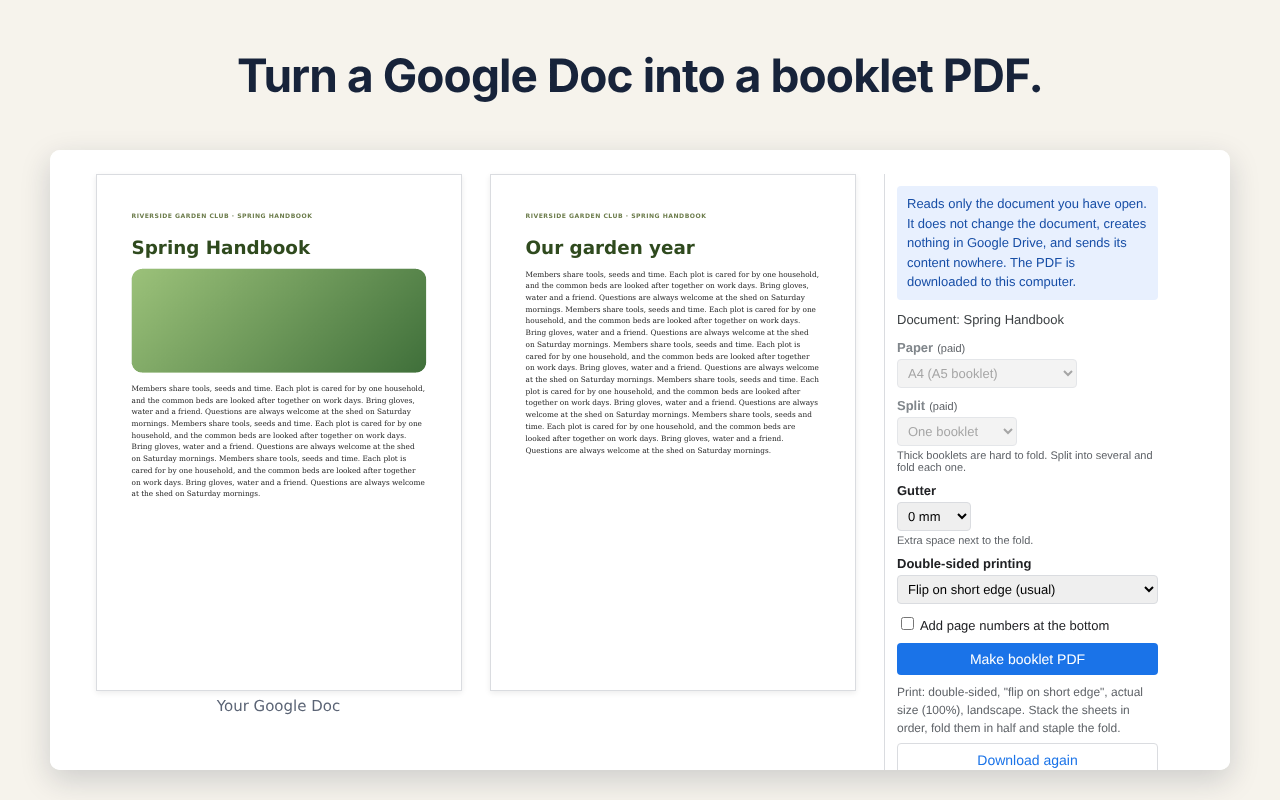
Turn the Google Doc you have open into a booklet PDF: the pages are put in saddle-stitch order, two per sheet, so you print double-sided, fold the stack in half and staple — and it reads 1, 2, 3… like a little book.
It reads only the document you have open. It does not change the document, creates nothing in Google Drive, and sends its content nowhere. The booklet PDF is built in your browser and downloaded to your computer.
Install from the Google Workspace Marketplace
What it does
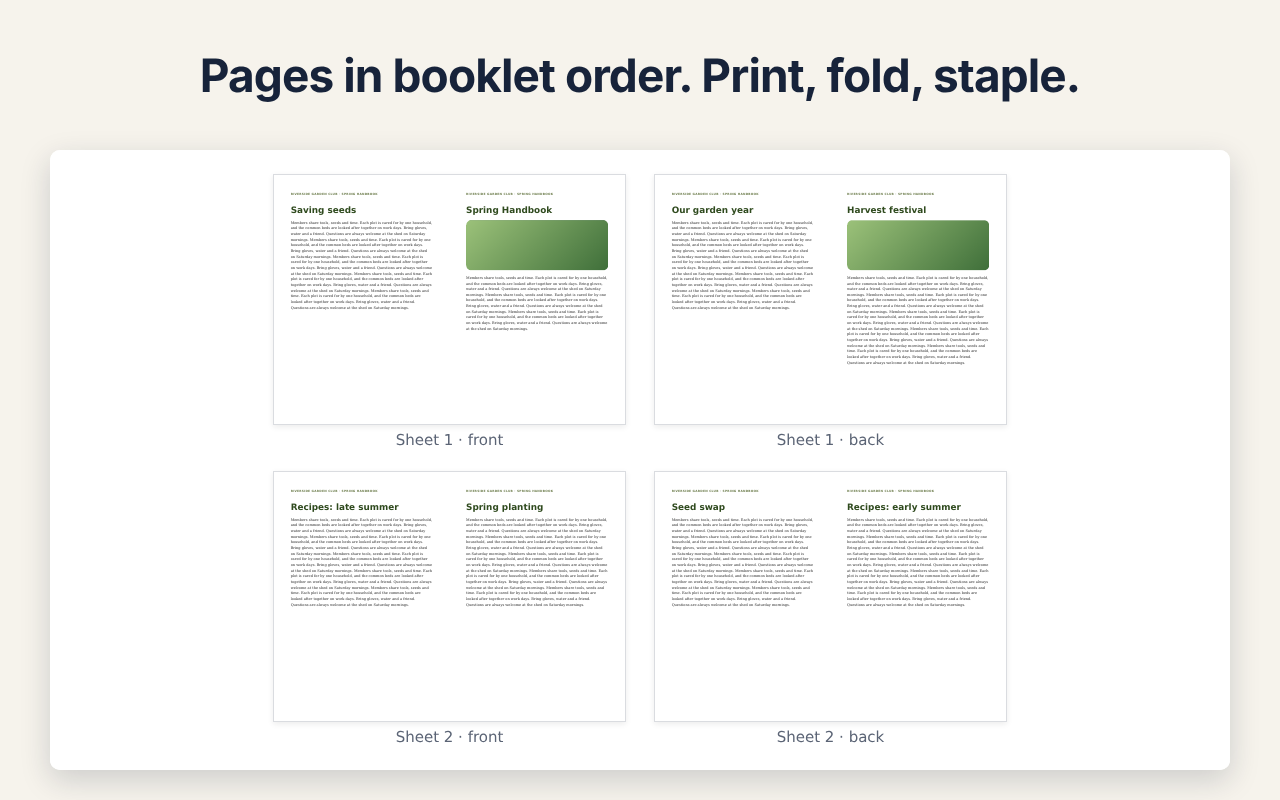
- Puts the pages of your document in booklet (saddle-stitch) order, two pages side by side on each landscape sheet. For 8 pages: 8|1, 2|7, 6|3, 4|5.
- Adds blank pages at the end so the count is a multiple of 4.
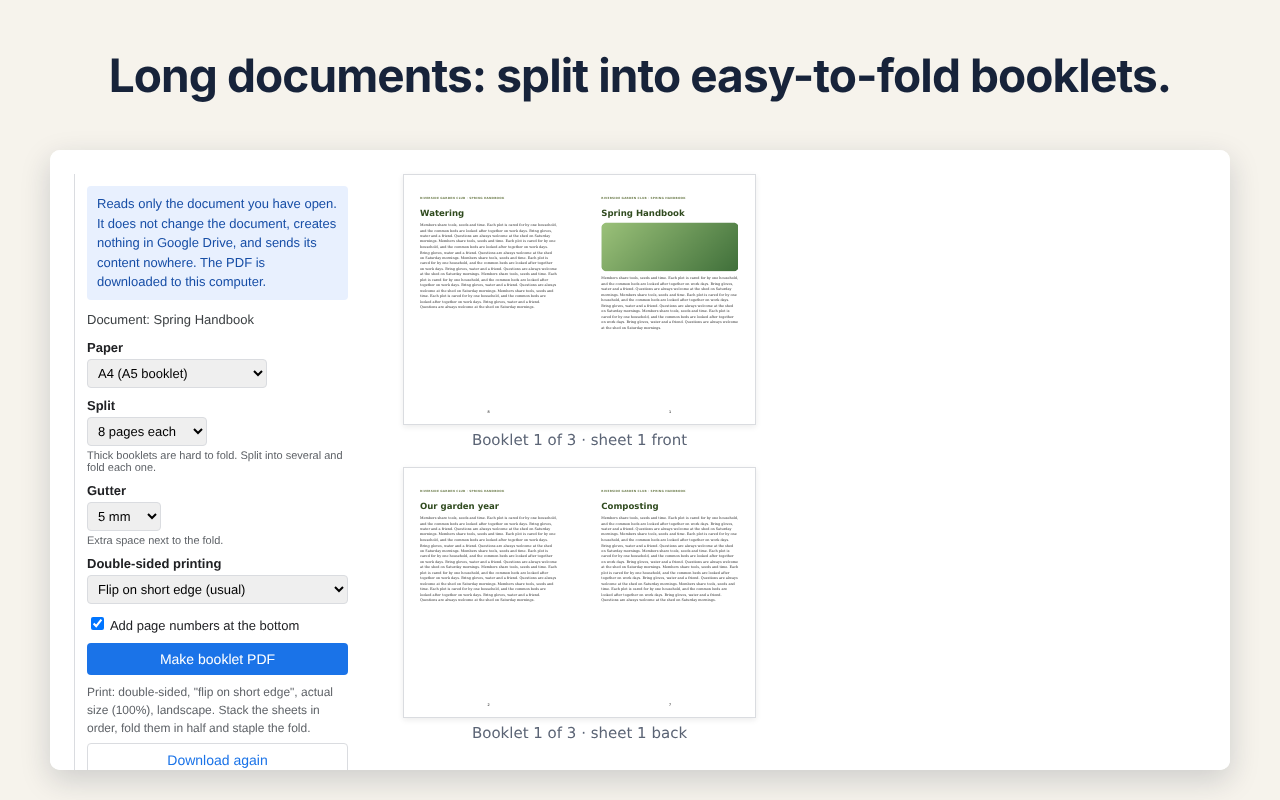
- Paper A4 (A5 booklet) or Letter (half-letter booklet). Gutter, page numbers, short-edge or long-edge duplex.
- Splits long documents into several booklets (paid).
- The document is not changed, nothing is created in Drive, and the PDF is downloaded straight to your computer.
Free and paid
| Free | Paid ($19, one-time) | |
|---|---|---|
| Pages | First 16 | No limit |
| Paper | A4 | A4 or Letter |
| Split into several booklets | — | 8–64 pages each |
| Gutter, page numbers, duplex setting | Yes | Yes |
| Watermark | None | None |
Try every paid feature free for 7 days. For 7 days from the first time you open the add-on, the paid features work without a key. After that, the free features keep working.
The paid version is a one-time purchase through Gumroad. No subscription, and it does not expire. Buy the paid version
How to use
- Open a file in Google Docs.
- Choose Extensions > Pagefold for Docs™ > Make a booklet PDF.
- Choose the options and press “Make booklet PDF”. Print the downloaded PDF double-sided (“flip on short edge”, actual size), stack the sheets, fold them in half and staple the fold.
Step-by-step guide with pictures, including the free method for any PDF: Booklet pages printing out of order? How to print a booklet at home.
License key
- Paste the key from your Gumroad receipt into License (paid version) at the bottom of the sidebar, then press Activate.
- Only the last four characters of the key are shown.
- To remove it, press Remove the key from this account twice. Free features keep working.
Your data
The add-on reads only the file you have open. The only service other than Google it ever contacts is Gumroad, to check a license key (only the key and the product ID are sent). See the Privacy Policy and Terms of Service.
Troubleshooting
- The sidebar does not load. If you are signed in to more than one Google account, open the file in a window signed in to only one account (a limitation of Apps Script add-ons).
- The pages come out in the wrong order after folding. Print double-sided with “flip on short edge”. If your printer only offers “flip on long edge”, choose that option in the sidebar too.
- The booklet is too small or too large. Print at “actual size” (100%), not “fit to page”.
- The document is too large. The PDF of the document can be up to 35 MB. Use smaller images or split the document.
Contact
dailypicks.blog@gmail.com
日本語
開いている Google ドキュメントを、中とじの冊子の順に2ページずつ並べた PDF にします。両面で印刷して重ね、二つ折りにしてとめるだけで、1・2・3…と読める小冊子になります。
開いている文書だけを読みます。文書は書き換えず、Google ドライブに何も作らず、内容をどこにも送りません。冊子の PDF はブラウザの中で作り、このパソコンにダウンロードします。
Google Workspace Marketplace からインストール
できること
- 文書のページを冊子(中とじ)の順に並べ、横向きの紙に2ページずつ置きます。8ページなら 8|1・2|7・6|3・4|5。
- 4の倍数になるよう、最後に白紙を足します。
- 用紙は A4(A5 の冊子)かレター(ハーフレターの冊子)。とじ代・ページ番号・両面のとじ方(短い辺/長い辺)。
- 長い文書を何冊かに分けます(有料)。
- 文書は書き換えず、ドライブに何も作らず、PDF はそのままパソコンにダウンロードします。
無料版と有料版
| 無料 | 有料($19・買い切り) | |
|---|---|---|
| ページ数 | 先頭16ページ | 制限なし |
| 用紙 | A4 | A4 かレター |
| 分冊 | — | 8〜64ページずつ |
| とじ代・ページ番号・両面のとじ方 | あり | あり |
| 透かし | なし | なし |
有料の機能も7日間無料で試せます。アドオンを初めて開いた日から7日間は、キーが無くても有料の機能が使えます。そのあとも無料の機能はそのまま使えます。
有料版は Gumroad での買い切りです。サブスクリプションではなく、期限もありません。有料版を購入する
使い方
- Google Docs でファイルを開きます。
- 拡張機能 → Pagefold for Docs™ → 冊子の PDF を作る を選びます。
- 選択肢を選んで「冊子の PDF を作る」を押します。ダウンロードされた PDF を両面(短い辺でとじる・実際のサイズ)で印刷し、重ねて二つ折りにし、折り目をとめます。
ライセンスキー
- Gumroad の購入メールにあるキーを、サイドバーの下の「ライセンス(有料版)」に貼り、「有効にする」を押します。
- 画面にはキーの末尾4文字だけが出ます。
- 外すときは「このアカウントからキーを外す」を2回押します。無料版の機能はそのまま使えます。
データについて
開いているファイルだけを読みます。Google 以外に通信するのはライセンス確認のときだけで、相手は Gumroad、送るのはキーと商品 ID だけです。プライバシーポリシー・利用規約
うまく動かないとき
- サイドバーが読み込まれない:複数の Google アカウントにログインしていると読み込めません。1つだけログインしたウィンドウで開いてください(Apps Script のアドオンの制約)。
- 折ると順番がずれる:両面印刷を「短い辺でとじる」にしてください。プリンターに「長い辺でとじる」しか無いときは、サイドバーでもそれを選びます。
- 大きさが合わない:「実際のサイズ(100%)」で印刷してください(「用紙に合わせる」ではなく)。
- 文書が大きすぎる:文書の PDF は 35MB までです。画像を小さくするか、文書を分けてください。
連絡先
dailypicks.blog@gmail.com