
日本語版 | Back to the product page
Speaker Notes Export for Google Slides™ — User guide
A step-by-step guide, with screenshots, to exporting only the speaker notes of a Google Slides deck, printing them, checking your speaking time and rehearsing. Features marked Paid are in the paid version ($12, one-time purchase). Everything else works in the free version.
1. Before you start
1-1 Install
- Open the Speaker Notes Export for Google Slides™ page on the Google Workspace Marketplace and press Install.
- When the permission screen appears, check it and press Allow. The add-on reads only the file you have open. It changes your notes only when you review the change and press Apply, and it creates nothing in Google Drive.
1-2 Open it from the menu
- Open the deck you want to export in Google Slides.
- Click Extensions in the top menu.
- Point at Speaker Notes Export for Google Slides. Export speaker notes appears on the right. Click it.
1-3 The sidebar
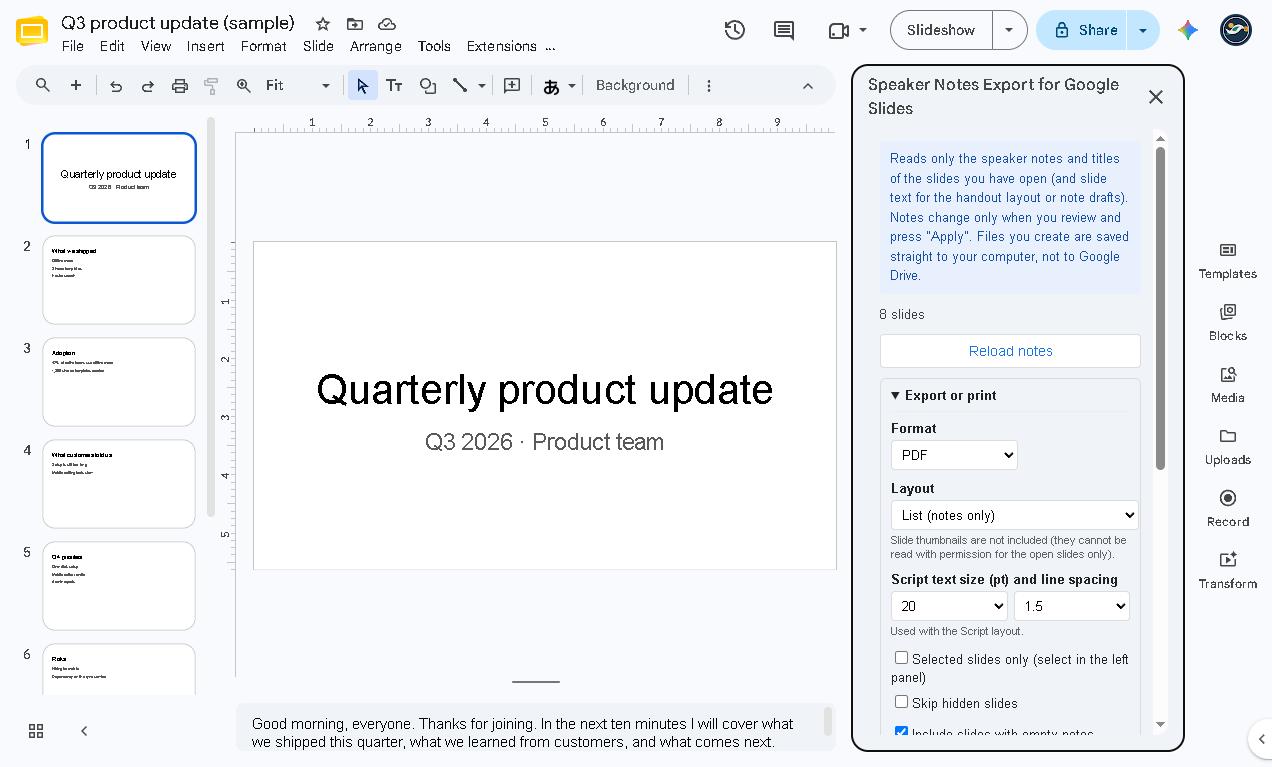
The sidebar opens on the right. The notes load automatically (decks of up to 40 slides). To load them again, for example after you change a note, press Reload notes.
2. Export your notes
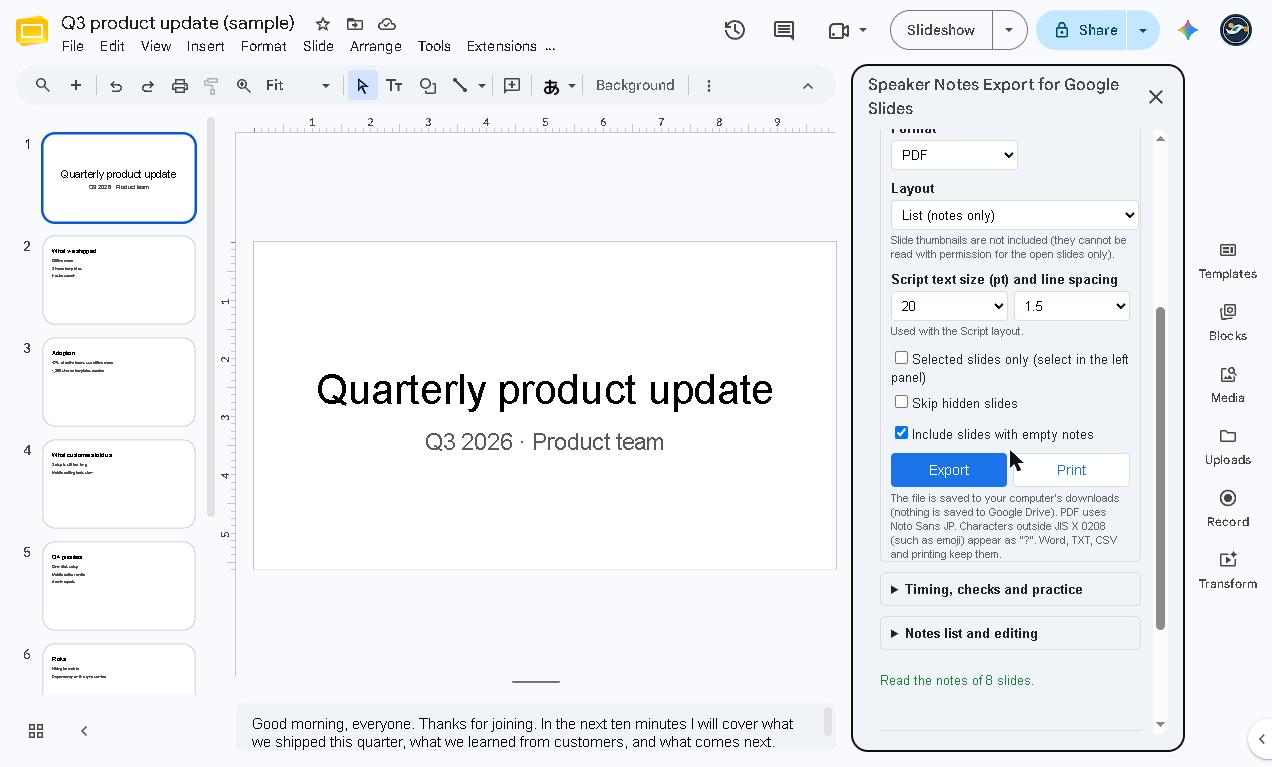
In the Export or print box of the sidebar, choose the following, in order.
2-1 Choose a format
Open the Format list. PDF and Text (TXT) are free. Word (.docx), Markdown and CSV Paid need the paid version. If you are not sure, choose PDF.
2-2 Choose a layout
- List (notes only): slide number, title and notes, one after another. Free.
- Script Paid: large type (14–28 pt), one slide per page. Good for printing and reading from. Set the text size and line spacing in the boxes right below.
- Handout Paid: the slide text and your notes together in one document.
2-3 Choose the range
- Selected slides only Paid: exports only the slides you select in the left panel. Leave it unchecked for all slides.
- Skip hidden slides: leaves out slides you have hidden.
- Include slides with empty notes: keeps slides without notes in the file, with their numbers.
2-4 Press Export
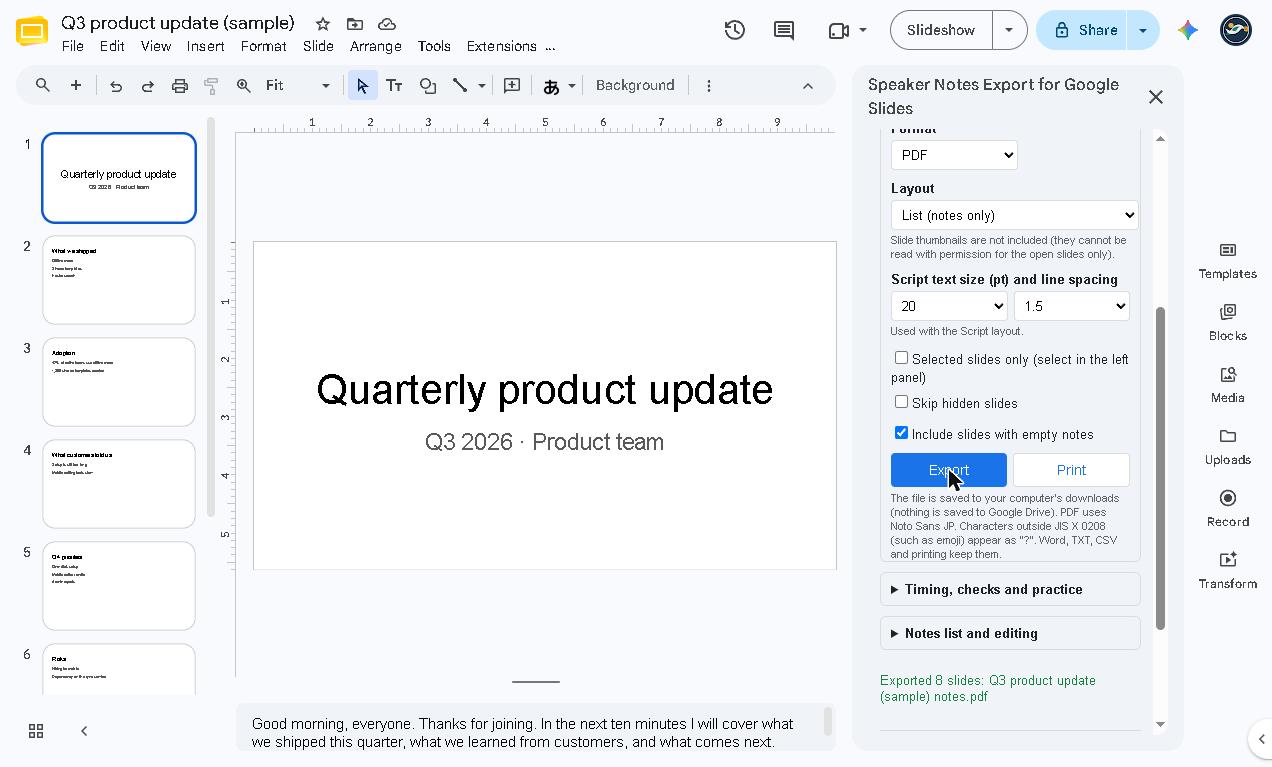
Press the blue Export button. In a few seconds a green message appears, such as “Exported 8 slides: file name”.
2-5 Find the file
The file is saved in your computer’s Downloads folder, not in Google Drive. In Chrome you can also open it from the download icon at the top right.
The PDF font covers Japanese (JIS X 0208). Characters outside it, such as emoji, appear as “?” in the PDF. Word, TXT, CSV and printing keep them.
3. Print
- After choosing the layout and options, press Print, next to Export.
- The print dialog opens. Choose a printer to print on paper, or choose Save as PDF to make a PDF.
Printing the List layout is free. Printing the Script and Handout layouts needs the paid version.
4. Check your speaking time
Open Timing, checks and practice in the sidebar.
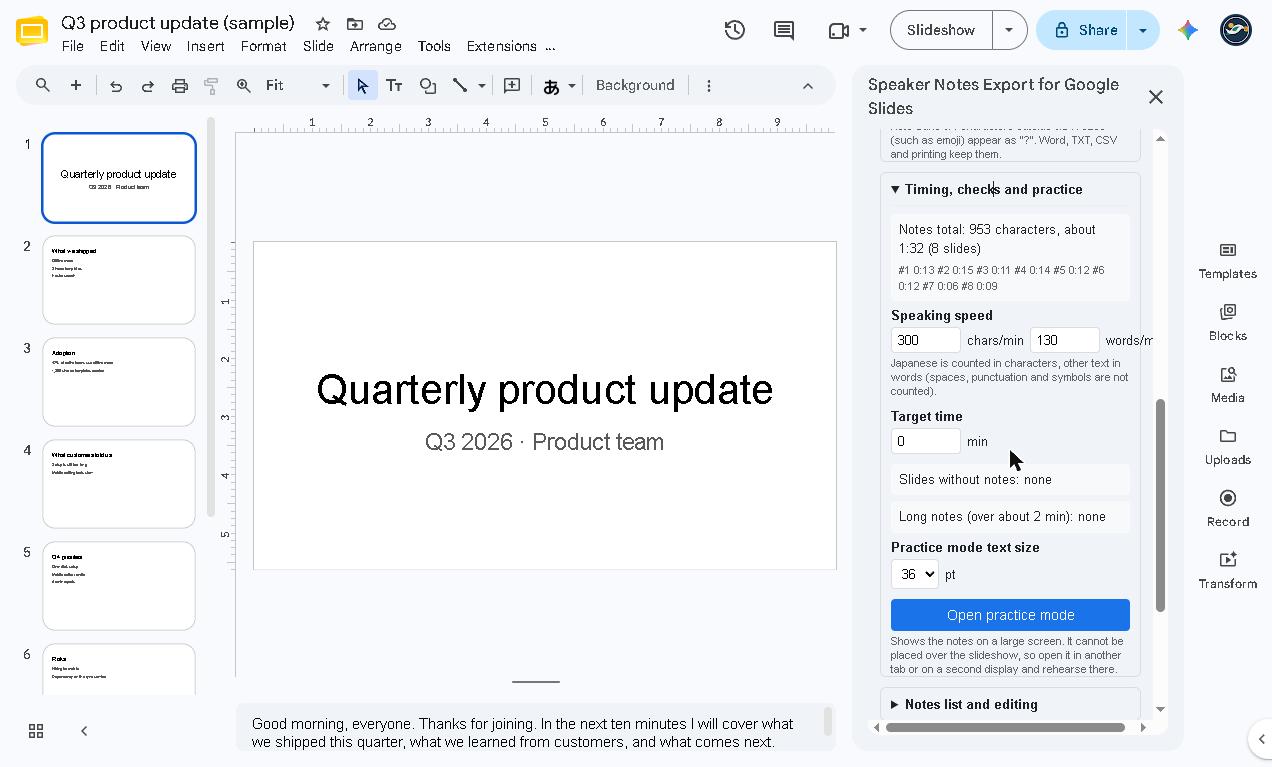
- At the top you see the total number of characters in your notes and the estimated speaking time (for example “about 1:32”).
- Speaking speed is characters per minute for Japanese and words per minute for other text. Change it to match your own pace and the estimate changes too.
- Type minutes into Target time to see whether you are over or under Paid. Time per slide (like “#1 0:13”) also needs the paid version.
- If there are any, Slides without notes and Long notes (over about 2 min) are listed, so you know what to fix.
5. Rehearse in practice mode Paid
- Choose the text size (pt) under Practice mode text size.
- Press the blue Open practice mode button.
Your notes appear in large type.
- Move between slides with the left and right arrow keys, or the ◀ ▶ buttons.
- Start starts the timer. Reset sets it back to 0:00.
- Auto-scroll (or the Space key) scrolls your notes for you. The Speed slider changes how fast.
- A− / A+ (or the +/− keys) change the text size.
- Press Close when you are done.
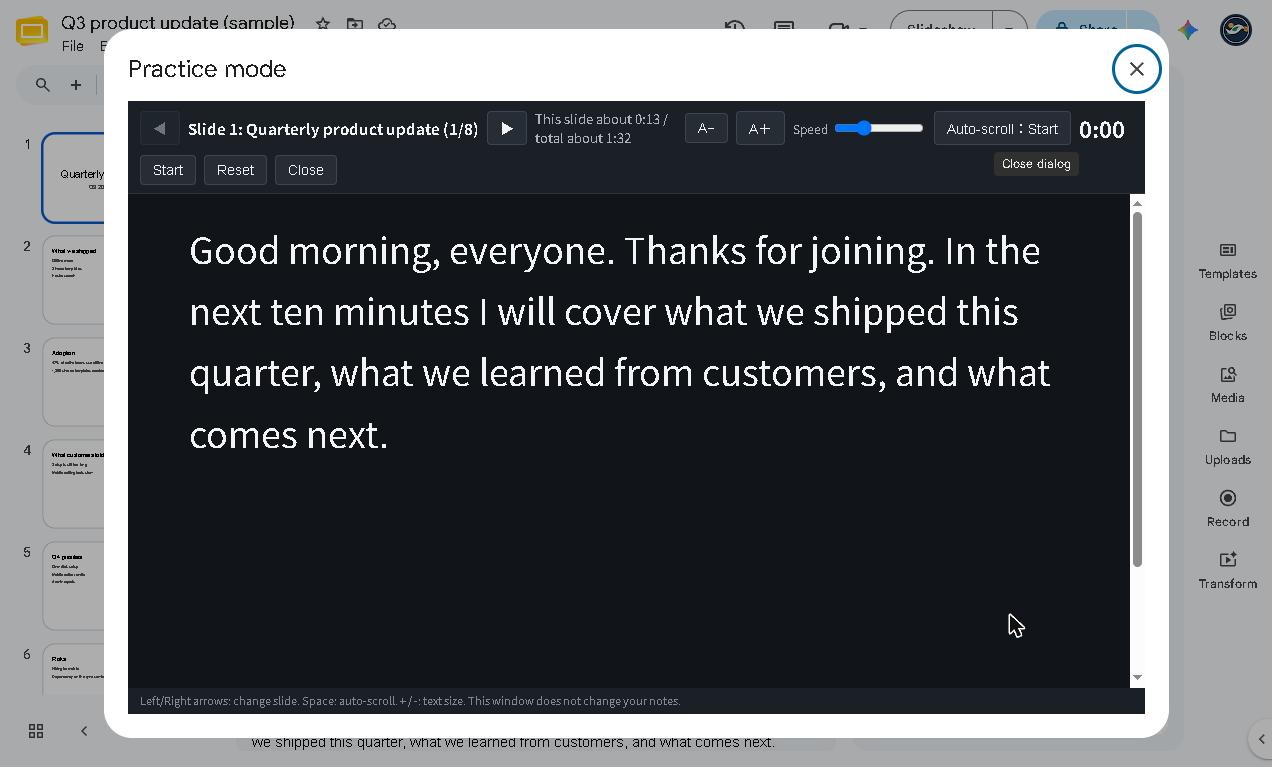
It cannot be placed over the slideshow, so open it in another tab or on a second display and rehearse there. It never changes your notes.
6. Tidy your notes
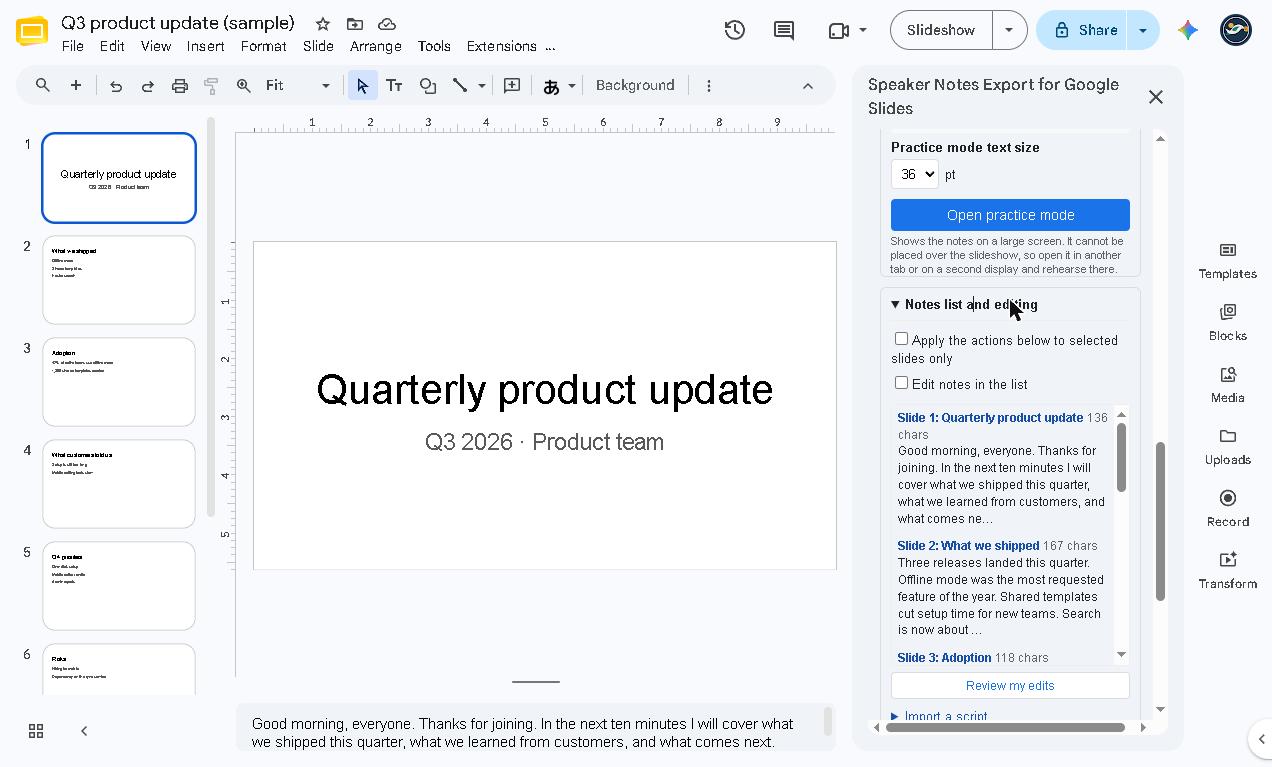
Open Notes list and editing in the sidebar.
6-1 See every note (free)
Each slide’s notes and character count are listed. Viewing the list is free.
6-2 Edit in the list Paid
- Check Edit notes in the list.
- Change the notes right in the list.
- Press Review my edits. The changes are shown as before and after.
- If they look right, press Apply. To cancel, close without pressing it. Nothing changes until you press Apply.
6-3 Import a script Paid
Split a script you wrote somewhere else across the slides’ notes.
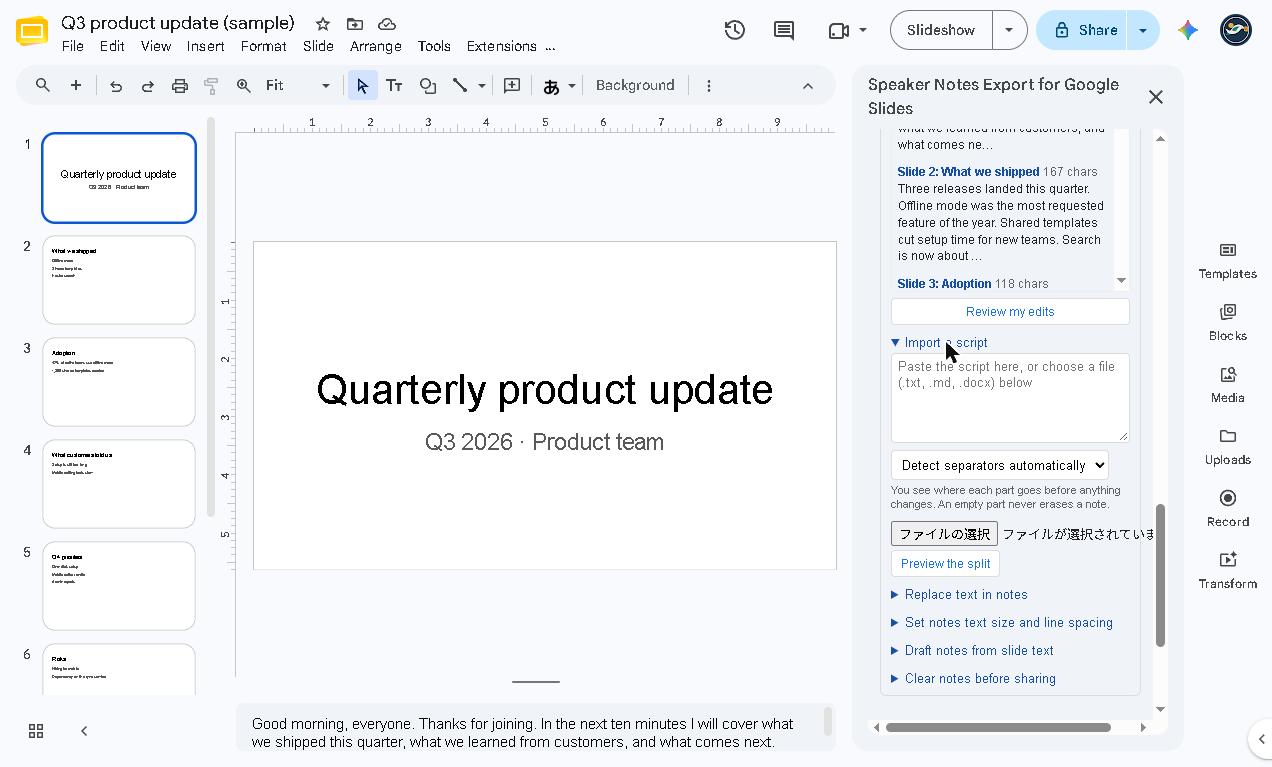
- Open Import a script.
- Paste your script into the box, or choose a file (.txt, .md, .docx).
- “Detect separators automatically” is fine in most cases. Change it here if you want to split the script differently.
- Press Preview the split. You see which text goes to which slide before anything changes. An empty part never erases a note.
- If it looks right, press Apply.
6-4 More ways to tidy Paid
- Replace text in notes: find a word in all notes and replace it.
- Set notes text size and line spacing: make all notes the same size.
- Draft notes from slide text: make a first draft of the notes from the text on each slide.
Each of these shows what will change first. Look at it, then press Apply.
Your last change can be undone.
7. Clear the notes before sharing
Use this when you want to hand over a deck without your notes. It is free.
- Open Clear notes before sharing.
- Press Preview what will be cleared to see exactly which notes will go.
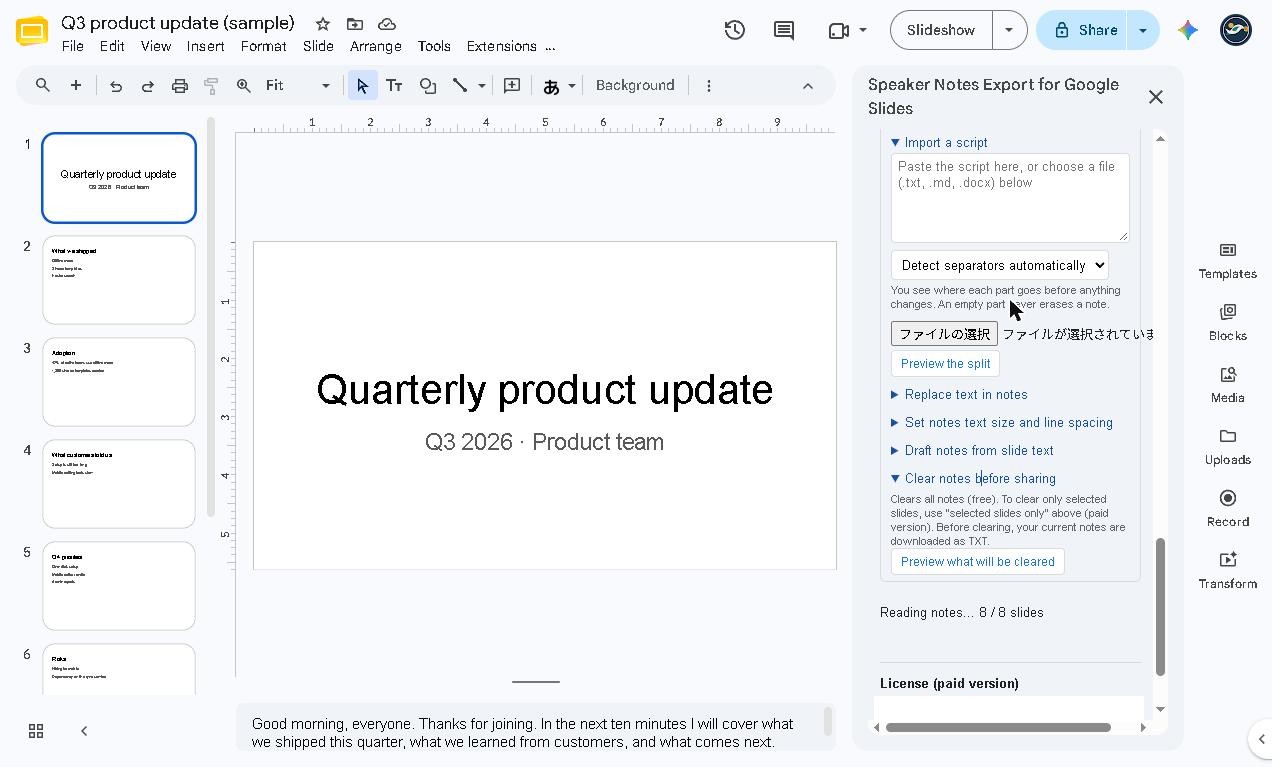
- The preview lists the notes that will be cleared, struck through in red. Nothing has changed yet.
- Before clearing, your current notes are downloaded as a TXT file (a backup). If everything looks right, follow the on-screen prompt to clear them.
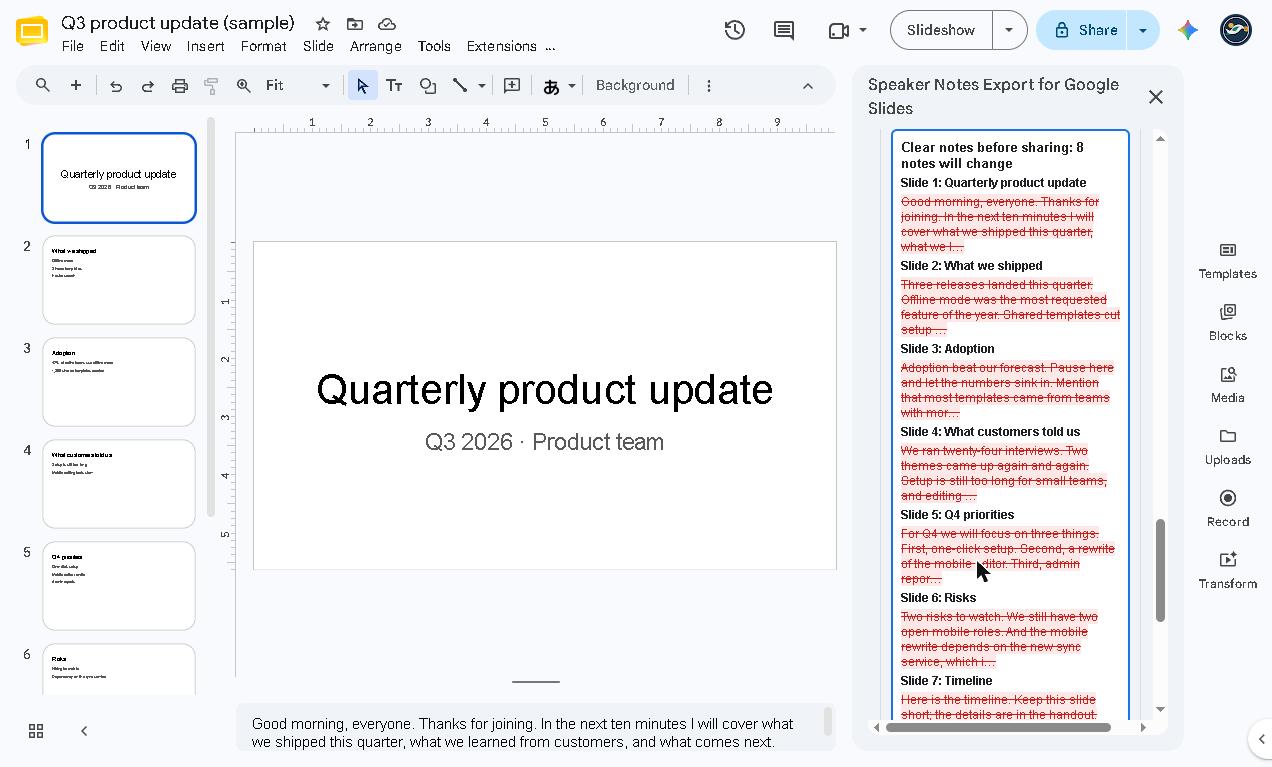
To clear only some slides, first check Selected slides only Paid.
8. Get the paid version
- Buy the paid version ($12, one-time) on Gumroad. The license key arrives by email and on the purchase page.
- Paste the key into License (paid version) at the bottom of the sidebar and press Activate.
- The Paid features are now available. It does not expire.
Keep the key to yourself. The sidebar shows only the last four characters. To remove it, press Remove the key from this account twice. Free features keep working.
9. Free vs. paid
| Free | Paid ($12, one-time) | |
|---|---|---|
| Export formats | PDF, TXT | + Word, Markdown, CSV |
| Layouts | List (notes only) | + Script, Handout |
| Range | All slides | + Selected slides only, skip hidden slides |
| Yes | Yes (all layouts) | |
| Timing | Total time, slides with no / very long notes | + Time per slide, target time |
| Practice mode | – | Yes |
| Notes list | View | + Edit in the list, import a script, replace text, text size, drafts |
| Clear notes before sharing | Yes (with a TXT backup) | Yes |
| Slide limit / watermark | None / none | None / none |
10. If something does not work
| Problem | What to do |
|---|---|
| The sidebar does not load | Open the file in a window signed in to only one Google account |
| Characters appear as “?” in the PDF | The PDF font covers Japanese (JIS X 0208). Emoji and other characters do not appear. Use Word, TXT, CSV or printing |
| The notes look old or incomplete | Press Reload notes |
| The notes do not load on a deck of more than 40 slides | Press Load notes |
| Practice mode is not available | Practice mode is a paid feature. Check that your license is active |
| You changed notes by mistake | Your last change can be undone. You can also restore an earlier version from the version history in Slides |
Your data
The add-on reads only the file you have open. It changes your notes only when you review the change and press Apply. Files you create are saved straight to your computer, not to Google Drive. The only service other than Google it contacts is Gumroad, to check a license key, and only the key and the product ID are sent.
Contact
dailypicks.blog@gmail.com
Google Slides™ and Google Drive™ are trademarks of Google LLC. This add-on is an independent product and is not affiliated with or endorsed by Google.