
日本語版 | Back to the product page
Custom Page Size for Google Docs: User Guide
This guide shows, step by step, how to change the page size, margins and gutter of a Google Docs document to a book (Kindle), postcard, receipt or any other size. Items marked Paid belong to the paid version ($9, one-time purchase). Everything else works in the free version.
1. Before you start
1-1 Install
- Open “Custom Page Size for Google Docs” on the Google Workspace Marketplace and click Install.
- When the permission screen appears, review it and click Allow. The add-on only touches the page setup of the document you have open. It does not read or change your text or images.
1-2 Open the sidebar
- Open the Google Docs file whose page size you want to change.
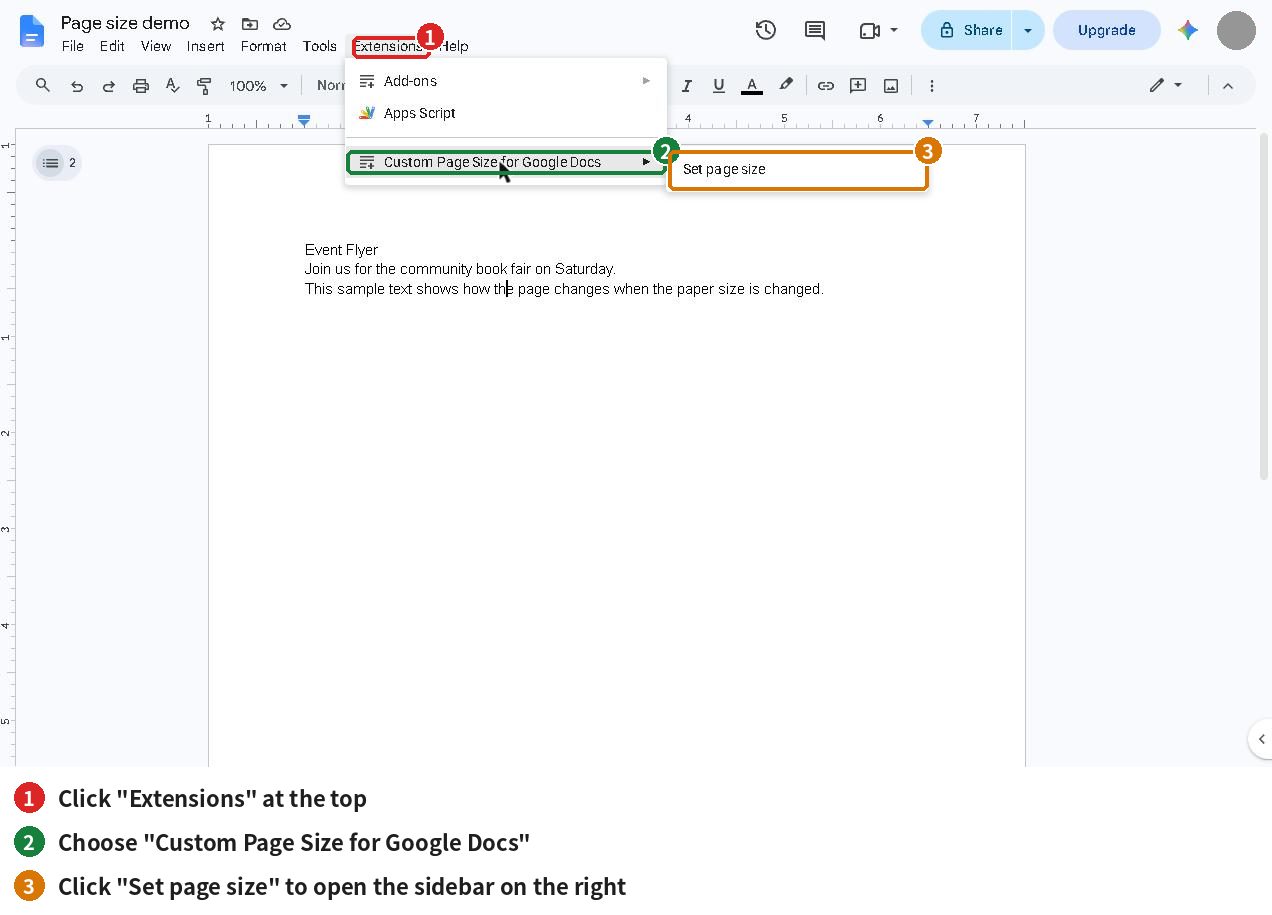
- Choose Extensions → Custom Page Size for Google Docs → Set page size.
- The sidebar opens on the right.
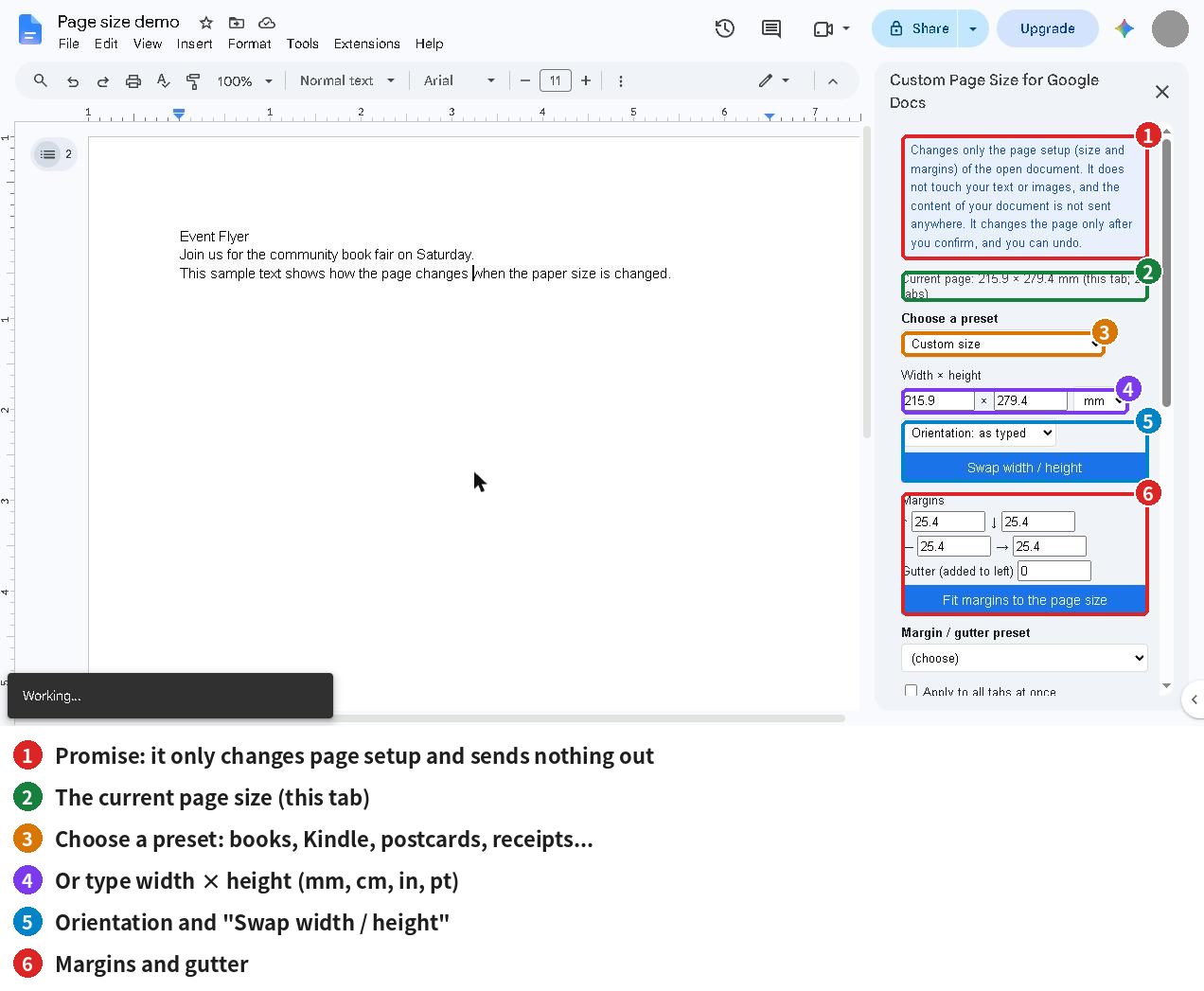
1-3 A tour of the sidebar
If the sidebar does not load, reopen the file in a browser window signed in to only one Google account (it can fail when several accounts are signed in).
2. Change the page size
- Check “Current page” at the top of the sidebar. In a document with several tabs, it shows the size of the open tab.
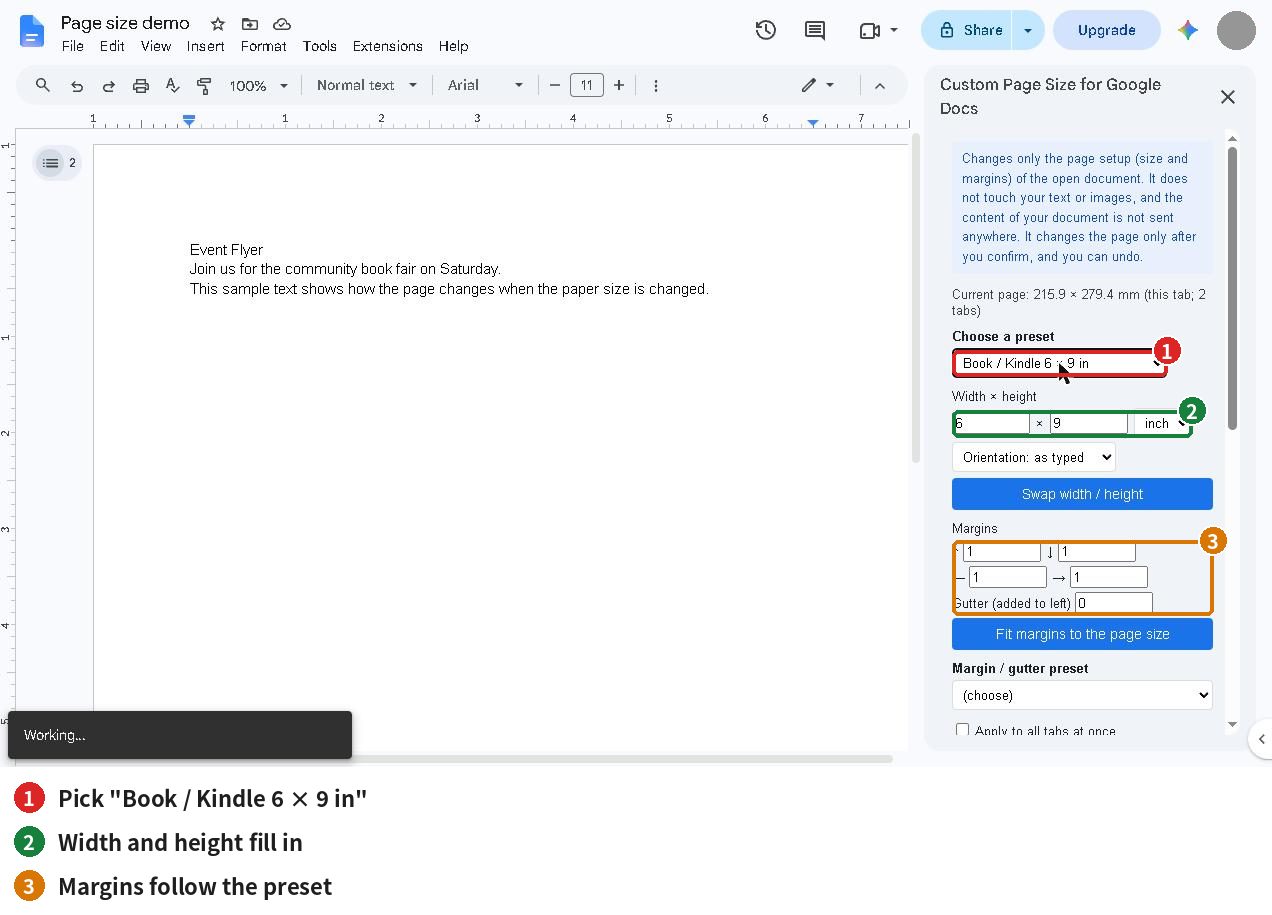
- In “Choose a preset”, pick a size. Presets include books and Kindle, Japanese A5 / B5 / B6 / Shiroku-ban / Bunko / Shinsho, postcards, business cards, receipts (58 mm and 80 mm), A2 / A1, and Letter / Legal / Tabloid.
- If nothing fits, leave “Custom size” and type the width × height. Units are mm, cm, in or pt.
- To turn a portrait page into landscape (or back), click “Swap width / height”, or use “Orientation”.
3. Set margins and gutter
- Margins: four fields for top, bottom, left and right. Picking a preset fills in values that suit it.
- Gutter (added to left): extra space added to the left margin, for bound books.
- Fit margins to the page size: fills in margins that suit the paper size, so a small page does not end up with oversized margins.
4. Confirm, then undo
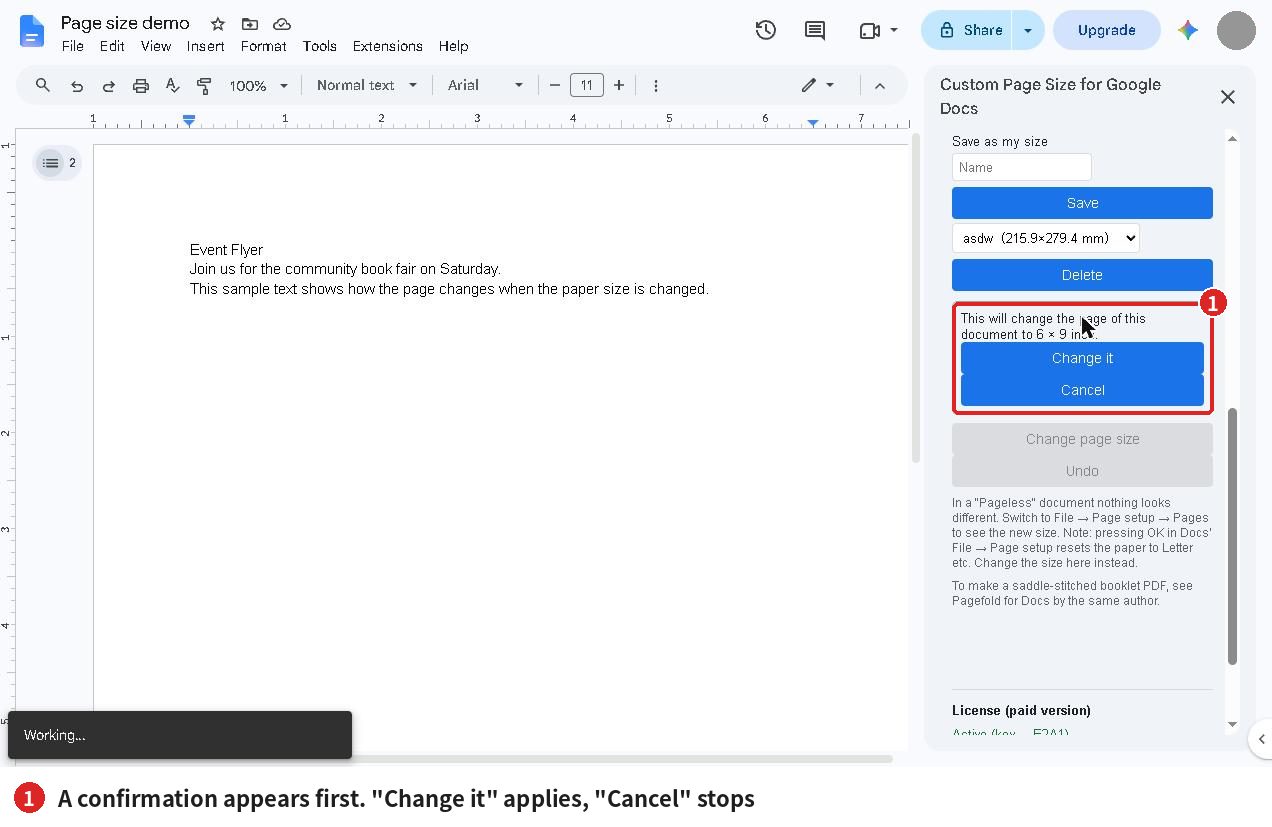
- Click “Change page size” at the bottom of the sidebar.
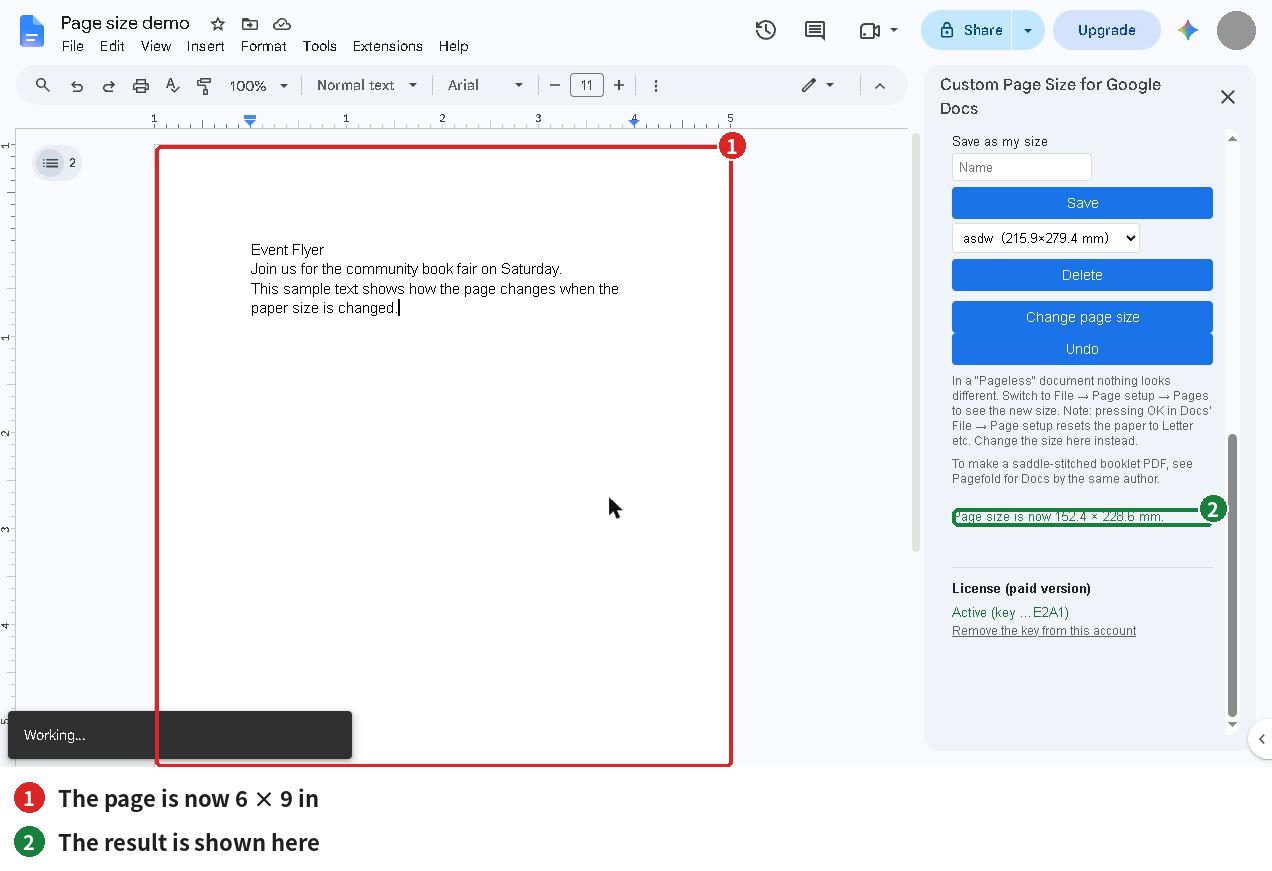
- A confirmation appears: “This will change the page of this document to 6 × 9 in.” Click “Change it” to apply, or “Cancel” to stop.
- The page size changes and the sidebar tells you the new size.
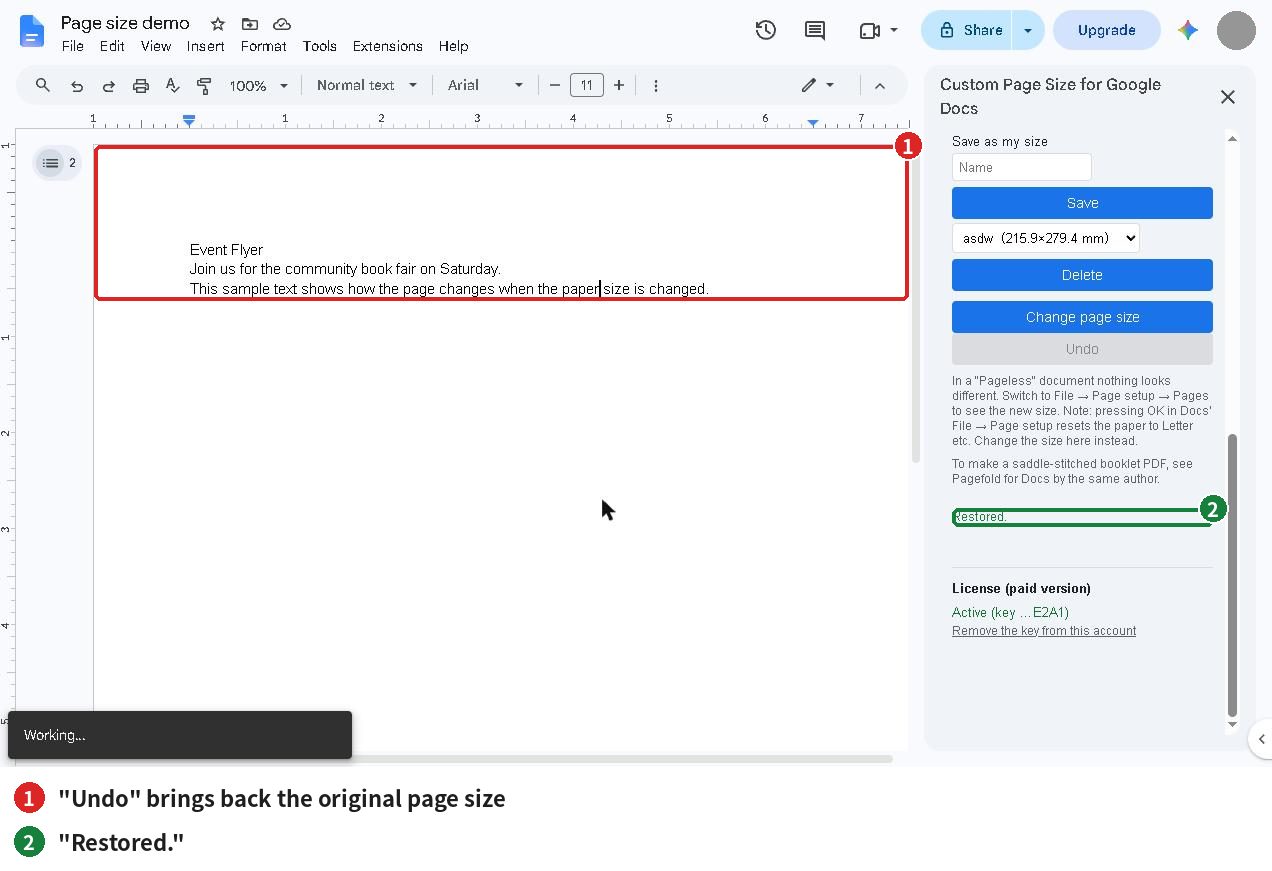
- If you do not like it, click “Undo” to return to the previous page size and margins.
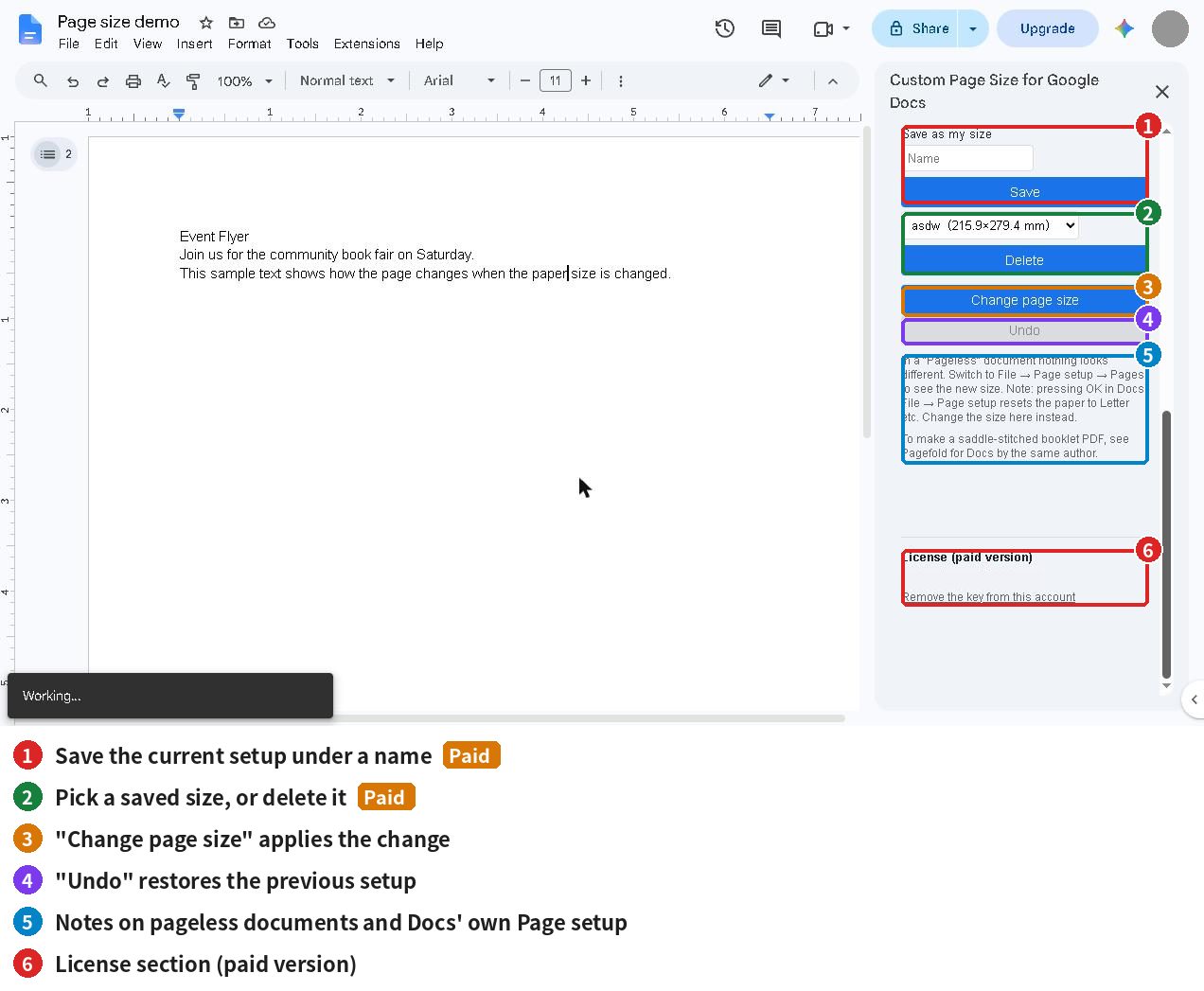
In a “Pageless” document nothing looks different. Switch to File → Page setup → Pages to see the new size. Also note that pressing OK in Docs’ own File → Page setup can reset the paper to Letter. If that happens, change the size again with this add-on.
To make a saddle-stitched booklet PDF, use the sister add-on Pagefold for Docs.
5. Save your own sizes Paid
- Set the width, height and margins you use often.
- Type a name under “Save as my size”.
- Click Save.
- Saved sizes appear in the list below. Select one to reuse it, or click Delete to remove it.
6. Margin presets and all tabs Paid
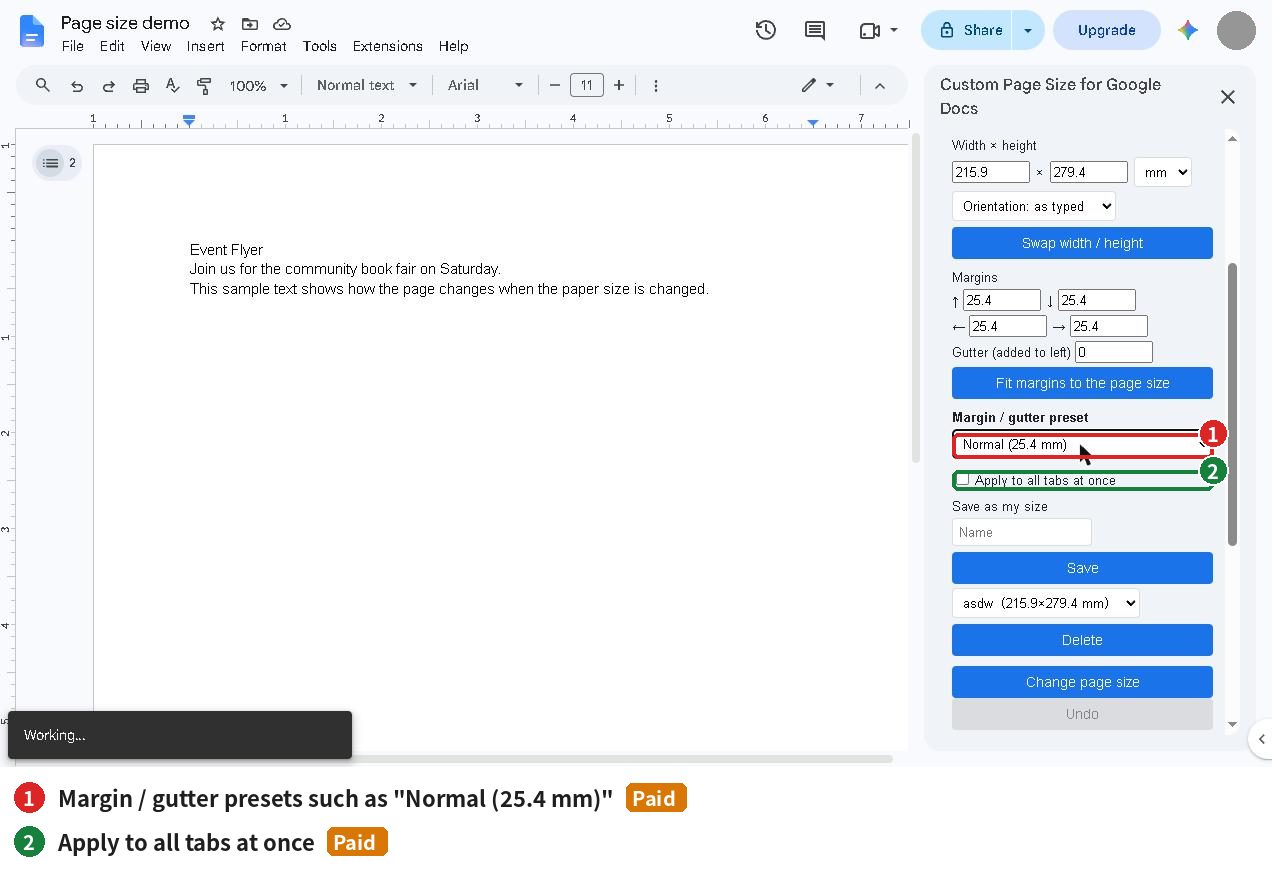
- Margin / gutter preset: choose a combination such as “Normal (25.4 mm)” in one click. You can add your own.
- Apply to all tabs at once: in a document with several tabs, tick this box and click “Change page size” to give every tab the same page.
7. Activate the paid version
- Buy the paid version ($9, one-time) on Gumroad. The license key arrives by email and on the purchase page.
- Paste the key into the license field in the sidebar and click Activate.
- The Paid features unlock. There is no expiry date.
Keep your key private.
8. Free vs paid
| Free | Paid ($9, one-time) | |
|---|---|---|
| Change the page size (all presets and custom sizes) | Yes | Yes |
| Units (mm, cm, in, pt) and orientation swap | Yes | Yes |
| Margins, gutter, “Fit margins to the page size” | Yes | Yes |
| Confirmation and Undo | Yes | Yes |
| Save your own sizes | – | Yes |
| Margin / gutter presets | – | Yes |
| Apply to all tabs at once | – | Yes |
| Watermark | None | None |
9. Troubleshooting
| Problem | What to do |
|---|---|
| The sidebar does not load | Open the file in a window signed in to only one Google account |
| Nothing looks different after changing the size | The document may be “Pageless”. Switch to File → Page setup → Pages |
| The paper went back to Letter | Pressing OK in Docs’ own Page setup does this. Change the size again with the add-on |
| You changed the size by mistake | Click “Undo” |
| A paid field does not work | Paste your license key and click “Activate” |
About your data
The add-on changes only the page setup of the open document and does not touch your text or images. Your content is not sent anywhere. The only request to a service other than Google is the license check: it sends the license key and the product ID to Gumroad.
Contact
dailypicks.blog@gmail.com