
日本語版 | Back to the product page
Icon Picker for Slides™ & Docs™: User Guide
This guide shows, step by step, how to add icons as images to Google Slides and Google Docs. The icons are built into the add-on, so you only search, pick a color and a size, and the icon is placed at your cursor (in Slides, on the slide you selected). Features marked Paid belong to the paid version ($19, one-time). Everything else works in the free version.
1. Before you start
1-1 Install
- Open the “Icon Picker for Slides™ & Docs™” page on Google Workspace Marketplace and click “Install”.
- When the permission screen appears, review it and click “Allow”. The add-on reads only the file you have open. It just adds an image and does not change anything else. Your file content is not sent anywhere.
1-2 Open the sidebar
- Open a Google Slides presentation or a Google Docs document.
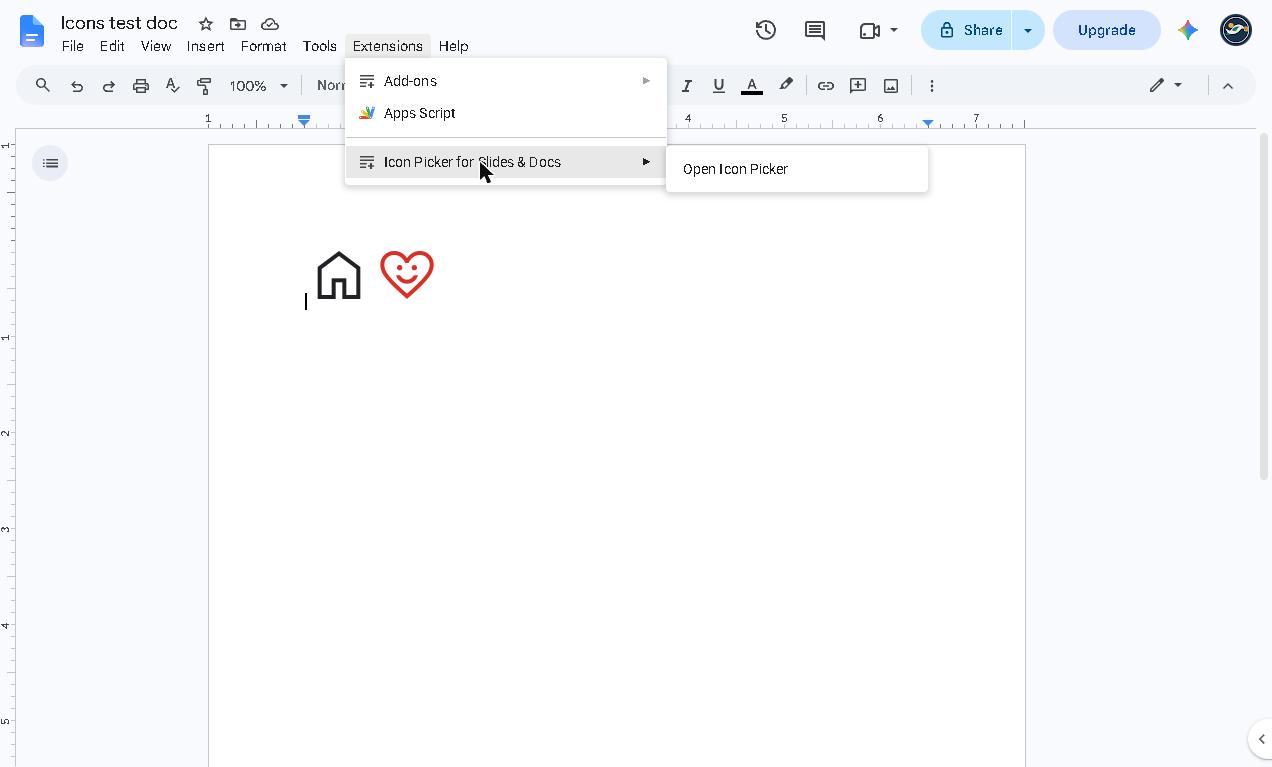
- From the menu, choose Extensions > Icon Picker for Slides & Docs > Open Icon Picker.
- The sidebar opens on the right. The first time, it may take a moment.
2. Find an icon and insert it
- In a document, click where you want the icon so the cursor is there. In Slides, select the slide you want.
- Type a word in the sidebar’s search box (for example home, arrow, mail).
- Click the icon you want. A preview and its name appear below.
- Set the color and size (next section), then press “Insert at the cursor”.
- When it is in, the sidebar says “Inserted 1 icon. To undo, press Ctrl+Z (⌘+Z).”
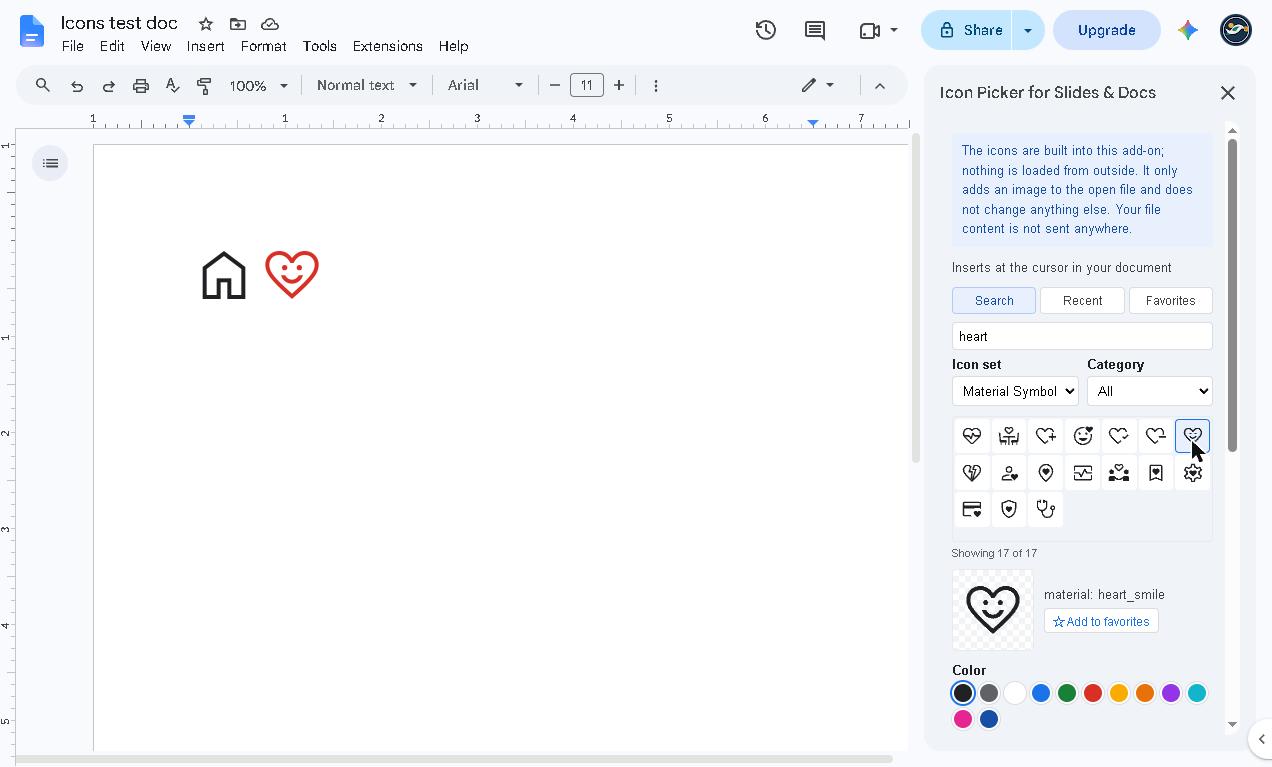
“Icon set” switches between icon families (Material Symbols, Tabler, Lucide). “Category” narrows the list.
3. Choose color, size and line weight
Scroll down in the sidebar to find the look settings.
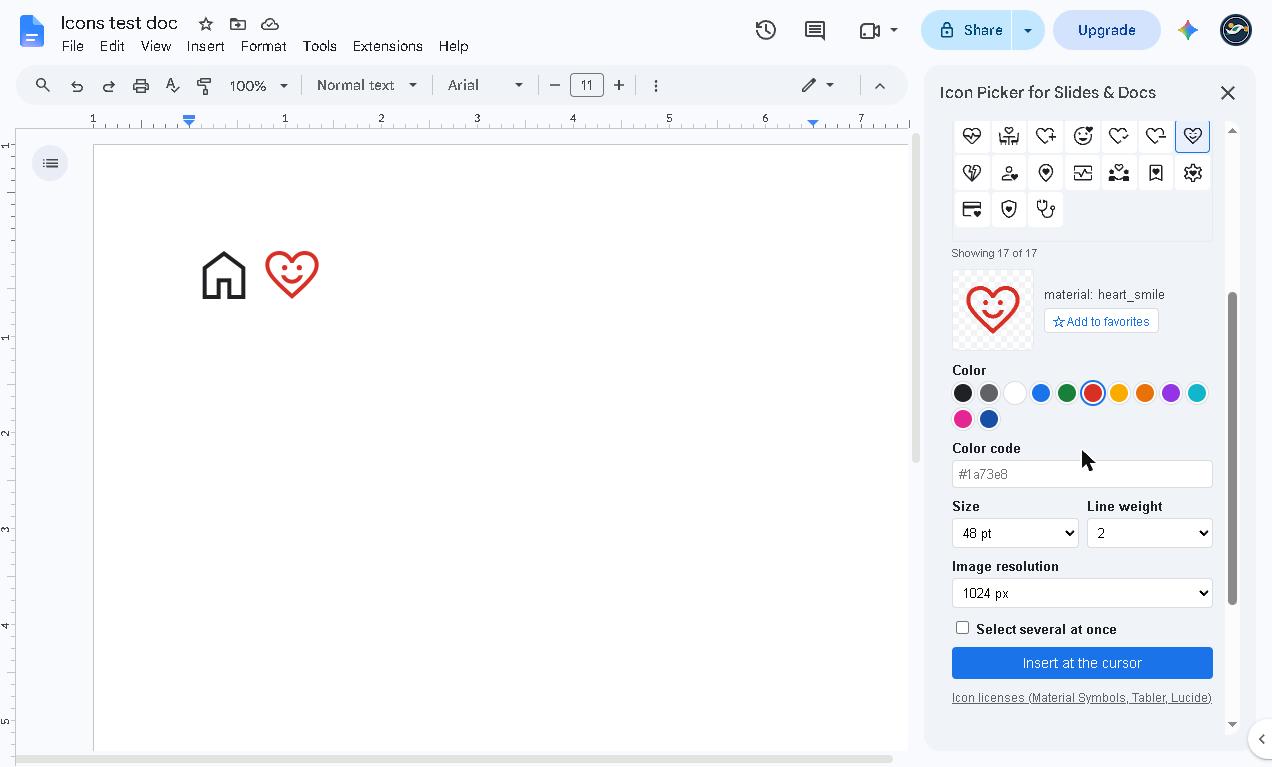
- Color: pick a swatch (12 colors in the free version). With Paid, type any color code such as #1a73e8 in the “Color code” box.
- Size: the size of the icon when inserted (pt).
- Line weight: how thick the icon’s lines are.
- Image resolution: how detailed the image is (px). The free version goes up to 256 px; Paid goes up to 2,048 px. Choose a higher value if you will print.
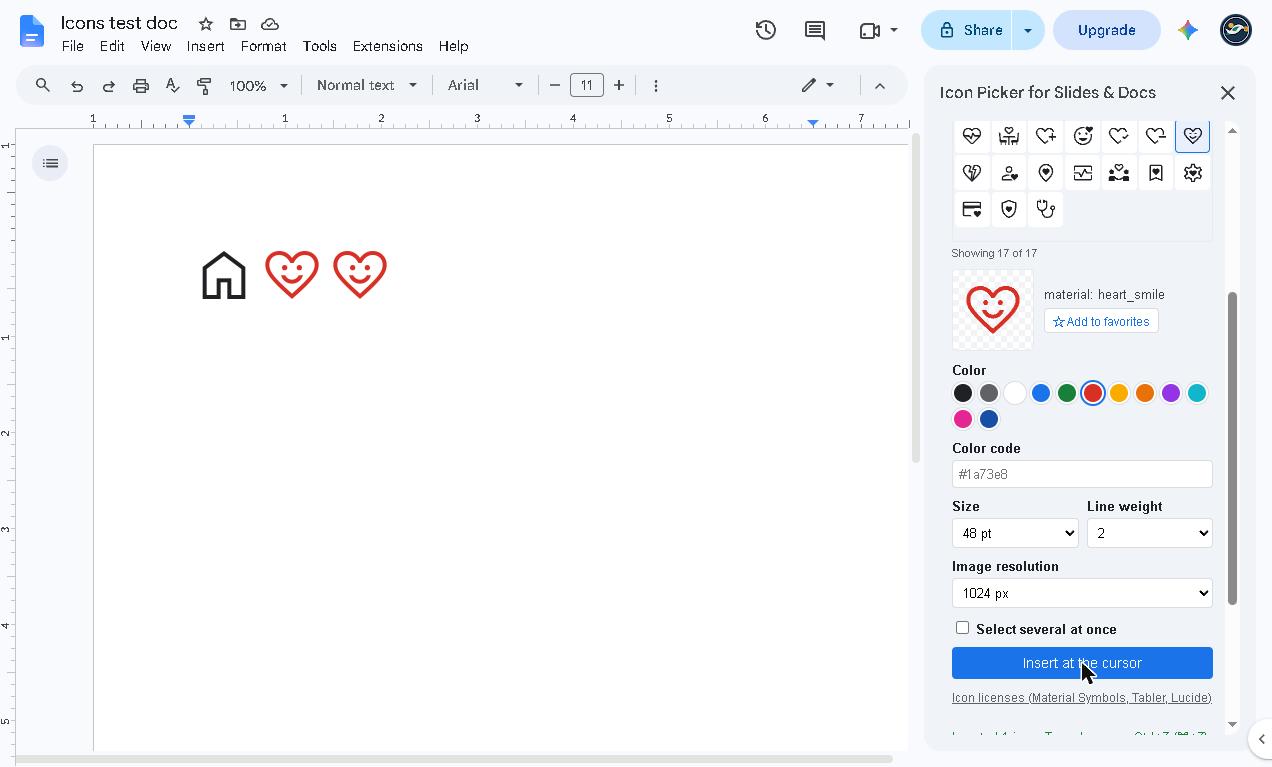
What is inserted is an ordinary image. In Docs you can resize it afterwards or place it inline with text. To change the color, delete the icon, choose a new color and insert it again.
4. Favorites and recent icons
- After picking an icon, press “Add to favorites” next to the preview.
- Open “Favorites” at the top of the sidebar to see only your saved icons.
- “Recent” shows the icons you inserted lately, so you do not have to search again.
5. Insert many icons at once Paid
Tick “Select several at once” to pick icons one after another (up to 20). Press “Insert at the cursor” and they are all inserted together. This is handy for lining up a set of icons.
6. Get the paid version
- Buy the paid version ($19, one-time) on Gumroad. The license key arrives by email and on the purchase page.
- Paste the key into “License (paid version)” at the very bottom of the sidebar and press “Activate”.
- Once active, the Paid features are available. There is no expiry date.
Do not show your key to anyone. To remove it, press “Remove the key from this account” twice.
7. Free vs. paid
| Free | Paid ($19, one-time) | |
|---|---|---|
| Icons you can insert | Up to 15 per day | Unlimited |
| Icon library | About 7,800 Material Symbols | All (over 15,000) |
| Color | Choose from 12 colors | Any color code |
| Image resolution | Up to 256 px | Up to 2,048 px |
| Insert several at once | No | Up to 20 |
The free version adds no watermark; only the amount is limited. The paid version is a one-time purchase and does not stop working when time passes.
8. If something does not work
- The sidebar does not open or load: if your browser is signed in to several Google accounts, an Apps Script add-on’s sidebar may fail to load (a known limitation). Stay signed in to just one account and reopen it.
- Slides says to select a slide: click the slide you want in the filmstrip or on the canvas, then press the button again.
- Nothing is inserted in Docs: click where you want the icon so the cursor is placed, then press the button.
- “Something went wrong”: wait a moment and press “Insert at the cursor” again.
- You reached the daily limit (free): you can insert again the next day. If you need more right away, consider the paid version.
About your data
The icons are built into the add-on and nothing is loaded from outside. The add-on only adds an image to the open file and changes nothing else. Your file content is not sent anywhere. The only time it contacts anyone other than Google is the license check: it talks to Gumroad and sends only the key and the product ID.
Contact
dailypicks.blog@gmail.com
Google Slides™ and Google Docs™ are trademarks of Google LLC. This add-on is an independent product and is not affiliated with or endorsed by Google. See “Icon licenses” at the bottom of the sidebar for the icon licenses.