You want code in Google Docs or Google Slides to look like it does in a code editor, with a clear block and colored keywords. This page covers the built-in code block in Docs, free add-ons, what to do when an add-on menu shows only “Help,” and your options in Slides.
The short answer
- Google Docs (some Workspace editions): go to Insert > Building blocks > Code blocks and pick a language. Google’s launch announcement says personal Google Accounts are not included.
- Google Docs (any account): install a free code add-on from the Google Workspace Marketplace, such as Code Blocks (Docs only) or our Codeglaze (Docs and Slides).
- Google Slides: Google has not announced a code block for Slides. Use a monospace text box or table, or an add-on that supports Slides.
- Add-on menu shows only “Help”? Open Extensions > Add-ons > Manage add-ons and turn on Use in this document, try a new document, or reinstall. Details are below.
Native option: the code block in Google Docs
Google added code blocks to Google Docs in December 2022 and added 14 more languages in April 2025. Here is how to insert one, based on Google’s announcements.
- Open your document in Google Docs on a computer.
- Click where you want the code.
- Go to Insert > Building blocks > Code blocks. You can also type @, choose Code blocks, and continue.
- Choose your programming language.
- Type or paste your code into the block.
Languages added in April 2025: C#, Go, Kotlin, PHP, Rust, TypeScript, HTML, CSS, XML, JSON, Protobuf, Textproto, SQL, and Bash/Shell. Google’s 2022 post does not list the first set of languages, so check the language menu in your document.
Who can use it
| Announcement | Editions listed | Not included |
|---|---|---|
| Dec 2022 (launch) | Business Standard and Plus, Enterprise Standard and Plus, Education Standard and Plus, Nonprofits | Essentials, Business Starter, Enterprise Essentials, Education Fundamentals, Teaching and Learning Upgrade, Frontline, legacy G Suite Basic and Business, personal Google Accounts |
| Apr 2025 (new languages) | Business Standard and Plus, Enterprise Starter, Standard and Plus, Enterprise Essentials Plus, Education Standard and Plus | Not stated |
Admins cannot turn this feature on or off. If you do not see Code blocks under Insert > Building blocks, your account or edition probably does not include it.
What it does not do
- It is for Google Docs only. Google’s announcements do not mention Slides.
- Google describes it as a way to display code in a standard, readable format. It does not describe color themes or line numbers.
- It does not check or run code.
Free add-on for Docs: Code Blocks
Code Blocks is a free add-on by Alex Forsythe. Its Marketplace listing describes it as “Syntax highlighting for Google Docs.” As of October 2026, the listing shows Google Docs only, more than 6 million installs, 1,239 reviews, and an update in June 2026. Its source code is public on GitHub, and the README says it uses the highlight.js library.
- In Google Docs, go to Extensions > Add-ons > Get add-ons.
- Search for Code Blocks, click Install, then Continue.
- Review the data access request and click Allow.
- Open it from the Extensions menu, select your code, and format it.
Steps 1 to 3 follow Google’s general help for installing add-ons. The add-on’s own options are shown in its panel.
If a code add-on’s menu shows only “Help”
This happens with Editor add-ons in general, not only one product. Google’s developer guide explains why. When an add-on is installed for you but not yet turned on in the current document, it runs in a limited mode. In that mode, “Help is the only supported option,” and an add-on that tries to do more at that moment may fail to fill its menu. Google says an add-on is turned on in a document when someone uses it there.
A Code Blocks user reported this exact symptom (GitHub issue #230, “Start Option Not Showing”: only Help, no Start). The maintainer replied that it should be fixed by #275, which they said is live.
Steps you can try, from Google’s help and that issue:
- Turn the add-on on for this file. Go to Extensions > Add-ons > Manage add-ons, find the add-on, click Options, and choose Use in this document.
- Try a new document. In issue #230, a user noted the add-on seemed to work in new documents but not existing ones. Create a blank document and check the menu there.
- Reinstall. Go to Extensions > Add-ons > Manage add-ons, click Options > Uninstall, then install again. Google’s help notes that some previously installed add-ons may need to be reinstalled.
- Check cookies. Google’s help says some add-ons need third-party cookies. Try allowing them for the site temporarily.
- Check the file type. If the Add-ons menu is missing, you may be editing a Microsoft Office file. Convert it to Google Docs format first.
- Report it. Use Report an issue in the add-on’s uninstall options, or the developer’s support page.
Options in Google Slides
We could not find a code block feature for Google Slides in Google’s help pages or announcements. Manual methods work in any account:
- Text box with a monospace font. Insert a text box, paste the code, and set a monospace font such as Roboto Mono, Source Code Pro, or Courier New. Add a light fill color.
- One-cell table. Insert a 1 x 1 table, paste the code into the cell, and set a fill color and monospace font. The code moves as one block.
- Color by hand. Select keywords and strings and change their text color. This works for short snippets.
- Image. Insert a screenshot of the code. It looks right, but nobody can copy or edit the code.
Faster way for Docs and Slides: Codeglaze
Codeglaze is an add-on made by us, Daily Picks. Its product page describes it as “Syntax highlighting and code blocks for Google Docs and Google Slides — free, with no sign-up and no watermark.” You pick a language and a theme, check the preview, and put the code in. The product page lists no paid version.
- Install Codeglaze from the Google Workspace Marketplace.
- Select your code in the document or slide, or paste it into the panel later.
- Open Extensions > Codeglaze for Docs & Slides > Open Codeglaze.
- Pick the language and the theme, and check the preview.
- Click Insert.
According to the product page, Codeglaze puts the code in a box with a background (a one-cell table in Docs, a shape in Slides), can add line numbers, and can update a box after you change the code. The code is highlighted inside the side panel in your browser and is not sent to us. It uses “current file only” permissions, not access to your whole Drive.
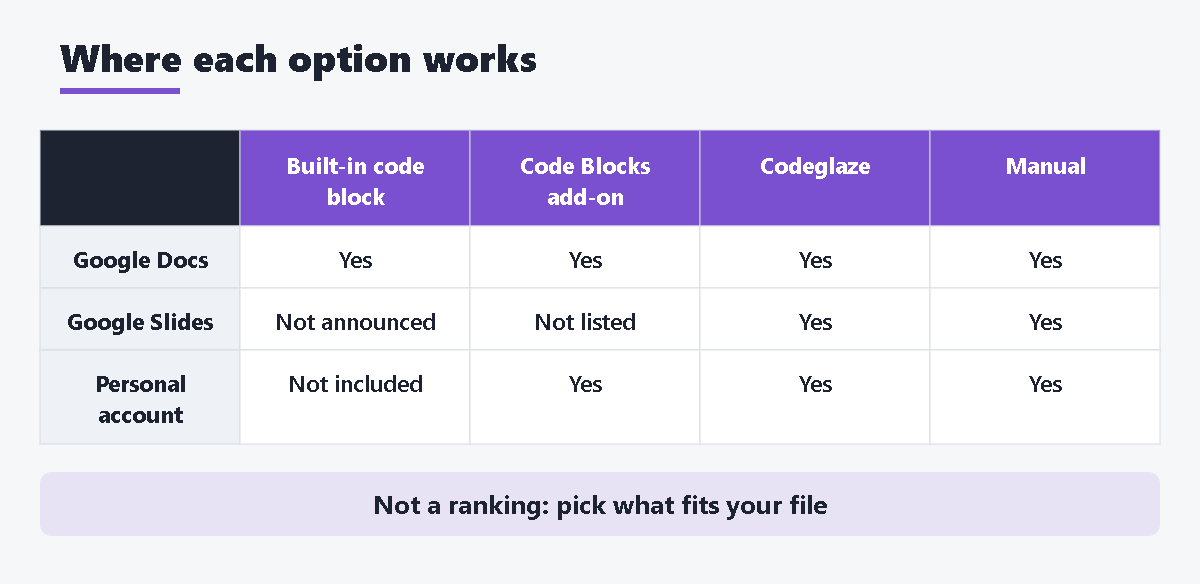
| Built-in code block | Code Blocks add-on | Codeglaze | Manual formatting | |
|---|---|---|---|---|
| Google Docs | Yes | Yes | Yes | Yes |
| Google Slides | Not announced | Not listed | Yes | Yes |
| Personal Google Account | Not included (2022 post) | Yes | Yes | Yes |
| Cost | Included in listed editions | Free (listing) | Free (product page) | Free |
This table only shows where each option works. It is not a ranking. Details: Codeglaze product page.
FAQ
I don’t see “Code blocks” under Insert > Building blocks.
Check which account you are using. Google’s launch post lists only some Workspace editions and excludes personal Google Accounts. In a work or school account, ask your admin which edition you have.
Will highlighted code stay if I remove an add-on?
Code formatted by an add-on is normal text with colors and backgrounds, so it normally stays in the document. You only need the add-on to format new code.
Can I highlight code in Google Slides without an add-on?
Only by hand: a monospace font, a background color, and word colors you set yourself, or an image of the code.
The add-on panel does not load at all.
Turn off browser extensions that block scripts, check the cookie setting above, and try a window signed in to only one Google account.
Does the built-in code block run or check code?
No. Google describes it as a way to format and display code so it is easier to read and work on together.
Sources
- Google Workspace Updates: Format and display code in Google Docs (Dec 2022)
- Google Workspace Updates: Additional programming languages for code blocks in Google Docs (Apr 2025)
- Google Docs Editors Help: Use add-ons, Apps Script, AppSheet & Data Studio
- Google for Developers: Editor add-on authorization
- Google Workspace Marketplace: Code Blocks
- GitHub: Code Blocks issue #230 “Start Option Not Showing”
- GitHub: alexwforsythe/code-blocks README
- Codeglaze product page (Daily Picks)






コメント