
You want to find the best numbers in a spreadsheet, such as the most profit or the lowest cost, under some limits. Excel has Solver for this. This page explains what Google Sheets has, how to solve a small problem with formulas, and when an add-on is easier.
The short answer
- Google Sheets has no built-in Solver menu like Excel. Google’s own optimization tools for Sheets come as add-ons or Apps Script code.
- For one unknown value (for example, “what price gives a profit of $1,000?”), use Google’s free Goal Seek add-on: Extensions > Goal Seek > Open.
- For a very small problem with whole numbers, you can test every combination with a formula. The example below shows how.
- For real linear programming (many variables, constraints, whole numbers or 0/1), use a Solver add-on such as our Solvecell, or write Apps Script.
Does Google Sheets have Solver like Excel?
Not as a built-in menu. In Excel, Solver is an add-in that you open from Data > Analysis > Solver. Microsoft describes it as a tool that finds the maximum or minimum of one cell (the objective cell) by changing other cells (the decision variable cells), subject to constraints. Excel’s Solver has three methods: Simplex LP for linear problems, GRG Nonlinear for smooth nonlinear problems, and Evolutionary for non-smooth problems. Microsoft says you can set up to 200 variable cells.
Google Sheets does not have this in its menus. Google offers these options instead:
| Option | Made by | What it does | Good for |
|---|---|---|---|
| Goal Seek add-on | Changes one cell so a formula reaches a target value | Break-even, “what value do I need?” | |
Apps Script LinearOptimizationService |
Google (for developers) | Models and solves linear and mixed-integer linear programs in code | People who can write JavaScript |
| Formulas (brute force) | You | Tests every combination | Two or three variables, small ranges |
| Solver add-ons | Third parties | Excel-style objective, variables, constraints | Linear programming in a sidebar |
Google also announced a “Linear Optimization” add-on for Sheets in 2014. Check the Marketplace for what is available today.
Native option: Goal Seek (one variable)
Goal Seek is not optimization. It does not find the best value. It finds the value of one cell that makes a formula equal a number you choose. Google’s help page gives these steps:
- Install the Goal Seek add-on for Google Sheets from the Google Workspace Marketplace. Google notes it is only available in English.
- Open your spreadsheet. Go to Extensions > Goal Seek > Open.
- Enter your known values and the formula you want to solve.
- Select the cell with the formula. In the side panel, next to Set cell, click Capture selected cell.
- Under To value, enter your target.
- Select the cell with the unknown value. Next to By changing cell, click Capture selected cell.
- Click Solve.
Limits: one changing cell, one target, and no constraints. If you need “maximize profit, but wood must be 120 or less,” you need a Solver-type tool.
Example: a small optimization problem, step by step
A workshop makes tables and chairs. It wants the most profit.
- Profit: $50 per table, $30 per chair.
- Wood: a table uses 4 units, a chair uses 3 units. 120 units are available.
- Labor: a table takes 2 hours, a chair takes 1 hour. 50 hours are available.
- You cannot make a negative number of items.
Step 1: Lay out the sheet
| A | B | C | D | E | |
|---|---|---|---|---|---|
| 1 | Tables | Chairs | Total | Limit | |
| 2 | How many | 0 | 0 | ||
| 3 | Profit per item | 50 | 30 | =SUMPRODUCT(B$2:C$2,B3:C3) |
|
| 4 | Wood per item | 4 | 3 | =SUMPRODUCT(B$2:C$2,B4:C4) |
120 |
| 5 | Hours per item | 2 | 1 | =SUMPRODUCT(B$2:C$2,B5:C5) |
50 |
In optimization words:
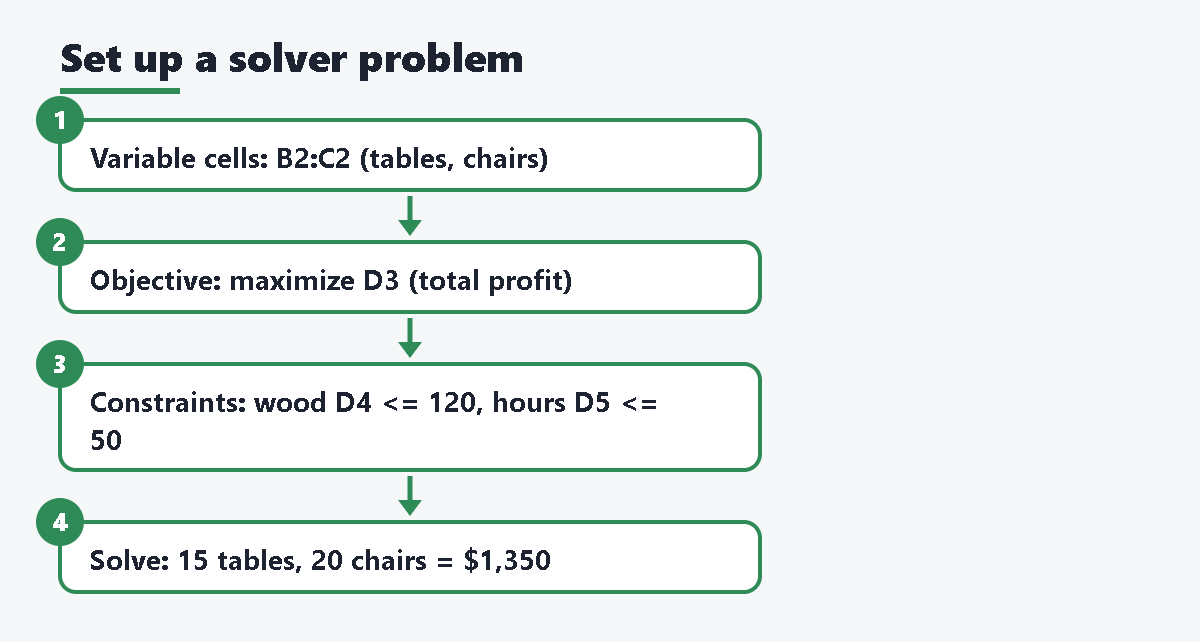
- Variable cells: B2 and C2 (how many tables and chairs).
- Objective: maximize D3 (total profit).
- Constraints: D4 <= E4, D5 <= E5, B2 >= 0, C2 >= 0.
Every formula is a sum of “number times variable.” That makes this a linear problem, which is the kind linear programming solves.
Step 2: Solve it by trying every table count (no add-on)
With only two products, you can check every whole number of tables and let Sheets work out the most chairs that still fit. Tables can be 0 to 25 (50 hours / 2 hours each).
- In a new sheet, type Tables in G1, Max chairs in H1 and Profit in I1.
- Type 0 in G2 and 1 in G3, select both cells, and drag the fill handle down to G27 (the value 25).
- In H2, enter
=MIN(INT((120-4*G2)/3), 50-2*G2). This is the largest chair count that keeps wood (120) and hours (50) within their limits. - In I2, enter
=50*G2+30*H2. - Copy H2:I2 down to row 27.
- Find the largest profit with
=MAX(I2:I27), and look across that row.
The best row is 15 tables, 20 chairs, $1,350 profit. Check it: wood is 4 x 15 + 3 x 20 = 120, and hours are 2 x 15 + 20 = 50. Both limits are used fully, which is common for the best answer.
Step 3: Know when this stops working
- Each new variable multiplies the number of combinations. Five variables with 0 to 40 each would be more than 115 million rows.
- It only tests whole numbers in the range you set.
- You must rebuild the table when the problem changes.
For anything bigger, use a solver.
Workaround for coders: Apps Script
Google’s Apps Script has a built-in LinearOptimizationService. Google says it is used to model and solve linear and mixed-integer linear programs. You create an engine, add variables with bounds, add constraints, set the objective, and call solve(). Open Extensions > Apps Script in your sheet to write the code. The reference page has a full sample. This is free, but you must write and maintain the code and copy values between the sheet and the script yourself.
Faster way: Solvecell for Google Sheets
Solvecell is a Solver add-on made by us, Daily Picks. It works like the Solver you may know from Excel: you choose an objective cell, the cells it may change, and the constraints, and it shows the answer in the sidebar.
- Install Solvecell from the Google Workspace Marketplace.
- Open your sheet. Go to Extensions > Solvecell for Google Sheets > Open Solvecell.
- Enter the objective cell (D3) and choose maximize. Solvecell can also minimize, or make the cell equal to a value.
- Enter the variable cells (B2:C2).
- Add the constraints: D4 <= E4, D5 <= E5. Use
intif the variables must be whole numbers, orbinfor 0/1. - Press Solve. When you are happy with the answer, press Write answer. Undo puts the old values back.
Per the product page, Solvecell handles linear models (linear, integer and 0/1). If the sheet is not linear in the variable cells, it tells you and writes nothing. Each solve stops at a time limit you set (5 to 300 seconds).
| Free | Paid (one-time purchase) | |
|---|---|---|
| Linear, integer and 0/1 models | Yes | Yes |
| Variable cells | Up to 200 | No limit |
| Time limit per solve (5 to 300 seconds) | Yes | Yes |
| Shadow prices | No | Yes |
| Watermark | None | None |
Price and details: Solvecell product page.
Troubleshooting and FAQ
Can Google Sheets do nonlinear optimization?
Not with a built-in tool. Goal Seek handles one changing cell. Apps Script’s LinearOptimizationService is for linear and mixed-integer linear problems. Solvecell is also linear only.
How do I know if my problem is linear?
Look at the formulas that depend on the variable cells. If they only add, subtract, or multiply variables by fixed numbers, the problem is linear. Two variables multiplied together, powers, IF, MAX, or MIN on variables usually make it nonlinear.
Goal Seek is not in my Extensions menu.
Install it first from the Marketplace. In a work or school account, your admin may need to allow it.
My solver says there is no answer.
The constraints cannot all be true at once. Check for a limit that is too tight or a sign that points the wrong way (<= instead of >=).
The add-on sidebar does not load.
Open the file in a window signed in to only one Google account. Apps Script add-ons often fail to load when several accounts are signed in.
I opened my Excel file with Solver settings in Sheets. Where are they?
Google Sheets does not use Excel’s Solver settings. Enter the objective, variables, and constraints again in the tool you choose.
Sources
- Google Docs Editors Help: Find an unknown value with Goal Seek
- Google Workspace Updates: Goal Seek add-on now available for Google Sheets (Oct 2019)
- Google Workspace Updates: Google Sheets add-on for linear optimization (Sep 2014)
- Apps Script reference: Class LinearOptimizationService
- Google Docs Editors Help: LET function
- Google Docs Editors Help: SORTN
- Google Docs Editors Help: HSTACK function
- Microsoft Support: Define and solve a problem by using Solver
- Solvecell product page (Daily Picks)










コメント