
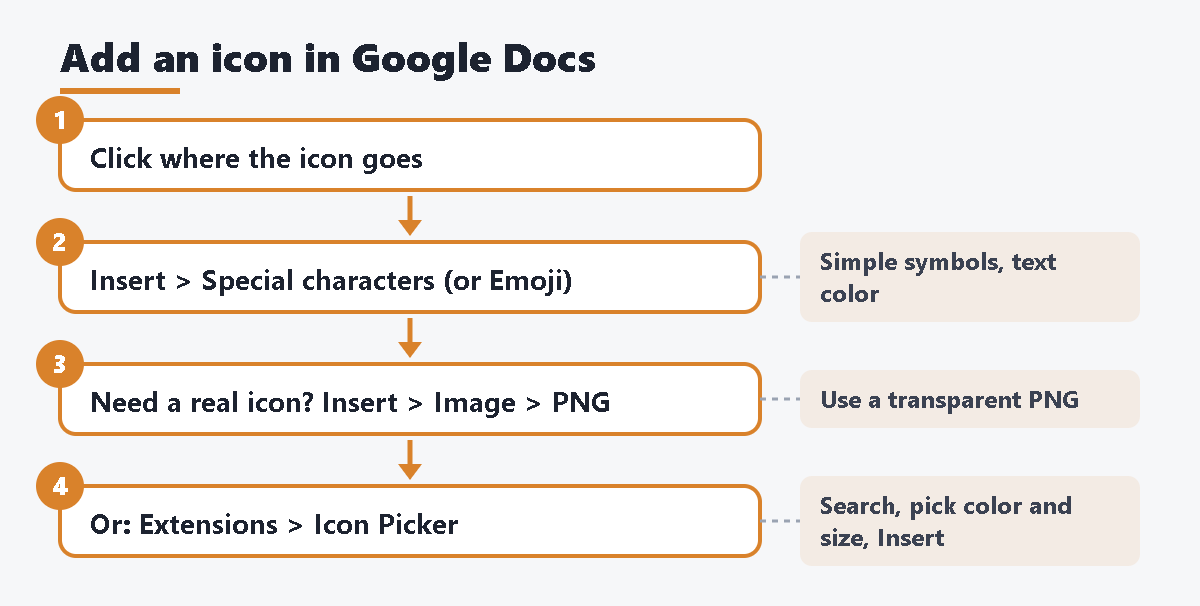
You want to add icons to a Google Doc: a check mark in a list, a phone icon next to contact details, or small symbols in a table or a resume. Google Docs has no “Icons” menu, but you can still do it with built-in tools or with an add-on.
The short answer
- Simple symbols (✓ ★ ☎ ➜): Insert > Symbols > Special characters. They act like text, so you can change their size and color like any letter.
- Colorful icons: Insert > Symbols > Emoji, or type
@emojior:plus a keyword (for example:phone). - Real icon graphics: download a PNG icon with a transparent background and add it with Insert > Image > Upload from computer.
- Search and insert in one place: our add-on Icon Picker for Slides & Docs inserts icons at the cursor in the color and size you choose. The free version allows 15 icons a day.
Method 1: Special characters (symbols that behave like text)
Unicode has many symbols that work as simple icons: check marks, stars, arrows, phones, envelopes, warning signs and more.
- Click in your document where you want the icon.
- Click Insert > Symbols > Special characters.
- Find a symbol in one of three ways:
- Type a word in the search box, such as check, star or arrow.
- Browse the categories with the drop-down menus.
- Draw the shape in the box on the right. Google returns characters that look like your drawing.
- Click a symbol to insert it, then close the window.
Why this is useful: the symbol is a character, so it sits in the line of text. You can select it and change its size with the font size box and its color with the Text color button. It also moves with the text when you edit.
Limits:
- The choice is limited to what Unicode offers. You will not find many modern icons, such as a “cloud upload” or “dashboard” icon.
- How a symbol looks depends on the font. Some symbols may look different in another font, on another device, or when exported to PDF or Word.
- Some symbols may appear as emoji (in color) instead of plain symbols, depending on the device.
Method 2: Emoji
Emoji are the quickest way to add a colorful icon.
- Click where you want the icon.
- Do one of the following:
- Click Insert > Symbols > Emoji and choose one.
- Type
@emoji, press Enter, then pick an emoji or type a search word. - Type a colon and a keyword, such as
:cat, and press Enter.
If the colon shortcut gets in your way, turn it off in Tools > Preferences by unchecking Insert emojis using the colon character.
Limits:
- You cannot change an emoji’s colors. A red heart stays red.
- Emoji look playful. They may not fit a formal report, a resume or a business proposal.
- Emoji can look different on other systems and in exported files.
Method 3: Draw a simple icon with Insert > Drawing
The drawing tool can make simple icon-like shapes, such as arrows, stars, circles with a letter inside, or callouts.
- Click Insert > Drawing > New.
- Click Shape and pick a shape, or click Select line for arrows and lines. Drag on the canvas to draw it.
- Use the fill color and border color buttons to set the colors. Double-click a closed shape to type inside it.
- Click Save and close. The drawing appears in your document.
If you reuse the same drawing in many documents, you can create it in Google Drawings and insert it with Insert > Drawing > From Drive. Google notes that the inserted drawing stays linked to the original, and you can click Update to refresh it.
Limits: the shapes are basic. Drawing a detailed icon, like a laptop or a shopping cart, by hand is slow.
Method 4: Insert an icon image
For real icon graphics, find an icon file and insert it as an image.
- Get an icon as a PNG file with a transparent background. Many open-source icon sets offer PNG downloads. Check the license before you use it.
- Click where you want the icon.
- Click Insert > Image and choose a source: Upload from computer, Stock & web, Drive & Photos, Camera or By URL.
- Drag a corner of the image to resize it. Keep it small, about the height of a line or two.
- To change how it sits with the text, click the image and choose In line, Wrap text, Break text, Behind text or In front of text.
To adjust the look, click the image and choose Format options. Under Recolor you can pick one of the color options shown, and under Adjustments you can change opacity, brightness and contrast.
Limits:
- Color: Recolor offers a set of options, not any color you want. To match a brand color exactly, you need an icon file in that color.
- Transparent background: JPG files have no transparency, so a JPG icon shows a white or colored box behind it. Use PNG.
- Sharpness: a small PNG gets blurry when you make it bigger or print it. Download a larger size than you need.
- SVG: Google’s help for inserting images does not list SVG as a supported format. Use PNG to be safe.
- Pageless documents: Google notes that wrap and position options are not available in pageless format. Switch to pages with File > Page setup if you need them.
- Time: finding, downloading, recoloring and uploading takes several steps for each icon.
Which method fits your task
| Need | Special characters | Emoji | Drawing | Image file | Icon Picker add-on |
|---|---|---|---|---|---|
| Change to any color | Yes (text color) | No | Yes (shapes) | Limited (Recolor options) | Free: 12-color palette. Paid: any color code |
| Modern icon designs | Few | Emoji style only | Basic shapes | Yes, if you find the file | Yes (built-in icon sets) |
| Transparent background | Yes | Yes | Yes | Only with PNG | Yes (PNG) |
| Moves with text | Yes | Yes | Yes (in line) | Yes (in line) | Inserted at the cursor |
| Steps per icon | Few | Few | Many | Many | Few |
Faster way: Icon Picker for Slides & Docs
We (Daily Picks) made Icon Picker for Slides & Docs to remove the “find, download, recolor, upload” loop. You search icons in a sidebar, choose a color and size, and insert the icon as a PNG image at the cursor in Google Docs (or in the middle of the current slide in Google Slides). Install it from the Google Workspace Marketplace.
- Install the add-on and open your document.
- Click in the text where you want the icon. The add-on needs a cursor position in Docs.
- Click Extensions > Icon Picker for Slides & Docs > Open Icon Picker.
- Search for an icon by name (for example phone, check, calendar), or filter by category.
- Choose the color and size, check the preview, and press Insert. To undo, press Ctrl+Z (⌘+Z on a Mac).
Free version: 15 icons a day, the Material Symbols set (about 7,800 icons, outlined and filled), a 12-color palette and 256 px images. No watermark.
Paid version ($19, one-time, no subscription): no daily limit, all icon sets (Material Symbols, Tabler Icons and Lucide, over 15,000 icons), any color code, images up to 2,048 px for sharp printing, and inserting several icons at once.
The icons are built into the add-on, so nothing is downloaded from other sites. It adds an image to the open file and changes nothing else. The icon sets are open source, and the product page lists their licenses. Brand logos are not included.
Troubleshooting and FAQ
My icon has a white box around it.
The file is probably a JPG, or a PNG saved without transparency. Get a PNG with a transparent background. If the document page has a color, a white box will stand out even more.
How do I line up an icon with the text?
Click the image and choose In line. Then resize it to about the same height as the text. Special characters and emoji line up automatically because they are text.
The icon looks blurry when I print or export to PDF.
The image is too small for its printed size. Insert a larger PNG and shrink it in the document, instead of enlarging a small one.
Can I put icons in a table or a header?
Yes. Click inside the table cell or the header and insert the symbol, emoji or image as usual. In-line images work best in tables.
Why can’t I change the color of my emoji?
Emoji are color images with fixed colors. Use a special character (which takes the text color) or an icon image in the color you want.
Icon Picker says to place the cursor first.
Click in the body text of your document, then press the button again.
The add-on sidebar does not load.
If you are signed in to more than one Google account, open the document in a window signed in to only one account. This is a known limitation of Apps Script add-ons.
Sources
- Insert emojis & special characters – Google Docs Editors Help
- Quickly find and insert special characters – Google Workspace Updates
- Create, insert & edit drawings – Google Docs Editors Help
- Insert or delete images & videos – Google Docs Editors Help
- Crop and adjust images – Google Docs Editors Help
- Icon Picker for Slides & Docs – product page (Daily Picks)
- Icon Picker for Slides & Docs – Google Workspace Marketplace










コメント