
日本語版 | Back to the product page
Form Print for Google Forms: User Guide
This guide shows, step by step, how to turn a Google Form™ into a printable test or worksheet, how to print an answer key and an A/B version, and how to print each response on its own page. Items marked Paid belong to the paid version ($19, one-time purchase). Everything else works in the free version, and for the first 7 days you can try every paid feature without a key.
1. Before you start
1-1 Install
- Open Form Print for Google Forms on the Google Workspace Marketplace and click Install.
- Review the permission screen and click Allow. Form Print can only read the questions and responses of the form you have open. It never changes the form or its responses, and creates nothing in your Drive.
1-2 Open the sidebar
- Open the form in Google Forms (the editor, not the form people fill in).
- Click the add-ons icon (the puzzle piece) at the top right, then Form Print for Google Forms → Open Form Print.
- The Form Print panel opens on the right.
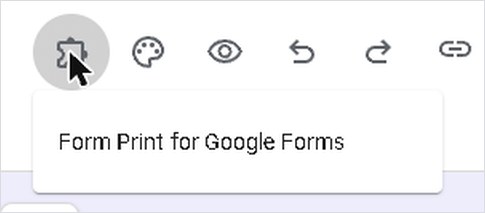
If you do not see the puzzle piece, make the browser window wider. If the panel does not load, open the form in a browser window signed in to only one Google account.
2. Print the blank form
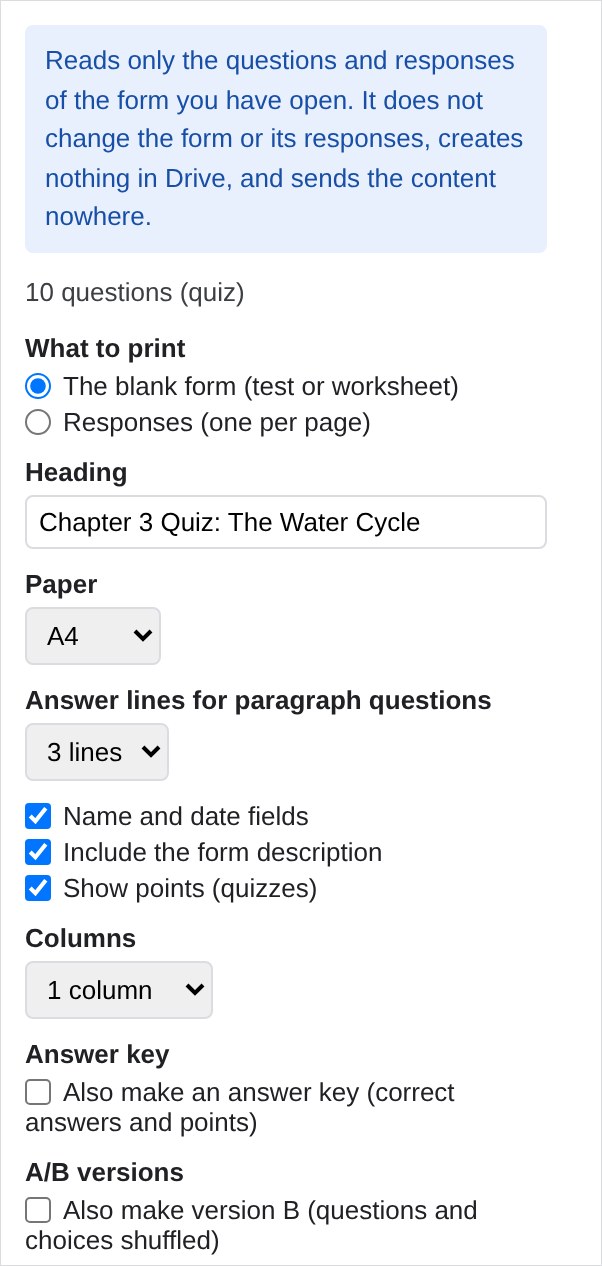
- Under What to print, keep The blank form (test or worksheet).
- Check Heading. It starts with the form title; change it if you want a different title on paper.
- Choose the options (see the next section), then click Print / Save as PDF.
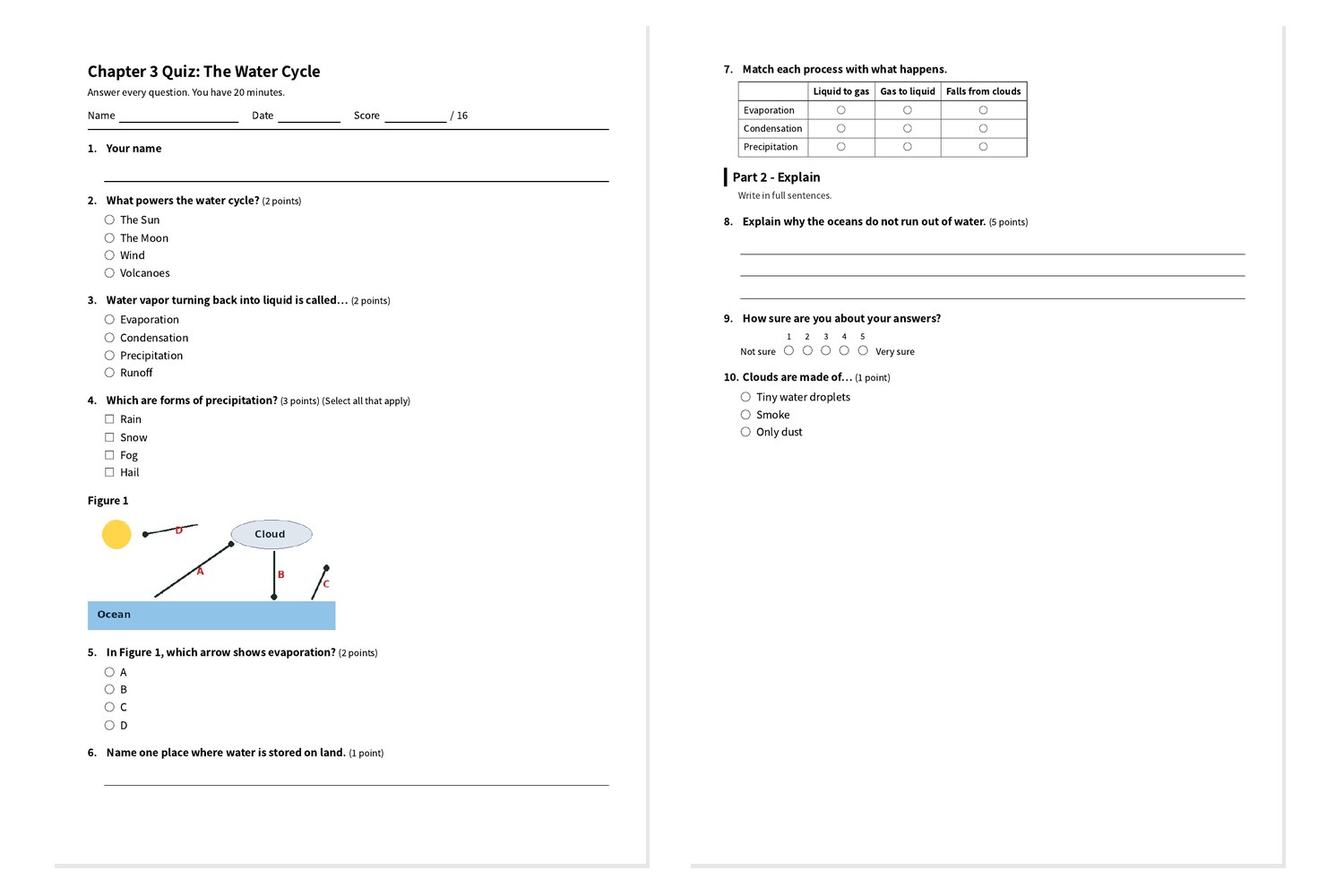
- A new tab opens with the printable page, and your browser’s print window appears.
3. Print options
- Paper: A4 or Letter.
- Answer lines for paragraph questions: 2, 3, 5 or 8 lines.
- Name and date fields: adds “Name” and “Date” (and “Score” for quizzes) at the top.
- Include the form description and Show points (quizzes).
Multiple choice, checkboxes, dropdowns, short answer, paragraph, grids, linear scales, dates and times are printed. Images in the form are printed too. Videos and file-upload questions are printed as their title with a short note, because they cannot be put on paper.
4. Answer key, A/B versions and two columns Paid
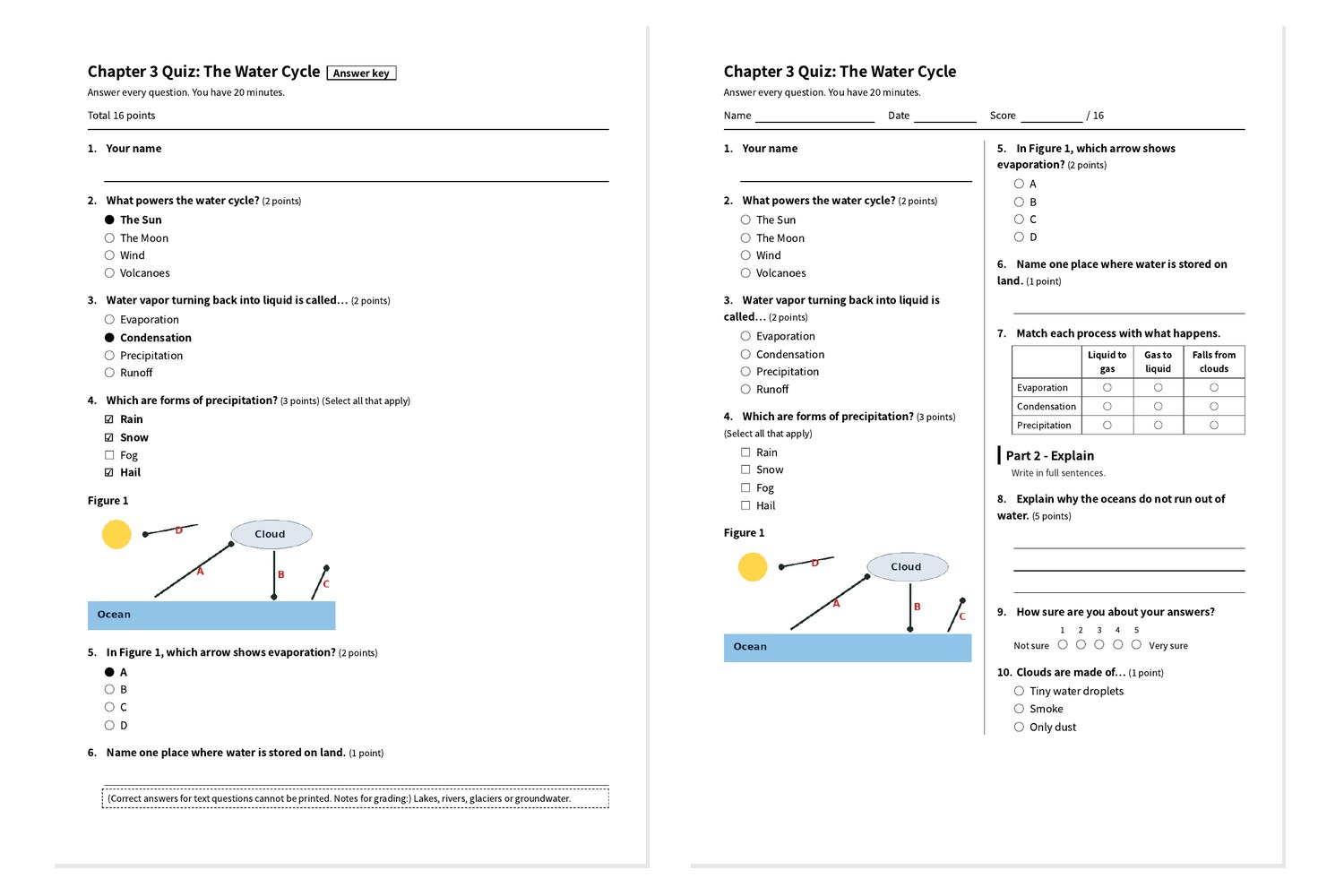
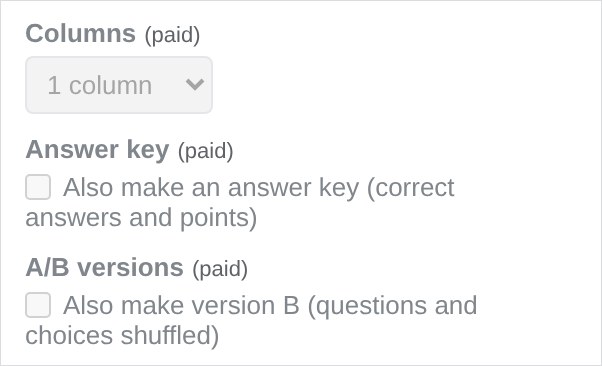
- Columns → 2 columns: fits more questions on each sheet.
- Answer key: prints a teacher’s copy after the student copy, with the correct choices filled in, points, and the total. For text questions, the general feedback you wrote in the form is printed as a marking guide.
- A/B versions: also prints version B, with the questions and choices shuffled within each section. Each version gets its own answer key, and the shuffle stays the same when you print again.
5. Print responses
- Under What to print, choose Responses (one per page). The list of responses loads (newest first).
- Tick the responses to print. Newest 5, All and None help you select quickly. Each line shows the time, the first short answer (often the name) and, for quizzes, the score.
- For quizzes, tick Show correct answers and points on responses Paid to add ✓ marks and points for each question and the total score.
- Click Print / Save as PDF. Each response starts on a new page, oldest first.
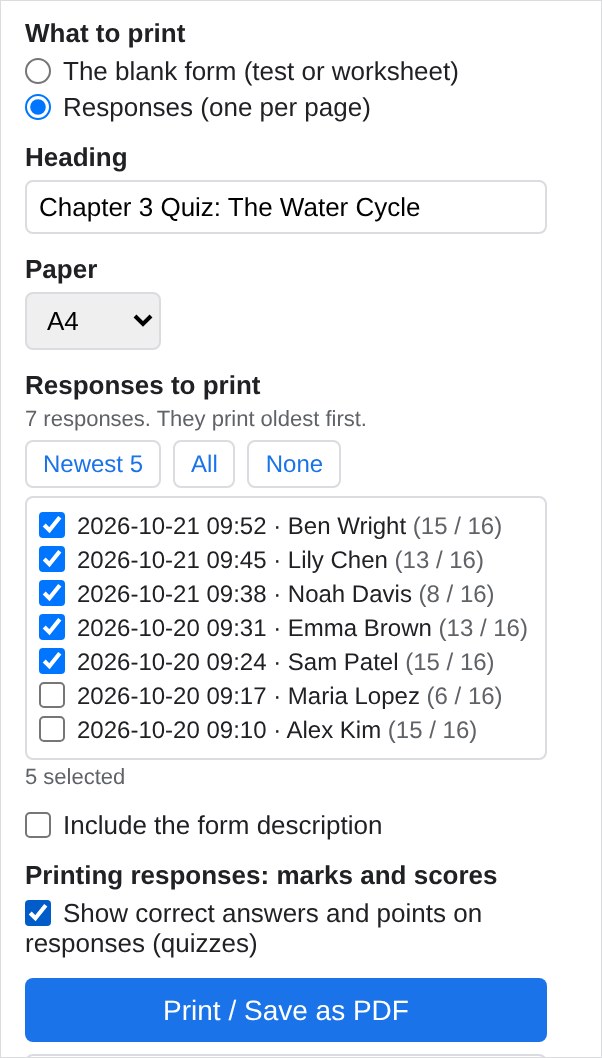
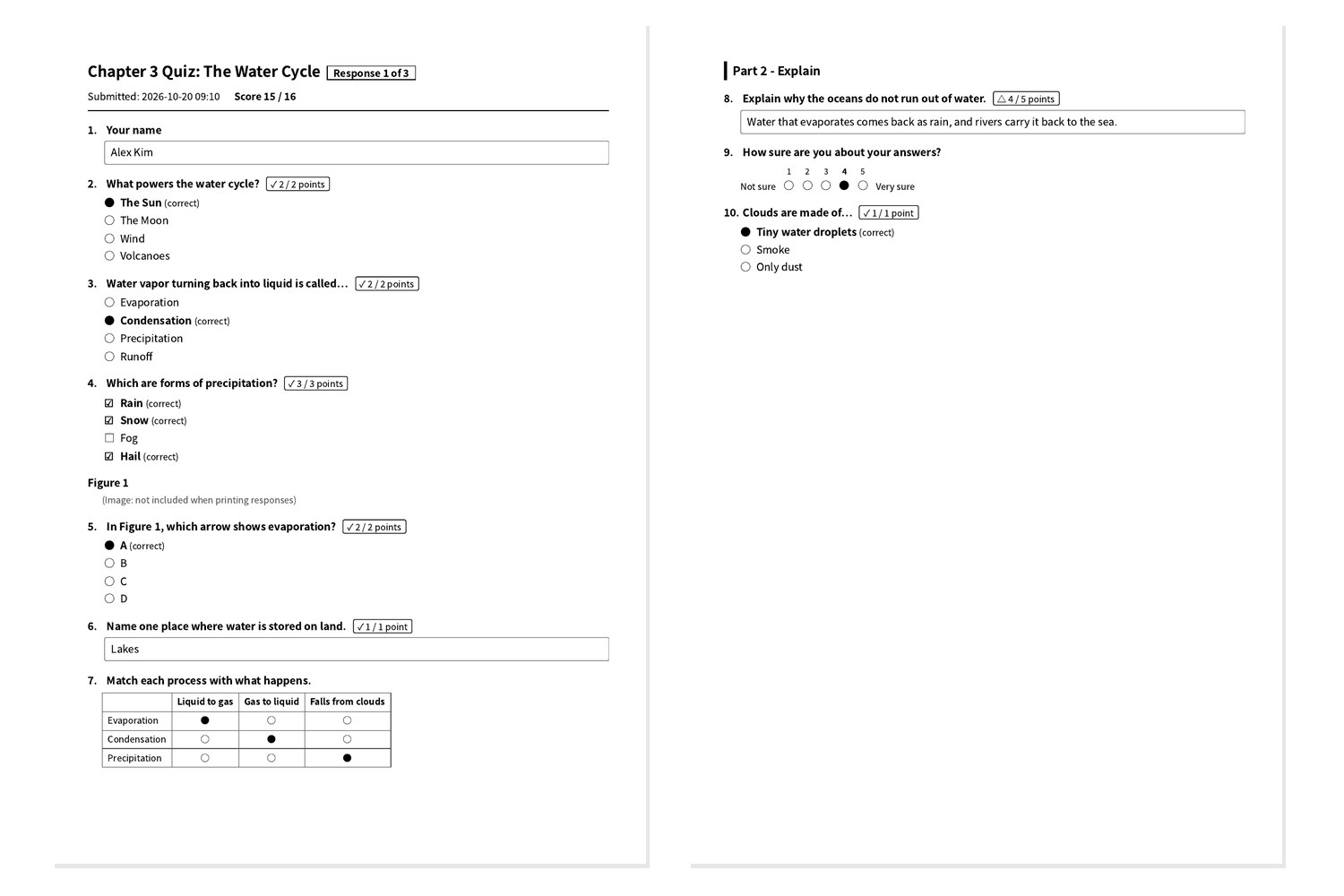
The free version prints up to 5 responses at a time; the paid version has no limit. Images are not repeated on printed responses, and file uploads are shown only as a count. Response printing was added in October 2026. If you do not see “What to print”, reload the form later.
6. Save as PDF
- In the print window, set Destination to Save as PDF and click Save.
- The new tab also has a Print / Save as PDF button at the top (it is not printed), so you can open the print window again.
- If your browser blocks the new tab, allow pop-ups in your browser, or click Save as HTML and open the saved file in your browser to print.
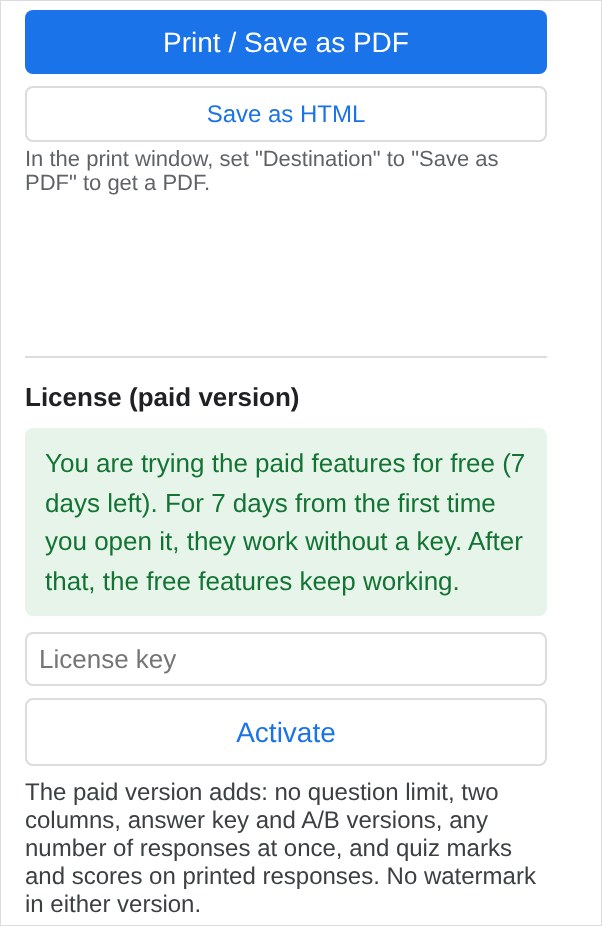
7. Free trial and the paid version
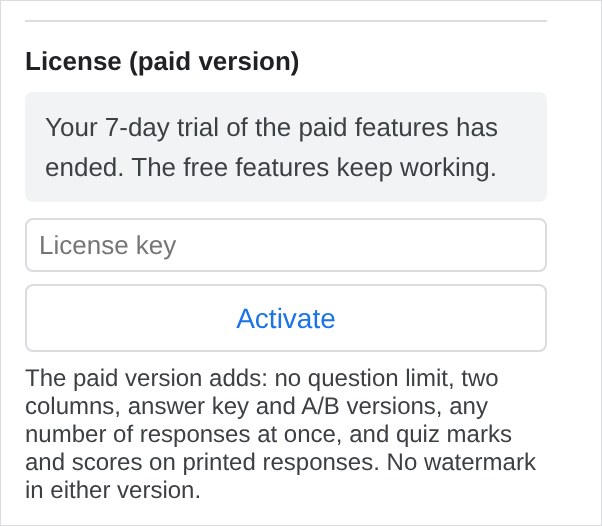
- For 7 days from the first time you open Form Print, every paid feature works without a key. The license section shows how many days are left.
- After that, the free version keeps working. Paid options stay visible but locked, marked “(paid)”.
- Buy the paid version ($19, one-time) on Gumroad. The license key arrives by email.
- Paste the key into License key at the bottom of the panel and click Activate.
- The panel shows “Active” with only the last four characters of the key. There is no expiry date. To move the key to another account, click “Remove the key from this account”.
Keep your key private.
8. Free vs paid
| Free | Paid ($19, one-time) | |
|---|---|---|
| Print the blank form (all question types, images) | First 20 questions | All questions |
| Paper A4 / Letter, answer lines, name and date fields | Yes | Yes |
| Two columns | – | Yes |
| Answer key | – | Yes |
| A/B versions | – | Yes |
| Print responses (one per page) | Up to 5 at a time | No limit |
| Marks and scores on printed responses | – | Yes |
| Watermark | None | None |
Only questions are counted toward the 20 (titles, sections and images are not).
9. Troubleshooting
| Problem | What to do |
|---|---|
| The puzzle piece or the menu is not shown | Make the browser window wider, and make sure you are in the form editor |
| The panel does not load | Open the form in a window signed in to only one Google account |
| No new tab opens | Allow pop-ups in your browser, or use “Save as HTML” |
| The heading is empty | The form title may be empty even if the title box shows the file name. Type the heading in the panel, or edit the title box once |
| Only 20 questions were printed | The free version prints the first 20 questions. Use the trial or the paid version to print all |
| An image is missing | Very large images (over 4 MB each) are replaced by a note. Use a smaller image in the form |
About your data
Form Print reads only the questions and responses of the form you have open, and only while you use it. It does not change the form or its responses, creates nothing in your Drive, and does not send your content anywhere. The printable page is made in your own browser. The only request to a service other than Google is the license check: it sends the license key and the product ID to Gumroad. See the Privacy Policy.
Contact
dailypicks.blog@gmail.com