English
Turn your Google Form into a printable test or worksheet. Questions are never cut in half across pages, and you can also print an answer key and an A/B version.
It only reads the questions of the form you have open. It does not change the form, creates nothing in your Drive, and sends the form’s content nowhere.
Install from the Google Workspace Marketplace
User guide with screenshots →
使い方ガイド(日本語)→
What it does
- Reads every kind of question: multiple choice, checkboxes, dropdown, short answer, paragraph, multiple choice grid, checkbox grid, date, time, duration, linear scale, rating, section titles and images.
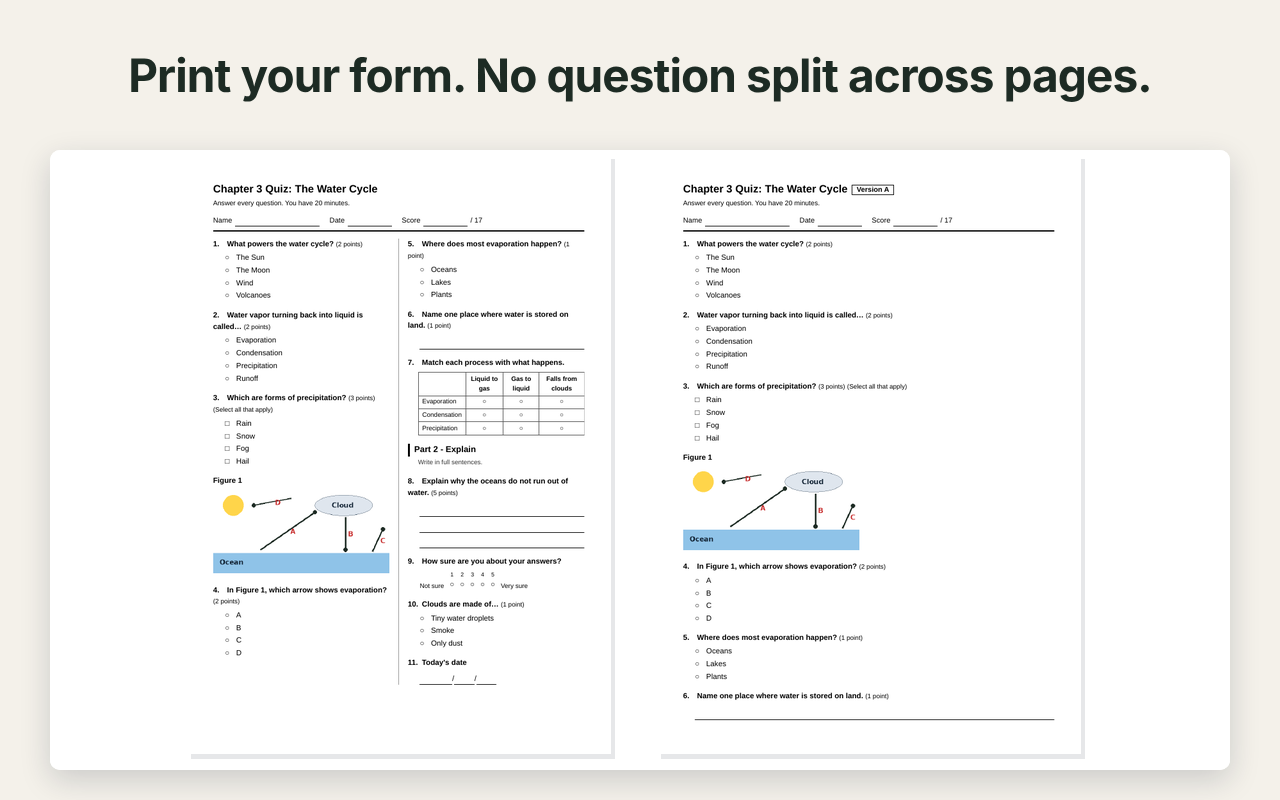
- Lays them out for paper: circles for choices, boxes for checkboxes, ruled answer lines (choose 2, 3, 5 or 8 lines for paragraphs), tables for grids.
- Keeps each question on one page — no question is split across a page break.
- Adds name, date and score fields, the form title and description.
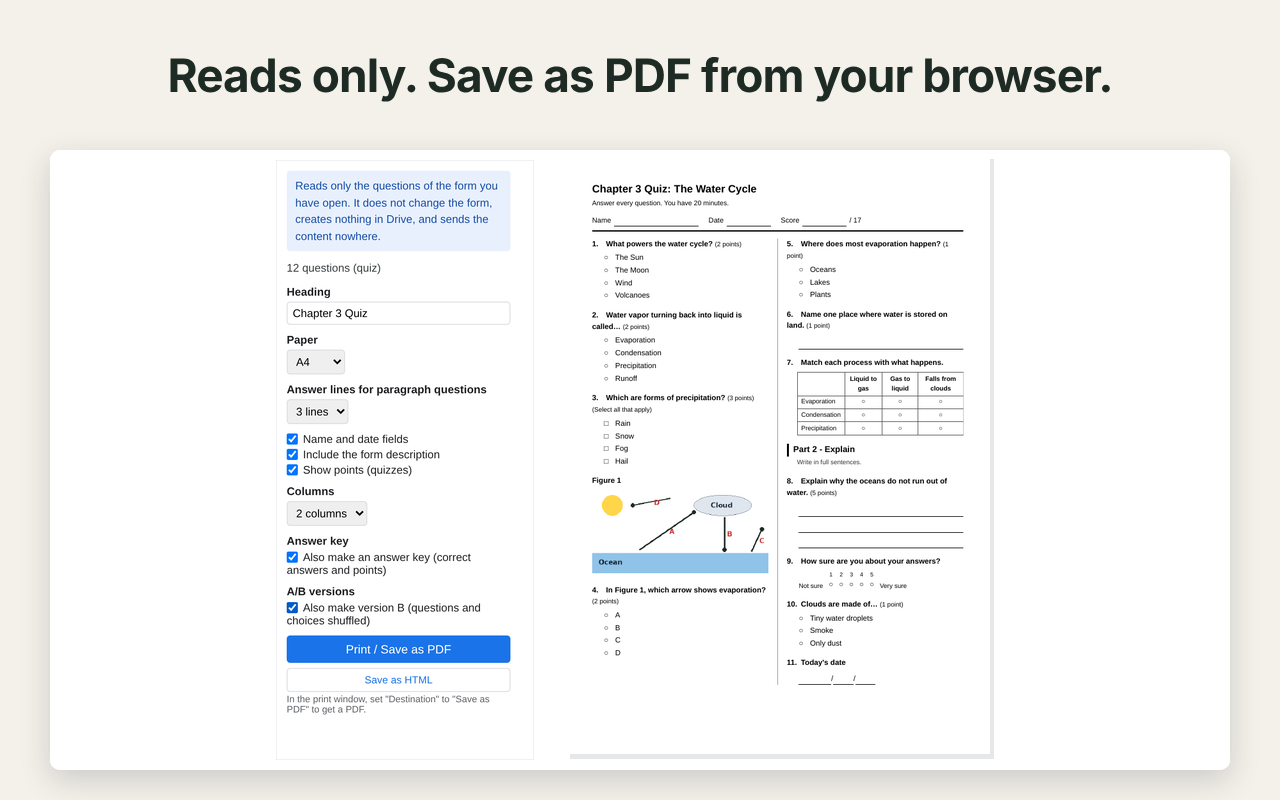
- Prints from your browser: choose “Save as PDF” in the print window to get a PDF. Nothing is saved to your Drive.
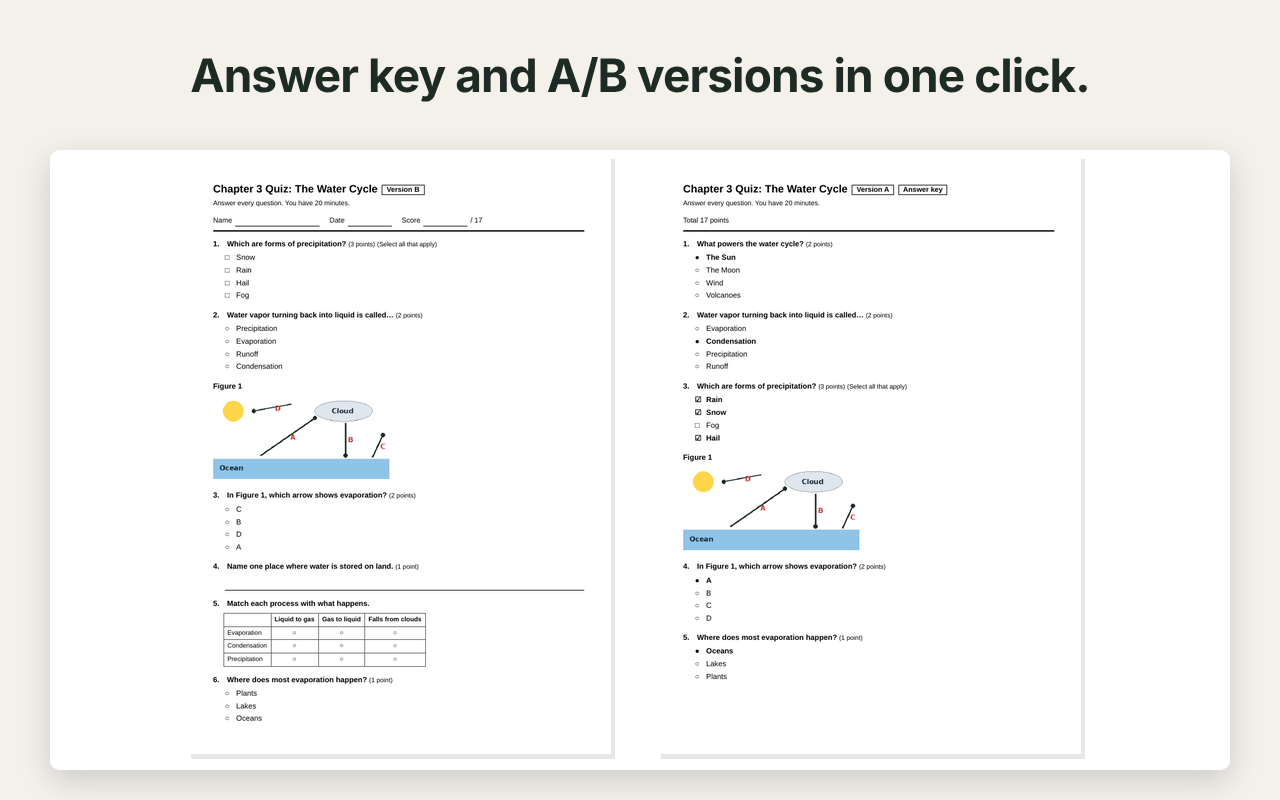
- Paid: two columns, an answer key (correct answers marked, points and total), and an A/B version with the questions and choices shuffled.
Free and paid
| Free | Paid ($19, one-time) | |
|---|---|---|
| Questions per print | Up to 20 | No limit |
| Paper (A4 / Letter), answer lines, name and date fields | Yes | Yes |
| Two columns | — | Yes |
| Answer key | — | Yes |
| A/B versions (shuffled) | — | Yes |
| Watermark | None | None |
Try every paid feature free for 7 days. For 7 days from the first time you open the add-on, the paid features work without a key. After that, the free features keep working.
The paid version is a one-time purchase through Gumroad. No subscription, and it does not expire. Buy the paid version
How to use
- Open the form in Google Forms (the editor, not the respondent view).
- Click the Add-ons icon (puzzle piece) at the top of the form, then Form Print for Google Forms > Open Form Print.
- Choose the paper and options, then press Print / Save as PDF. The printable page opens in a new tab with the print window. In the print window, set “Destination” to “Save as PDF” to download a PDF, or pick your printer.
License key
- Paste the key from your Gumroad receipt into License (paid version) at the bottom of the sidebar, then press Activate.
- Only the last four characters of the key are shown.
- To remove it, press Remove the key from this account twice. Free features keep working.
Your data
The add-on reads only the file you have open. The only service other than Google it ever contacts is Gumroad, to check a license key (only the key and the product ID are sent). See the Privacy Policy and Terms of Service.
Troubleshooting
- The sidebar does not load. If you are signed in to more than one Google account, open the file in a window signed in to only one account (a limitation of Apps Script add-ons).
- The new tab or the print window does not open. Allow pop-ups for docs.google.com, or press Save as HTML, open the saved file in your browser and print it. If the tab opened but the print window did not, press Ctrl+P (Cmd+P on a Mac) in that tab.
- The heading is empty although the form shows a title. Google Forms shows the file name in the title box when the form title itself is empty (for example, forms created by a script). Type the heading in the sidebar, or edit the form’s title box once.
- The add-on is not in the menu. If the browser window is narrow, the Add-ons (puzzle piece) icon is hidden. Make the window wider.
- A video is not printed. Videos cannot be printed; the question title is printed with a note.
- The answer key shows no answer for a short-answer question. Google Forms does not let add-ons read the correct answers of short-answer and grid questions. The answer key prints the question’s general feedback instead, if you wrote one.
- An image is missing. Images larger than 4 MB are left out with a note. Images attached to individual choices cannot be read by add-ons.
Contact
dailypicks.blog@gmail.com
日本語
Google フォームを、紙で配れるテスト・ワークシートにします。設問が途中で次のページに切れません。解答キーや A/B 版も作れます。
開いているフォームの設問を読むだけです。フォームは書き換えず、Drive にも何も作らず、フォームの内容をどこにも送りません。
Google Workspace Marketplace からインストール
できること
- すべての種類の設問を読みます:ラジオボタン・チェックボックス・プルダウン・記述式・段落・選択式グリッド・チェックボックスグリッド・日付・時刻・時間・均等目盛・評価・見出し・画像
- 紙向けに並べます:選択肢は○、チェックボックスは□、記述は罫線の解答欄(段落は 2・3・5・8 行から選べます)、グリッドは表
- 設問が途中で次のページに切れません
- 名前・日付・得点の欄、フォームの題名と説明を入れます
- ブラウザから印刷します。印刷の画面で「PDF に保存」を選ぶと PDF になります。Drive には何も作りません
- 有料:2段組・解答キー版(正解に印、配点と合計点)・A/B 版(設問と選択肢の順を混ぜた B 版)
無料版と有料版
| 無料 | 有料($19・買い切り) | |
|---|---|---|
| 1回に印刷できる設問 | 20問まで | 制限なし |
| 用紙(A4/Letter)・解答欄の行数・名前と日付の欄 | ○ | ○ |
| 2段組 | — | ○ |
| 解答キー版 | — | ○ |
| A/B 版(順を混ぜる) | — | ○ |
| 透かし | なし | なし |
有料の機能も7日間無料で試せます。アドオンを初めて開いた日から7日間は、キーが無くても有料の機能が使えます。そのあとも無料の機能はそのまま使えます。
有料版は Gumroad での買い切りです。サブスクリプションではなく、期限もありません。有料版を購入する
使い方
- Google フォームで、印刷したいフォームを編集の画面で開きます。
- フォームの上にある アドオンのアイコン(パズルのピース)→ Form Print for Google Forms → Form Print を開く を選びます。
- 用紙と選択肢を選び、印刷・PDF に保存 を押します。新しいタブに印刷用のページと印刷の画面が開きます。印刷の画面で「送信先」を「PDF に保存」にすると PDF をダウンロードできます。プリンタを選べばそのまま印刷できます。
ライセンスキー
- Gumroad の購入メールにあるキーを、サイドバーの下の「ライセンス(有料版)」に貼り、「有効にする」を押します。
- 画面にはキーの末尾4文字だけが出ます。
- 外すときは「このアカウントからキーを外す」を2回押します。無料版の機能はそのまま使えます。
データについて
開いているファイルだけを読みます。Google 以外に通信するのはライセンス確認のときだけで、相手は Gumroad、送るのはキーと商品 ID だけです。プライバシーポリシー・利用規約
うまく動かないとき
- サイドバーが読み込まれない:複数の Google アカウントにログインしていると読み込めません。1つだけログインしたウィンドウで開いてください(Apps Script のアドオンの制約)。
- 新しいタブや印刷の画面が開かない:docs.google.com のポップアップを許可するか、「HTML で保存」を押し、保存したファイルをブラウザで開いて印刷してください。タブは開いたのに印刷の画面が出ないときは、そのタブで Ctrl+P(Mac は ⌘+P)を押してください。
- フォームに題名が見えているのに、見出しが空になる:フォームの題名が空のとき、Google フォームは題名の欄にファイル名を見せます(スクリプトで作ったフォームなど)。サイドバーの「見出し」に入れるか、フォームの題名の欄を一度書き直してください。
- メニューにアドオンが出ない:ブラウザのウィンドウが狭いと、アドオンのアイコン(パズルのピース)が隠れます。ウィンドウを広げてください。
- 動画が印刷されない:動画は印刷できません。設問の題名と断り書きが入ります。
- 解答キーに記述式の正解が出ない:Google フォームは、記述式とグリッドの正解をアドオンから読めないようにしています。代わりに、その設問の「全体へのフィードバック」があれば印字します。
- 画像が入らない:4MB を超える画像は断り書きにします。選択肢についた画像はアドオンから読めません。
連絡先
dailypicks.blog@gmail.com