
日本語版 | Back to the product page
Pagefold for Docs™: User Guide
This guide shows, step by step, how to turn a Google Docs™ document into a booklet PDF that you print, fold and staple. The pages are put in booklet (saddle-stitch) order, two per side, four per sheet. Items marked Paid belong to the paid version ($19, one-time purchase). Everything else works in the free version.
1. Before you start
1-1 Install
- Open “Pagefold for Docs™” on the Google Workspace™ Marketplace and click Install.
- When the permission screen appears, review it and click Allow. The add-on only reads the document you have open. It does not change the document and creates nothing in Google Drive™.
1-2 Open the sidebar
- Open the Google Docs file you want to turn into a booklet.
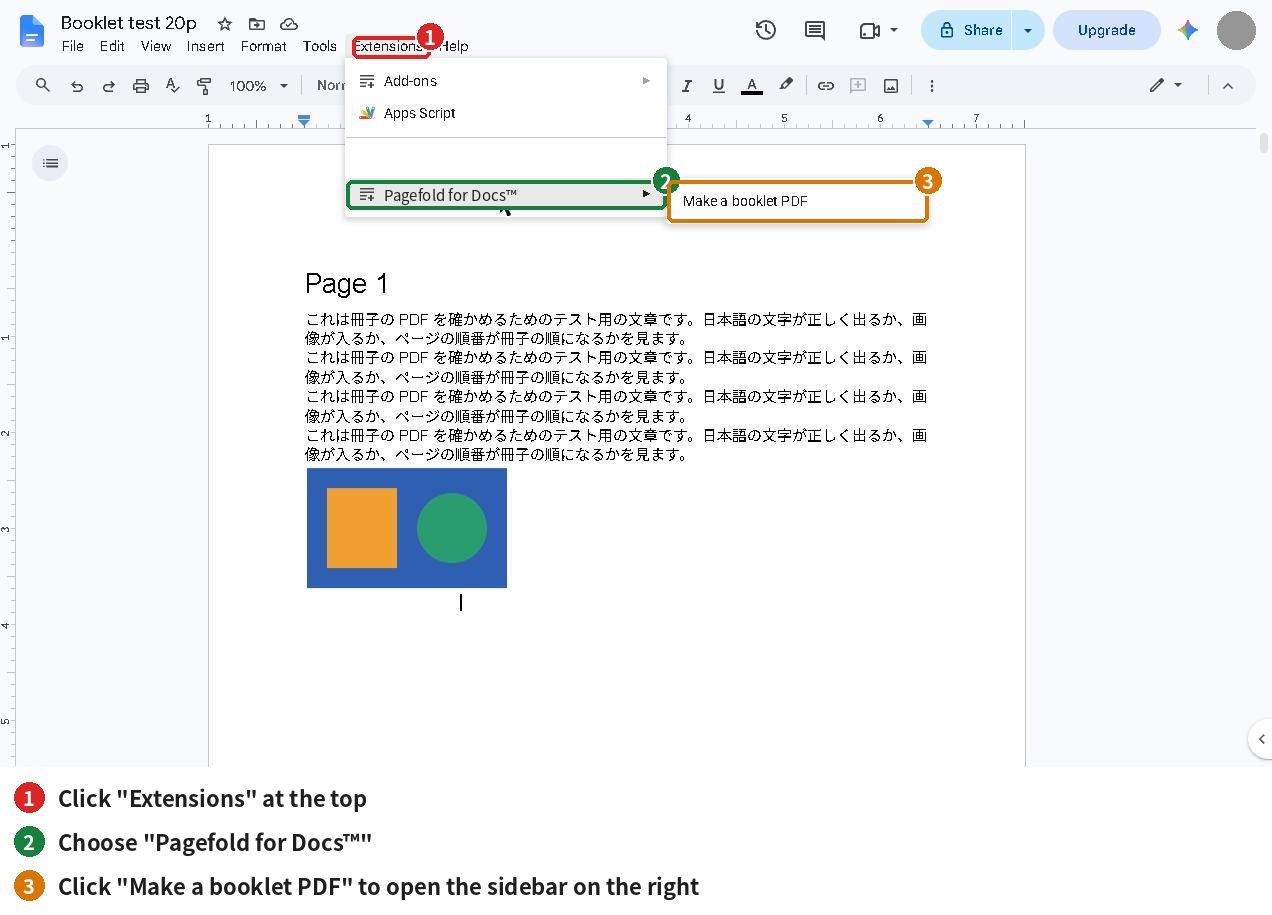
- Choose Extensions → Pagefold for Docs™ → Make a booklet PDF.
- The sidebar opens on the right. It can take a few seconds, sometimes up to 20.
If the sidebar does not load, reopen the file in a browser window signed in to only one Google account (it can fail when several accounts are signed in).
2. Make a booklet PDF
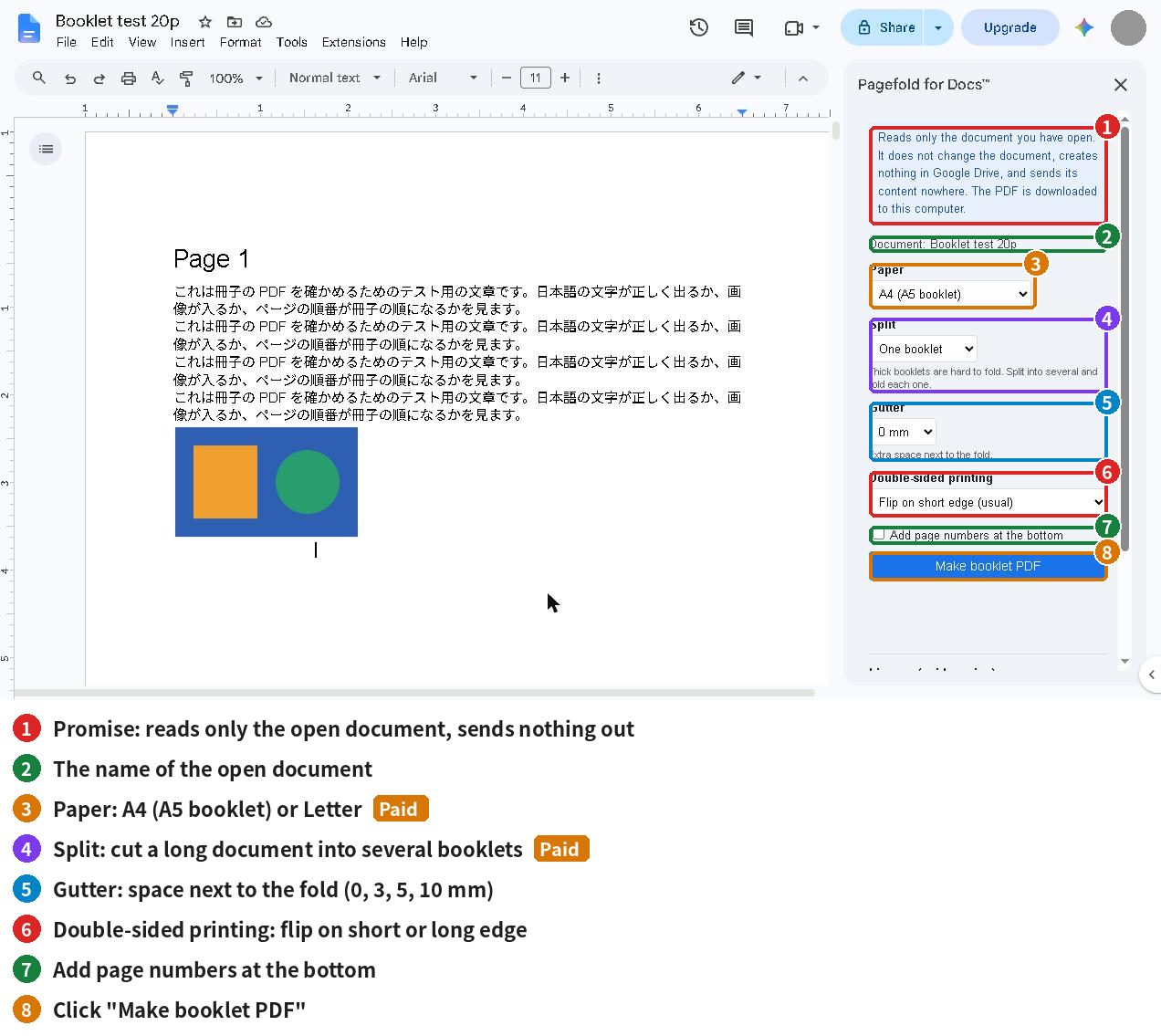
- The sidebar shows the name of the open document at the top.
- You can make a booklet without changing any setting. Just click “Make booklet PDF”.
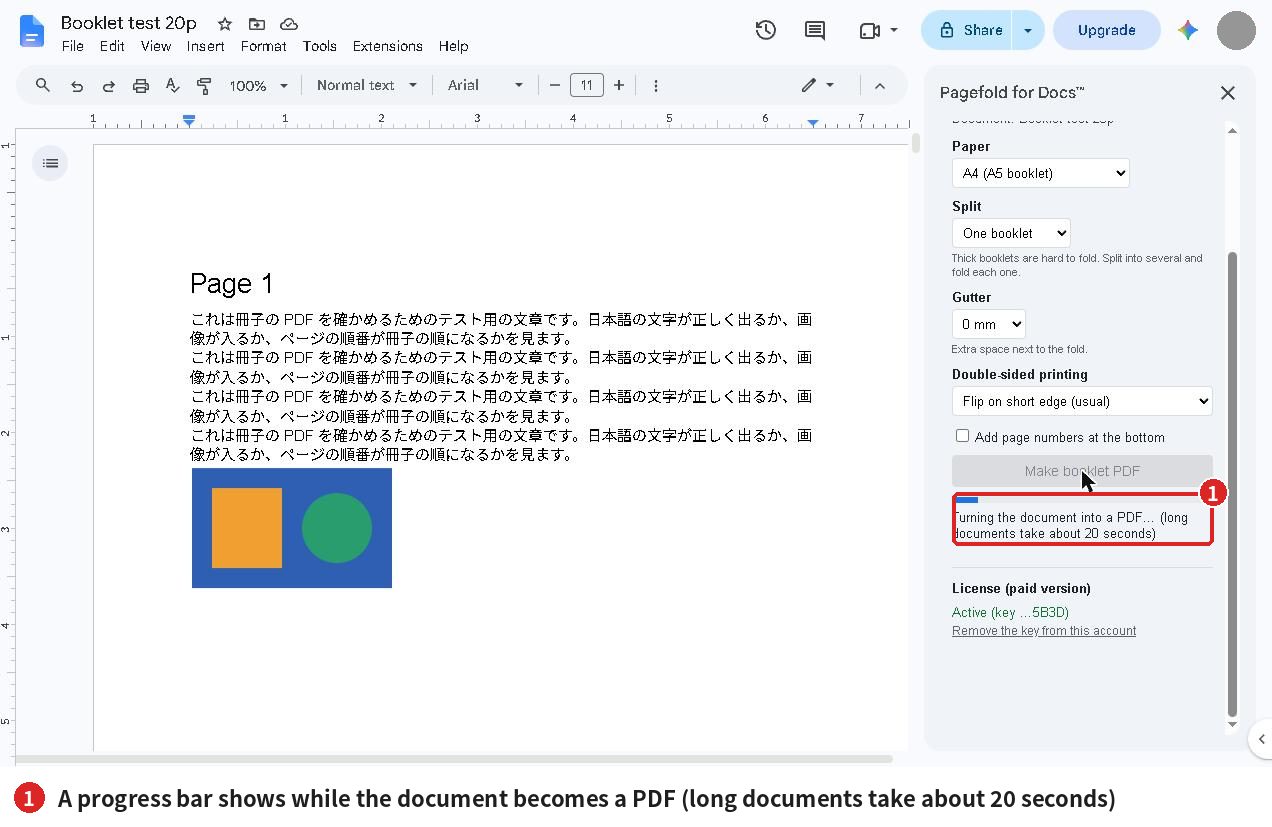
- A progress bar shows while the document is turned into a PDF. Long documents take about 20 seconds.
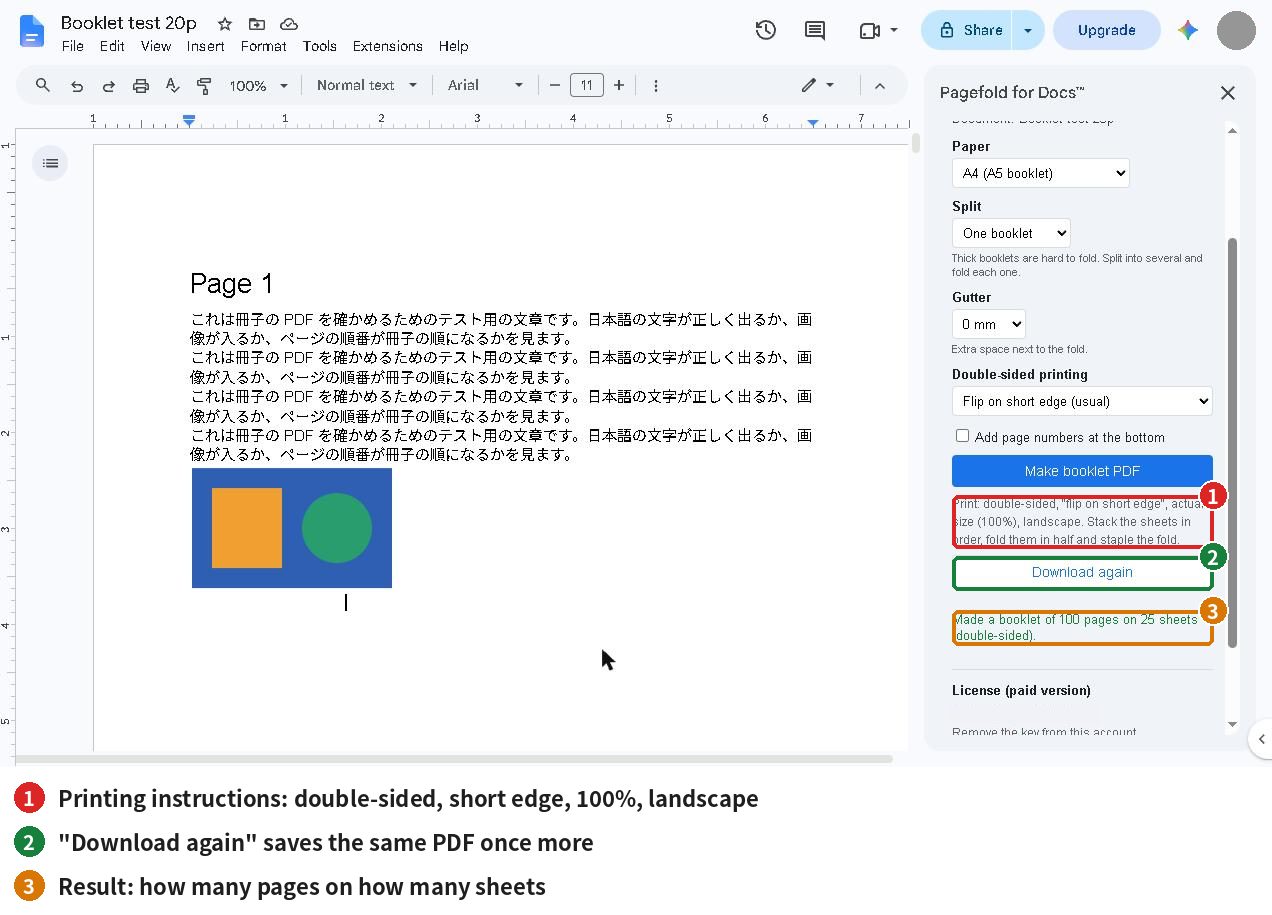
- When it is done, the PDF is saved to your computer and the sidebar says, for example, “Made a booklet of 100 pages on 25 sheets (double-sided).” The file is named “Document name (booklet).pdf”.
- To save it again, click “Download again”.
If the page count is not a multiple of 4, blank pages are added at the end (one sheet holds 4 pages). The number added is shown in the result.
3. Choose the settings
- Paper Paid: “A4 (A5 booklet)” or “Letter (half-letter booklet)”. The free version uses A4.
- Split Paid: cut a long document into several booklets (see section 5).
- Gutter: extra space next to the fold: 0, 3, 5 or 10 mm. The pages are scaled down slightly to fit.
- Double-sided printing: normally “Flip on short edge”. If your printer only offers “flip on long edge”, choose “Flip on long edge (back sides upside down)”.
- Add page numbers at the bottom: puts the original page number (starting at 1) at the bottom centre. Blank pages get no number.
4. Print and fold
- Open the saved PDF and set the print dialog like this:
- Double-sided: “Flip on short edge” (match the sidebar if you chose “long edge”)
- Size: “Actual size” (100%), not “Fit to page”
- Orientation: landscape
- Stack the sheets in the order they come out of the printer. Do not reorder them.
- Fold the whole stack in half.
- Staple along the fold.
For the first try, print one copy on plain paper. For an 8-page document, the first sheet should read 8|1 on the front and 2|7 on the back, and the second sheet 6|3 on the front and 4|5 on the back.
5. Split a long document into several booklets Paid
A thick stack is hard to fold. “Split” cuts the document into booklets of 8 to 64 pages (multiples of 4) and puts them one after another in a single PDF. You download only once.
- Under “Split”, choose “N pages each”.
- Click “Make booklet PDF”.
- After printing, stack and fold each booklet separately.
6. Activate the paid version
- Buy the paid version ($19, one-time) on Gumroad. The license key arrives by email and on the purchase page.
- Paste the key into “License (paid version)” at the bottom of the sidebar and click Activate.
- The Paid features unlock. There is no expiry date.
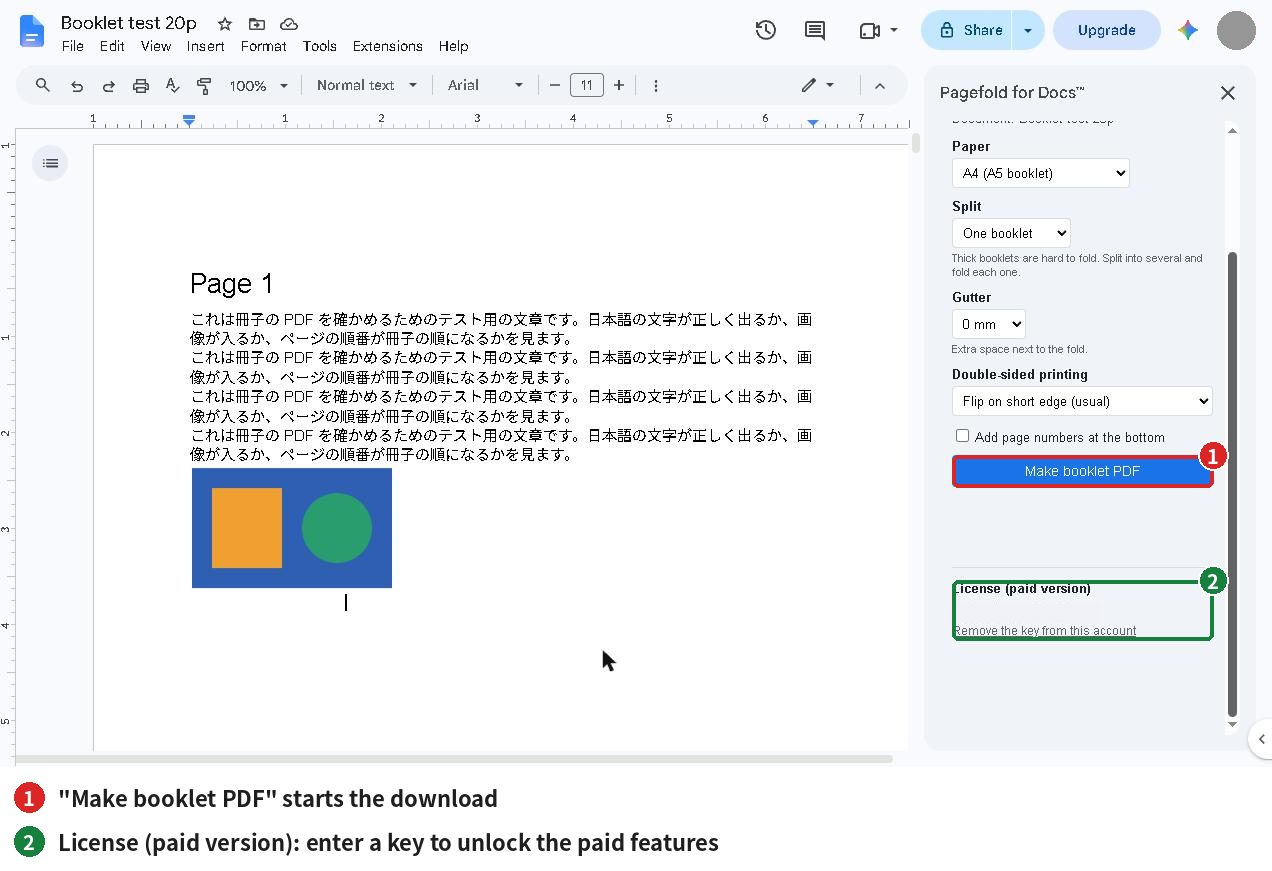
Keep your key private. To remove it, click “Remove the key from this account” twice. Free features keep working.
7. Free vs paid
| Free | Paid ($19, one-time) | |
|---|---|---|
| Pages in the booklet | First 16 | No limit |
| Paper | A4 (A5 booklet) | A4 or Letter |
| Split into several booklets (8–64 pages each) | – | Yes |
| Gutter, page numbers, duplex setting | Yes | Yes |
| Watermark | None | None |
When you open a document longer than 16 pages in the free version, the sidebar tells you the booklet will use the first 16 pages.
8. Troubleshooting
| Problem | What to do |
|---|---|
| The sidebar does not load | Open the file in a window signed in to only one Google account |
| The pages are in the wrong order after folding | Print double-sided with “flip on short edge”. If your printer only offers “long edge”, choose that in the sidebar too |
| The booklet is too small or too large | Print at “Actual size” (100%), not “Fit to page” |
| “The document’s PDF is too large” | The PDF can be up to 35 MB. Use smaller images or split the document |
| “Could not read the document’s PDF” | Try again |
| Blank pages appear | The page count is not a multiple of 4. Add pages (contents, notes) to reach a multiple of 4 |
| Only 16 pages are used | That is the free limit. The paid version has no page limit |
About your data
The add-on reads only the document you have open. It does not change the document, creates nothing in Google Drive™, and sends its content nowhere. The PDF is built in your browser and saved to your computer. The only request to a service other than Google is the license check: it sends the license key and the product ID to Gumroad.
Contact
dailypicks.blog@gmail.com
Google Docs™, Google Drive™ and Google Workspace™ are trademarks of Google LLC. This add-on is an independent product and is not affiliated with or endorsed by Google.