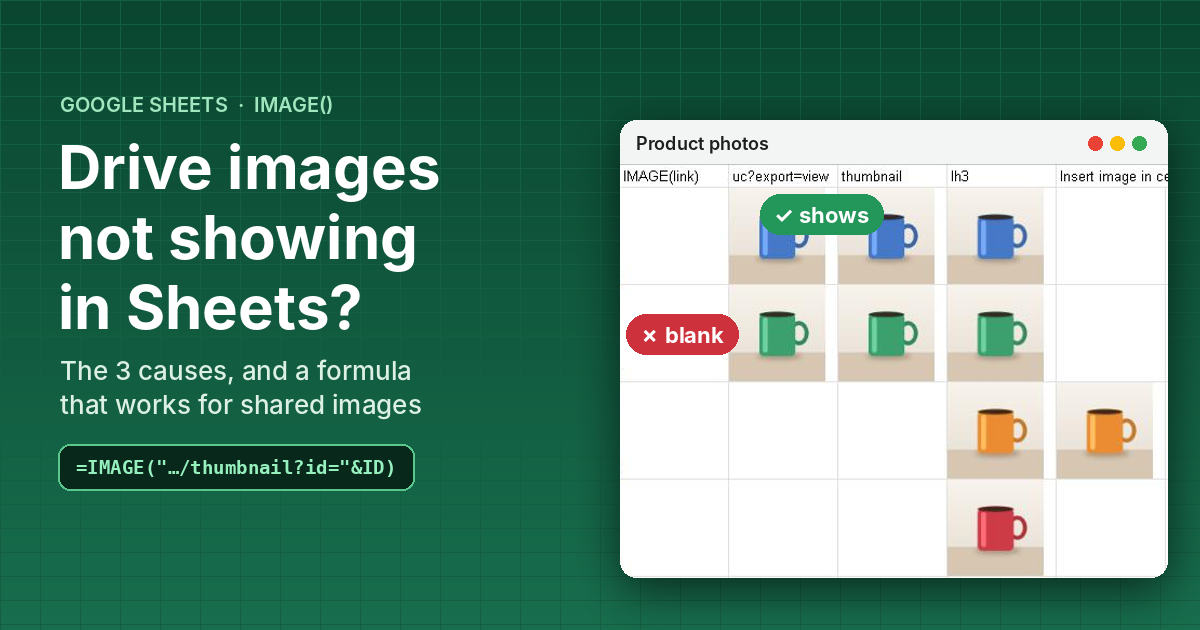
You pasted a Google Drive link into =IMAGE() in Google Sheets™, and the cell stays empty — or shows #REF!. There are three usual causes, and each has a simple fix. Below is a formula that turns any Drive link into an image, a version for a whole column, and the built-in way for images you don’t want to share.
The short answer
- A Drive share link is a web page, not an image.
=IMAGE("https://drive.google.com/file/d/…/view")shows nothing. Use the formula below, which builds an image address from the file ID. - The file must be shared as Anyone with the link → Viewer. Restricted files stay blank.
- Click Allow access if a yellow warning bar appears or the cell says
#REF!. A spreadsheet must allow external data once before IMAGE works. - Don’t want to share the files? Use Insert → Image → Insert image in cell → Google Drive instead of a formula.
Checked: 2026-10-17, Google Sheets in Chrome.
What we tested
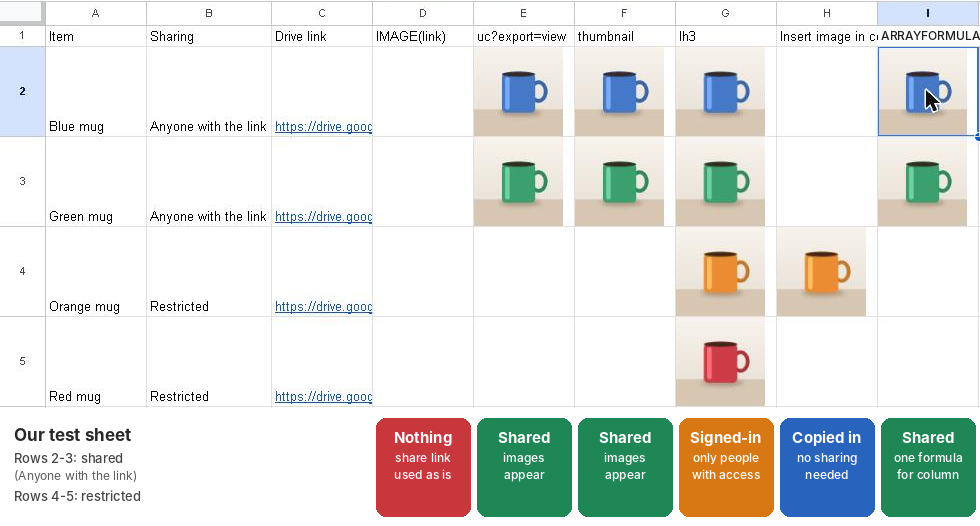
We put four images in Google Drive: two shared as Anyone with the link and two left Restricted. Then we tried every common formula side by side.
Cause 1: The share link is not an image address
A link like https://drive.google.com/file/d/FILE_ID/view?usp=sharing opens Drive’s preview page. IMAGE() needs the address of the picture itself. In our test, =IMAGE(C2) with the share link showed an empty cell — no error, just nothing.
The fix is to take the file ID (the long part between /d/ and /view) and put it into an image address. With the share link in C2:
=IMAGE("https://drive.google.com/thumbnail?id="®EXEXTRACT(C2,"[-\w]{25,}")&"&sz=w1000")REGEXEXTRACT(C2,"[-\w]{25,}")finds the file ID in the link. It works with/file/d/ID/viewlinks and withopen?id=IDlinks (the kind Google Forms writes for uploaded files).sz=w1000asks for an image up to 1000 pixels wide. A smaller number loads faster; a larger one looks sharper in big cells.
Two other addresses also worked for shared images in our test, if you prefer them:
"https://drive.google.com/uc?export=view&id="&ID"https://lh3.googleusercontent.com/d/"&ID
None of these three addresses is documented by Google as an official way to embed Drive images, so they could change. If a formula stops working one day, try one of the others, or use Insert image in cell (Cause 2).
Cause 2: The image file is not shared
With the formula above, the two Restricted images stayed blank. Share each image:
- In Google Drive, right-click the image and choose Share → Share.
- Under General access, change Restricted to Anyone with the link, and keep the role Viewer.
- Click Done.
You can select several files and share them together, or share the folder that holds them. Remember what this means: anyone who has the link can see the picture. Don’t do it for private photos or documents.
Why did the lh3 address show restricted images?
In our sheet, the lh3.googleusercontent.com/d/ formula showed the restricted images as well. That is because the picture is loaded with the viewer’s own Google sign-in, and we were signed in as the owner. When we loaded the same address without signing in, the restricted image failed. So don’t count on it when other people open your sheet.
Images you don’t want to share: Insert image in cell
- Click the cell.
- Choose Insert → Image → Insert image in cell.
- Open the Google Drive tab, pick the image, and click Insert.
The picture is copied into the spreadsheet, so the Drive file can stay Restricted. In our test it showed a restricted image without any sharing. The trade-off: it is a copy, not a formula, so you add images one at a time and they don’t follow changes to a link column.
Cause 3: The spreadsheet has not allowed external data
The first time you use IMAGE() in a spreadsheet, Sheets may show a yellow bar — “Warning: Some formulas are trying to send and receive data from external parties.” — and the cells show #REF!. Hover over the cell to see the explanation, then click Allow access.
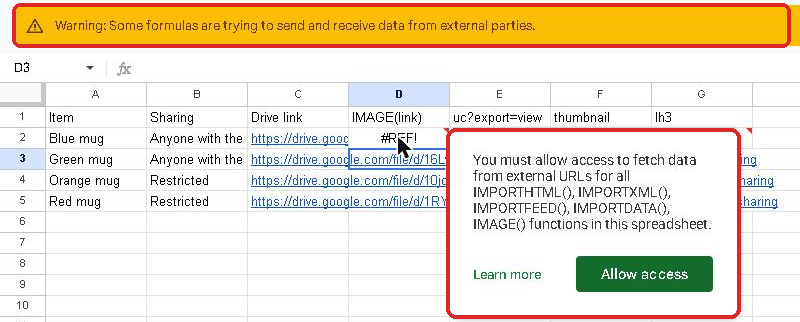
The setting applies to the whole spreadsheet and also covers IMPORTHTML, IMPORTXML, IMPORTFEED and IMPORTDATA.
Show images for a whole column with one formula
If column C holds a Drive link in every row (for example, file uploads from Google Forms), put this in the first row of an empty column:
=ARRAYFORMULA(IF(C2:C="",,IMAGE("https://drive.google.com/thumbnail?sz=w1000&id="®EXEXTRACT(C2:C,"[-\w]{25,}"))))New rows get an image automatically, and empty rows stay empty. In our test it showed both shared images and left the restricted ones blank, as expected.
Make the pictures bigger: IMAGE() fits the picture inside the cell, so increase the row height (right-click the row numbers → Resize rows) and the column width.
Things to watch
- Several files in one cell. If a Forms question allows more than one upload, the cell holds several links separated by commas. The formula only uses the first one.
- Folders and files. Sharing a folder also shares the files in it. Images stored in other folders must be shared separately.
FAQ
Why does IMAGE show #REF! instead of my picture?
In our test, #REF! meant the spreadsheet had not allowed external data yet. Hover over the cell and click Allow access.
Why is the cell empty with no error?
Either the formula uses the Drive share link as it is, or the file is Restricted. Use the thumbnail formula and share the file as Anyone with the link.
Can I show private Drive images with a formula?
Not reliably for other people. Use Insert → Image → Insert image in cell, which copies the picture into the sheet.
Does the formula work with Google Forms file uploads?
Yes, for the link format Forms uses (open?id=…), as long as the uploaded files are shared. By default, uploaded files are not shared.
Google Sheets, Google Drive and Google Workspace are trademarks of Google LLC.





コメント