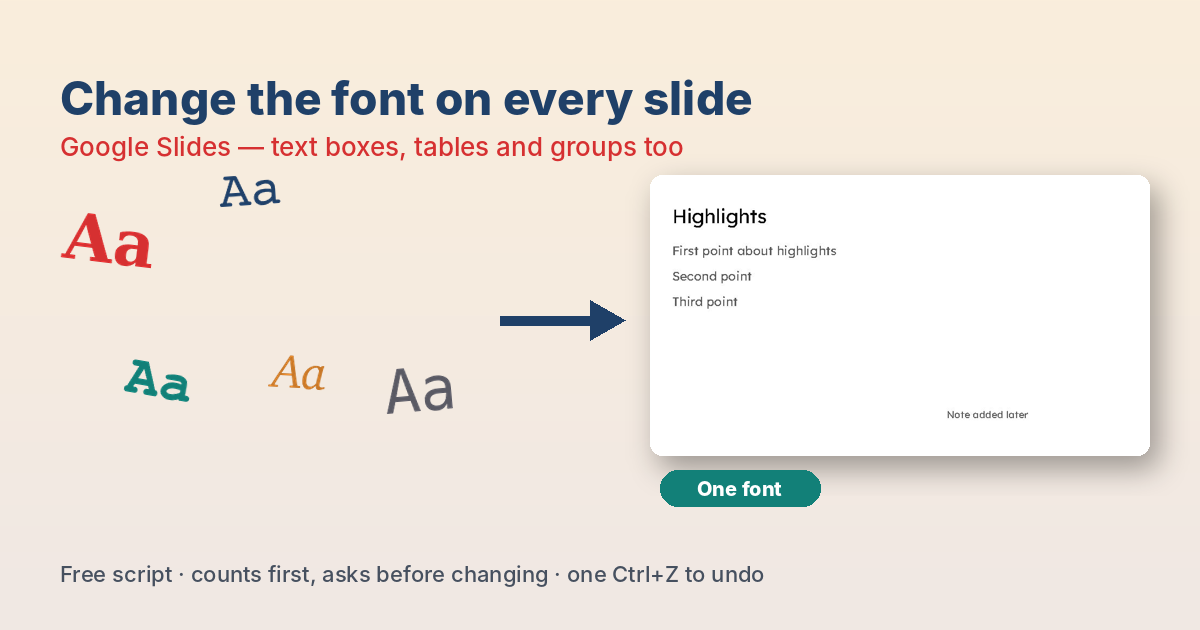
You changed the font in Google Slides™ with Slide → Edit theme, and only the titles changed. The body text you formatted, the text boxes you added later and the tables still use the old fonts. Here is why, how far the theme can take you, and a free script that changes every piece of text on every slide in one step.
The short answer
- The theme (Slide → Edit theme) only changes text that still follows the theme. Text where someone picked a font by hand keeps that font.
- A few slides: select the text and pick the font from the toolbar, slide by slide.
- The whole deck: run the short script below. It changes the font in text boxes, shapes, tables and groups on every slide. It counts first and asks before changing anything, and one Ctrl+Z undoes it.
Checked: 2026-10-17, Google Slides in Chrome.
Why changing the theme doesn’t change everything
Every text box in Slides either follows the theme or has its own font. Placeholders from the layout (the “Click to add title” boxes) follow the theme until someone picks a font for them. Text boxes you add with Insert → Text box, text in shapes, and table cells often get a font set directly — and a font set directly always wins over the theme.
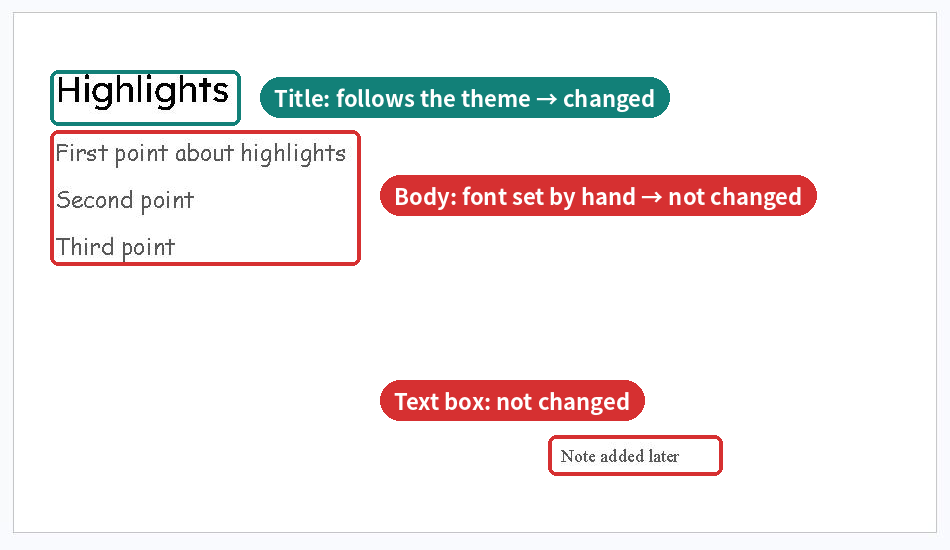
So the theme is still worth changing — new slides and untouched placeholders will use it — but it will not clean up an existing deck by itself.
Which situation are you in?
- A new deck, or nobody changed fonts by hand: change the theme (Method 1). That is enough.
- A few slides with odd fonts: fix them by hand.
- A long deck with mixed fonts (copied slides, pasted text, several authors): use the script (Method 2), then also change the theme so new slides match.
- Only one font is wrong (for example everything in Times New Roman should be Roboto): use the script’s “old > new” form.
Method 1: Change the theme fonts (built in)
- Choose Slide → Edit theme.
- Click the top thumbnail under THEME (it says “Used by all slides”).
- Click an empty part of that slide and press Ctrl+A (⌘+A on a Mac) to select the title and body boxes.
- Pick the new font from the Font list in the toolbar, then close the theme editor with the X.
Text that follows the theme changes at once. Anything that kept its old font was set by hand — that is what Method 2 is for.
Method 2: Change the font on every slide with a script
- In your presentation, choose Extensions → Apps Script.
- Delete the sample code, paste the code below, and click Save.
- Reload the presentation. A new menu, Fonts, appears at the end of the menu bar. (On a narrow window it can hide behind “…”; you can also use Help → Search the menus and type Change fonts.)
- Choose Fonts → Change fonts on all slides….
- The first time, Google asks you to allow the script. Because of the
@OnlyCurrentDocline, it asks for one thing only: to view and manage the presentations the script is installed in. (In our test there was no “unverified app” warning.) - Type what you want:
Roboto— all text on all slides in RobotoTimes New Roman > Roboto— only text in Times New Roman changes
Type the name exactly as it appears in the Font list.
- The script tells you how many pieces of text it found and asks Continue? Click Yes to change them, or No to stop without changing anything.
- Not happy? Press Ctrl+Z once — in our test, one undo put every font back.
/** @OnlyCurrentDoc */
// Change or replace fonts on every slide of this Google Slides presentation.
function onOpen() {
  SlidesApp.getUi()
    .createMenu('Fonts')
    .addItem('Change fonts on all slides...', 'changeFonts')
    .addToUi();
}

function changeFonts() {
  const ui = SlidesApp.getUi();
  const answer = ui.prompt(
    'Change fonts on all slides',
    'Type a font to use it for all text, for example Roboto.\n' +
    'Or old > new to replace one font only, for example Arial > Roboto.\n' +
    'Type the name exactly as it appears in the Font menu.',
    ui.ButtonSet.OK_CANCEL);
  if (answer.getSelectedButton() !== ui.Button.OK) return;

  const parts = answer.getResponseText().split('>').map(s => s.trim()).filter(s => s);
  if (parts.length < 1 || parts.length > 2) {
    ui.alert('Type a font name, or old > new.');
    return;
  }
  const from = parts.length === 2 ? parts[0].toLowerCase() : null;
  const to = parts[parts.length - 1];

  // Count first, and ask before changing anything.
  const runs = [];
  collectText().forEach(text => {
    text.getRuns().forEach(run => {
      if (run.asString().trim() === '') return;
      const font = (run.getTextStyle().getFontFamily() || '').toLowerCase();
      if (!from || font === from) runs.push(run);
    });
  });
  if (runs.length === 0) {
    ui.alert('No text found' + (from ? ' in ' + parts[0] : '') + '.');
    return;
  }
  const ok = ui.alert('Change fonts',
    runs.length + ' piece(s) of text will be set to ' + to + '. Continue?',
    ui.ButtonSet.YES_NO);
  if (ok !== ui.Button.YES) return;

  runs.forEach(run => run.getTextStyle().setFontFamily(to));
  ui.alert('Done: ' + runs.length + ' piece(s) of text now use ' + to + '.');
}

// Text in shapes, text boxes, tables and groups on every slide.
function collectText() {
  const list = [];
  SlidesApp.getActivePresentation().getSlides().forEach(slide => {
    slide.getPageElements().forEach(el => addText(el, list));
  });
  return list;
}

function addText(el, list) {
  const type = el.getPageElementType();
  if (type === SlidesApp.PageElementType.SHAPE) {
    list.push(el.asShape().getText());
  } else if (type === SlidesApp.PageElementType.TABLE) {
    const table = el.asTable();
    for (let r = 0; r < table.getNumRows(); r++) {
      for (let c = 0; c < table.getNumColumns(); c++) {
        list.push(table.getCell(r, c).getText());
      }
    }
  } else if (type === SlidesApp.PageElementType.GROUP) {
    el.asGroup().getChildren().forEach(child => addText(child, list));
  }
}
What the script changes
- Titles, body text and text boxes on every slide
- Text inside shapes, table cells and grouped objects
It does not change speaker notes, charts, images of text, or WordArt, and it does not change the theme itself. After running it, change the theme too (Method 1) so new slides use the same font.
Things to watch
- Spelling of the font name. Use the exact name from the Font list (“Times New Roman”, not “Times”). If a font is not in your list yet, add it first with Font → More fonts.
- Text can grow or shrink. Fonts have different widths, so a few boxes may wrap differently. Flip through the slides afterwards.
- Bold, italic and sizes stay as they are. Only the font family changes.
- Phone and tablet apps don’t show menus added by scripts. Run it on a computer.
FAQ
Is there a “replace font” command in Google Slides like in PowerPoint?
No. As of October 2026, Google Slides has no built-in “replace fonts” command. You can change the theme fonts, or use a script or an add-on.
Why did only my titles change when I edited the theme?
Because the other text had a font set directly. A font set on the text itself always wins over the theme.
Will the script change slides I am not looking at?
Yes — that is the point. It goes through every slide in the presentation. It counts first and asks you before changing anything.
Can I change only one font, for example Comic Sans to Arial?
Yes. Type Comic Sans MS > Arial. Only text in Comic Sans MS changes.
Does it work in Google Docs?
No. Docs uses a different service. This script is for Google Slides only.
Google Slides and Google Workspace are trademarks of Google LLC.








コメント