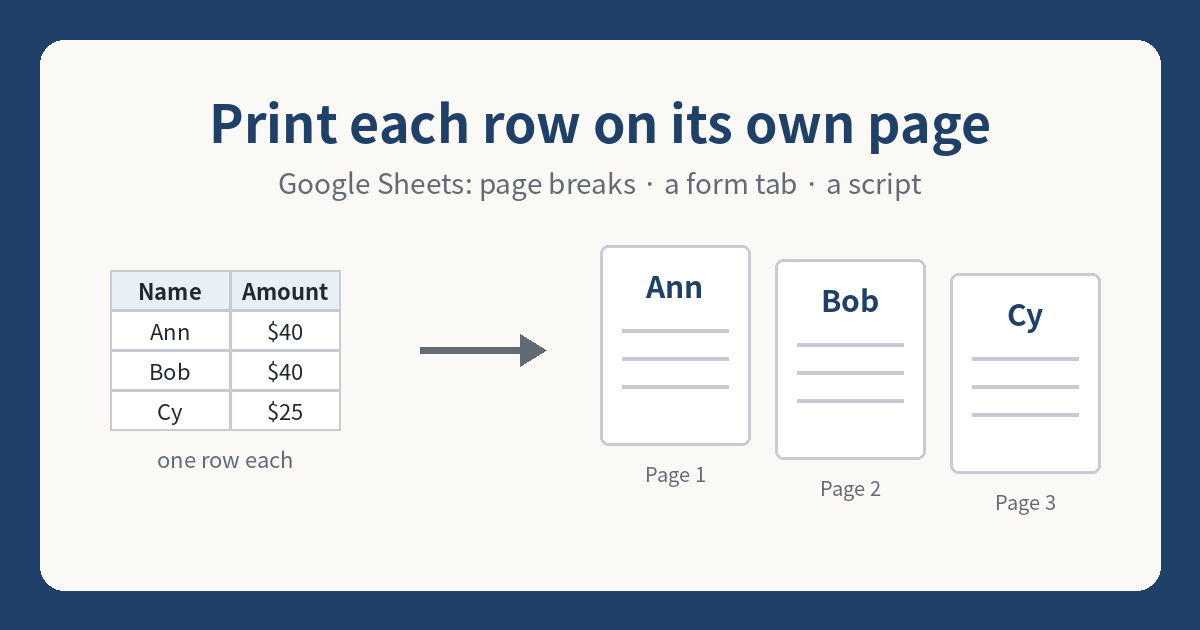
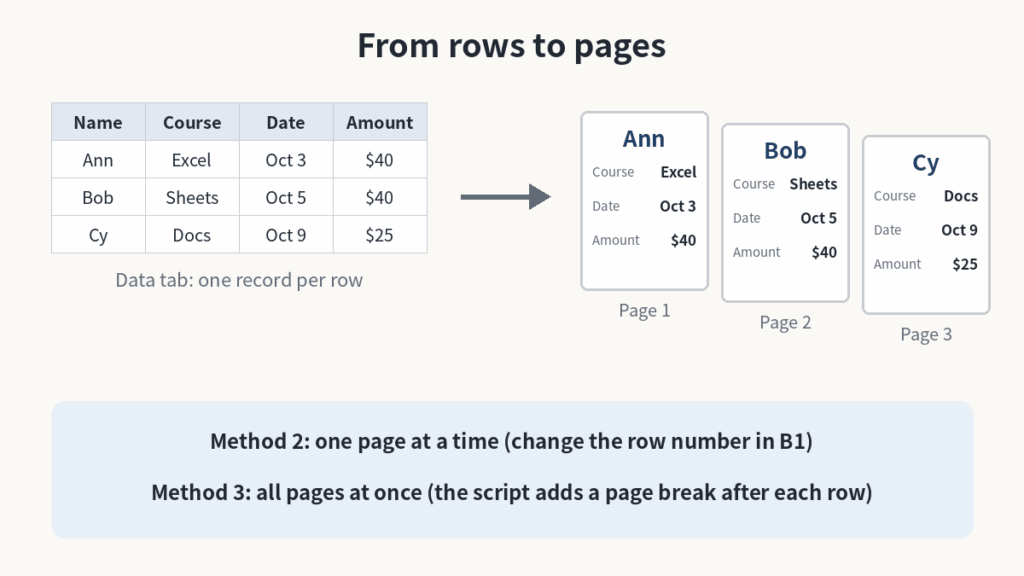
Google Sheets™ has no “print one row per page” setting. If you need each row on its own sheet of paper — an invoice per customer, a sign-in card per student, a label per order — you have three practical options, depending on how many rows you have:
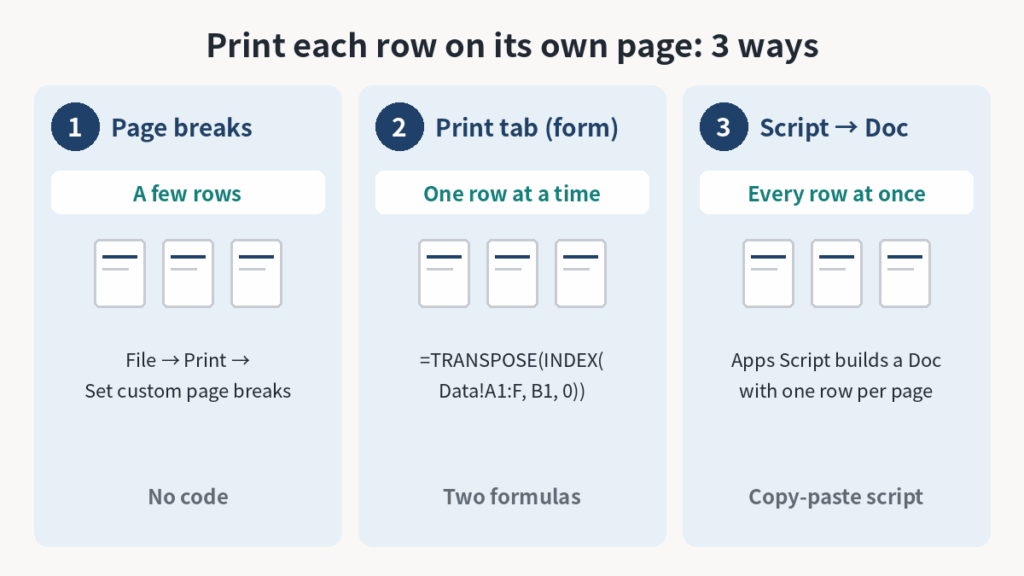
- A few rows: drag custom page breaks in the print screen.
- One row at a time, laid out like a form: build a small “print” tab that pulls a single row with one formula.
- Every row at once: run a short Apps Script that creates a Google Docs™ file with one row per page, then print that Doc.
All three are free and use only built-in tools. Checked: 2026-10-17.
Looking for something else? If you want your header row repeated on every page, that is a different setting: freeze the row (View → Freeze), then in File → Print open Headers & footers and turn on Repeat frozen rows.
Method 1: Custom page breaks (best for up to about 20 rows)
Google’s own help describes page breaks only in the print screen — there is no Insert → Page break for spreadsheets.
- Open the sheet and go to File → Print (Ctrl+P / ⌘+P).
- On the right, under Scale, choose Fit to width so each row is readable on a page.
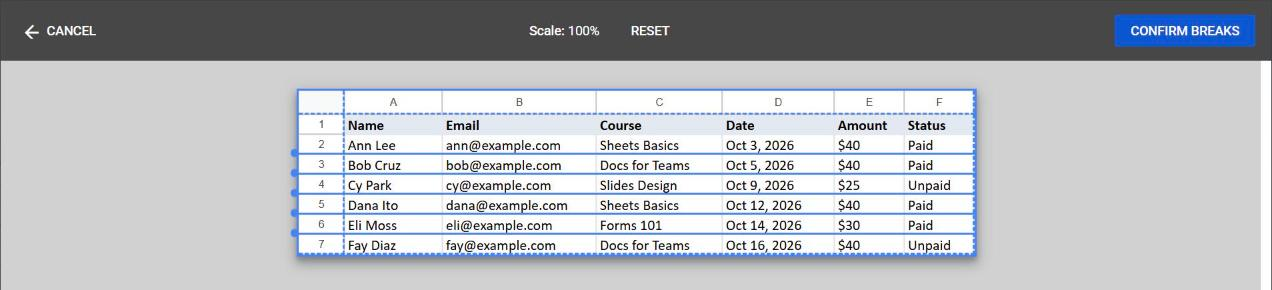
- Click Set custom page breaks.
- Drag the blue horizontal line so it sits just below the first data row. Drag more lines until every row ends in its own break.
- Click Confirm breaks, then Next and print (or save as PDF).
If you want the header row on every page, freeze row 1 first and turn on Repeat frozen rows under Headers & footers.
Where this stops working: each break is dragged by hand. With 50 or 300 rows, use Method 2 or 3.
Method 2: Print one row as a form (no code)
A row is hard to read when it is a long strip of cells. Often what you really want is a page that looks like a form: field names down the left, the values for one person or order down the right. You can build that with a second tab and one formula.
Say your data is on a tab called Data, with headers in row 1 (Name, Email, Course, Date, Amount…) and one record per row.
- Add a new tab and name it Print.
- In A1 type
Row, and in B1 type the row number you want to print, for example2. - In A3, paste this formula to list the headers vertically:
=TRANSPOSE(Data!A1:F1) - In B3, paste this formula to pull that row’s values next to them:
=TRANSPOSE(INDEX(Data!A1:F, $B$1, 0))INDEX(..., row, 0)returns the whole row;TRANSPOSEturns it into a column. ChangeFto the last column of your data. - Format the Print tab like a form — bigger font, borders, your logo in a row above.
- To print, select the form area (for example A1:B12), go to File → Print, and choose Selected cells under Print.
To print the next record, change B1 to 3, print again, and so on.
Prefer to pick by name instead of row number? Put a dropdown in B1 (Insert → Dropdown, “Dropdown (from a range)” → Data!A2:A) and use this formula in B3 instead:
=TRANSPOSE(INDEX(Data!A1:F, MATCH($B$1, Data!A1:A, 0), 0))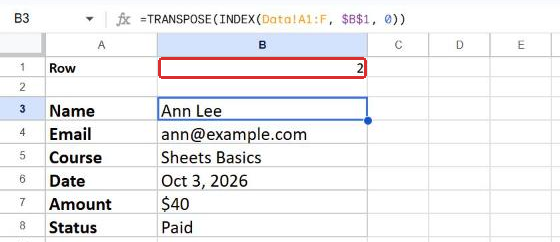
Where this stops working: you still print one record at a time. For a whole class or a month of orders, use Method 3.
Method 3: Every row on its own page with a short script
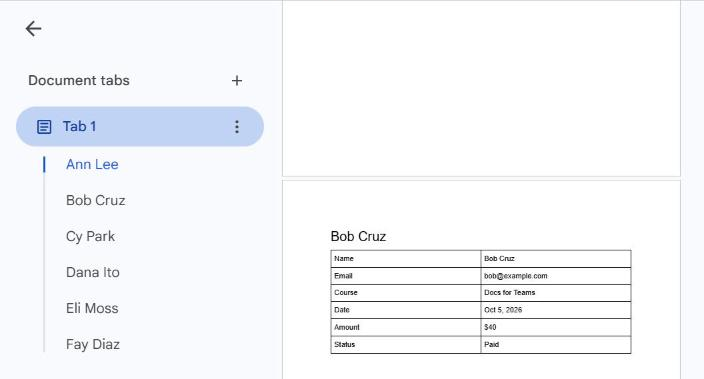
Google Sheets can’t add page breaks from a script, but Google Docs can. This script reads your sheet and builds a new Doc: one page per row, with the headers as labels. Then you print the Doc in one go.
- In your spreadsheet, go to Extensions → Apps Script.
- Delete the sample code and paste the code below.
- Click Save, then reload the spreadsheet. A new menu Print rows appears.
- Open the tab with your data (headers in row 1), then choose Print rows → Make a Doc with one row per page.
- The first time, Google asks you to authorize the script. Because it is your own unverified script, you will see Google hasn’t verified this app: click Advanced → Go to (your project name) (unsafe). On the next screen, tick Select all and click Continue. The script asks for access to your Sheets (to read the rows), your Docs (to create the new Doc) and to show its small “Done” box.
- When it finishes, click the link, then File → Print in the Doc.
// Print rows: one row per page, via a new Google Doc.
// Row 1 of the active tab = headers. Each later row becomes one page.
function onOpen() {
  SpreadsheetApp.getUi()
    .createMenu('Print rows')
    .addItem('Make a Doc with one row per page', 'rowsToDoc')
    .addToUi();
}

function rowsToDoc() {
  const sheet = SpreadsheetApp.getActiveSheet();
  const values = sheet.getDataRange().getDisplayValues();
  if (values.length < 2) {
    SpreadsheetApp.getUi().alert('Put headers in row 1 and data from row 2.');
    return;
  }
  const headers = values[0];
  const rows = values.slice(1).filter(r => r.some(c => c !== ''));

  const doc = DocumentApp.create(sheet.getName() + ' - one row per page');
  const body = doc.getBody();

  rows.forEach((row, i) => {
    // Title of the page: the first column (for example the name).
    body.appendParagraph(row[0] || 'Row ' + (i + 2))
        .setHeading(DocumentApp.ParagraphHeading.HEADING1);
    // Two-column table: header | value
    body.appendTable(headers.map((h, c) => [h, row[c]]));
    if (i < rows.length - 1) body.appendPageBreak();
  });

  // A new Doc starts with one empty paragraph; remove it.
  const first = body.getChild(0);
  if (first.getType() === DocumentApp.ElementType.PARAGRAPH &&
      first.asParagraph().getText() === '') {
    first.removeFromParent();
  }
  doc.saveAndClose();

  const url = doc.getUrl();
  SpreadsheetApp.getUi().showModalDialog(
    HtmlService.createHtmlOutput(
      '<p><a href="' + url + '" target="_blank">Open the Doc</a>, then File → Print.</p>'),
    'Done');
}
Tips
- Blank rows are skipped. Hidden rows are not skipped — filter into a new tab first if you only want some rows.
- The Doc uses what you see in the cells (
getDisplayValues), so dates and currency keep their formatting. - To change the layout (logo, bigger text, a signature line), edit the Doc after it is made, or change the
appendParagraph/appendTablelines. - Very large sheets (thousands of rows) can hit the Apps Script time limit of about six minutes. Split the data into smaller tabs.
Which method should you use?
| Custom page breaks | Print tab (one row as a form) | Script → Doc | |
|---|---|---|---|
| Rows | Up to ~20 | Any, one at a time | Many at once |
| Layout | The spreadsheet row as is | Form-style page you design | Label/value table per page |
| Code | None | Two formulas | Copy-paste script |
| Permissions | None | None | Sheets and Docs access, granted to your own script |
Other options
If you need polished documents from each row — certificates, invoices with your own template — mail-merge style add-ons on the Google Workspace Marketplace can fill a Docs or Slides template per row and export PDFs. They save time when you do this often; for an occasional print job, the three methods above are enough.
FAQ
Is there a “one row per page” setting in Google Sheets?
No. As of October 2026, the print screen offers scale, margins, custom page breaks, and headers & footers, but no option to start a new page after every row.
Can I insert page breaks with Insert → Page break like in Google Docs?
Not in Sheets. Google’s help for Sheets only describes Set custom page breaks in the print screen. Page breaks from the Insert menu exist in Google Docs, which is why Method 3 builds a Doc.
How do I repeat the header row on every printed page?
Freeze the header row (View → Freeze → 1 row). Then in File → Print, open Headers & footers and select Repeat frozen rows.
How do I print just one row?
Select the row (or the cells you need), go to File → Print, and choose Selected cells. For a cleaner, form-like page, use the Print tab in Method 2.
Does this work in Excel?
The steps here are for Google Sheets. Excel has its own page break tools under Page Layout; the Doc-building script in Method 3 is Google-only.
Google Sheets, Google Docs, Google Workspace and Apps Script are trademarks of Google LLC.








コメント