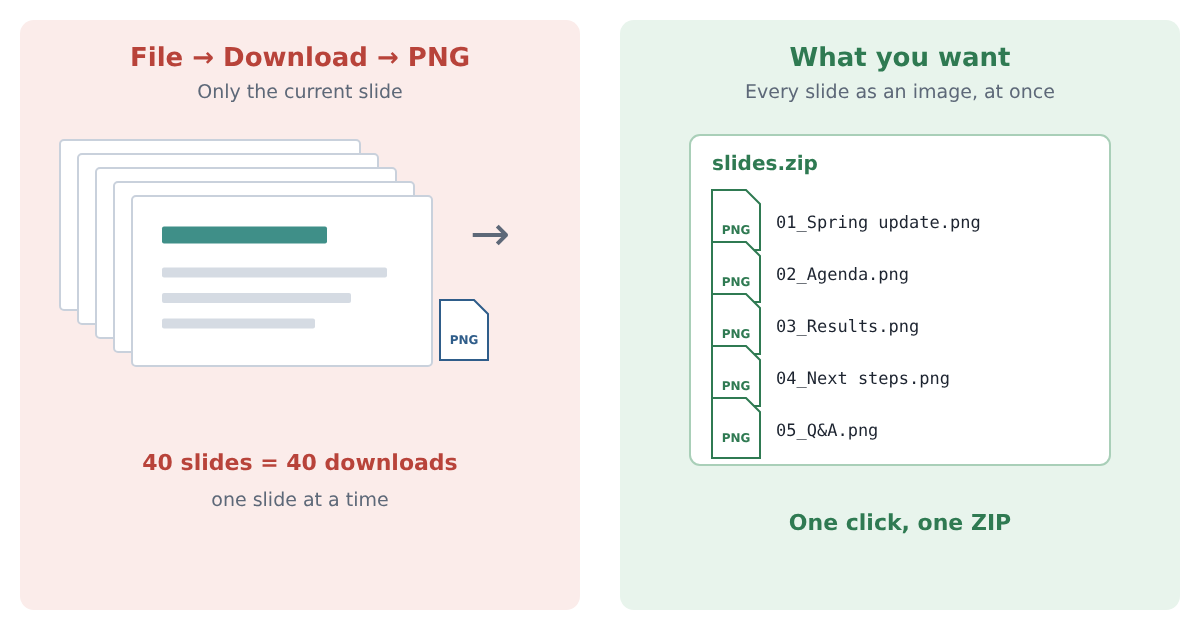
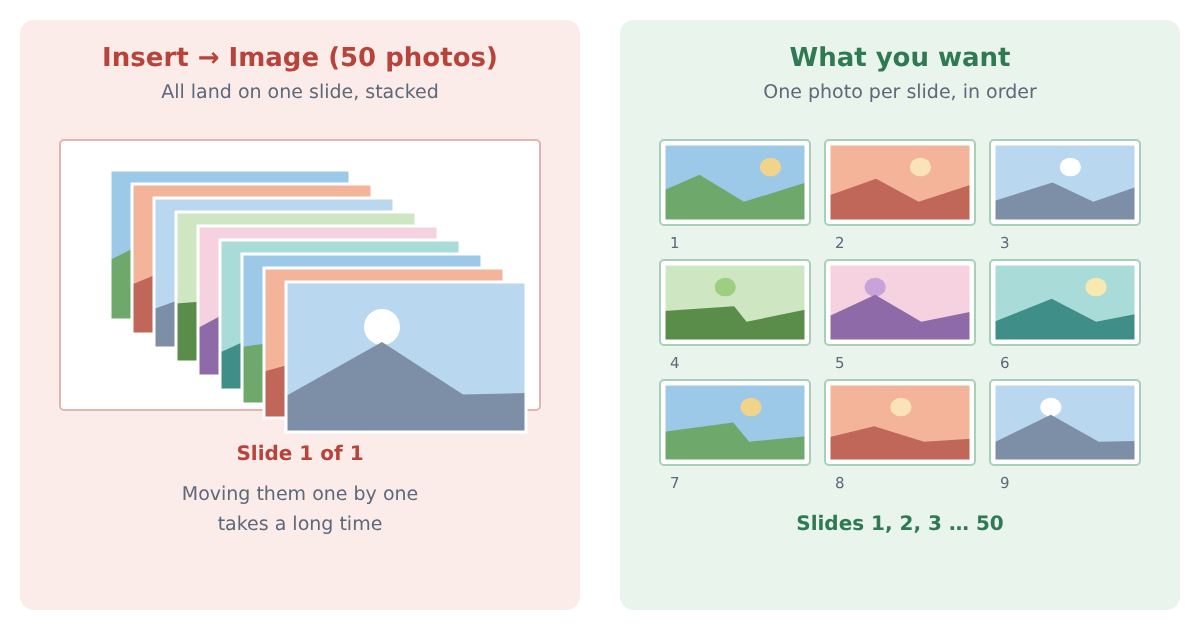
You need every slide of a Google Slides presentation as a picture — for a website, a printout, a social post or a video — but File → Download → PNG gives you one slide. Here are the ways to get all of them at once, what each one costs you in time and quality, and which fits your situation.
The short answer
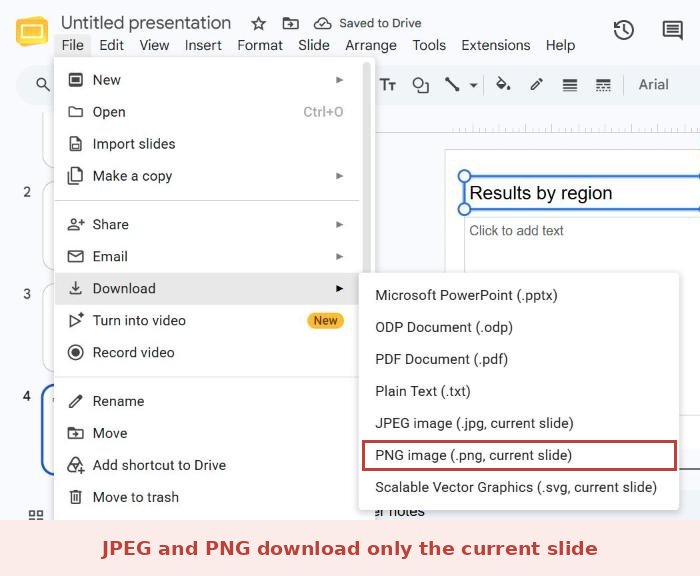
- Google Slides’ own image download is one slide at a time: the menu says “PNG image (.png, current slide)”.
- For a few slides, that is fine — click each slide and download it.
- For every slide at once: download as .pptx and save all slides as images in desktop PowerPoint, or use an add-on that exports every slide into one ZIP file.
Checked: October 2026, Google Slides in Chrome.
Which situation are you in?
- Only a few slides: download them one by one. Nothing to install.
- Many slides, and you have desktop PowerPoint: the .pptx route below.
- Many slides, Google Slides only (Chromebook, school or work account): an add-on.
- You are comfortable with code: an Apps Script can do it too.
The ways, compared
| Method | Effort | Things to watch |
|---|---|---|
| File → Download → PNG/JPEG | One download per slide | Slow for long decks |
| Download .pptx → PowerPoint “All Slides” | One export | Needs desktop PowerPoint; fonts can change in the conversion |
| Download PDF → convert to images | Two steps | Online converters upload your slides to someone else’s server |
| Apps Script | Set up once | For people who write code |
| An add-on (for example Download Slides As Zip, or ours, Export Slides as Images) | One click, one ZIP | Check the permissions it asks for |
1. One slide at a time (built in)
- Click the slide you want in the left panel.
- Choose File → Download → PNG image (or JPEG image).
- Repeat for each slide.
Fine for three or four slides. For a 40-slide deck it means 40 downloads, and you will want to rename the files so they stay in order.
2. Download as .pptx, then save all slides in PowerPoint
If you have desktop PowerPoint (steps below are for Windows):
- In Google Slides, choose File → Download → Microsoft PowerPoint (.pptx).
- Open the file in PowerPoint and choose File → Save As (or Save a Copy), and pick a folder.
- In Save as type, choose PNG or JPEG, then click Save.
- When PowerPoint asks which slides to export, choose All Slides. Each slide becomes its own image file.
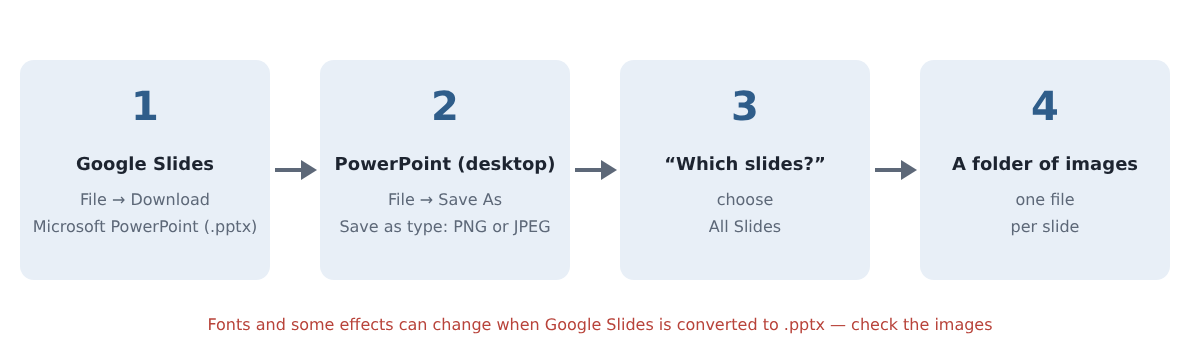
Look through the images afterwards: fonts and some effects can look different after the conversion to .pptx. Microsoft’s own steps: Save a slide as an image.
3. Download as PDF, then convert pages to images
File → Download → PDF Document gives you every slide in one file. Any PDF tool that saves pages as images can then split it. Be careful with free online converters: they upload your presentation to their server, which may not be OK for work or school files.
4. Apps Script (for people who write code)
Google Slides has an API that can produce an image of each slide, so a short Apps Script can save them all. Spreadsheet.dev has a step-by-step tutorial: Exporting Google Slides to Images.
5. An add-on
Add-ons put a button in Google Slides that exports every slide into one ZIP file. One example is Download Slides As Zip; another is ours, below. Before you install any add-on, read the permissions screen: some ask for access to all your presentations, others only to the one you have open.
Export Slides as Images (made by us)
Disclosure: Export Slides as Images is our add-on. We include it because it was built for exactly this; the other methods work too.
- Install Export Slides™ as Images from the Google Workspace Marketplace.
- Open your presentation and choose Extensions → Export Slides™ as Images → Export slides as images.
- The first time, press Allow access and select the presentation in Google’s file picker (it is already selected — press Select).
- Press Export images (ZIP). The ZIP downloads to your computer.
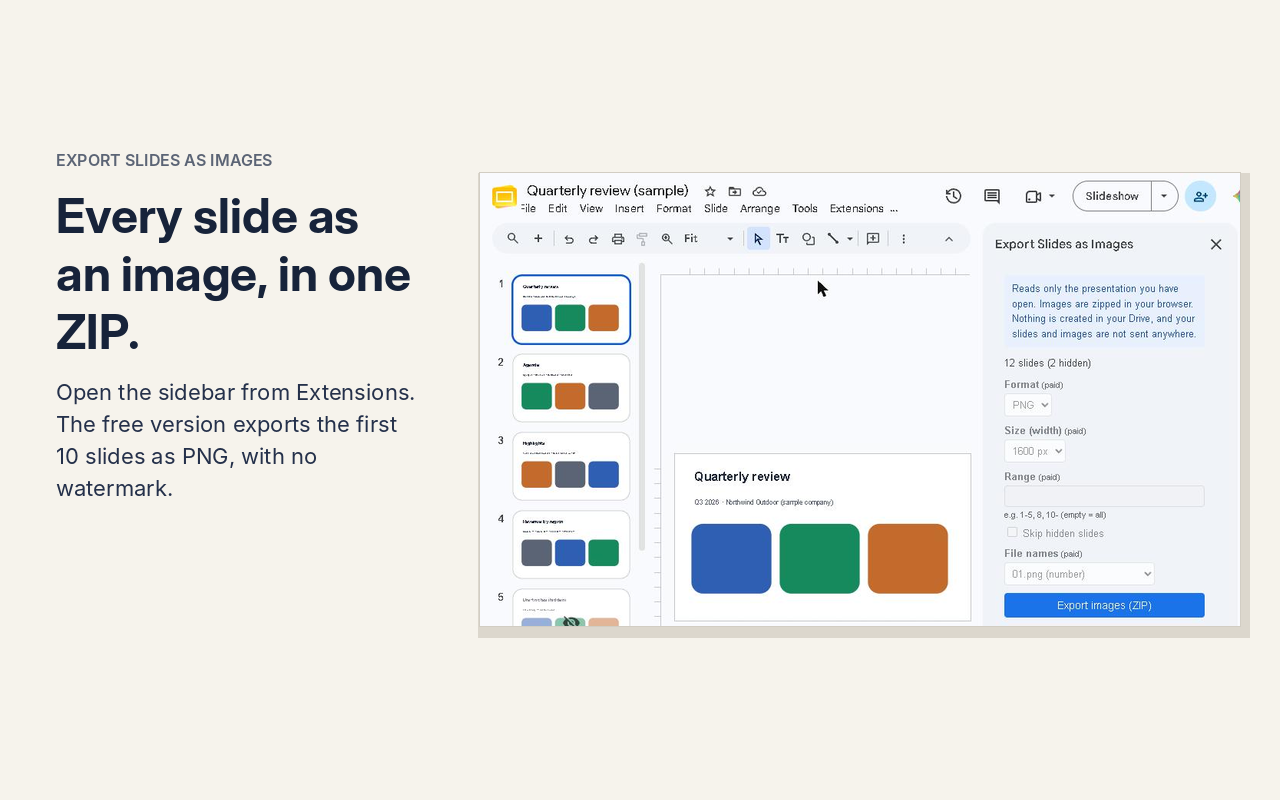
- Free: the first 10 slides as PNG, 1600 px wide, no watermark.
- Paid ($19, one-time): every slide, PNG or JPG, 1600, 800 or 200 px wide, choose slides (for example 1-5, 8, 12-), skip hidden slides, file names with slide titles (03_Revenue by region.jpg).
- Permissions: it reads only the presentation you have open. The images are zipped in your browser; nothing is created in your Drive and your slides are not sent anywhere.
More on the Export Slides as Images page.
Pitfalls
- File order: names like slide1, slide10, slide2 sort as text. Use numbers with leading zeros (01, 02 … 10) so the files stay in slide order.
- Hidden (skipped) slides: decide whether you want them before exporting, and check the result — not every method treats them the same way.
- Fonts after conversion: in the .pptx and PDF routes, check a few images closely before you use them.
FAQ
Can Google Slides download all slides as PNG at once?
Not with the built-in menu as of October 2026. The PNG and JPEG downloads save only the current slide.
Is there a free way to get all slides as images?
Yes: download them one by one, use the .pptx route if you have desktop PowerPoint, or use an add-on’s free tier (ours exports the first 10 slides free).
Does Export Slides as Images upload my slides anywhere?
No. It reads only the open presentation, and the ZIP is made in your browser.








コメント