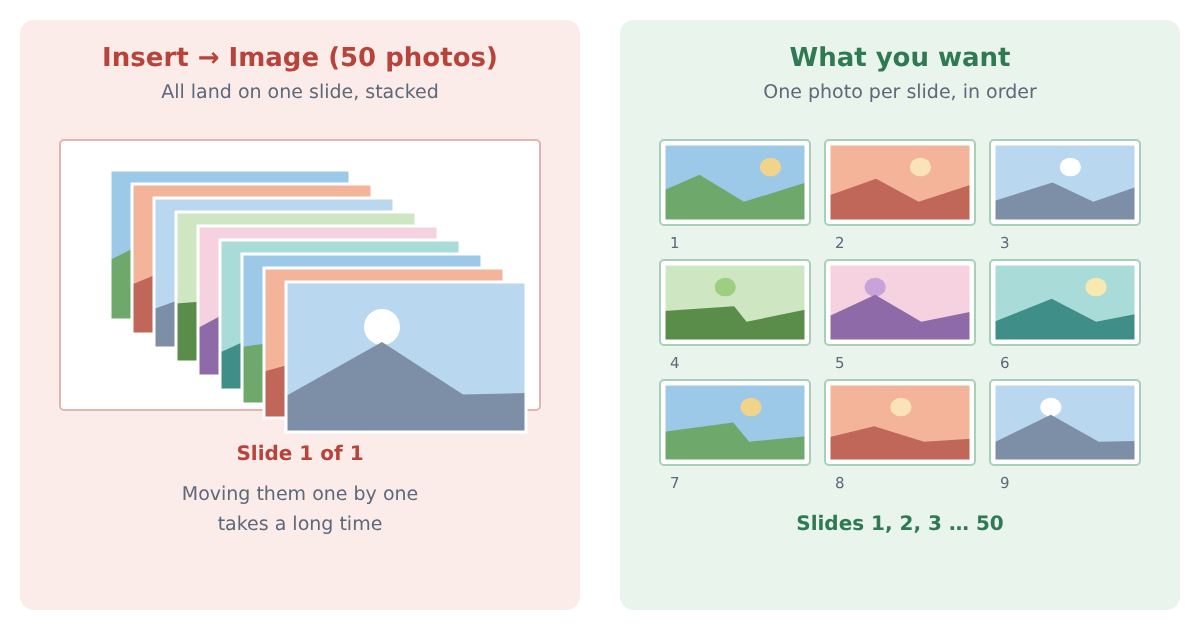
You picked 50 photos in Google Slides, clicked Insert — and all 50 landed on the same slide, stacked on top of each other. Here is how to get one photo per slide, which way fits your situation, and how to keep the photos sharp.
The short answer
- Google Slides has no built-in “one image per slide” option. If you select several photos in Insert → Image → Upload from computer, they all go onto the current slide.
- For about 15 photos or fewer, cut and paste them onto new slides by hand.
- For more, use PowerPoint’s Photo Album (Windows) and open the file in Google Slides, or use an add-on that makes one slide per photo.
Checked: October 2026, Google Slides in Chrome.
Which situation are you in?
- A few photos (under 15): do it by hand. Nothing to install.
- Dozens to hundreds, and you have PowerPoint on Windows: Photo Album, then open it in Google Slides.
- Dozens to hundreds, Google Slides only (Chromebook, Mac, school account): an add-on.
- Your photos look blurry after inserting: see “Why photos get blurry” below.
The four ways, compared
| Method | Effort | Photo quality | What it can access |
|---|---|---|---|
| Cut and paste by hand | One photo at a time | As inserted | Nothing extra |
| PowerPoint Photo Album → Google Slides | One album, then import | PowerPoint may compress it | A file you upload |
| Import Images into Slides (add-on) | One import | Check its settings | See its permission screen |
| Photo Slides (our add-on) | One run (free: up to 20 photos) | You choose up to 3840 px | Only the open presentation and the photos you pick |
1. By hand: cut and paste each photo
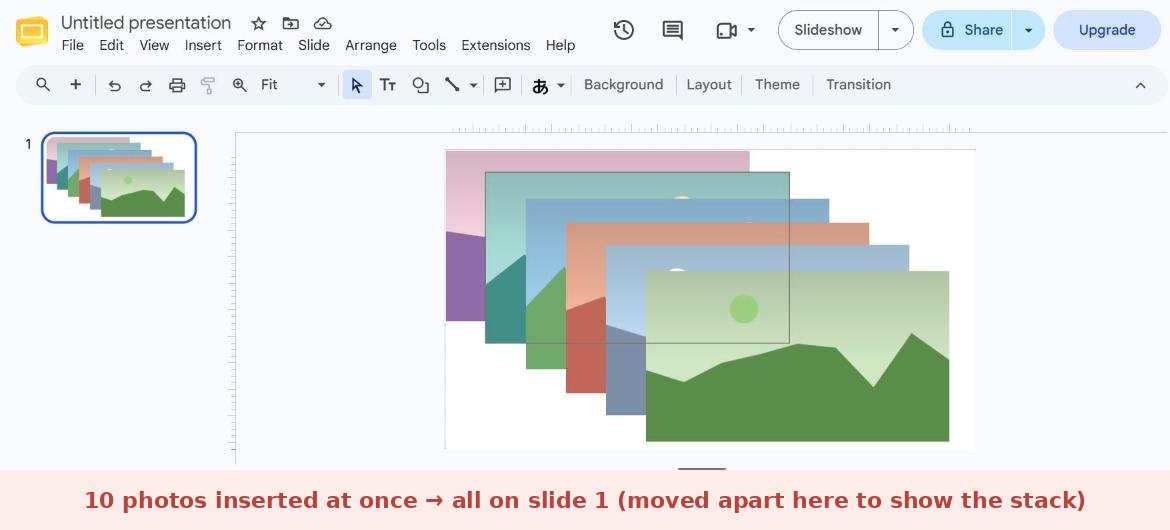
- Insert → Image → Upload from computer, and select all your photos. They all appear on one slide, stacked.
- Add as many blank slides as you need (select a blank slide and press Ctrl+D / Cmd+D to duplicate it).
- Click the top photo, press Ctrl+X (Cmd+X), go to the next blank slide and press Ctrl+V (Cmd+V).
- Repeat. To make a photo fill the slide, drag a corner handle.
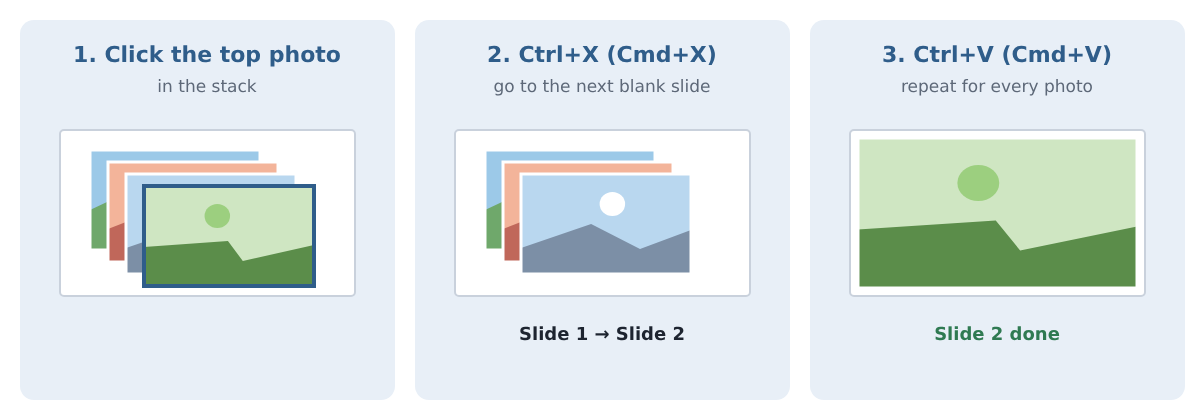
This works anywhere, but the order is whatever the stack gives you, and it gets slow with more than a dozen photos.
2. PowerPoint Photo Album, then open it in Google Slides
If you have desktop PowerPoint for Windows:
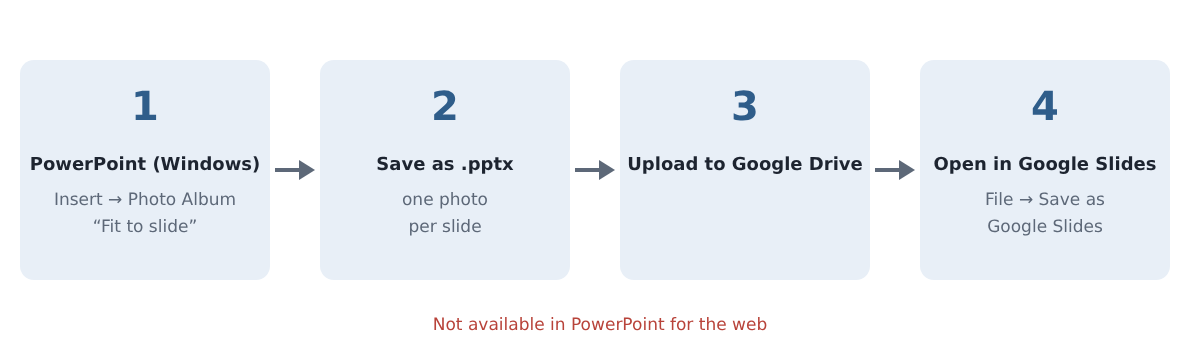
- On the Insert tab, click the arrow under Photo Album → New Photo Album.
- Under “Insert picture from”, click File/Disk and select all your photos. Under Album Layout, set Picture layout to Fit to slide, then click Create.
- Save the file as .pptx.
- Upload the .pptx to Google Drive, open it, and choose File → Save as Google Slides.
PowerPoint can compress pictures when it saves. To keep them as they are, go to File → Options → Advanced and, under Image Size and Quality, check Do not compress images in file before saving. Microsoft’s own steps: Create and share a photo album and Turn off picture compression.
3. An add-on: Import Images into Slides
An add-on by LeadCamp that builds slides from images in a folder, a ZIP file, a list of URLs or a CSV. Handy if your images come from links or a spreadsheet. Check the permissions it asks for on the install screen before you allow it.
4. Photo Slides (made by us)
Disclosure: Photo Slides is our add-on. We include it because it was built for exactly this problem; the other three methods work too.
- Install Photo Slides for Google Slides™ from the Google Workspace Marketplace.
- Open your presentation and choose Extensions → Photo Slides for Google Slides™ → Insert photos.
- Click Pick photos or Pick a folder (or drop photos onto the sidebar). Photos come from your computer.
- Choose the Order (By file name, or In the order picked), the Fit (Show the whole photo, or Fill — crops the edges) and the Quality (1600, 2400 or 3840 px on the longest side).
- Click Insert. One slide per photo is added at the end; your existing slides are not changed.
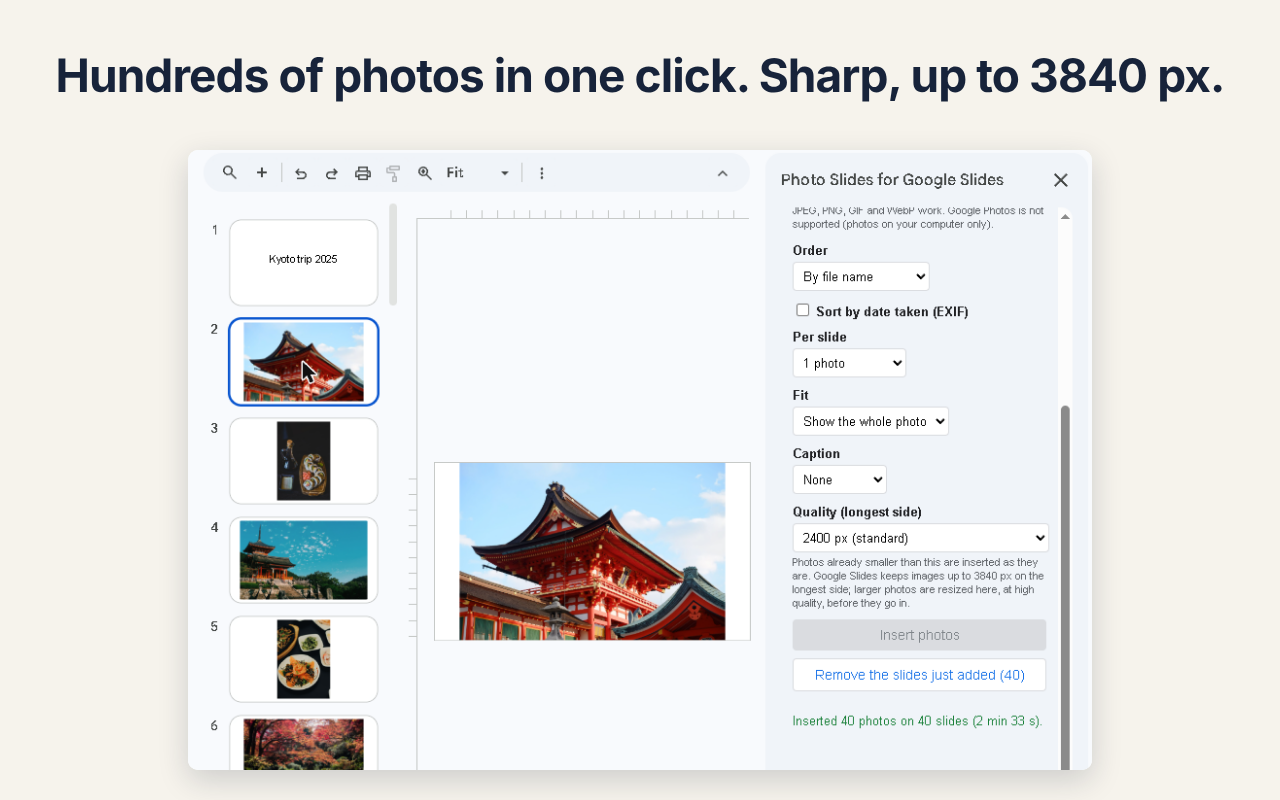
Made a mistake? Press Remove the slides just added twice (the second press confirms).
- Free: up to 20 photos per run, one photo per slide, any quality setting, no watermark.
- Paid ($19, one-time): no limit per run, grids of 2, 4 or 6 photos per slide, captions (file name or date taken), sort by date taken.
- Permissions: it works only on the presentation you have open and shows a sidebar. It has no access to your Drive or your other presentations.
More on the Photo Slides page.
Why photos get blurry (and how to keep them sharp)
- Pasting from a web page or chat app often pastes a smaller preview, not the original file. Insert from the file instead.
- Small originals stretched to fill a 16:9 slide look soft. For full-screen photos, use images at least 1920 px wide.
- Exported PDF or PowerPoint files can shrink images. Check by zooming into the exported file, not only the editor.
Pitfalls
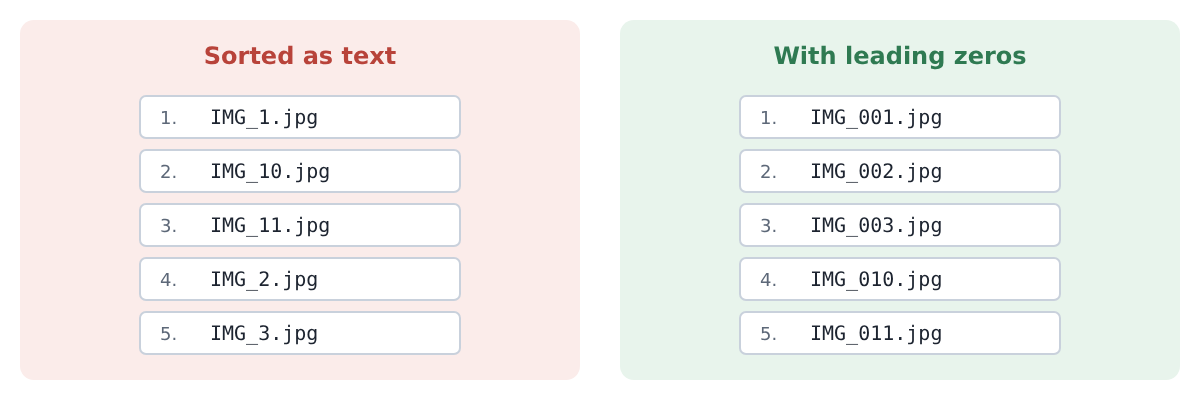
- Order: file names like IMG_1, IMG_10, IMG_2 sort as text. Add leading zeros (IMG_001) if the order matters.
- iPhone photos (HEIC): Google Slides’ upload accepts JPEG, PNG and GIF. Convert HEIC photos to JPEG first, or set the iPhone camera to “Most Compatible”.
- Portrait photos on 16:9 slides leave bars on the sides when the whole photo is shown; filling the slide crops the top and bottom.
- Very large decks get slow: hundreds of full-size photos make the file heavy. Split them into several presentations if editing lags.
FAQ
Can Google Slides put each image on its own slide automatically?
Not as of October 2026. Inserting several images places them all on the current slide.
Is there a way without installing anything?
Yes: cut and paste by hand, or use PowerPoint’s Photo Album if you have it on Windows.
Does Photo Slides need access to my Google Drive?
No. You pick photos from your computer, and it edits only the presentation you have open.








コメント