
You want headings in Google Docs numbered like 1, 1.1, 1.2, 2, the way Word can number them, and you want the numbers to fix themselves when you move or add a section. This page shows what Google Docs can do on its own, where it falls short, and a faster way.
- The short answer
- What Google Docs can and cannot do
- Native method: use a numbered list on your headings
- Workarounds
- Faster way: Table of Contents & Numbering
- Troubleshooting and FAQ
- My numbering starts again at 1 in the middle of the document.
- My sub-heading shows “2” instead of “1.1”.
- I pressed Tab and the heading moved in the table of contents.
- The table of contents does not show my new heading.
- Can Google Docs number headings automatically like Word?
- The add-on sidebar does not load.
- Sources
The short answer
- Google Docs has no automatic heading numbering setting. Google’s help pages for headings and table of contents do not describe one.
- Native workaround: apply a numbered list to your headings. Use Heading 1 for level 1, and press Tab on Heading 2 lines to make them level 2 (1.1, 1.2).
- If numbering restarts at 1, double-click the number and choose Format > Bullets & numbering > List options > Continue previous numbering.
- For one-click numbering that you can renumber or remove, use our add-on Table of Contents & Numbering. Heading numbers 1 / 1.1 / 1.1.1 are in the free version.
What Google Docs can and cannot do
Google Docs has paragraph styles (Title, Subtitle, Heading 1 to 6) and a table of contents built from those headings. Google’s help page on headings and tables of contents does not mention heading numbers. The table of contents options Google announced in 2023 are styles (Plain text, Dotted, Links), page numbers, tab leaders, and which heading levels to show. Numbering is not among them.
So you have two native choices: type numbers by hand, or turn your headings into a numbered list.
Native method: use a numbered list on your headings
- Set heading styles. Select each heading and choose Format > Paragraph styles > Heading 1 (or Heading 2 for sub-sections). You can also use the style box in the toolbar.
- Select your first Heading 1. Click the arrow next to Numbered list in the toolbar and pick a style with nested numbers, such as 1. / 1.1. / 1.1.1., if your menu shows one. If you don’t see the button, click More in the toolbar.
- Add the other headings to the same list. Click each heading and apply the same numbered list. Body paragraphs between headings stay outside the list.
- Make sub-headings level 2. Click at the start of a Heading 2 line and press Tab. Google’s help says Tab starts a list inside a list. The number changes from 2 to 1.1. Press Shift + Tab to move it back up.
- Fix a list that starts again at 1. Double-click the wrong number, then go to Format > Bullets & numbering > List options > Continue previous numbering, and click OK.
- Start from a different number (for example, chapter 3 in a separate file). Double-click the first number and choose Format > Bullets & numbering > List options > Restart numbering, then enter the start number.
Tip: Tab changes the list level, not the paragraph style. A Heading 1 that you indent with Tab is still a Heading 1 in the table of contents. Keep the heading style and the list level matched by hand.
Limits of the list method
- Style and level are separate. Google Docs does not link “Heading 2” to “list level 2.” If you change one, change the other yourself.
- Lists break easily. Pasting text, or applying a list to one heading at a time, can create a new list that starts at 1. You then need “Continue previous numbering” again.
- Check the table of contents. The table of contents is built from heading text. After you add list numbers, insert or refresh the table of contents and check whether the numbers appear there the way you want.
- Few formats. You get the list styles Docs offers. Formats like “Chapter 1” or “I / A / 1” need typing by hand or custom list settings.
- No figure or table numbers. Lists do not number captions like “Figure 1” or “Table 2,” and there are no cross-references that update.
Workarounds
- Type numbers by hand. Simple and reliable for short documents. You must renumber every heading after you insert or move a section. Use Edit > Find and replace to help.
- Number only level 1. If you only need 1, 2, 3 for chapters, a plain numbered list on Heading 1 is easy to keep in order.
- Build the outline first. Write all headings in order, apply styles and list levels in one pass, then write the body text. Fewer lists break this way.
- Use the document outline to check. The outline on the left lists your headings so you can spot one with the wrong style.
Faster way: Table of Contents & Numbering
Table of Contents & Numbering is a Google Docs add-on made by us, Daily Picks. Per its product page, it adds 1 / 1.1 / 1.1.1 to the start of your headings, starting from Heading 1 or Heading 2, and you can press the button again to renumber or remove the numbers. Numbers you typed yourself (for example “1. Preface”) are left alone. It reads the heading styles you already use, so you do not need to manage list levels.
- Install the add-on from the Google Workspace Marketplace.
- Open your document. Go to Extensions > Table of Contents & Numbering > Open contents & numbering.
- In the sidebar, press Number headings.
- After you add, delete, or move sections, press it again to renumber. Use the matching Remove button to take the numbers off.
The sidebar also shows your headings as a clickable contents list, one tab at a time. A step-by-step guide with pictures is here: Table of Contents & Numbering guide.
Free and paid (from the product page)
| Free | Paid (one-time purchase) | |
|---|---|---|
| Contents sidebar, jump to a heading | Yes | Yes |
| Heading numbers 1 / 1.1 / 1.1.1 (renumber, remove) | Yes | Yes |
| Other heading formats (Chapter style, I / A / 1, “1.”, “(1)”) | No | Yes |
| Figure and table numbers | Up to 20 | Unlimited |
| Chapter numbers in captions (Figure 2-3) | No | Yes |
| Cross-references | No | Yes |
| List of figures and tables with page numbers | No | Yes |
| Watermark | None | None |
Price and details: product page.
Native list vs add-on
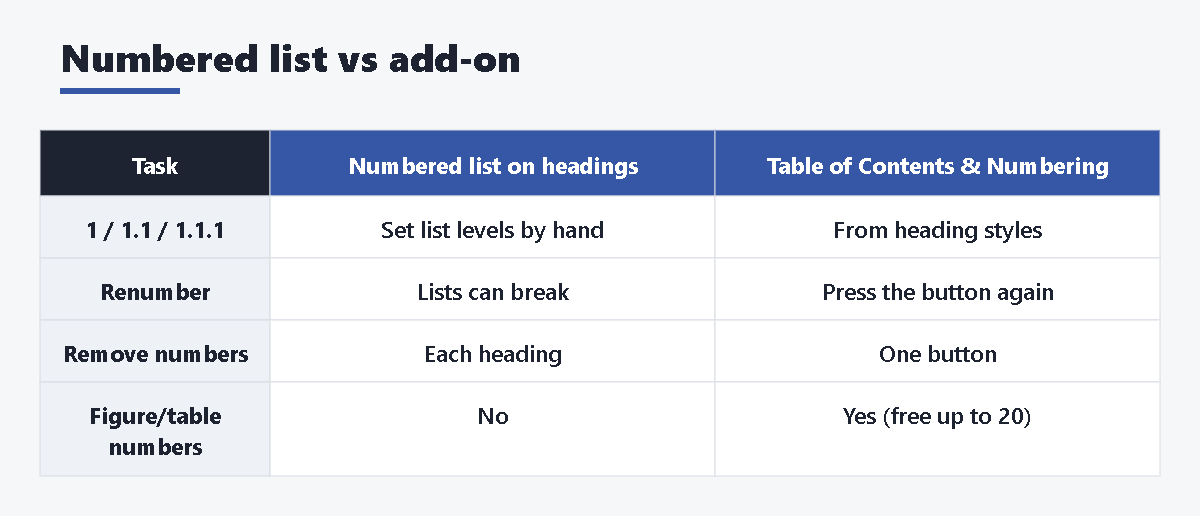
| Task | Numbered list on headings | Table of Contents & Numbering |
|---|---|---|
| 1 / 1.1 / 1.1.1 numbers | Yes, if you set list levels by hand | Yes, from heading styles |
| Renumber after moving sections | Usually automatic, but lists can break | Press the button again |
| Remove all numbers | Remove the list from each heading | One button |
| Figure and table numbers | No | Yes (free up to 20) |
| Cost | Free | Free version available |
Troubleshooting and FAQ
My numbering starts again at 1 in the middle of the document.
That heading is in a new list. Double-click its number and choose Format > Bullets & numbering > List options > Continue previous numbering.
My sub-heading shows “2” instead of “1.1”.
It is still at list level 1. Click at the start of the line and press Tab. If the list style does not use nested numbers, choose a style like 1. / 1.1. from the arrow next to Numbered list.
I pressed Tab and the heading moved in the table of contents.
Tab changes the list level only. If the table of contents looks wrong, check the paragraph style of that heading with Format > Paragraph styles, then refresh the table of contents.
The table of contents does not show my new heading.
Click the table of contents and click Refresh. Google’s help says you need to refresh it after you add headings.
Can Google Docs number headings automatically like Word?
Not as a built-in setting. The list method is the closest native option. An add-on can number from heading styles directly.
The add-on sidebar does not load.
Open the document in a window signed in to only one Google account. The product page notes this is a limitation of Apps Script add-ons.
Sources
- Google Docs Editors Help: Add a title, heading, or table of contents in a document
- Google Docs Editors Help: Add a numbered list, bulleted list, or checklist
- Google Workspace Updates: Improvements to content organization in Google Docs (Mar 2023)
- Table of Contents & Numbering product page (Daily Picks)
- Table of Contents & Numbering guide (Daily Picks)










コメント