
日本語版 | Back to the product page
Daywrap for Google Calendar: User Guide
This guide shows, step by step, how to print a month, a week or a day-by-day list from Google Calendar™ with every event title in full and every description included. Items marked Paid belong to the paid version ($15, one-time purchase). Everything else works in the free version. Daywrap only reads your calendar: it cannot create, change or delete events.
1. Before you start
- Open Daywrap for Google Calendar on the Google Workspace Marketplace and click Install.
- Review the permission screen and click Allow. Daywrap asks only to see your events and your list of calendars (read-only).
- Use Google Calendar on a computer (the print page is made for a desktop browser).
2. Open the print page
- Open Google Calendar.
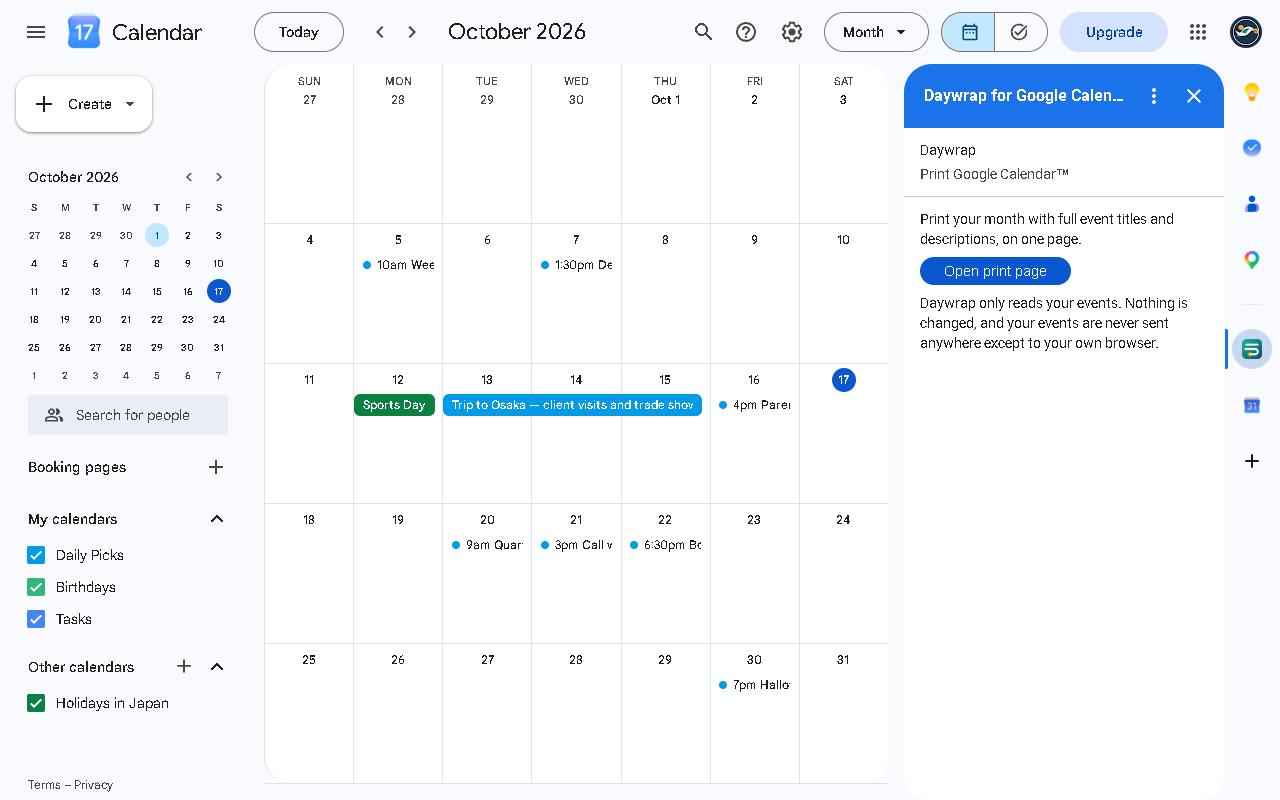
- Click the Daywrap icon in the side panel on the right. If the panel is hidden, click the small arrow at the bottom right to show it.
- Click Open print page. The print page opens in a new tab. The first time, allow read-only access when asked.
3. Choose the view
Pick a view with View at the top left of the print page.
- Month: the whole month on one page. Busy weeks get more room and quiet weeks less, and the text is sized to the paper.
- Week: seven days on one page, with larger text.
- List: every event of the month in date order, with times, locations and descriptions. Long lists continue onto more pages, and no event is split across a page break.
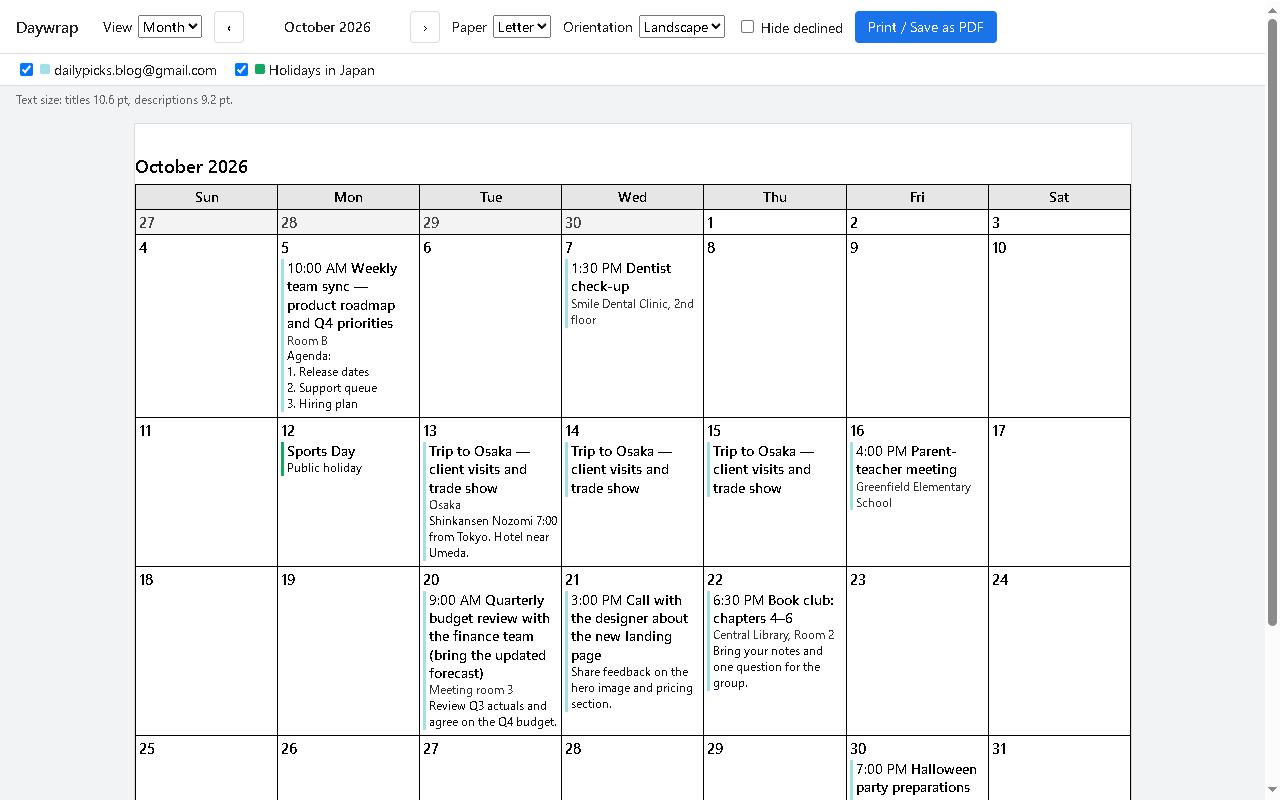
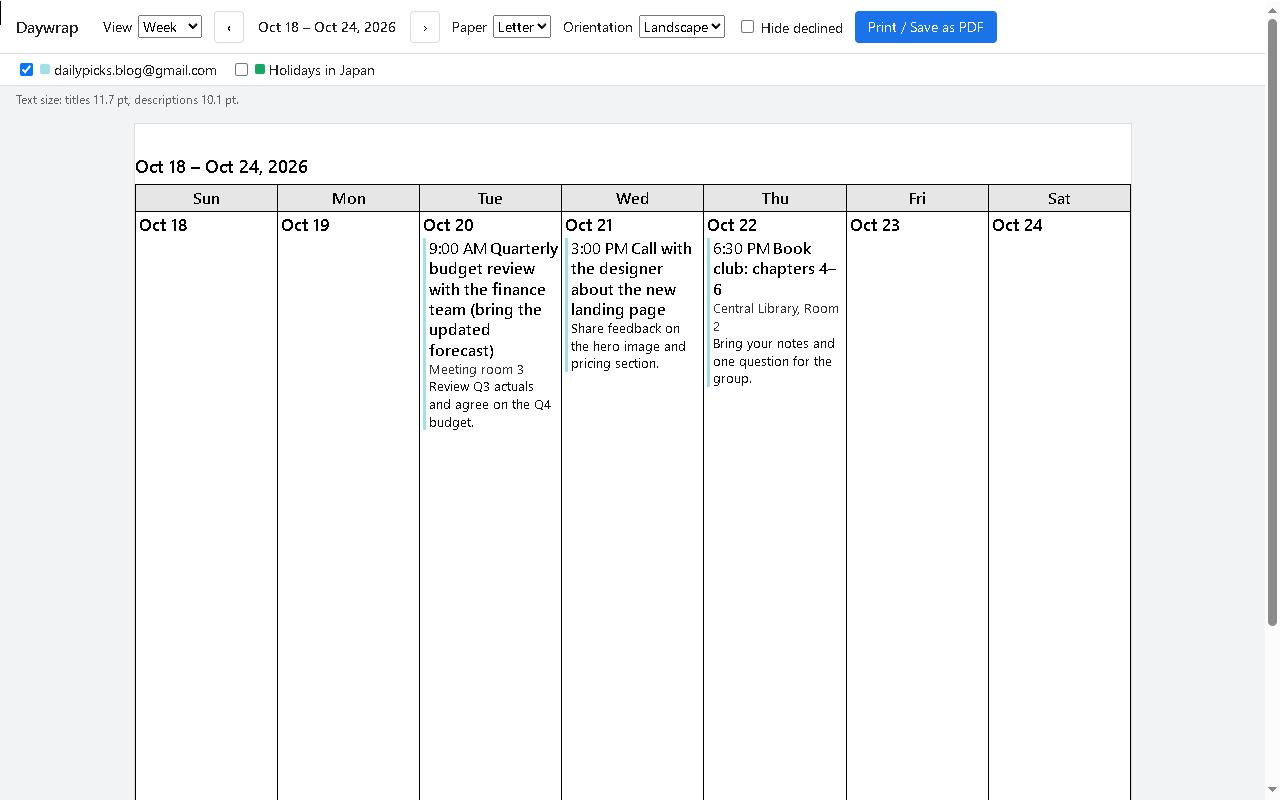
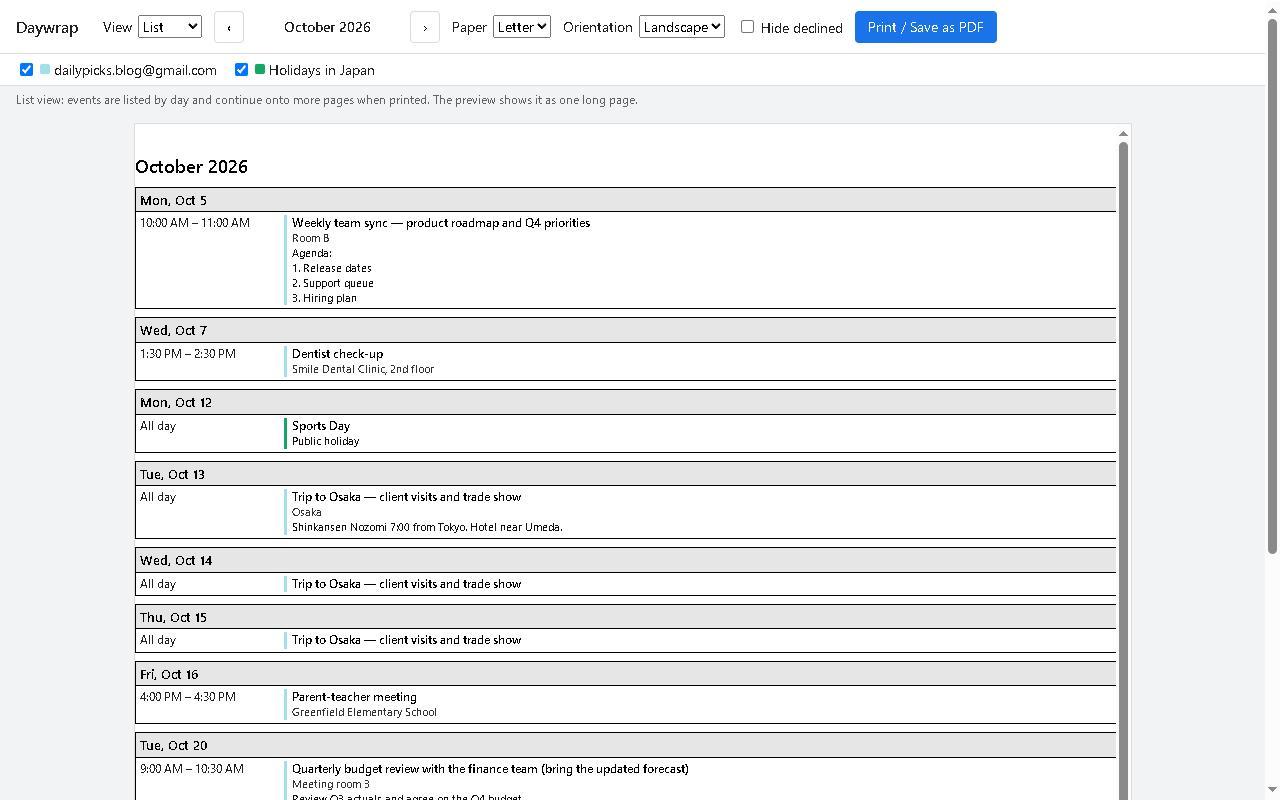
All-day and multi-day events appear on every day they cover. Links and formatting in descriptions are turned into plain, readable text.
4. Choose the month, calendars and paper
- ‹ ›: move back or forward (month by month in the month and list views).
- Calendars: the row under the toolbar lists your calendars. The free version prints one calendar at a time; Paid prints several together.
- Paper: Letter, A4, Legal or A3. Orientation: Landscape or Portrait.
- Hide declined: leaves out events you declined.
The line under the calendars shows the text size, for example “titles 10.8 pt, descriptions 9.2 pt”. If the text is small, try landscape, a larger paper, or the week or list view.
5. Print or save as PDF
- Click Print / Save as PDF.
- In the print window, choose your printer, or set Destination to Save as PDF.
- The buttons at the top of the page are not printed.
6. Activate the paid version
- Buy the paid version ($15, one-time) on Gumroad. The license key arrives by email.
- At the bottom of the print page, paste the key into License key and click Unlock.
- The page shows “Paid version unlocked” with only the last four characters of the key. There is no expiry date. To remove it, click Remove license; the free features keep working.
Keep your key private.
7. Free vs paid
| Free | Paid ($15, one-time) | |
|---|---|---|
| Month, week and list views | Yes | Yes |
| Full titles, descriptions and locations | Yes | Yes |
| Letter, A4, Legal, A3 · landscape or portrait | Yes | Yes |
| Hide declined events | Yes | Yes |
| Calendars printed together | 1 | Several |
| Watermark | None | None |
Longer ranges in one print (several months at once) are on the way for the paid version.
8. Troubleshooting
| Problem | What to do |
|---|---|
| The print page does not load | If you are signed in to more than one Google account, open Google Calendar in a window signed in to only one account |
| A calendar is missing from the list | Daywrap lists the calendars shown in your Google Calendar. A calendar set to “Hide from list” may not appear |
| The text is small | Try landscape, a larger paper, or the week or list view |
| The page looks wider than the screen | The print is laid out for paper. Click “Print / Save as PDF” to check the result |
| I cannot select a second calendar | Printing several calendars together is in the paid version |
About your data
Daywrap reads your events and your list of calendars only while you use the print page, and shows them only in your own browser. It never changes your calendar. The only request to a service other than Google is the license check: it sends the license key and the product ID to Gumroad. See the Privacy Policy.
Contact
dailypicks.blog@gmail.com