
日本語版 | ← Back to the product page
Export Slides as Images — User Guide
A step-by-step guide, with screenshots, to saving every slide of a Google Slides presentation as images in one ZIP file. Follow it from the top and you will have your images in a few minutes. Features of the paid version are marked Paid.
1. Before you start
1-1 Install
Install “Export Slides as Images” from the Google Workspace Marketplace. You only do this once.
1-2 What the add-on does
It reads only the presentation you have open. The images are zipped in your browser, nothing is created in your Drive, and your slides are not sent anywhere.
2. Open the add-on
- Open the presentation in Google Slides.
- In the top menu, choose Extensions → Export Slides as Images → Export slides as images.
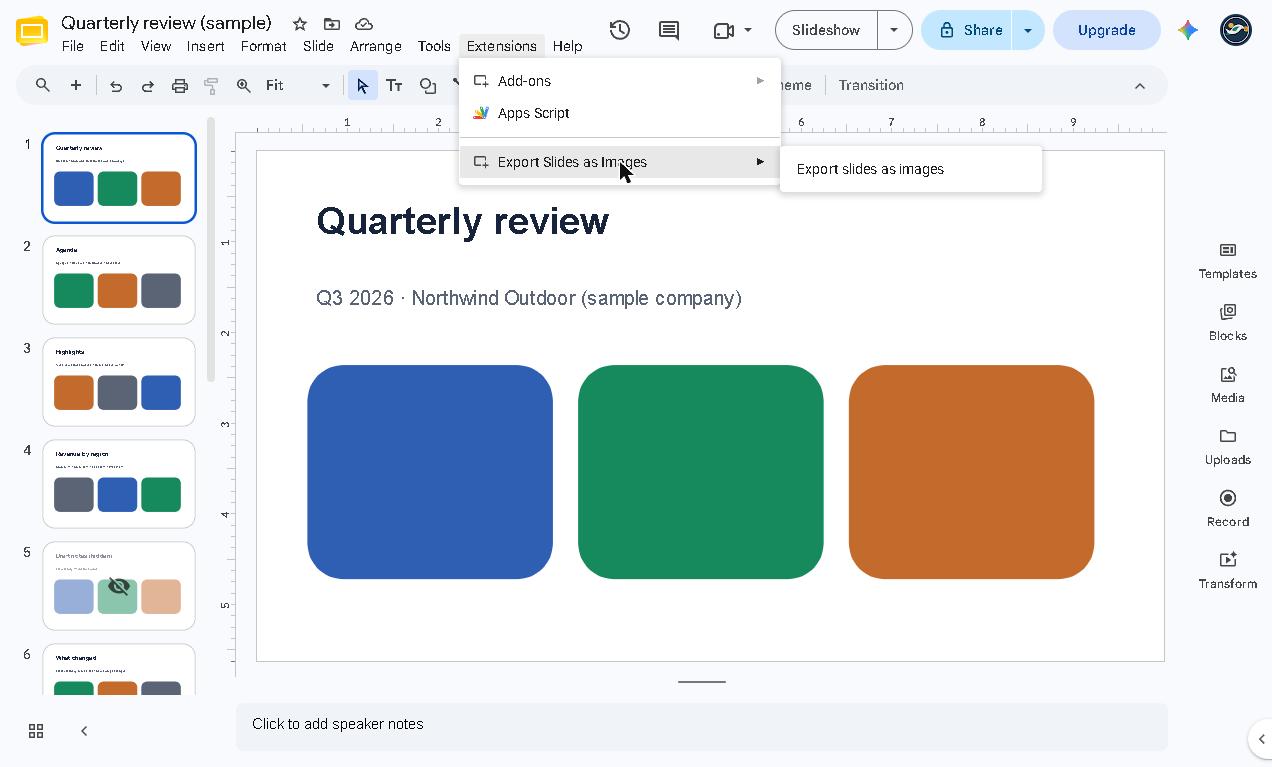
A sidebar opens on the right. All the settings are here.
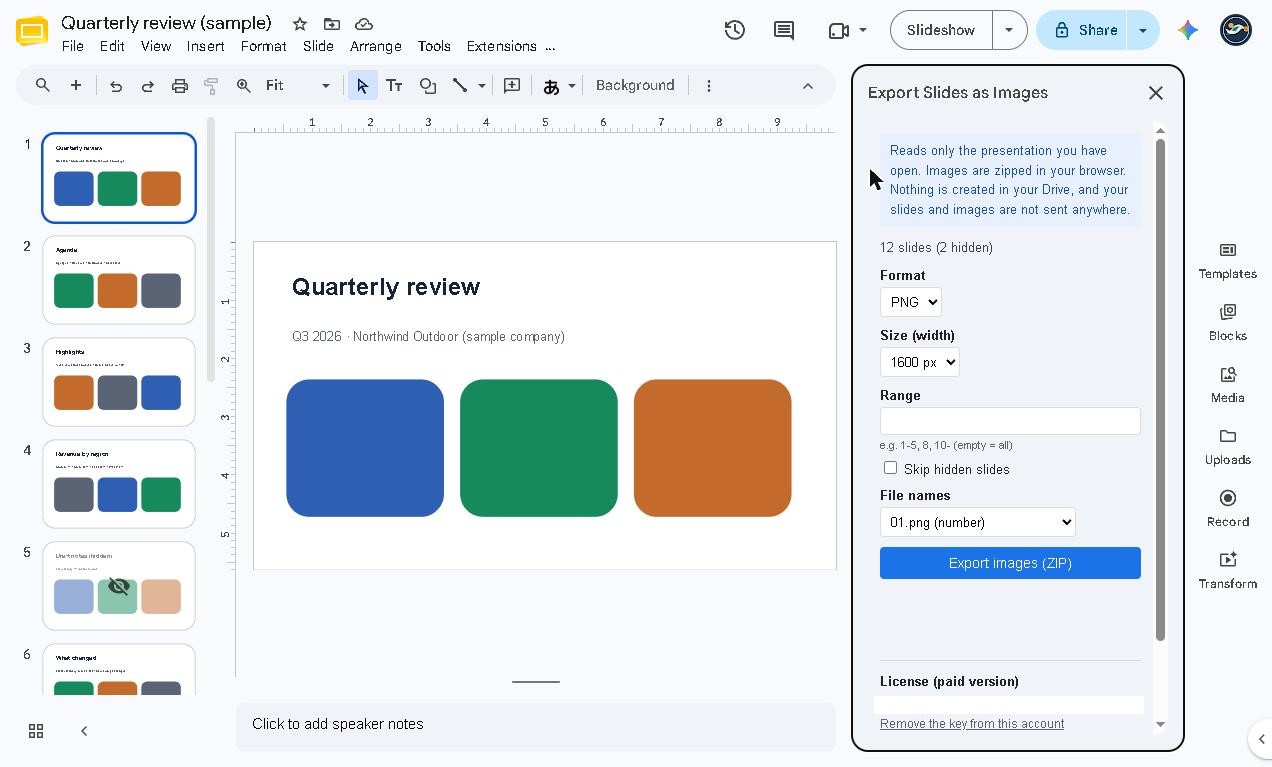
The blue box at the top states the promise (reads only the open presentation, sends nothing anywhere). Below it you see the slide count, for example “12 slides (2 hidden)”.
The first time only
An “Allow access” prompt appears. Press it, and Google’s file picker opens. Check that the presentation you have open is selected and press “Select” once. From then on the add-on can read only that file, not your other files.
3. Choose format and size
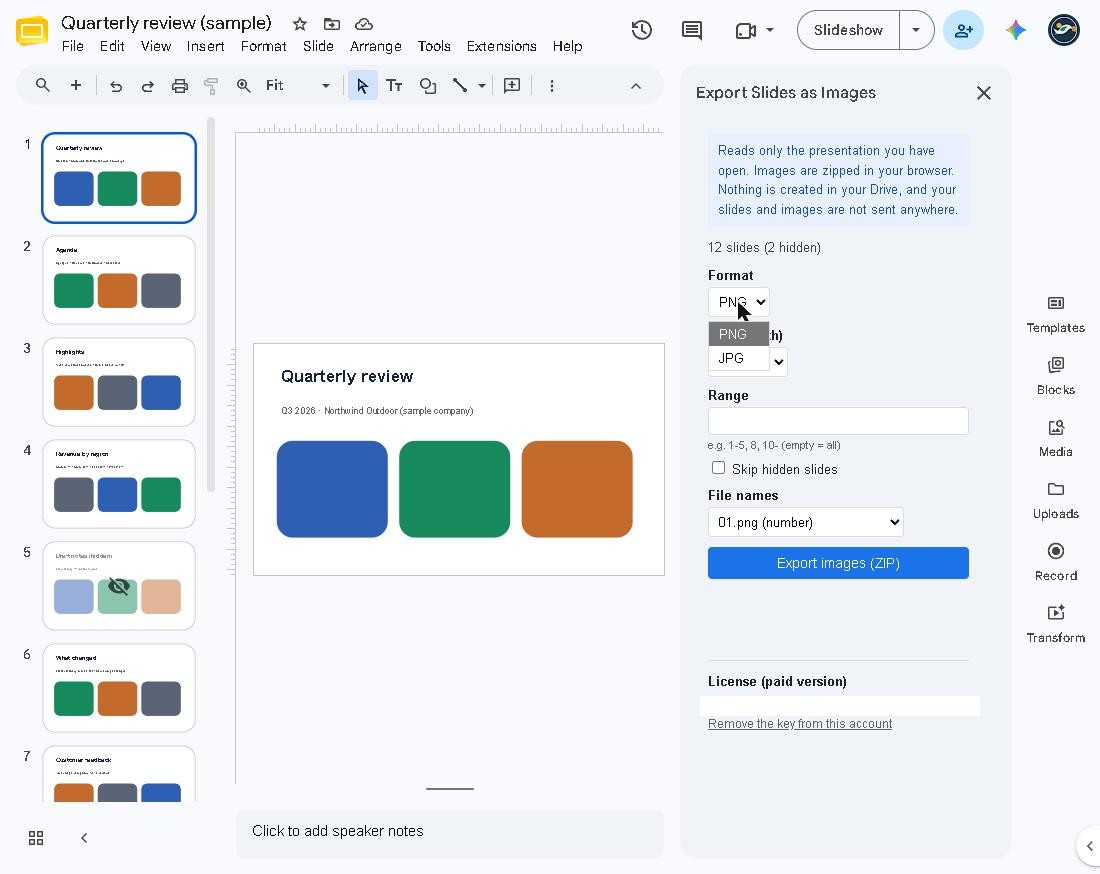
Format
Choose PNG (sharp) or JPG (smaller). If unsure, choose PNG. JPG is Paid; when you choose it, a quality box (80%, for example) appears next to it.
Size (width)
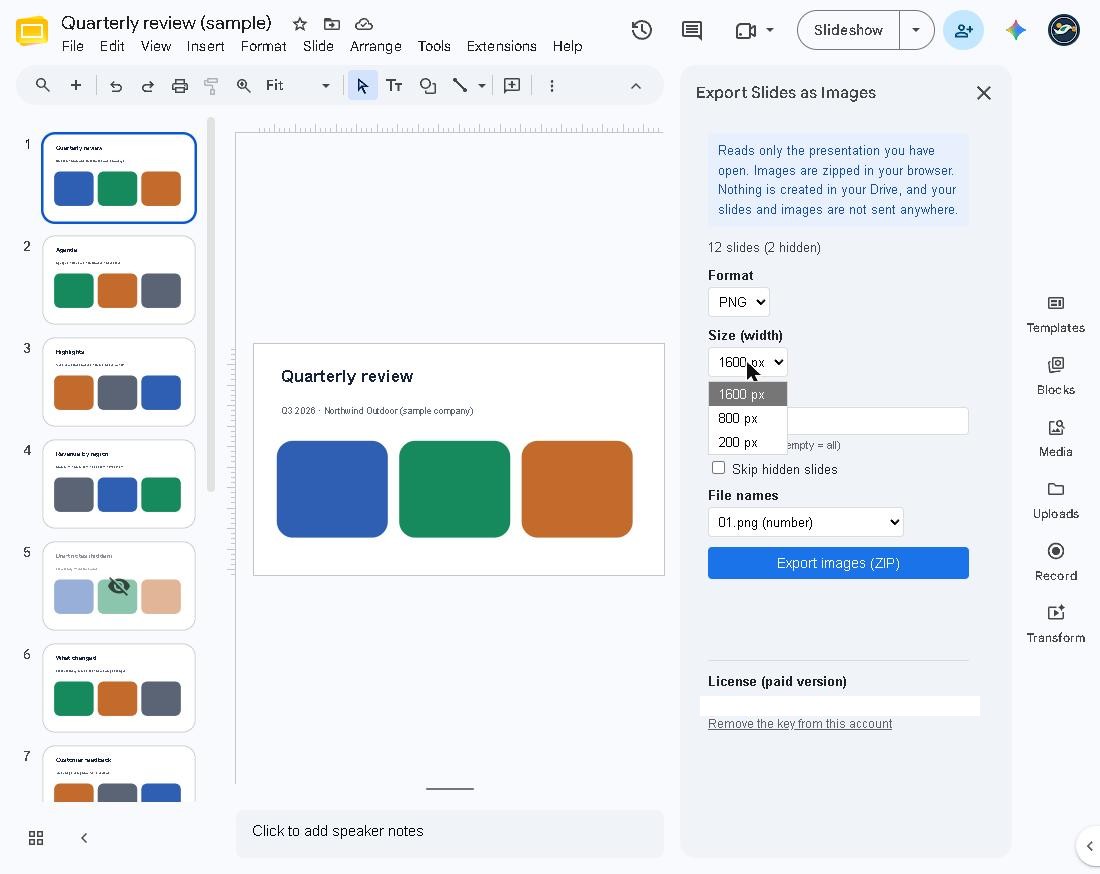
1600 px is the default. For smaller images choose 800 px or 200 px (Paid). The larger the number, the sharper the image and the heavier the file.
4. Choose which slides
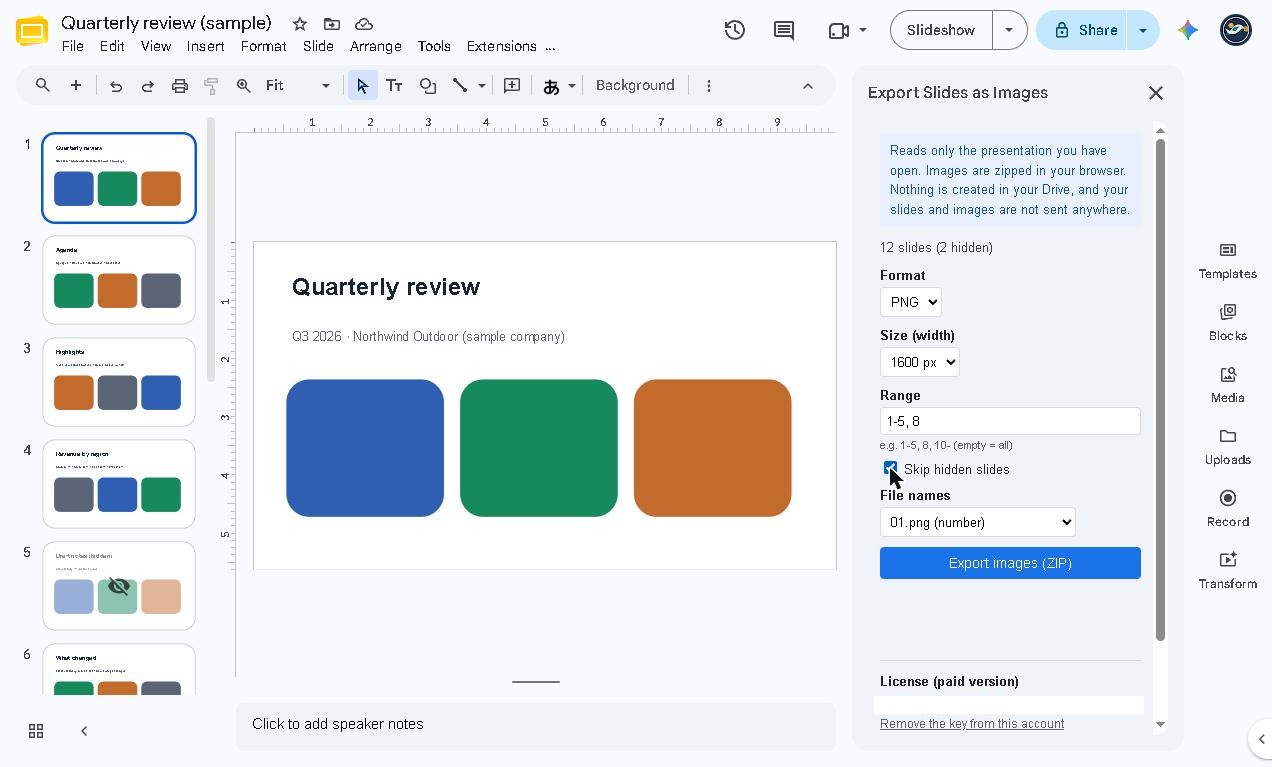
Type the slide numbers into “Range”. Leave it empty to export all slides.
- Examples:
1-5(slides 1 to 5),8(slide 8 only),10-(slide 10 to the end) - Combine them with commas, like
1-6, 8, 10-. Paid
Skip hidden slides Paid
Tick “Skip hidden slides” to leave out slides you have hidden. The line “12 slides (2 hidden)” tells you how many are hidden.
5. Choose file names
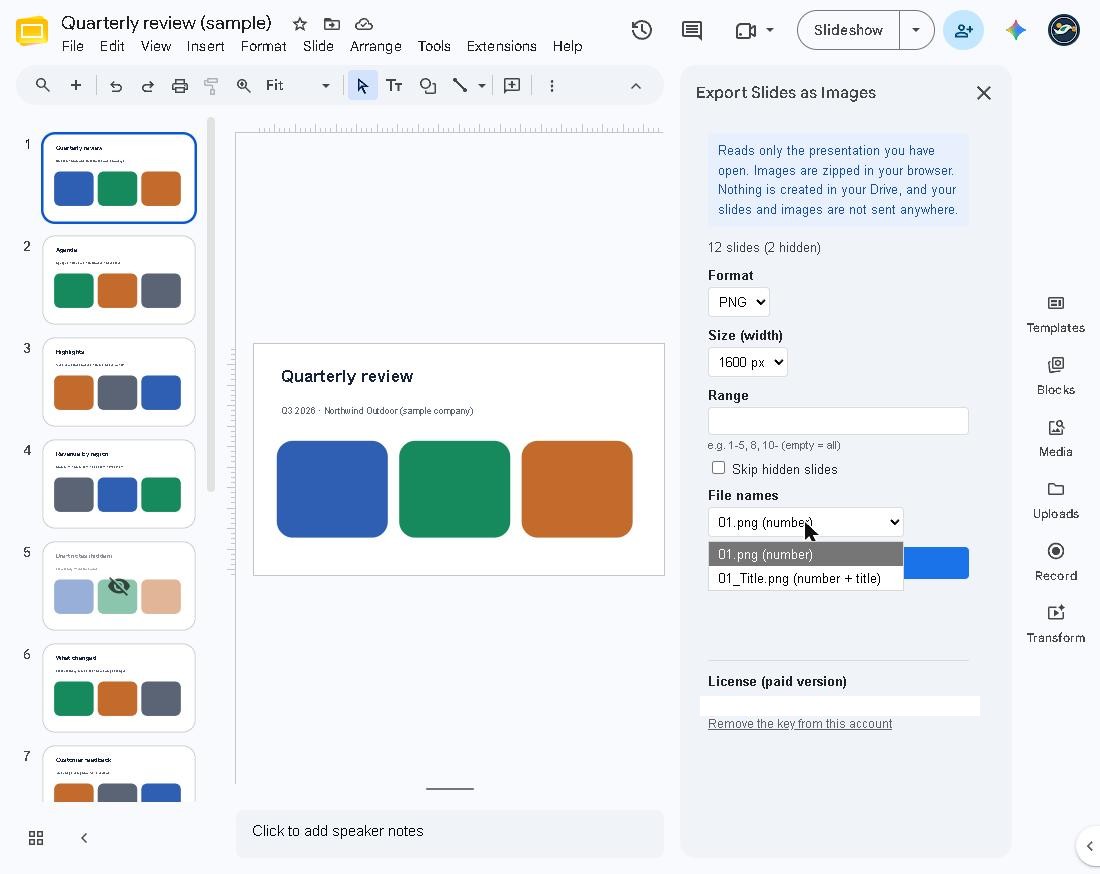
“File names” offers two styles:
- “01.png (number)”: numbers only.
- “01_Title.png (number + title)”: each slide’s title is included. Paid
6. Export and save
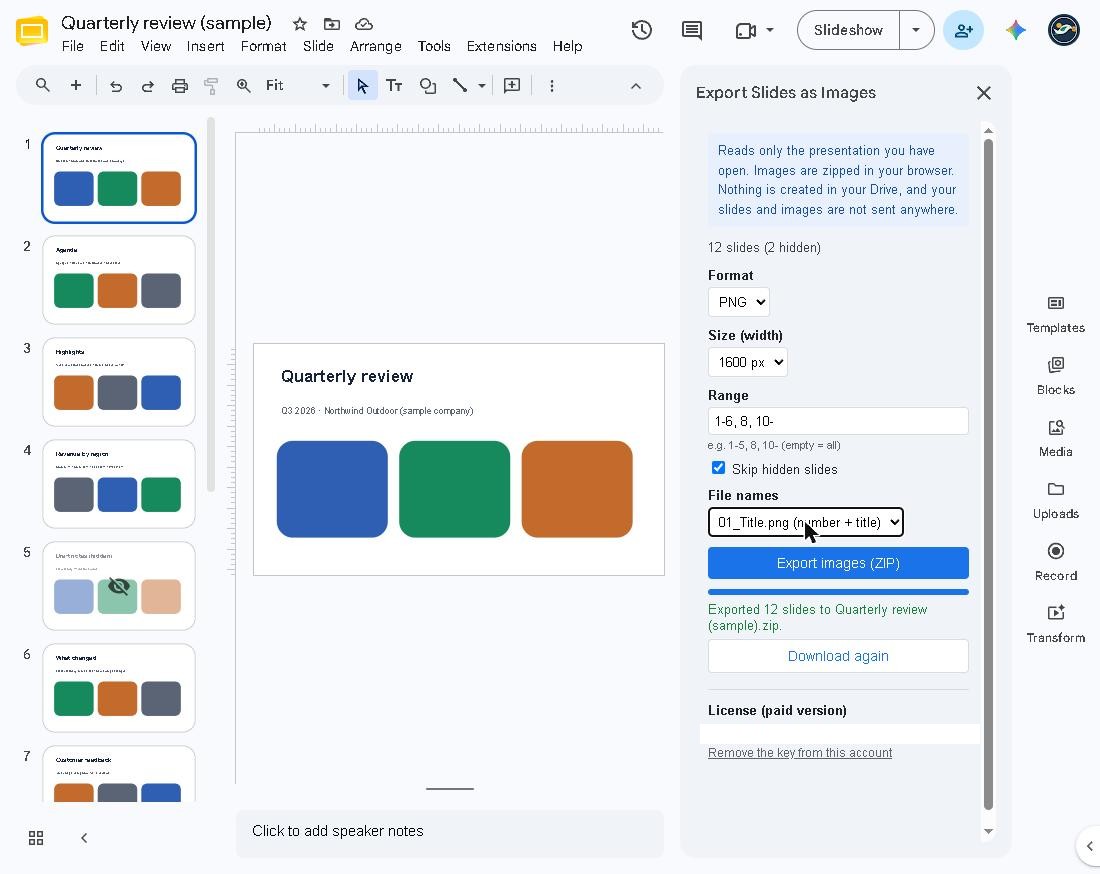
- Press “Export images (ZIP)”.
- “Preparing…” appears. Long presentations take a little longer.
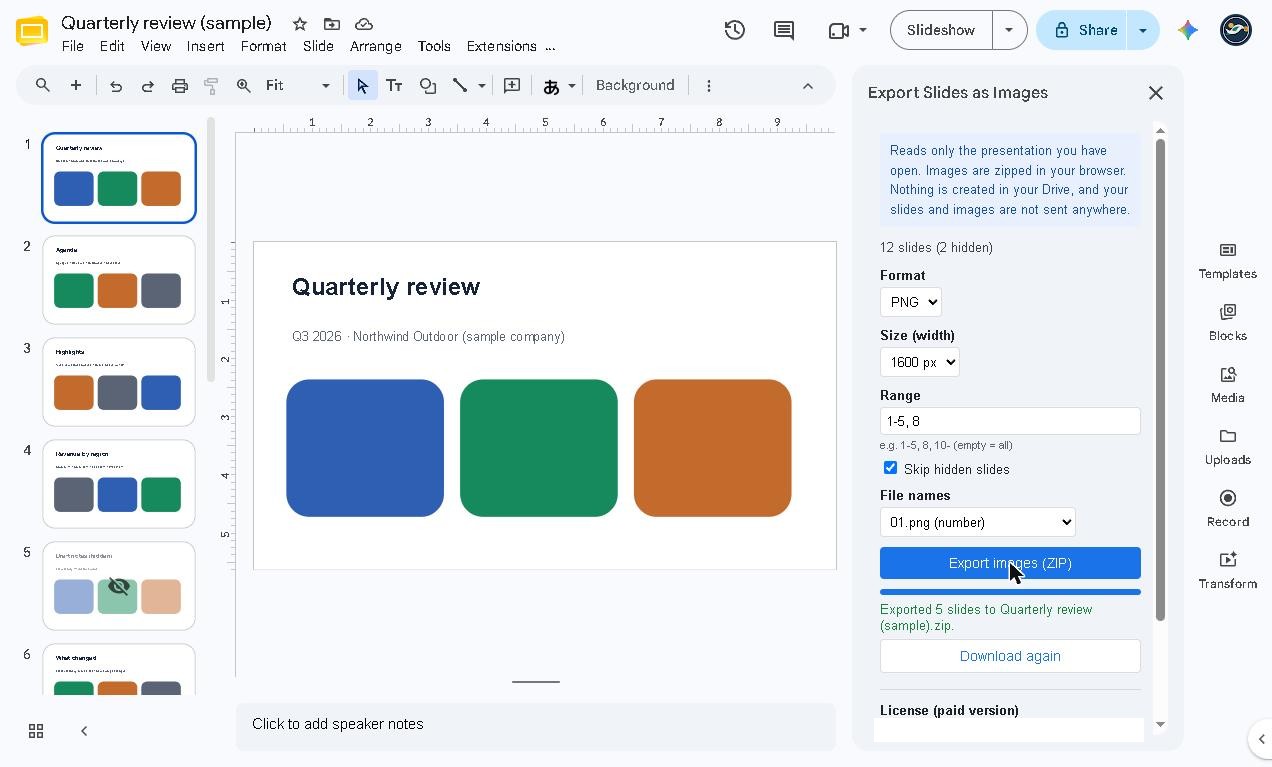
- When it finishes you see “Exported 9 slides to (presentation name).zip.” and the ZIP downloads to your computer.
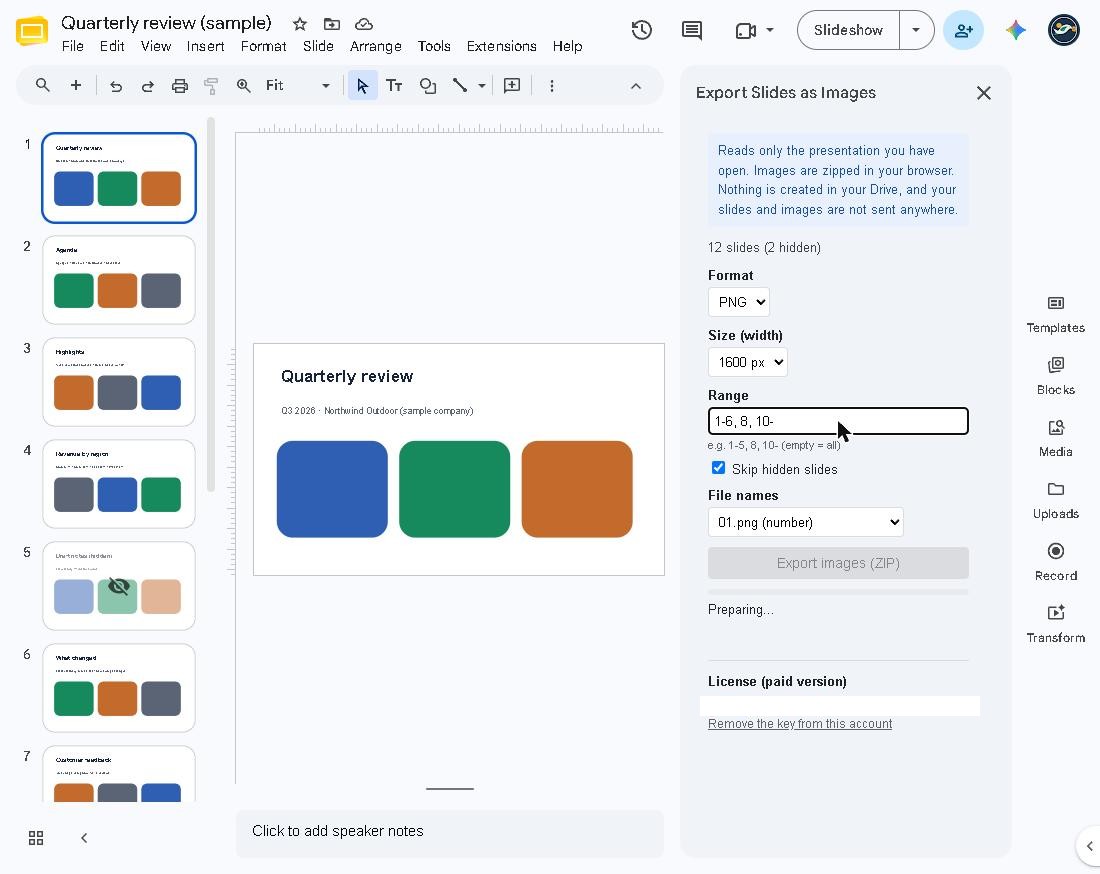
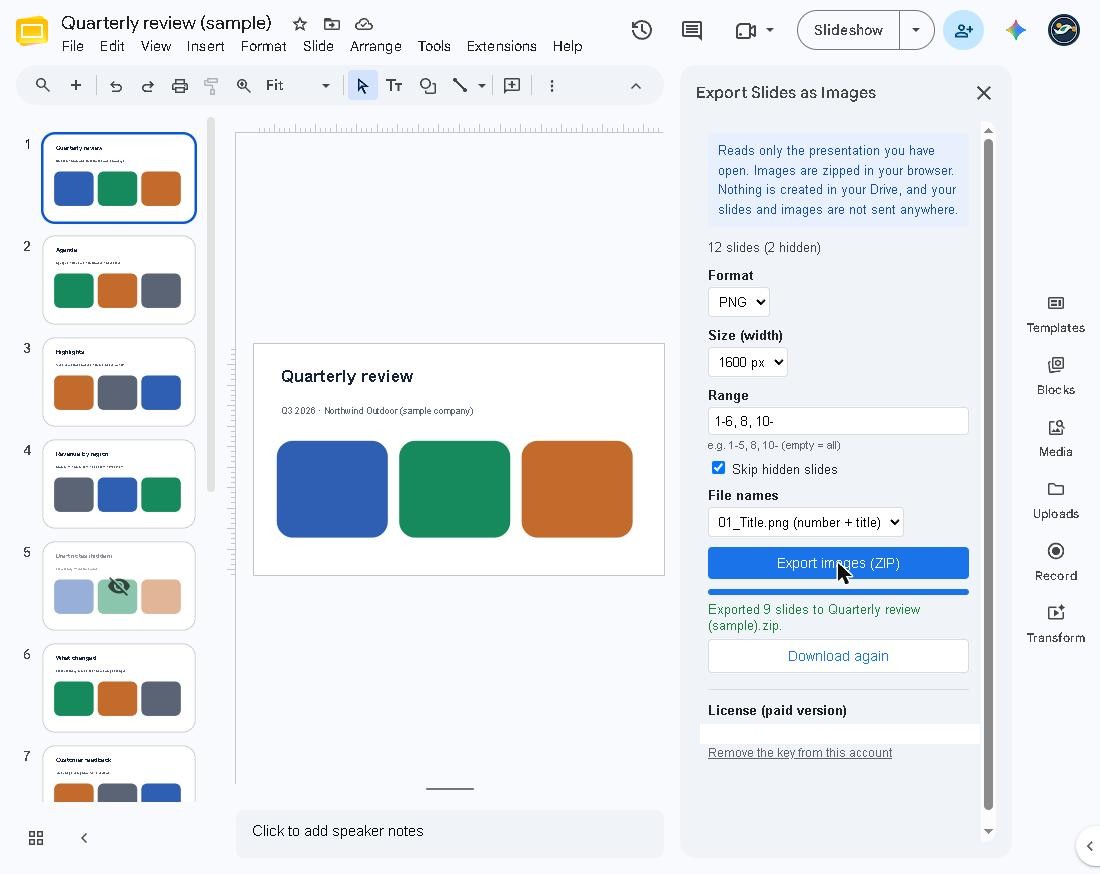
If the download did not start, press “Download again”. The ZIP goes to your browser’s Downloads folder. Double-click it to open it and you will find the images, in order.
7. Free vs paid (license key)
| Free | Paid (US$19, one-time) | |
|---|---|---|
| Slides | First 10 | All |
| Format | PNG | PNG / JPG (with quality) |
| Width | 1600 px | 1600 / 800 / 200 px |
| Range, skip hidden slides | — | Yes |
| Titles in file names | — | Yes |
| Watermark | None | None |
Enter your license key
- After you buy the paid version on Gumroad, you receive a license key.
- Scroll down the sidebar and paste the key into “License (paid version)”.
- Press “Activate”.
Once activated, it works in every presentation you open with the same Google account. It is a one-time purchase, with no expiry.
Remove the key
Press “Remove the key from this account” to deactivate it for this account.
8. Troubleshooting
| Problem | What to try |
|---|---|
| The sidebar does not load or stays blank | Sign in to only one Google account in the browser, then reload the presentation (signing in to several accounts at once causes this). |
| The download does not start | Press “Download again”, and check your browser’s download permissions. |
| Only 10 slides came out | That is the free limit. Enter a paid license key to export all slides. |
| A file picker appeared | That is the one-time step. Select the open presentation and press “Select”. |
Data and contact
Your slides and images are not sent anywhere. The only request to another service is the license check (the key and product ID). Questions and bug reports: dailypicks.blog@gmail.com
Google Slides™ and Google Drive™ are trademarks of Google LLC. This add-on is an independent product and is not affiliated with or endorsed by Google.