
日本語版 | Back to the product page
Table of Contents & Numbering: User Guide
This guide shows, step by step, how to add a table of contents, automatic heading numbers, figure and table numbers, cross-references and a list of figures to a Google Doc. Features marked Paid need the paid version. Everything else works in the free version.
1. Before you start
1-1 Install
- Open the “Table of Contents & Numbering” page on the Google Workspace Marketplace and click “Install”.
- When the permission screen appears, read it and click “Allow”. The add-on reads only the document you have open. It does not read your other files or Google Drive.
1-2 Open the sidebar
- Open the Google Doc you want to work on.
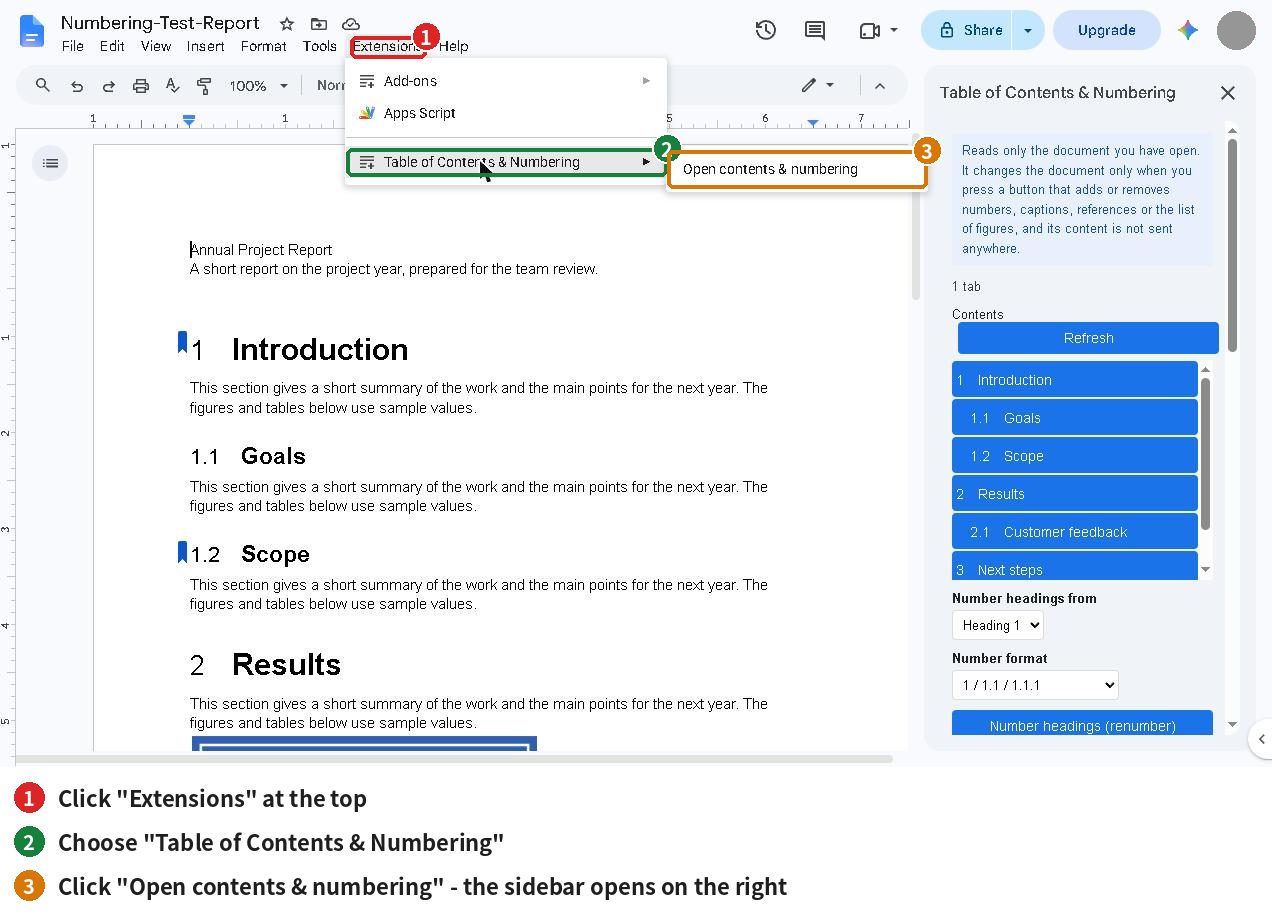
- In the menu bar choose Extensions → Table of Contents & Numbering → Open contents & numbering.
- The sidebar opens on the right.
1-3 What the sidebar shows
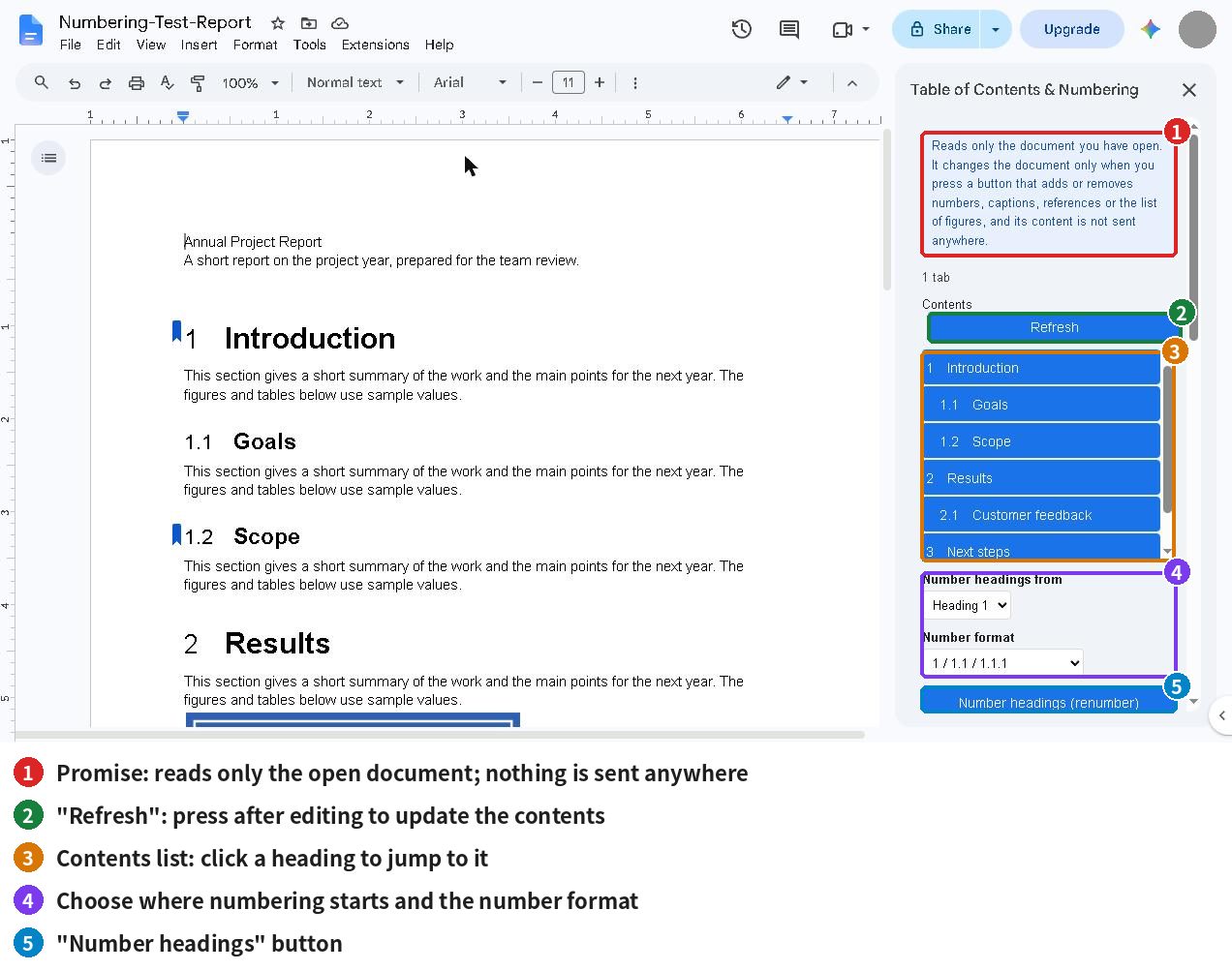
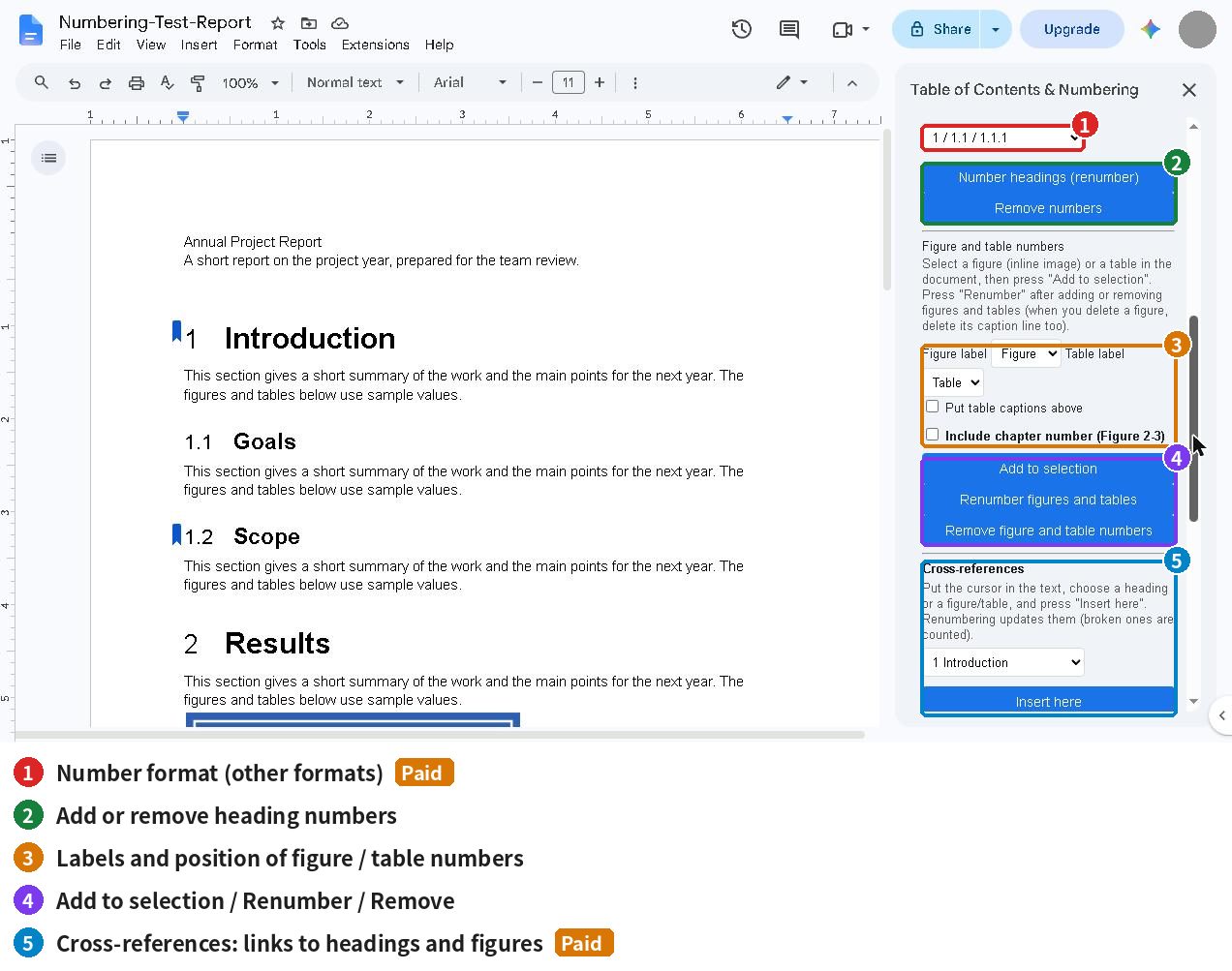
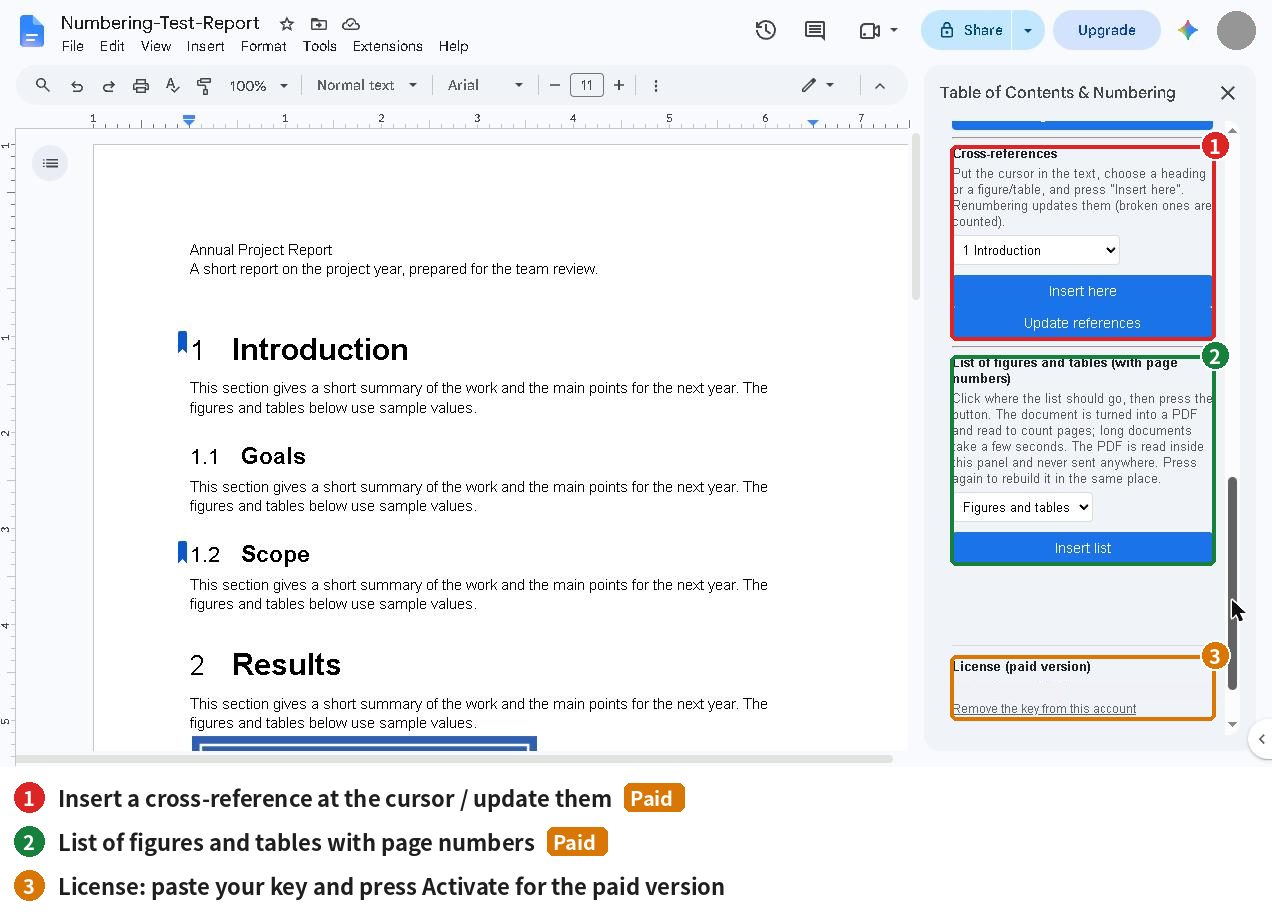
From top to bottom: the promise, the contents list, heading numbers, figure and table numbers, cross-references, the list of figures, and the license box. Scroll down inside the sidebar to see all of it.
If the sidebar does not load, open the document in a browser window signed in to only one Google account. Apps Script add-ons cannot load when several accounts are signed in.
2. Use the contents list
The sidebar shows your headings as a nested list. If the document has several tabs, each tab is shown separately.
- Give your headings the “Heading 1”, “Heading 2″… styles.
- They appear in the “Contents” list in the sidebar.
- Click a heading in the list to jump to that place in the document.
- After you edit the document, click “Refresh” to update the list.
If you moved headings, you may see “The document changed, so the contents were refreshed. Please press the button again.” Just press the button once more. If there are no headings, the list says so.
3. Number your headings
Adds numbers such as 1 / 1.1 / 1.1.1 to the start of each heading automatically.
- Under “Number headings from”, choose where numbering starts.
- Heading 1: Heading 1 gets 1, Heading 2 gets 1.1, Heading 3 gets 1.1.1.
- Heading 2: Heading 1 is skipped (use this when Heading 1 is the document title); Heading 2 gets 1, Heading 3 gets 1.1.
- Press “Number headings (renumber)”.
- After adding or moving headings, press the same button again to renumber.
- To remove the numbers, press “Remove numbers”.
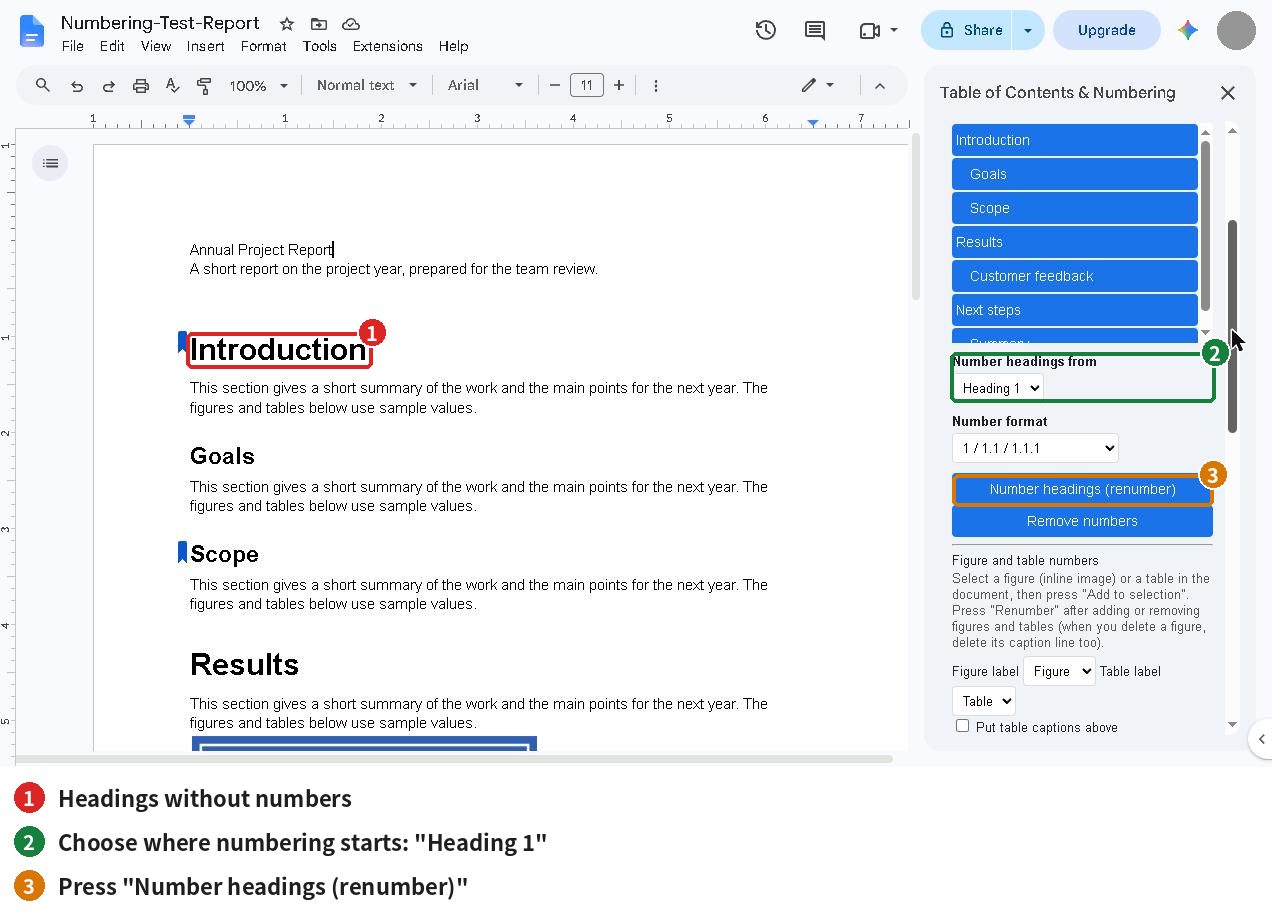
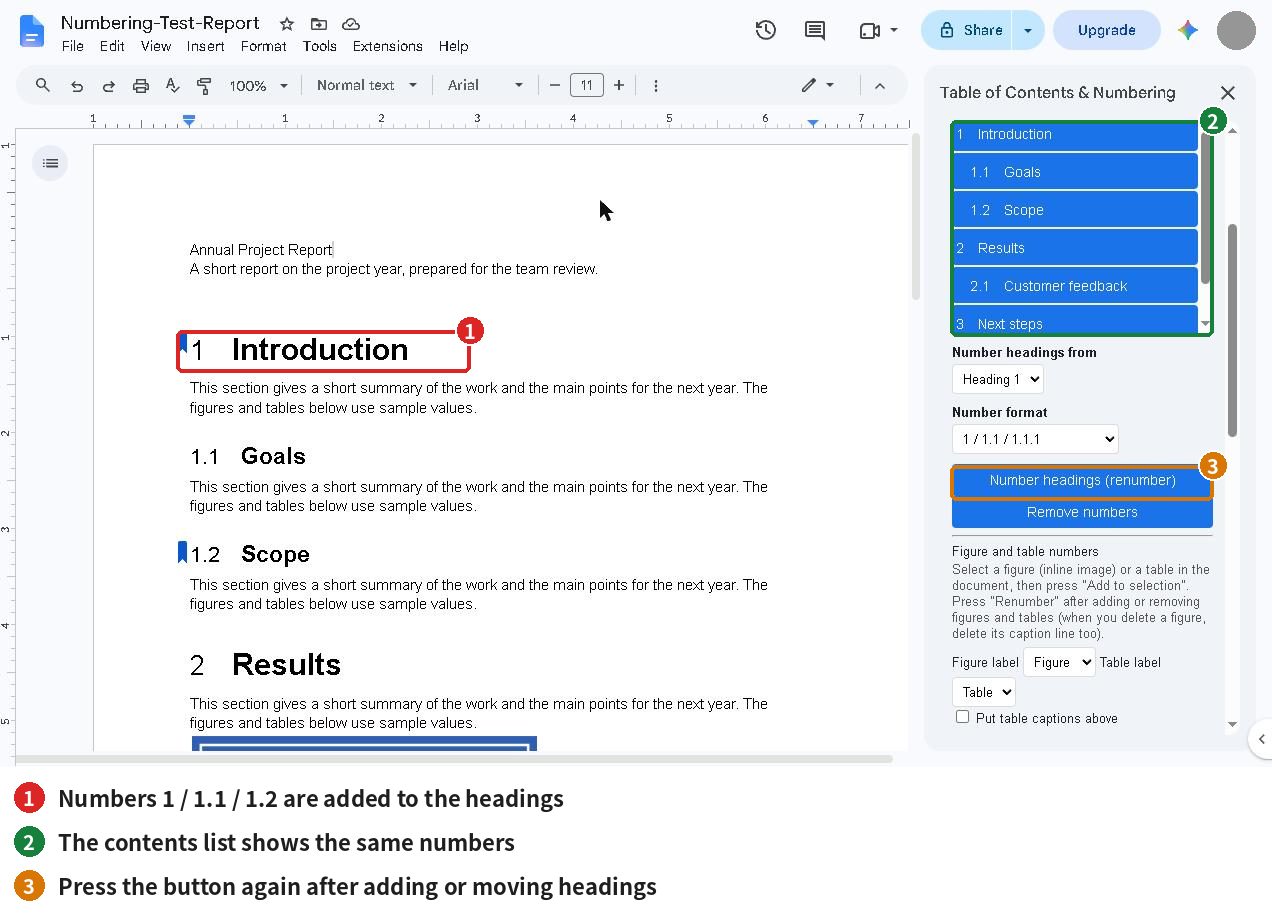
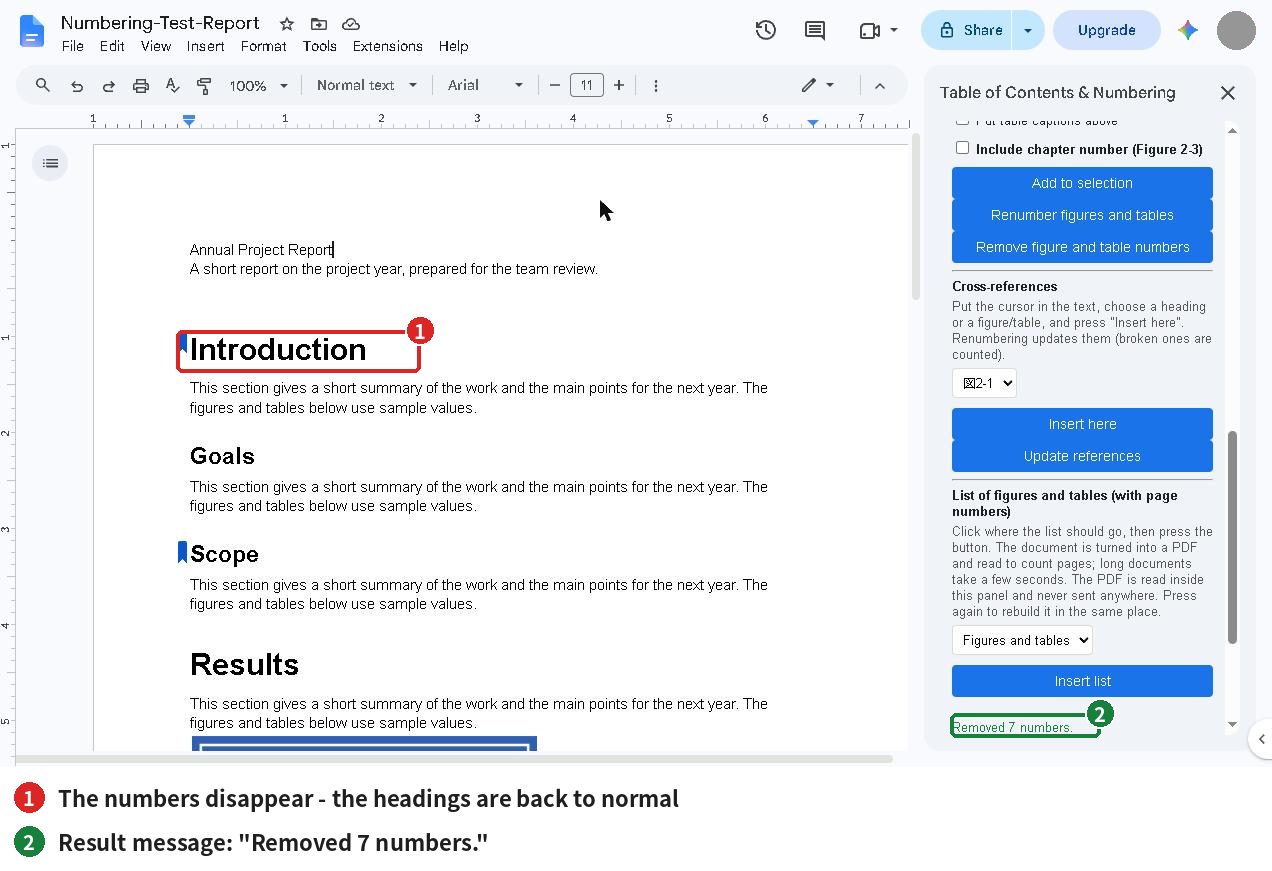
Numbers you typed yourself (for example “1. Introduction”) are left alone. The result is shown as “Numbered N headings.”
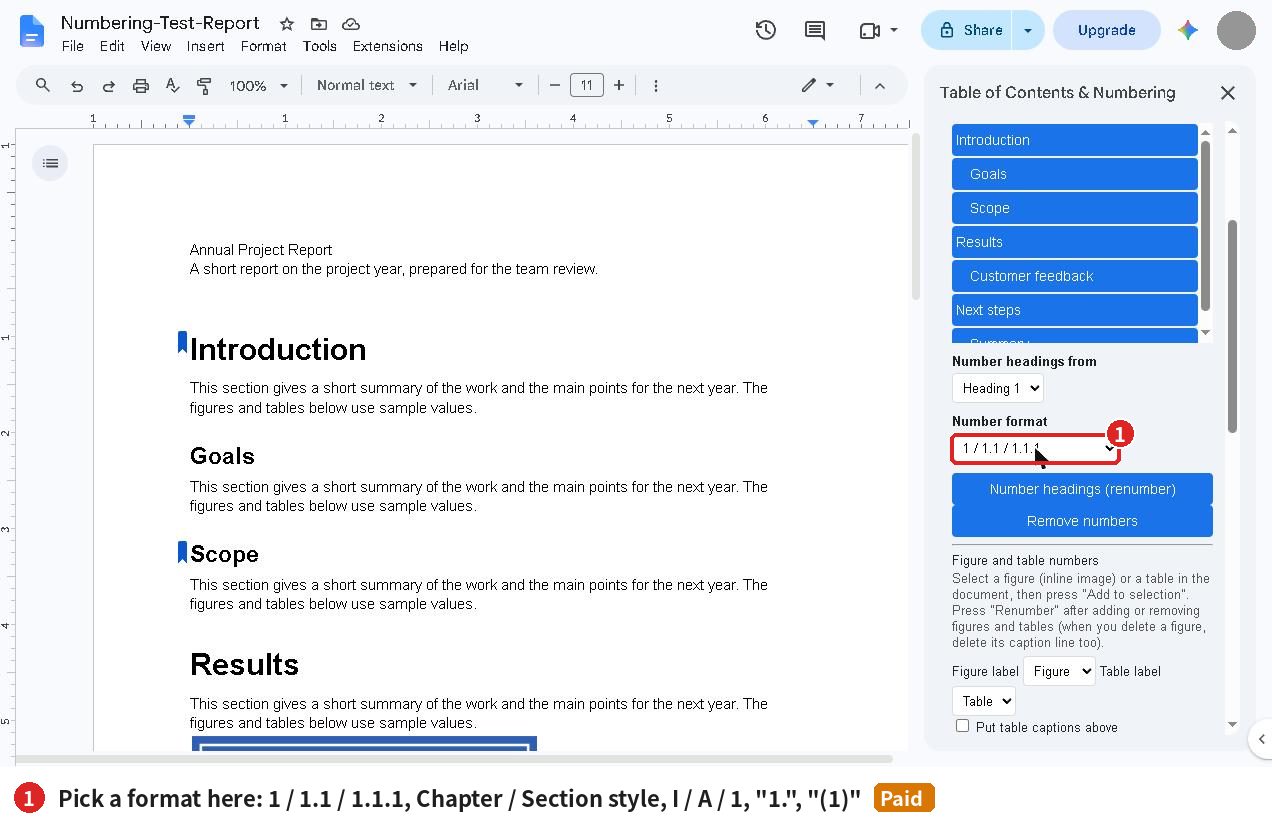
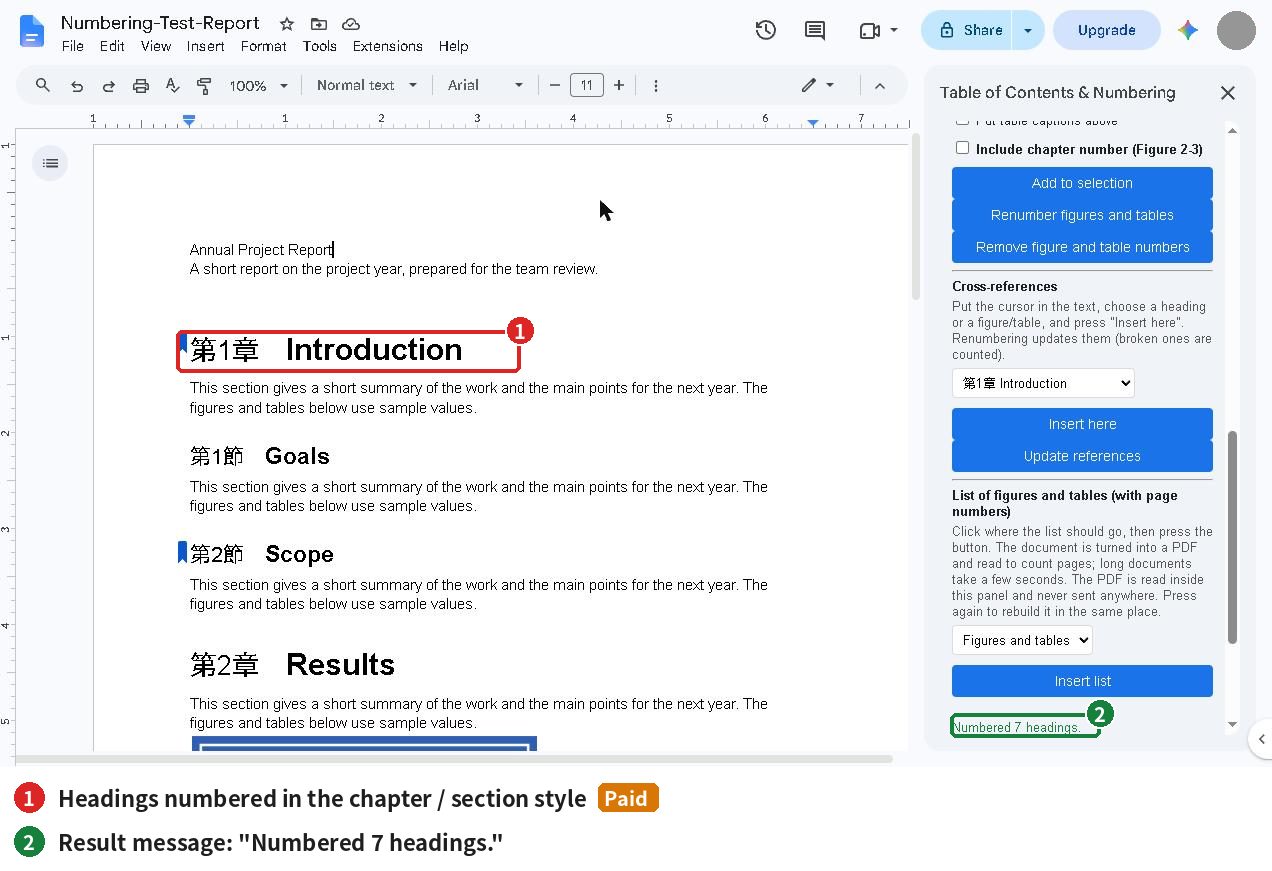
Change the number format Paid
Choose a format under “Number format”, then press “Number headings (renumber)”.
- 1 / 1.1 / 1.1.1 (free)
- Chapter / Section style
- I / A / 1
- “1.”
- “(1)”
4. Number figures and tables
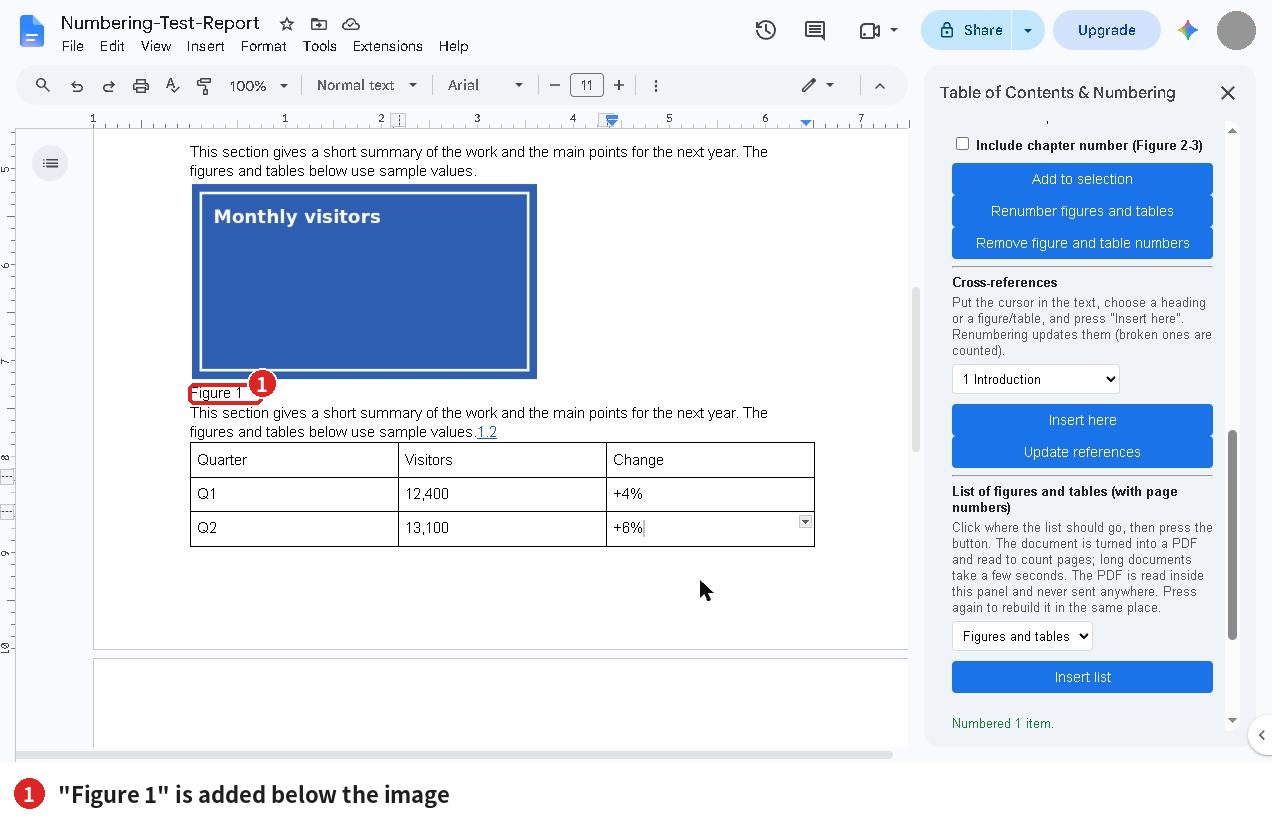
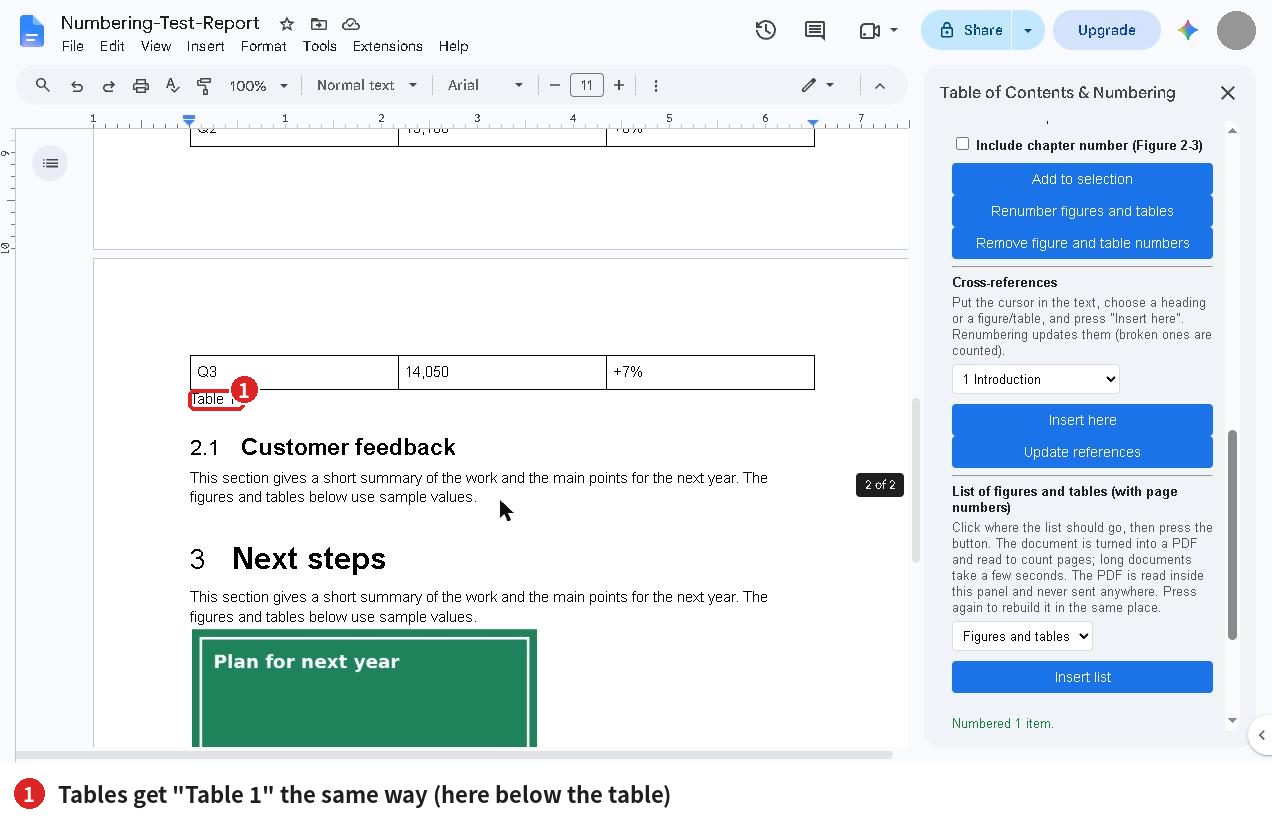
Adds a caption such as “Figure 1” or “Table 1” to images and tables. The free version numbers up to 20 items; the paid version has no limit.
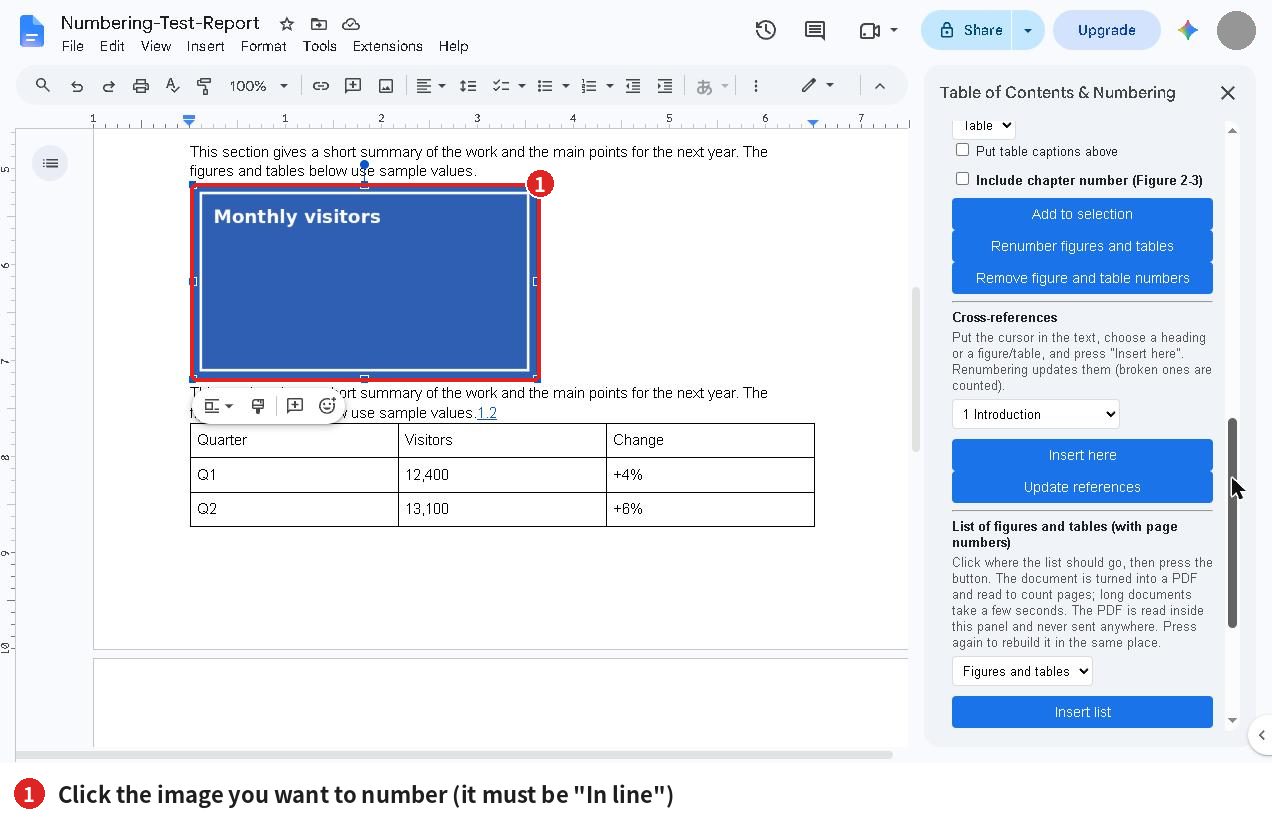
- In the document, click the image you want to number (for a table, put the cursor in any cell). The image must be “In line”.
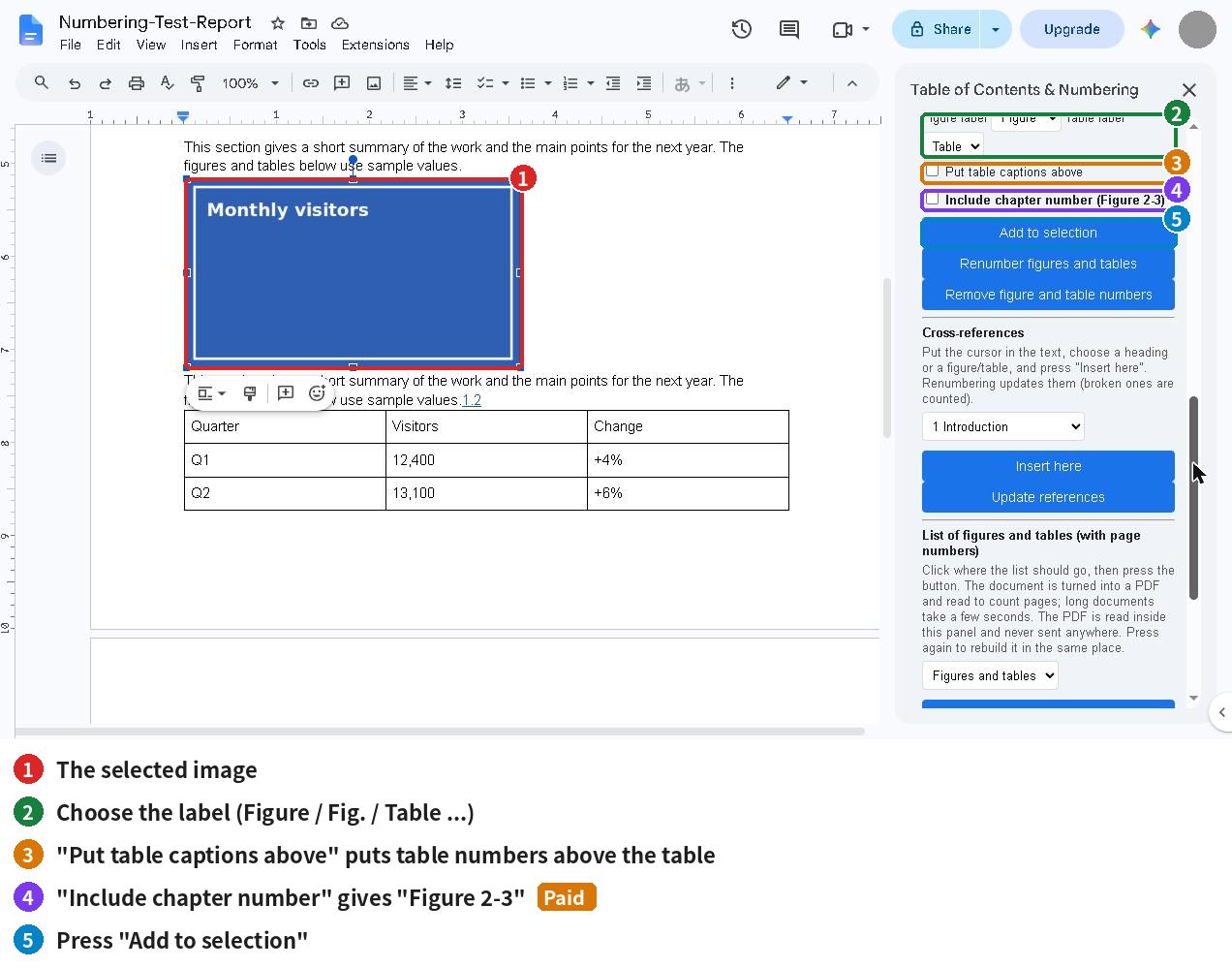
- Choose the “Figure label” and “Table label” (Figure, Fig., … / Table).
- To put table numbers above the table, tick “Put table captions above” (leave it unticked to put them below).
- Press “Add to selection”.
- After adding or deleting figures and tables, press “Renumber figures and tables”. If you delete a figure, delete its caption line too.
- To remove the numbers, press “Remove figure and table numbers”.
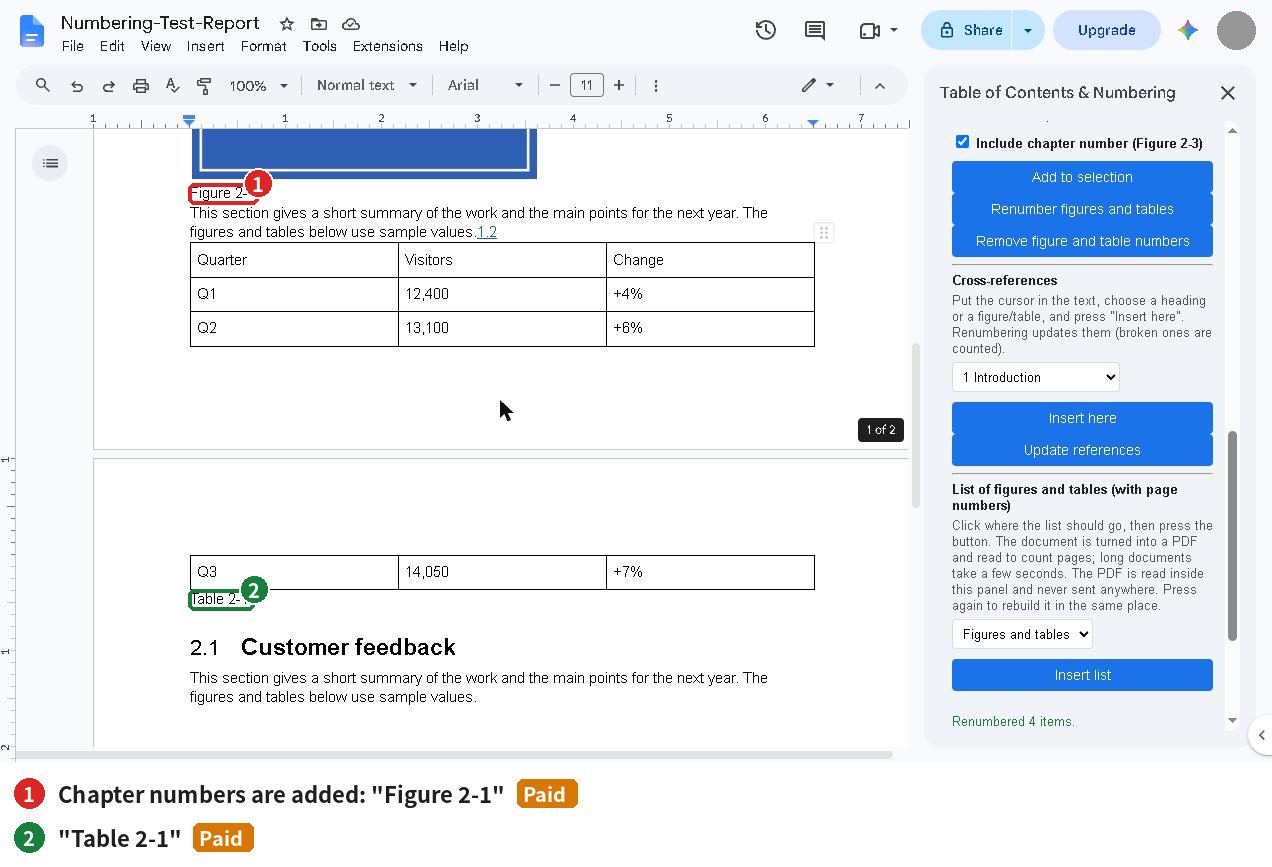
Add chapter numbers Paid
Tick “Include chapter number (Figure 2-3)” and press “Renumber figures and tables”. The chapter number of the heading is added, giving “Figure 2-1”.
Images with text wrapping cannot be numbered. Change the image to “In line” first, then select it.
5. Insert cross-references Paid
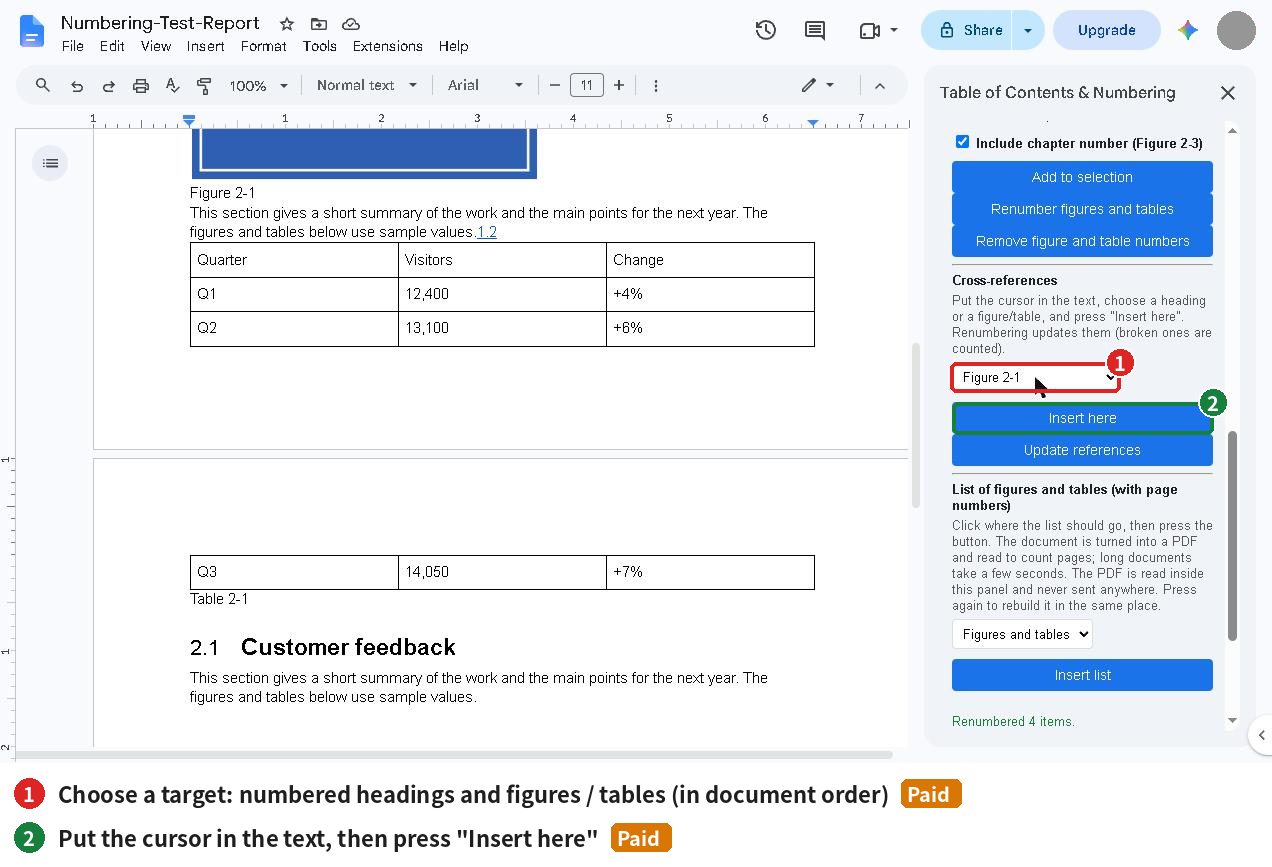
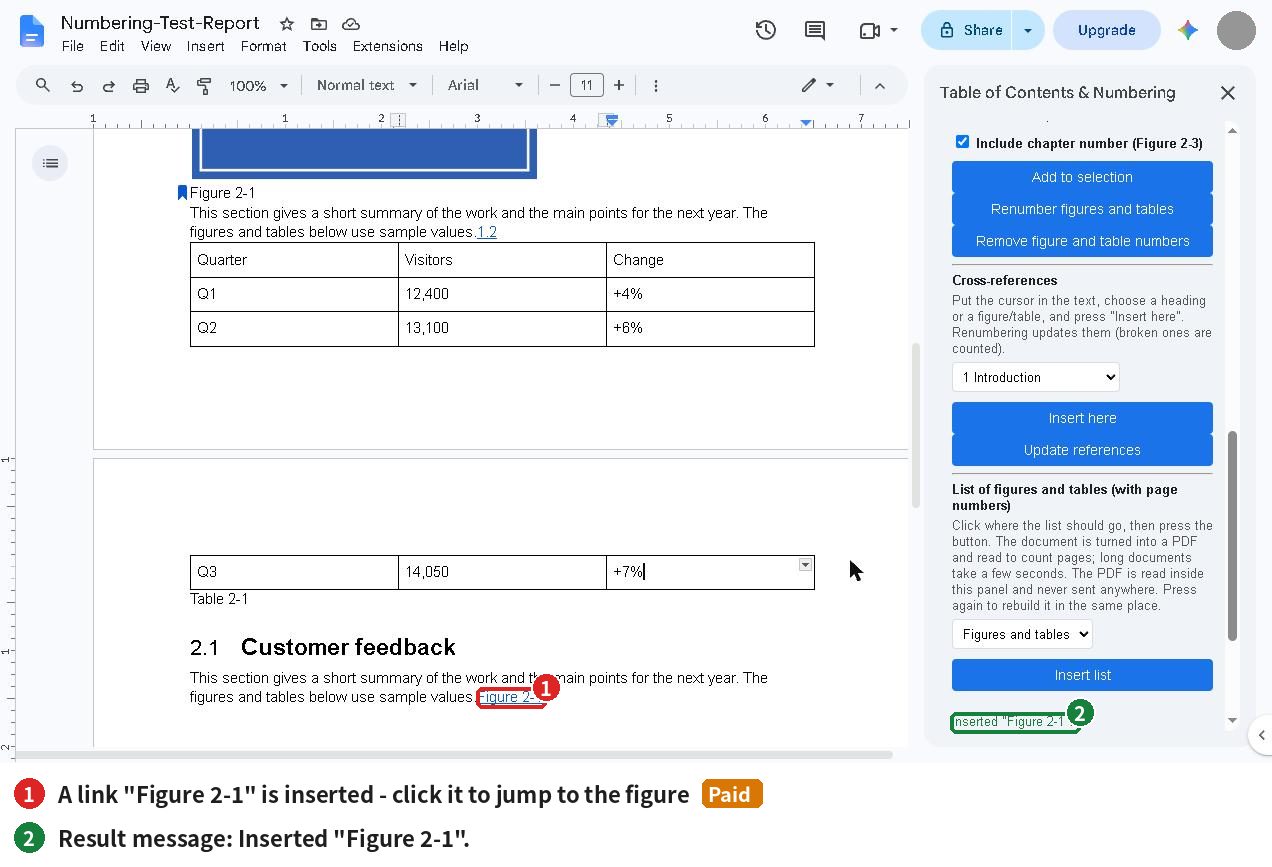
Insert text such as “Figure 2-1” or “1.2” as a link that jumps to the target. When you renumber, the references follow the new numbers.
- Click in the text where you want the reference, to put the cursor there.
- In “Cross-references”, choose a target from the list. The list contains the numbered headings and the figures and tables, in document order.
- Press “Insert here”. A link such as “Figure 2-1” is inserted.
- After renumbering headings or figures, press “Update references”.
A reference whose target no longer has a number is counted as a broken reference and left as it is. Number the target again and press “Update references”. If you see “Click in the text where you want the reference”, put the cursor in the body text first.
6. Insert a list of figures and tables (with page numbers) Paid
Inserts a list such as “Figure 1 … page 3” into the document.
- Click an empty line in the body text where the list should go (avoid table cells).
- Choose the kind of list: “Figures and tables”, “Figures only” or “Tables only”.
- Press “Insert list”. Long documents take a few seconds (the document is turned into a PDF and read inside the sidebar to count pages; it is never sent anywhere).
- After editing, press the button again to rebuild the list in the same place.
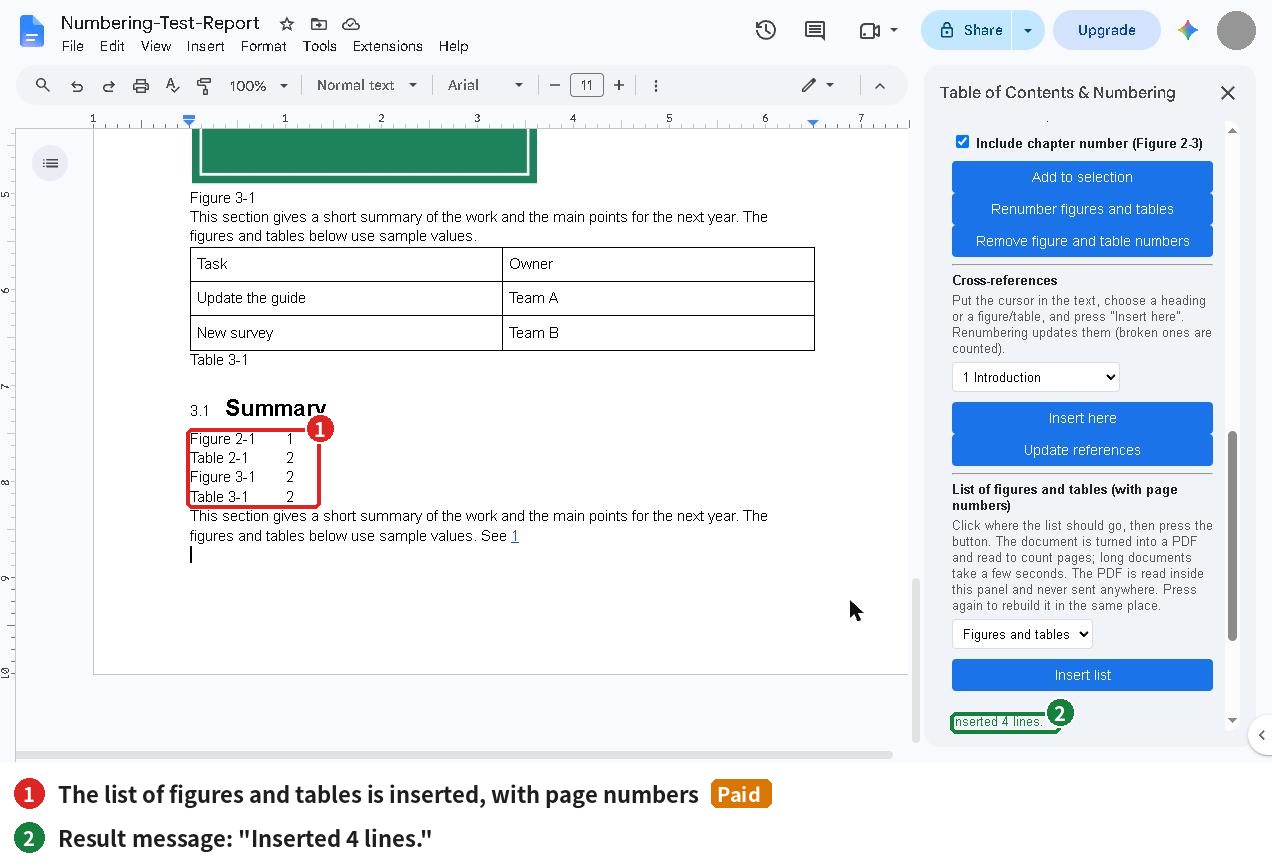
Number your figures and tables first. If you see a message that there are no figure numbers yet, go back to section 4. If a page number shows “?”, add some text after the caption and build the list again.
7. Activate the paid version
Enter the key
- Copy the license key from your Gumroad purchase email.
- Paste it into the “License (paid version)” box at the bottom of the sidebar and press “Activate”.
- When you see “Active (key …xxxx)”, you are done. Only the last 4 characters of the key are shown.
Remove the key
Press “Remove the key from this account” twice. The free features keep working.
The paid version is a one-time purchase on Gumroad. There is no subscription and no expiry date.
8. Free vs. paid
| Free | Paid ($19, one-time) | |
|---|---|---|
| Contents list and jump to headings | Yes | Yes |
| Heading numbers 1 / 1.1 / 1.1.1 (renumber, remove) | Yes | Yes |
| Other formats (chapter / section, I / A / 1, “1.”, “(1)”) | – | Yes |
| Figure and table numbers | Up to 20 | Unlimited |
| Chapter numbers in captions (Figure 2-3) | – | Yes |
| Cross-references | – | Yes |
| List of figures and tables (with page numbers) | – | Yes |
| Watermark | None | None |
9. Troubleshooting
| What you see | What to do |
|---|---|
| The sidebar does not load | Open the document in a window signed in to one Google account only |
| “Select a figure (inline image) or a table in the document first.” | Select an in-line image, or put the cursor in a table cell, then press the button again |
| “Images with text wrapping cannot be selected” | Change the image to “In line”, then select it |
| The contents list is out of date | Press “Refresh” |
| A reference is counted as broken | Number the target again and press “Update references” |
| A page number shows “?” | Add text after the caption number and build the list again |
| Numbers you typed yourself were skipped | By design: text such as “1. Introduction” is never changed |
| A paid feature is greyed out | It needs the paid version; enter your key to use it |
About your data
The add-on reads only the document you have open and sends its content nowhere. The only request to anything other than Google is the license check: it sends the license key and the product ID to Gumroad.
Contact
dailypicks.blog@gmail.com