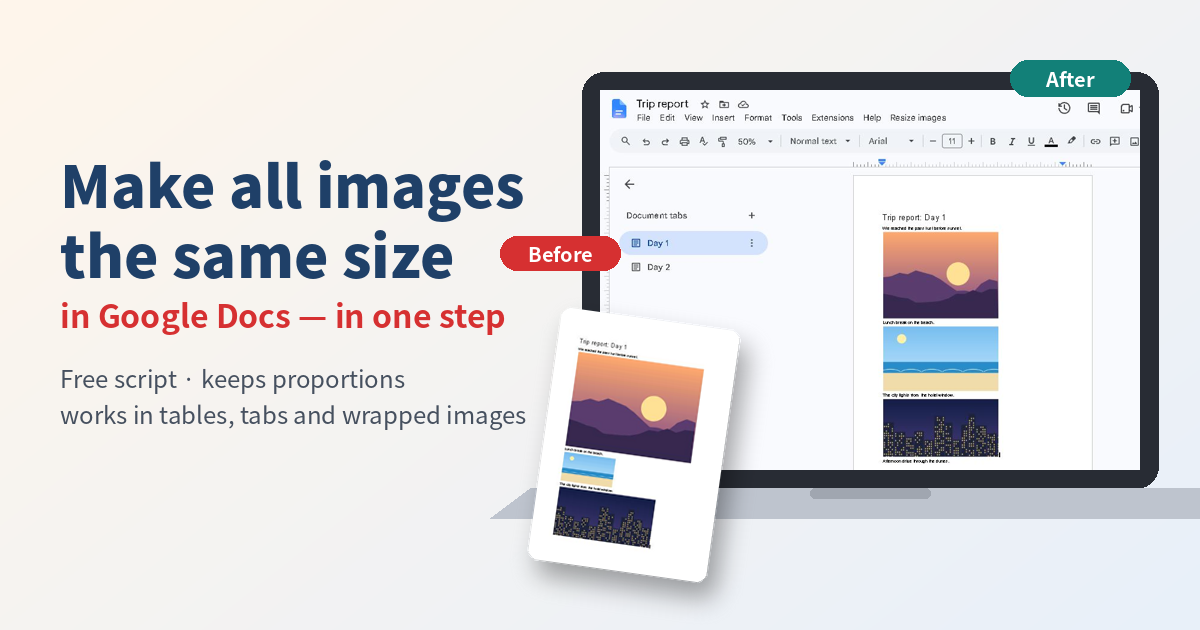
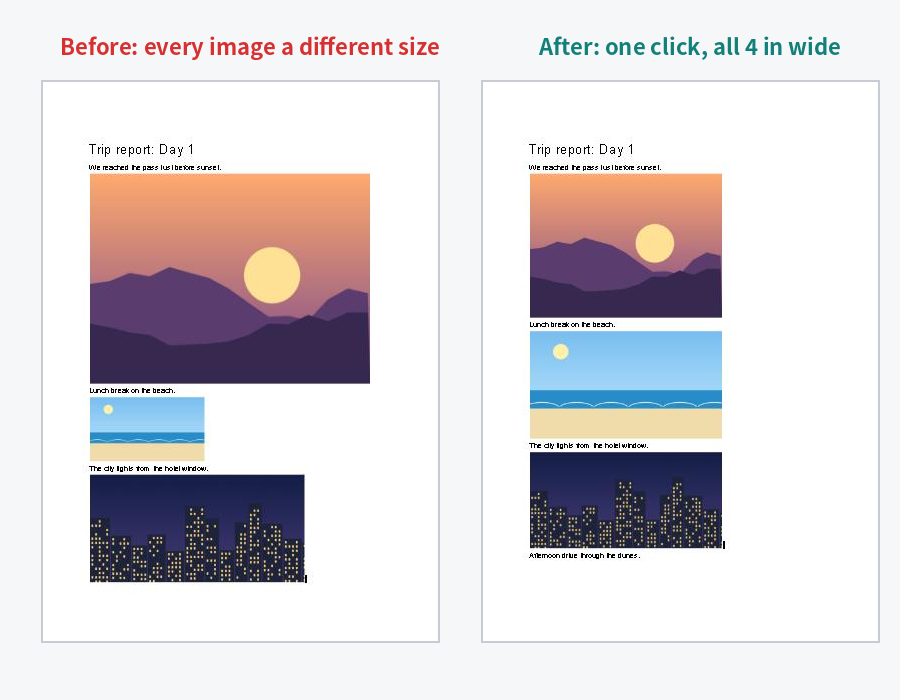
You pasted twenty screenshots into a Google Doc and every one came out a different size. Google Docs™ lets you set the size of one image at a time, but there is no button to make all images the same size. Here is the quick manual way for a few images, and a free script that resizes every image in the document in one step.
The short answer
- Google Docs has no built-in “resize all images” option.
- A few images: click each one, open Image options → Size & rotation, and type the same width.
- Many images: paste the short script below into Extensions → Apps Script. It sets every image to the width you type and keeps the proportions — including images in tables, images with text wrapping, and images in every tab. One Ctrl+Z undoes it.
Checked: 2026-10-17, Google Docs in Chrome.
Which situation are you in?
- Three or four images: do it by hand (Method 1). Nothing to install.
- Dozens of images, or a document you update often: use the script (Method 2).
- Every image must be an exact box, for example 2.5 × 3.5 inches for cards: the script can set width and height. Crop the images first, or they will be stretched.
Method 1: Resize images one by one (built in)
- Click an image.
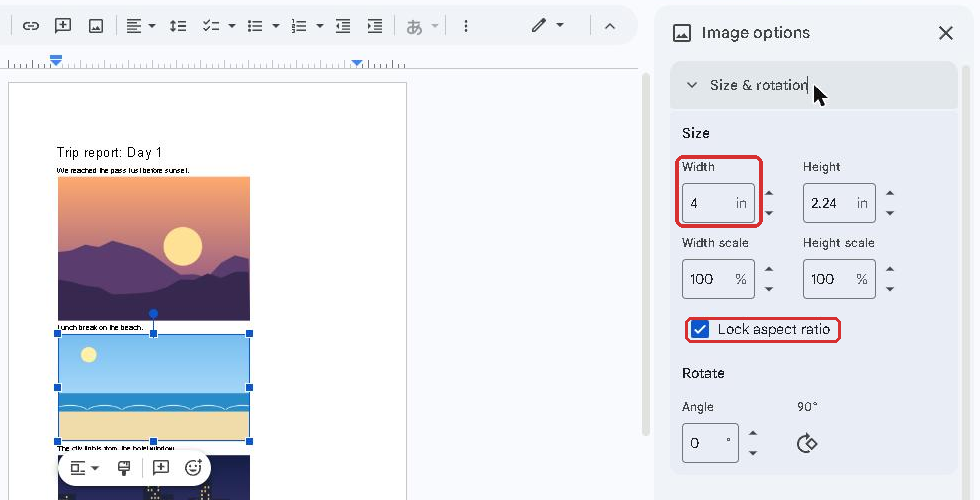
- In the toolbar, click Image options (or right-click the image and choose Image options).
- Open Size & rotation. Keep Lock aspect ratio checked.
- Type the Width, for example
4inches. The height follows. - Click the next image and type the same width. The panel stays open, so this goes quickly.
Not sure which width to use? The text area of a Letter page with 1-inch margins is 6.5 inches wide, and an A4 page with 1-inch margins (2.54 cm) is about 6.27 inches. Anything up to that fits between the margins.
Method 2: Resize all images at once with a script
This script is short and runs only inside the document you add it to. You set it up once per document; after that, it is one menu click.
- Open the document and choose Extensions → Apps Script.
- Delete the sample code and paste the code below. Click Save (the disk icon).
- Go back to the document and reload the page. A new menu, Resize images, appears next to Help.
- Choose Resize images → Resize all images….
- The first time, Google asks you to authorize the script. Because of the
@OnlyCurrentDocline at the top, it asks for one permission only: to view and manage the documents the script is installed in. It cannot open your other files. (In our test there was no “unverified app” warning.) - Type a size and click OK:
4— every image 4 inches wide, height in proportion10cm— the same in centimeters2.5 x 3.5— exact width and height (this can stretch pictures)
- A message tells you how many images were resized. Changed your mind? Press Ctrl+Z (⌘+Z on a Mac) once — in our test, one undo restored every image.
/** @OnlyCurrentDoc */
// Resize every image in this Google Doc to the same size.
function onOpen() {
  DocumentApp.getUi()
    .createMenu('Resize images')
    .addItem('Resize all images...', 'resizeAllImages')
    .addToUi();
}

function resizeAllImages() {
  const ui = DocumentApp.getUi();
  const answer = ui.prompt(
    'Resize all images',
    'Width in inches, for example 4 (the height keeps the proportions).\n' +
    'Or width x height, for example 2.5 x 3.5 (this can stretch pictures).\n' +
    'Add cm for centimeters, for example 10cm.',
    ui.ButtonSet.OK_CANCEL);
  if (answer.getSelectedButton() !== ui.Button.OK) return;

  const m = answer.getResponseText().trim().toLowerCase()
    .match(/^(\d+(?:\.\d+)?)\s*(?:x\s*(\d+(?:\.\d+)?))?\s*(cm|in)?$/);
  if (!m) {
    ui.alert('Please type a size like 4, 2.5 x 3.5 or 10cm.');
    return;
  }
  const perUnit = m[3] === 'cm' ? 96 / 2.54 : 96; // Apps Script sizes are in pixels: 96 per inch
  const width = parseFloat(m[1]) * perUnit;
  const height = m[2] ? parseFloat(m[2]) * perUnit : null;

  let count = 0;
  allTabs(DocumentApp.getActiveDocument().getTabs()).forEach(tab => {
    const t = tab.asDocumentTab();
    [t.getBody(), t.getHeader(), t.getFooter()].forEach(section => {
      if (section) count += resizeIn(section, width, height);
    });
  });
  ui.alert(count + ' image(s) resized.');
}

// Tabs can have child tabs, so collect all of them.
function allTabs(tabs) {
  return tabs.reduce((list, tab) => list.concat([tab], allTabs(tab.getChildTabs())), []);
}

function resizeIn(section, width, height) {
  let count = 0;
  // Images in line with text (also inside tables and lists).
  let found = null;
  while ((found = section.findElement(DocumentApp.ElementType.INLINE_IMAGE, found))) {
    setSize(found.getElement().asInlineImage(), width, height);
    count++;
  }
  // Images with text wrapping are attached to a paragraph.
  section.getParagraphs().forEach(p => {
    p.getPositionedImages().forEach(img => {
      setSize(img, width, height);
      count++;
    });
  });
  return count;
}

function setSize(img, width, height) {
  const h = height || img.getHeight() * width / img.getWidth();
  img.setWidth(Math.round(width)).setHeight(Math.round(h));
}
What the script resizes
- Images in line with text, including images inside tables and lists
- Images with any text-wrapping option other than “In line” (for example Wrap text)
- Images in every tab of the document, not only the one you are looking at
It does not touch drawings made with Insert → Drawing, because Google Docs stores those as drawings, not images.
Things to watch
- Enlarging small images makes them blurry. Resizing changes how big an image is shown, not its pixels. If a screenshot was small, pick a smaller width rather than stretching it.
- Width and height together can distort pictures. Use the single width form unless every image already has the same shape.
- Images wider than the page. Keep the width within the text area (6.5 in for Letter, about 6.27 in for A4 with 1-inch margins).
- Phone and tablet apps don’t show menus added by scripts. Run it on a computer; the sizes stay when you open the document on your phone.
- Going back: press Ctrl+Z right after running the script, or restore an earlier version from File → Version history.
FAQ
Can I select several images in Google Docs and resize them together?
No. As of October 2026 there is no way to set one size for several images at once with the built-in tools. Use Image options for each image, or the script above for all of them.
The add-on I used for this stopped working. Why?
Some older resizing add-ons have recent reviews saying they no longer work. The script in this article uses only the standard Apps Script service for Google Docs, and you can read every line before you run it.
Does the script change my image files?
No. It only changes how large each image is shown in the document. The images themselves are not changed, and nothing is sent outside your document.
Can I make all images the same height instead of the same width?
Not with this exact script — it works from the width. If your images have different shapes, the same width gives a tidy column; the same height would make some very wide.
Does this work in Google Slides?
No. Slides uses a different service, so the code is different. This script is for Google Docs only.
Google Docs and Google Workspace are trademarks of Google LLC.





コメント