You wrote speaker notes in Google Slides, and now you want them out of the deck: as a text file, a Google Doc, or a PDF you can print and read from. Google Slides has no single “export notes only” button, but there are several ways to get there.
- The short answer
- Method 1: Print or save a PDF with “1 slide with notes”
- Method 2: Download the deck as plain text (.txt)
- Method 3: Copy the notes by hand
- Method 4: Use PowerPoint’s “Create Handouts” (if you have PowerPoint)
- Method 5: Notes only with a short Apps Script
- What each method gives you
- Faster way: Speaker Notes Export for Google Slides
- Troubleshooting and FAQ
- Why does my PDF include the slides when I only want the notes?
- The “1 slide with notes” option is missing.
- My notes are cut off in the printed PDF.
- Can I export notes from a deck I can only view?
- The Apps Script says “Authorization required” or will not run.
- Can I get the notes into Google Docs without code?
- Sources
The short answer
- Notes with slides (PDF or print): File > Print settings and preview, choose 1 slide with notes, then print or download the PDF. Each page shows one slide and its notes.
- Text only (quick and rough): File > Download > Plain text (.txt). The file mixes slide text and notes, so you may need to clean it up.
- Notes only, into a Google Doc: run a short Apps Script (code below). It is free, but you set it up yourself.
- Notes only, in one click: our add-on Speaker Notes Export for Google Slides saves only the notes, with slide numbers and titles, as TXT or PDF for free (Word, Markdown and CSV in the paid version).
Method 1: Print or save a PDF with “1 slide with notes”
This is the method Google documents in its help center. It works in any browser and needs no add-on.
- Open your presentation in Google Slides on a computer.
- Click File > Print settings and preview.
- In the toolbar at the top, open the layout menu and choose 1 slide with notes.
- To print, click Print, choose your printer settings in the window that opens, and click Print again.
- To keep a file instead, click Download as PDF in the same toolbar, or choose Save as PDF as the printer in the print window.
What you get: one page per slide. The top half is the slide image, and the bottom half is the speaker notes.
Limits of this method:
- The slides always come with the notes. There is no option to print the notes alone.
- Because every page has a slide image, the PDF can be long and large. A 40-slide deck becomes 40 pages, even if most notes are one line.
- Long notes may not fit in the space under the slide.
- You cannot change the notes font size for printing here. What you typed is what prints.
- The PDF is hard to edit. If you want to rewrite your script, you need text, not a PDF.
Method 2: Download the deck as plain text (.txt)
- Open the presentation.
- Click File > Download > Plain text (.txt).
- Open the downloaded file in a text editor, or paste its contents into a Google Doc.
What you get: Google’s help page lists the download formats but does not describe exactly what goes into the text file. Several guides report that it contains the text from the slides and the speaker notes, one slide after another. Open the file and check it with your own deck before you rely on it.
Limits of this method:
- Slide text and notes are mixed together, so you may need to delete the slide text by hand.
- Formatting such as bold, lists and font size is lost.
- For a long deck, cleaning up the file can take longer than the export itself.
Method 3: Copy the notes by hand
For a short deck, the simplest way is often to click each slide, select the text in the notes panel under the slide (Ctrl+A, then Ctrl+C; on a Mac, ⌘+A and ⌘+C), and paste it into a Google Doc. If you do not see the notes panel, click View > Show speaker notes.
This keeps you in control, but it is slow and easy to get wrong for 20 or more slides.
Method 4: Use PowerPoint’s “Create Handouts” (if you have PowerPoint)
If you have Microsoft PowerPoint on your computer, you can download the deck from Google Slides and use PowerPoint’s own export to Word.
- In Google Slides, click File > Download > Microsoft PowerPoint (.pptx).
- Open the file in PowerPoint and check that your notes are there.
- Click File > Export > Create Handouts, then Create Handouts again.
- Choose Notes next to slides or Notes below slides, select Paste, and click OK.
Microsoft documents this for PowerPoint for Microsoft 365 and PowerPoint 2016 to 2024. The Word file still includes slide images, so it is not a notes-only file either.
Method 5: Notes only with a short Apps Script
If you are comfortable pasting code, Apps Script can read every slide’s notes and write them into a new Google Doc. The key method is getSpeakerNotesShape(), which Google describes as “the shape containing the speaker notes on the page.”
- In your presentation, click Extensions > Apps Script.
- Delete the sample code and paste the code below.
- Click Save, then Run. The first time, Google asks you to allow the script to access your presentation and to create a document. Review and allow.
- Open Execution log to see the link to the new Doc. You will also find it in Google Drive.
function exportSpeakerNotes() {
  const deck = SlidesApp.getActivePresentation();
  const parts = [];
  deck.getSlides().forEach(function (slide, i) {
    const notes = slide.getNotesPage()
      .getSpeakerNotesShape()
      .getText()
      .asString()
      .trim();
    parts.push('Slide ' + (i + 1) + '\n' + (notes || '(no notes)'));
  });
  const doc = DocumentApp.create(deck.getName() + ' - speaker notes');
  doc.getBody().setText(parts.join('\n\n'));
  Logger.log(doc.getUrl());
}
Limits of this method:
- Only plain text is copied. Bold, links and lists in your notes are lost.
- The script needs permission to create files in your Google Drive. In a work or school account, your admin may block scripts.
- Slide titles are not included. You would need to add more code for that.
- To export another deck, you have to add the script to that deck again.
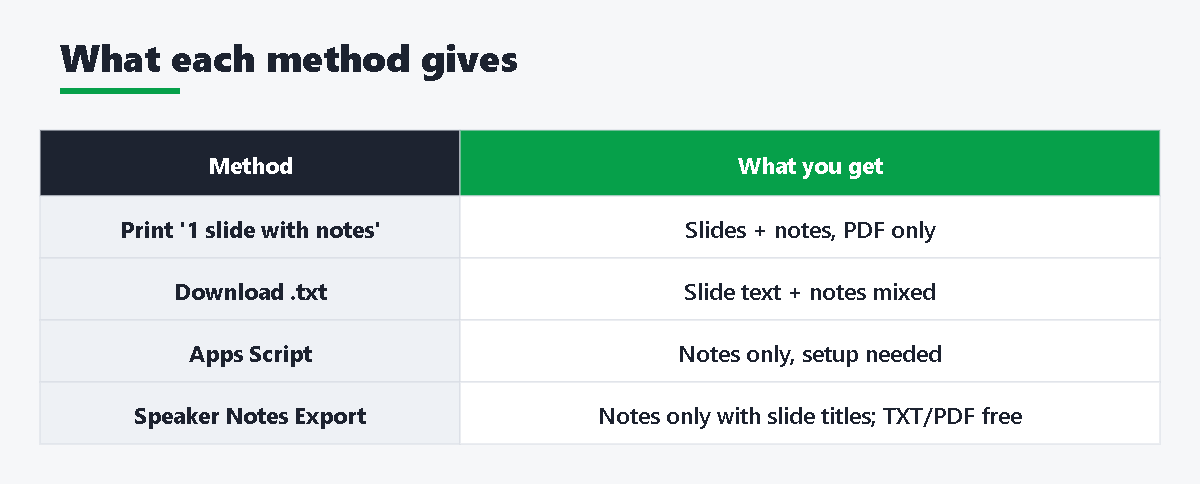
What each method gives you
| Method | Notes only? | Slide numbers | Editable | Effort |
|---|---|---|---|---|
| Print / PDF with “1 slide with notes” | No (slide image on every page) | Slide shown | No (PDF) | Low |
| Download as plain text (.txt) | No (mixed with slide text) | Not clearly | Yes | Low, plus cleanup |
| Copy by hand | Yes | Only if you type them | Yes | High for long decks |
| PowerPoint “Create Handouts” | No (slide images in Word) | Yes | Yes (Word) | Medium, needs PowerPoint |
| Apps Script | Yes | Yes | Yes (Google Doc) | Medium, one-time setup |
| Speaker Notes Export add-on | Yes | Yes, with slide titles | Yes (TXT free; Word, Markdown, CSV paid) | Low |
Faster way: Speaker Notes Export for Google Slides
We (Daily Picks) made an add-on for exactly this problem: Speaker Notes Export for Google Slides. It exports only the speaker notes, with the slide number and slide title, and no slide images, so the file stays small and easy to edit. You can install it from the Google Workspace Marketplace.
- Install the add-on from the Marketplace and open your presentation.
- Click Extensions > Speaker Notes Export for Google Slides > Export speaker notes.
- Press Load notes (decks of up to 40 slides load automatically).
- Choose a format and press Export. The file goes straight to your computer’s Downloads folder, not to Google Drive.
Free version: TXT and PDF export of all slides, printing, total speaking time from your notes, a list of slides with no notes or very long notes, and “clear all notes before sharing” (with a TXT backup first). There is no limit on the number of slides and no watermark.
Paid version ($12, one-time, no subscription): Word (.docx), Markdown and CSV export; a large-type script layout (14–28 pt, one slide per page) for printing; a handout layout with slide text and notes; exporting selected slides only or skipping hidden slides; time per slide and a target time; a practice mode; and tools to edit, import, and find and replace notes.
The add-on only asks for permission to see the presentation you have open. It does not ask for access to your Google Drive. Your notes change only if you use an editing tool, see a before/after preview, and press Apply.
Troubleshooting and FAQ
Why does my PDF include the slides when I only want the notes?
The “1 slide with notes” layout always prints the slide and the notes together. Google Slides has no built-in notes-only layout. Use the plain text download, the Apps Script, or an add-on for notes only.
The “1 slide with notes” option is missing.
Look in File > Print settings and preview, not in the browser’s print window. The layout menu is in the toolbar at the top of the preview. This works on a computer; the Slides mobile app has different options.
My notes are cut off in the printed PDF.
The notes area on each page is limited. Shorten the notes, split them across slides, or export the notes as text and print them from a Doc, where long notes flow onto the next page.
Can I export notes from a deck I can only view?
If the owner has turned off downloading, printing and copying for viewers, you cannot download or print. Ask the owner for edit access or a copy. Add-ons and Apps Script also need you to be able to open the file in the editor.
The Apps Script says “Authorization required” or will not run.
This is normal on the first run. Click Review permissions and choose your account. In a work or school account, your admin may block unverified scripts; in that case, ask your IT team.
Can I get the notes into Google Docs without code?
Yes. Download as plain text and paste the contents into a new Doc, or export a TXT or Word file with an add-on and open it in Google Docs with File > Open > Upload.







コメント