You have a Google Form with responses, and you need them on paper: one student’s quiz, one customer’s order, or every response for a folder. Google Forms can print responses, but you get little control over the layout.
- The short answer
- Method 1: Print one response (a filled form)
- Method 2: Print all responses at once
- Method 3: Print responses as a table from Google Sheets
- Bonus: Print the blank form
- What the built-in printing cannot do
- Workarounds
- Faster way: print chosen responses with Form Print
- Troubleshooting and FAQ
- Sources
The short answer
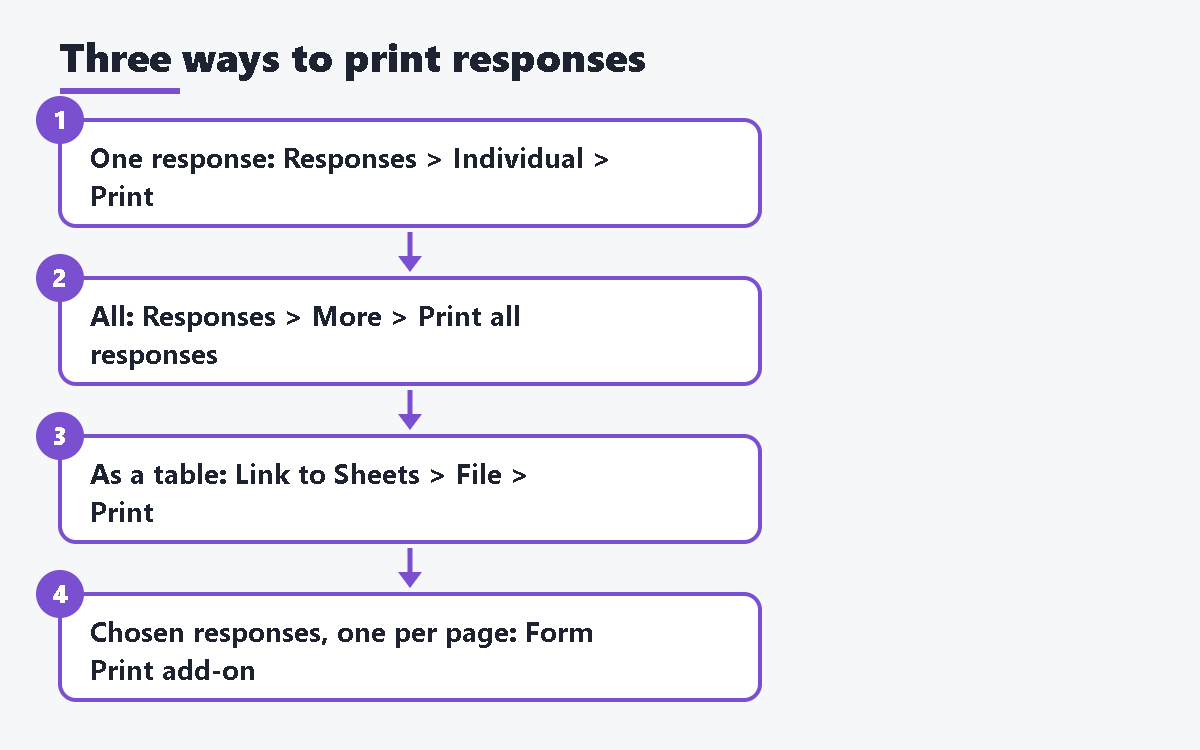
- One filled form: open the form, click Responses > Individual, go to the response, and click the Print icon.
- All filled forms: click Responses > More (three dots) > Print all responses.
- A table of answers: click Link to Sheets on the Responses tab, then print the spreadsheet with File > Print.
- Chosen responses, one per page, with questions kept whole: our add-on Form Print does this from a sidebar.
Method 1: Print one response (a filled form)
This prints the form with one person’s answers marked, which is what most people mean by “print a Google Form with answers.”
- Open the form in Google Forms (the editor, not the link you send to people).
- Click the Responses tab at the top.
- Click Individual. Google describes this tab as the place to find answers by person or by submission.
- Use Previous and Next (the arrows) to go to the response you want, or type its number.
- Click the Print icon (printer) for that response.
- In the browser’s print window, pick your printer, or choose Save as PDF.
Repeat for each response you need. There is no way to select a few responses and print them together here.
Method 2: Print all responses at once
- Open the form and click the Responses tab.
- Click More (the three-dot icon) on the Responses tab.
- Choose Print all responses.
- Check the preview, then print or save as PDF.
This prints every response in the form. If you only want some of them (for example, one class or one week), see the workarounds below.
Method 3: Print responses as a table from Google Sheets
A spreadsheet is the most compact way to print many responses: one row per response, one column per question.
- On the Responses tab, click Link to Sheets at the top right. Create a new spreadsheet or choose an existing one.
- In the spreadsheet, select the rows you want, or sort and filter first. To print only part of the sheet, select those cells.
- Click File > Print.
- Under the print range, choose Selected cells, Current sheet or Workbook.
- Set Paper size, Orientation (Landscape helps with many questions) and Margins. Use Headers and footers > Repeat frozen rows to print the question row on every page (freeze row 1 first).
- Click Next, then print.
You can also download responses as a file: Responses > More > Download responses (.csv). Google notes that downloaded responses are not sorted by timestamp, so sort them in Sheets after you import them.
Bonus: Print the blank form
To print an empty form for people to fill in by hand, open the form editor, click More (three dots) at the top right, and choose Print. Google formats each question so it can be filled in on paper.
What the built-in printing cannot do
- No layout control. You cannot choose answer-line length, columns, or how much space each question takes. Long forms can run to many pages.
- No control over page breaks. You cannot tell Google Forms to keep a question together or start each response on a new page.
- All or one. “Print all responses” prints everything. The Individual tab prints one at a time. There is no “print these 6”.
- Sheets loses the form look. In a spreadsheet, long paragraph answers become tall cells, and grid questions become several columns. It does not look like a filled form.
- Videos cannot be printed. Paper cannot show a video, so expect only the question title.
Workarounds
- Print only some responses as forms: use the Individual tab and print each one. For many responses, save each as a PDF and combine them in a PDF tool.
- Print only some responses as a table: in the linked sheet, use Data > Create a filter to show only the rows you want, select them, and print Selected cells.
- Columns too narrow in Sheets: choose Landscape, a larger paper size, or narrower margins. Turn on text wrapping for long answers (Format > Wrapping > Wrap).
- Too many pages: save as PDF first and check the page count before you print.
Faster way: print chosen responses with Form Print
Form Print for Google Forms is an add-on made by us (Daily Picks). It turns a Google Form into a printable test or worksheet, and it also prints responses: you pick the responses, and each one prints on its own page with the chosen answers marked, the submission time and, if collected, the email address. Questions are never cut in half across pages.
It only reads the form you have open (and its responses when you print responses). It does not change the form or its responses, creates nothing in your Drive, and sends the form’s content nowhere.
- Install Form Print from the Google Workspace Marketplace.
- Open the form in Google Forms (the editor).
- Click the Add-ons icon (puzzle piece) at the top of the form, then Form Print for Google Forms > Open Form Print.
- Choose to print responses, pick the ones you want, and set the paper.
- Press Print / Save as PDF. The printable page opens in a new tab with the print window. Choose your printer, or Save as PDF.
It reads every kind of question, including multiple choice, checkboxes, dropdown, short answer, paragraph, the grid questions, date, time, linear scale, rating, section titles and images.
The free version prints up to 5 responses per print (and up to 20 questions per blank form), with no watermark. The paid version (a one-time purchase through Gumroad, no subscription) removes those limits and adds correct answers and scores on printed quiz responses, an answer key, two columns, and A/B versions of a test. See the product page for the current price. For the first 7 days after you first open the add-on, the paid features work without a key; after that, the free features keep working.
Built-in printing vs Form Print
| Google Forms | Google Sheets | Form Print | |
|---|---|---|---|
| Looks like the filled form | Yes | No (table) | Yes |
| Choose which responses | One, or all | Yes (filter rows) | Yes |
| Each response on its own page | No setting | No | Yes |
| Questions kept whole across pages | No setting | No | Yes |
| Answer lines, columns, spacing | No setting | Column widths only | Answer lines; two columns in the paid version |
| Cost | Free | Free | Free up to 5 responses per print |
Troubleshooting and FAQ
I don’t see the Print icon on a response.
Make sure you are in the form editor, on Responses > Individual, not on the Summary tab. If the window is narrow, some icons are hidden; make the window wider. You can also press Ctrl+P (Cmd+P on a Mac) as a last resort, but the page may include extra screen parts.
Can I print responses from the form link I sent?
No. The link you send shows only the blank form. Responses are printed from the form editor, on the Responses tab, by the owner or an editor.
How do I print a Google Form response as a PDF?
Use any method above, and in the print window change the destination to Save as PDF.
“Print all responses” is too long. Can I split it?
Save it as a PDF and print a page range, or use the linked sheet and filter the rows you need.
The Form Print sidebar does not load.
If you are signed in to more than one Google account, open the form in a window signed in to only one account. This is a limitation of Apps Script add-ons.
The Form Print tab or print window does not open.
Allow pop-ups for docs.google.com. If the tab opened but the print window did not, press Ctrl+P (Cmd+P on a Mac) in that tab.
Sources
- View & manage form responses – Google Docs Editors Help
- Google Forms cheat sheet – Google Workspace Learning Center
- Print Google Forms in a fillable format – Google Workspace Updates
- Print from Google Sheets – Google Docs Editors Help
- Form Print for Google Forms – Daily Picks
- Form Print for Google Forms – Google Workspace Marketplace




コメント