You want your Google Calendar on paper: one week for the fridge or one month for a meeting. Google Calendar on the web has a built-in print page, but it hides some settings, and some things it cannot do at all.
- The short answer
- How to print Google Calendar (week or month view)
- How to print a calendar with event descriptions
- How to print two weeks or another custom range
- What Google Calendar’s print cannot do
- Workarounds that use only free tools
- Faster way: print full titles and descriptions with Daywrap
- Troubleshooting and FAQ
- Sources
The short answer
- On a computer, open Google Calendar, pick Week or Month at the top right, then click Settings (gear icon) > Print.
- In Print preview, set Font size, Orientation and Color & style, then click Print. To get a PDF, change the destination to Save as PDF.
- Need event descriptions on paper? Switch to Schedule view first and turn on Print descriptions. The week and month grids do not print descriptions.
- If you need full event titles, descriptions and locations inside a month or week grid, our add-on Daywrap prints them on one page.
How to print Google Calendar (week or month view)
These steps are for Google Calendar in a web browser on a computer. Google’s help page gives no printing steps for the phone app.
- Open Google Calendar on your computer.
- In the left panel, under My calendars and Other calendars, check only the calendars you want on paper. A calendar without a check mark is hidden and is not printed.
- At the top right, choose a view: Day, Week, Month, Schedule or 4 days (the 4 days button is the custom view, and its name changes if you change the custom view).
- Go to the week or month you want to print with the arrows at the top.
- Click the Settings menu (gear icon) at the top right, then click Print.
- On the Print preview page, adjust the options (see the table below).
- Click Print. In the browser’s print window, pick your printer, or choose Save as PDF to save a file.
Print preview options
| Option | What it does |
|---|---|
| Font size | Makes the text larger or smaller. Google notes that it does not change how many days fit on a page. It only changes how easy the text is to read. |
| Orientation | Landscape or Portrait. Landscape usually suits week and month grids. |
| Color & style | Choose how events look, for example Full color. Pick a black-and-white style if you print on a mono printer or want to save ink. |
| Show weekends | Uncheck it to print Monday to Friday only. |
| Print descriptions / Print your response | Available in Schedule view. They add event details and your RSVP to the printout. |
| Print range | Many accounts show start and end dates at the top of the preview. Change them to print more than one week or month in one go. |
With Full color, your RSVP is shown by the event box: a full color box means Yes, a full color box with a question mark means Maybe, a transparent box means you did not respond, and a transparent box with a crossed-out circle means No.
Paper size and margins are not in Google’s print preview. You set them in your browser’s print window after you click Print (for example, Letter or A4).
How to print a calendar with event descriptions
The week and month grids show titles and times. To get the text you typed in each event’s description, use Schedule view:
- At the top right, switch the view to Schedule.
- Click Settings > Print.
- Check Print descriptions. Check Print your response too if you want your RSVP.
- Click Print.
The result is a list, not a calendar grid. That is fine for an agenda, but not for a wall calendar.
How to print two weeks or another custom range
- Click Settings (gear icon) > Settings.
- Under General, open View options and change Set custom view to the length you want (for example, 2 weeks).
- Go back to the calendar, choose the custom view at the top right, and print as above.
If your print preview shows a print range, you can also type the start and end dates there.
What Google Calendar’s print cannot do
- No descriptions in the grid. Descriptions print only from Schedule view, which is a list.
- Locations only when there is space. Google says event locations or rooms appear when there is space. On a busy day they are left out.
- Long titles get shortened. In a full month grid each event gets a small box, so long titles can be cut off.
- Font size does not add room. A smaller font does not fit more days on a page.
- No Year view in the print steps. Google’s print steps list Day, Week, Month, Schedule and the custom view only.
- No printing from the phone app. Google gives steps for computers only.
- Calendars are chosen by hiding. To print one calendar, you must uncheck all the others in the left panel, then check them again afterwards.
Workarounds that use only free tools
- Titles cut off in Month view: print the Week view instead (more room per day), choose Landscape, or uncheck Show weekends to give weekdays wider columns.
- Need details and a grid: print the month grid for the overview, then print Schedule view with Print descriptions for the details. Staple them together.
- Too many events on one day: hide calendars you do not need (for example, holidays or a shared team calendar) before printing.
- On a phone: open calendar.google.com in a desktop browser on a computer. If you only have a phone, save the printout as a PDF from a computer later, or share the calendar with someone who can print it.
- Need a PDF to email: choose Save as PDF as the destination in the print window. The file goes to your downloads folder.
Faster way: print full titles and descriptions with Daywrap
Daywrap for Google Calendar is an add-on made by us (Daily Picks). It prints Google Calendar months, weeks and day-by-day lists on one readable page, with every event title in full and descriptions included. It only reads your calendar. It cannot create, change or delete events, and your events are shown only in your own browser.
- Install Daywrap from the Google Workspace Marketplace.
- Open Google Calendar on a computer.
- Click the Daywrap icon in the panel on the right, then Open print page. The first time, allow read-only access.
- Choose Month, Week or List, the calendar, the paper and the orientation.
- Click Print / Save as PDF.
What it does differently:
- Month and week on one page. Busy days get more room and quiet days less, and the text is sized to the paper.
- Long event titles wrap instead of being cut off.
- Descriptions and locations are printed under each event. Links and formatting become plain, readable text.
- All-day and multi-day events appear on every day they cover.
- List view prints every event of the month in date order. No event is split across a page break.
- Letter, A4, Legal or A3, landscape or portrait. You can hide events you declined.
The free version includes the month, week and list views, full titles, descriptions and locations, all paper sizes, and hiding declined events, with no watermark. It prints one calendar at a time. The paid version (a one-time purchase, no subscription) prints several calendars together. See the product page for the current price.
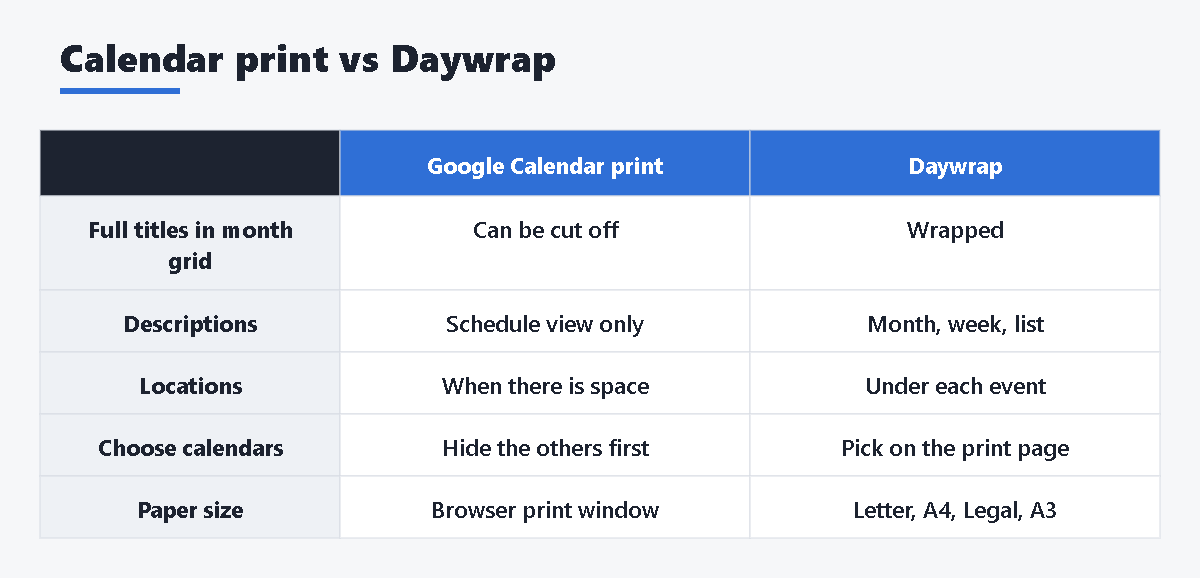
Google Calendar print vs Daywrap
| Google Calendar print | Daywrap | |
|---|---|---|
| Week and month grid | Yes | Yes |
| Full event titles in the grid | Can be cut off | Wrapped, not cut |
| Descriptions | Schedule view (list) only | Month, week and list |
| Locations | When there is space | Under each event |
| Choose calendars | Hide others in the left panel | Pick on the print page (several in the paid version) |
| Paper size | In the browser print window | Letter, A4, Legal, A3 |
| Cost | Free | Free version; paid one-time for several calendars |
Troubleshooting and FAQ
Why is the Print option missing?
Print is in the Settings menu (gear icon) at the top right, not in the browser menu. It is not in the Google Calendar phone app. Use a computer.
How do I print Google Calendar in black and white?
In Print preview, open Color & style and choose a black-and-white style. You can also choose “Black and white” in your browser’s or printer’s own settings.
How do I print only one calendar?
In the left panel, uncheck every calendar except the one you want, then print. Check the others again afterwards.
The text is tiny. How do I make it bigger?
Raise Font size in Print preview, and choose Landscape. If the month is very busy, print the Week view, because a larger font does not add more room per day.
How do I print a week without weekends?
In Print preview, uncheck Show weekends.
Can I print my calendar as a PDF?
Yes. After you click Print, change the destination to Save as PDF and click Save. The file is saved to your downloads folder.
The Daywrap print page does not load.
If you are signed in to more than one Google account, open Google Calendar in a window signed in to only one account. This is a limitation of Apps Script add-ons.




コメント