You wrote a program, a zine, a recipe book or a church bulletin in Google Docs, and you want it as a folded booklet: sheets printed on both sides, folded in half and stapled in the middle. Google Docs has no “booklet” button, but you can still get there.
The short answer
- Google Docs cannot put pages in booklet order by itself. Write the document page by page as normal, then download it as a PDF (File > Download > PDF Document).
- Print that PDF with a booklet setting: in Adobe Acrobat Reader, choose Page Sizing & Handling > Booklet. Many printer drivers also have a booklet option.
- For a quick one-sheet folded card, a landscape page with Format > Columns > 2 columns works, but it does not reorder pages.
- Our add-on Pagefold turns the open Google Doc into a booklet PDF in the right order, straight from Docs.
If you already printed a booklet and the pages came out in the wrong order, see Booklet pages printing out of order? How to fix it. This page is about making the booklet in the first place.
How a booklet works (in 30 seconds)
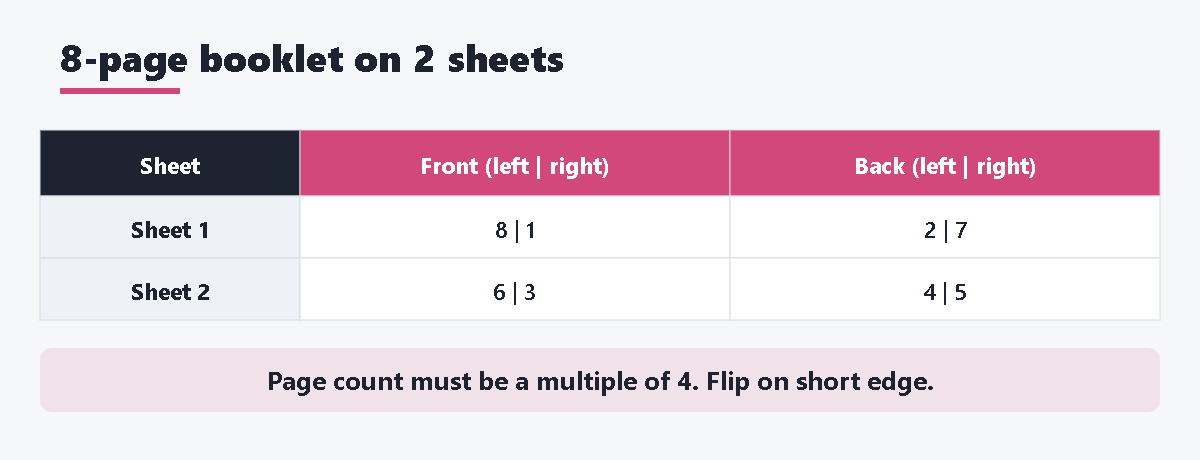
A folded booklet puts two pages side by side on each side of a landscape sheet. The pages are not in 1, 2, 3 order on the sheet. For an 8-page booklet on 2 sheets, the order is:
| Sheet | Front (left | right) | Back (left | right) |
|---|---|---|
| Sheet 1 (outside) | 8 | 1 | 2 | 7 |
| Sheet 2 (inside) | 6 | 3 | 4 | 5 |
Two rules follow from this:
- The page count must be a multiple of 4 (4, 8, 12, 16…). Add blank pages at the end if needed.
- Each booklet page is half the sheet. On Letter paper you get a half-letter booklet; on A4 you get an A5 booklet.
Method 1: Google Docs + PDF booklet printing (free)
This is the most reliable free way. Docs makes the pages; a PDF reader or your printer does the reordering.
Step 1: Set up the page in Google Docs
- Open your document. Make sure it is in pages format, not pageless: click File > Page setup and select Pages at the top.
- In the same window, set Orientation to Portrait.
- For Paper size, choose a size with the same shape as half your sheet if your list has one (for example A5 for an A4 sheet). If you keep Letter or A4, the booklet print step will shrink each page to fit, which is fine for most text.
- Set Margins. Keep the inside margin generous so text does not disappear into the fold.
- Click OK.
Step 2: Write and check the page count
- Use Insert > Break > Page break to start each new page (cover, contents, chapters).
- Add page numbers with Insert > Page numbers if you want them.
- Count the pages. If the total is not a multiple of 4, add blank pages at the end (or before the back cover).
Step 3: Download as PDF
Click File > Download > PDF Document (.pdf).
Step 4: Print as a booklet
In Adobe Acrobat Reader (free) or Acrobat, Adobe’s help gives these steps:
- Open the PDF and choose Print.
- Under Pages to Print, choose All.
- Under Page Sizing & Handling, select Booklet.
- In Booklet subset, choose Both sides if your printer prints double-sided automatically. If not, choose Front side only, print, put the paper back in, then print Back side only.
- Leave Sheets from as it is. Acrobat works out the sheets.
- In Binding, choose Left for English and most left-to-right languages.
- Click Print. Stack the sheets in order, fold them in half and staple along the fold.
No Acrobat? Look in your printer’s own settings. Many printer drivers have a “Booklet” or “Booklet printing” layout. In Chrome, use Print using system dialog at the bottom of the print preview (on Windows) to reach the printer driver’s settings. The name and location differ by printer, so check your printer’s manual.
Method 2: Two columns on a landscape page (simple folded card)
This works for a single sheet folded once, like a menu or an event program with 4 short panels.
- Click File > Page setup, choose Landscape, and click OK.
- Select the text and choose Format > Columns > 2 columns.
- Use Insert > Break > Column break to start the next panel at the top of the next column.
- Arrange the panels in booklet order yourself. For one sheet: page 1 of the doc holds the back cover (left) and front cover (right); page 2 holds the two inside panels.
- Print double-sided, flipping on the short edge, then fold.
Limits of this method:
- Docs does not reorder anything. For 8 or more booklet pages you must place every panel by hand in the order shown in the table above.
- Any edit that makes text flow to the next column moves every panel after it, and the order breaks.
- Columns are not available in pageless format.
What Google Docs cannot do on its own
- No booklet or “book fold” setting in Page setup. The settings are orientation, paper size, margins and page color.
- No automatic page reordering (imposition) for saddle stitching.
- No automatic blank pages to reach a multiple of 4.
- Docs’ print uses your browser’s print window, and Chrome’s own print preview does not offer a booklet layout. Booklet printing depends on Acrobat or your printer driver.
Faster way: make a booklet PDF with Pagefold
Pagefold for Docs is an add-on made by us (Daily Picks). It turns the Google Doc you have open into a booklet PDF: the pages are put in saddle-stitch order, two per sheet, so you print double-sided, fold the stack in half and staple, and it reads 1, 2, 3 like a little book. You do not need Acrobat or a printer with a booklet setting.
It reads only the document you have open. It does not change the document, creates nothing in Google Drive, and sends its content nowhere. The PDF is built in your browser and downloaded to your computer.
- Install Pagefold from the Google Workspace Marketplace.
- Open your document in Google Docs.
- Choose Extensions > Pagefold for Docs > Make a booklet PDF.
- Choose the options (paper, gutter, page numbers, short-edge or long-edge duplex) and press Make booklet PDF.
- Print the downloaded PDF double-sided (“flip on short edge”) at actual size. Stack the sheets, fold them in half and staple the fold.
Pagefold adds blank pages at the end so the count is a multiple of 4. Paper is A4 (A5 booklet) or Letter (half-letter booklet). The free version handles the first 16 pages on A4, with gutter, page numbers and the duplex setting, and no watermark. The paid version (a one-time purchase through Gumroad, no subscription) removes the page limit, adds Letter paper, and can split a long document into several booklets of 8 to 64 pages each. See the product page for the current price. For the first 7 days after you first open the add-on, the paid features work without a key; after that, the free features keep working.
Native methods vs Pagefold
| Two columns in Docs | Docs PDF + Acrobat or printer | Pagefold | |
|---|---|---|---|
| Pages put in booklet order | By hand | Yes | Yes |
| Blank pages added to reach a multiple of 4 | By hand | Depends on the tool | Yes |
| Extra software needed | No | Acrobat Reader or a booklet-capable driver | No (add-on in Docs) |
| Edits keep the order | Often break it | Yes (download again) | Yes (make the PDF again) |
| Long documents split into several booklets | No | No | Paid version |
| Cost | Free | Free | Free up to 16 pages on A4 |
Troubleshooting and FAQ
The pages are in the wrong order after folding.
This is almost always the duplex flip setting. Print double-sided with “flip on short edge.” We cover every cause and fix in Booklet pages printing out of order.
The booklet is too small or too large.
Print at actual size (100%), not “fit to page,” when the PDF is already laid out as a booklet (for example, from Pagefold). When Acrobat makes the booklet, let it scale each page to half the sheet.
Is there a Google Docs booklet template?
Templates give you a design, but the pages still need to be printed in booklet order. Use any template, then follow Method 1 or use Pagefold.
Can I make a booklet in Google Docs on a phone?
Google’s page setup steps for phones exist, but booklet printing needs Acrobat, a printer driver or the add-on, which work from a computer. Do the final step on a computer.
The Pagefold sidebar does not load.
If you are signed in to more than one Google account, open the document in a window signed in to only one account. This is a limitation of Apps Script add-ons.
My document is too large for Pagefold.
The PDF of the document can be up to 35 MB. Use smaller images or split the document.





コメント